




noogi
Finding my way
-
Joined
-
Last visited
-
Files in both file packages (1800 and 1805) are dated similar.
-
Some people installed that with success, I have doubts about this software - in my opinion it is for different platform - Skoda Octavia...
-
And it's working?!
-
I suppose, this is not proper firmware - MEN3_EU_SK38X.... instead of MEN3_EU_SK370.....
-
Similar thread:
-
300 Hz to 3400 Hz is the typical vocal frequency range. A healthy person can hear frequencies up to 16 kHz, so 4 kHz is the midrange to which our ears are most sensitive – and this should definitely not be the tweeter's, which is more efficient at these frequencies, so it plays louder, preventing us from hearing the bass properly and producing distorted sound.
-
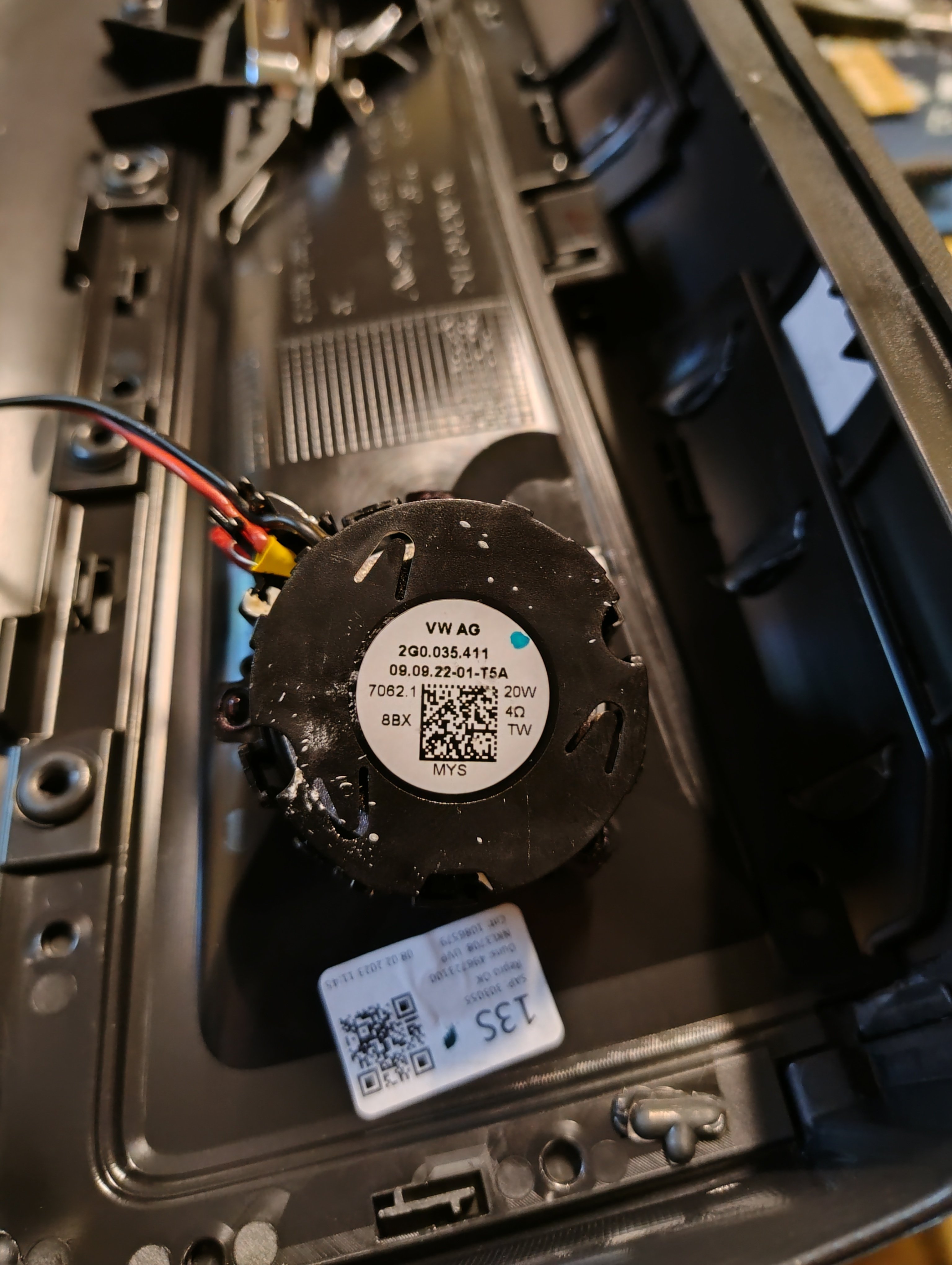
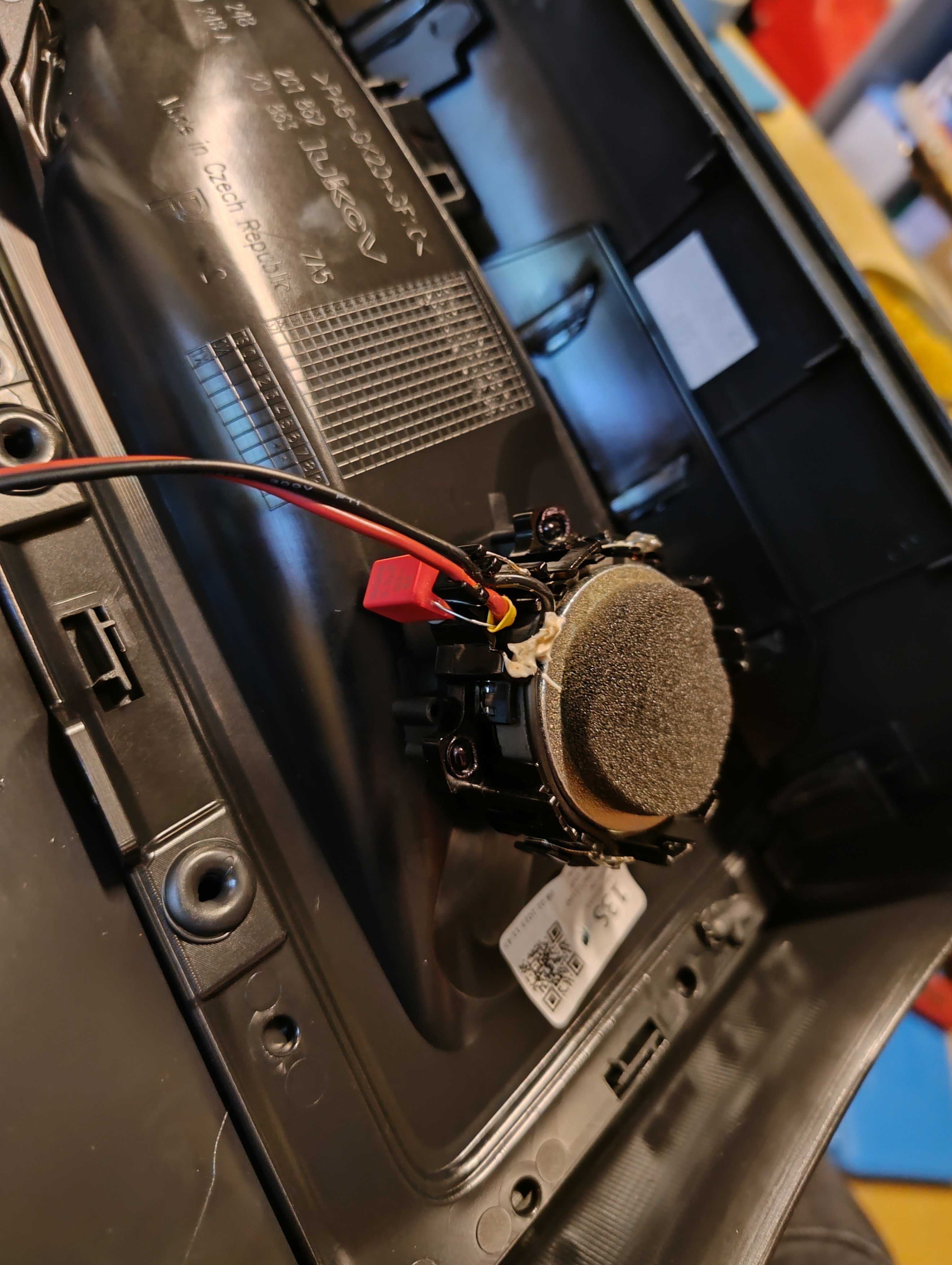
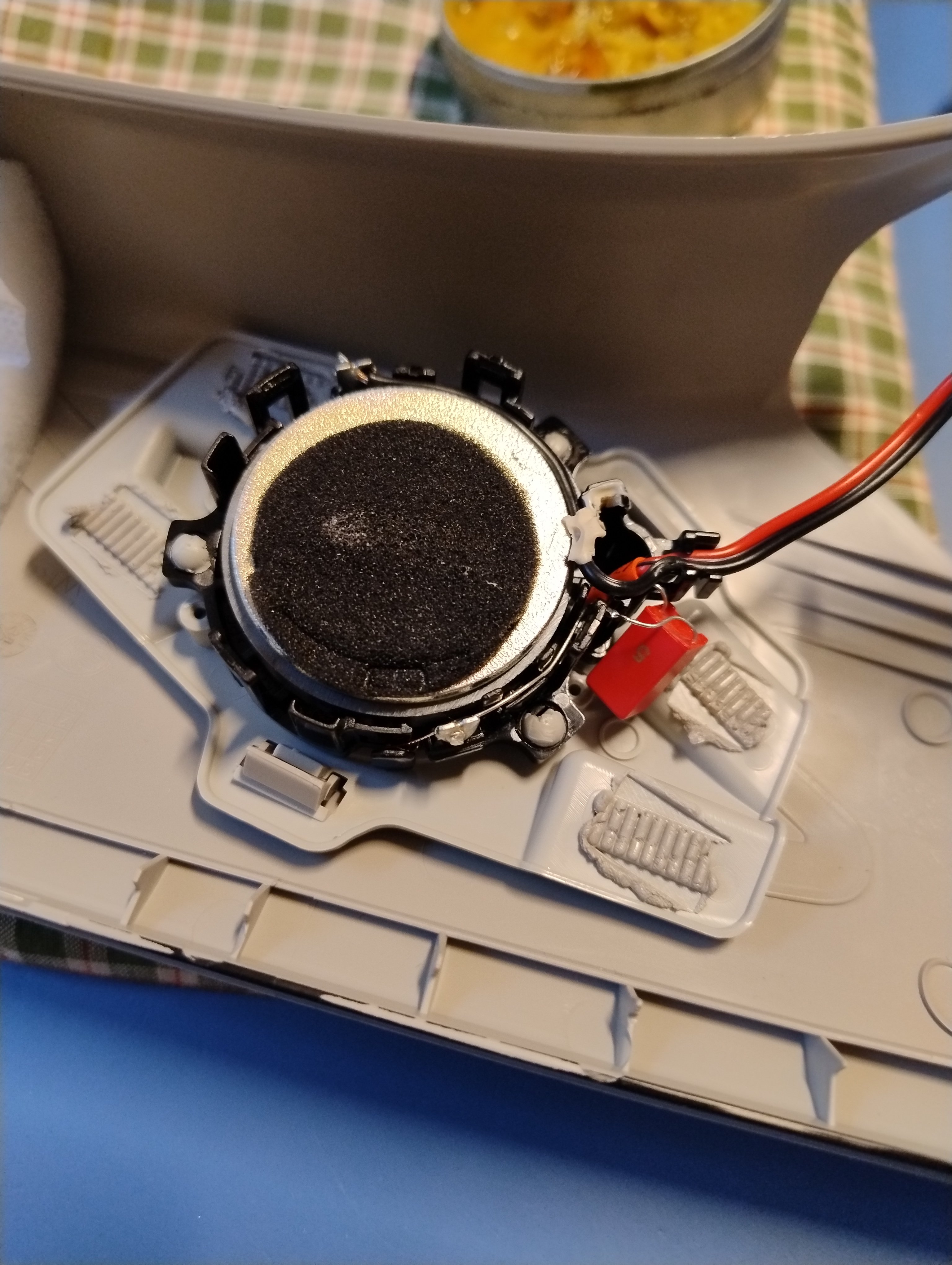
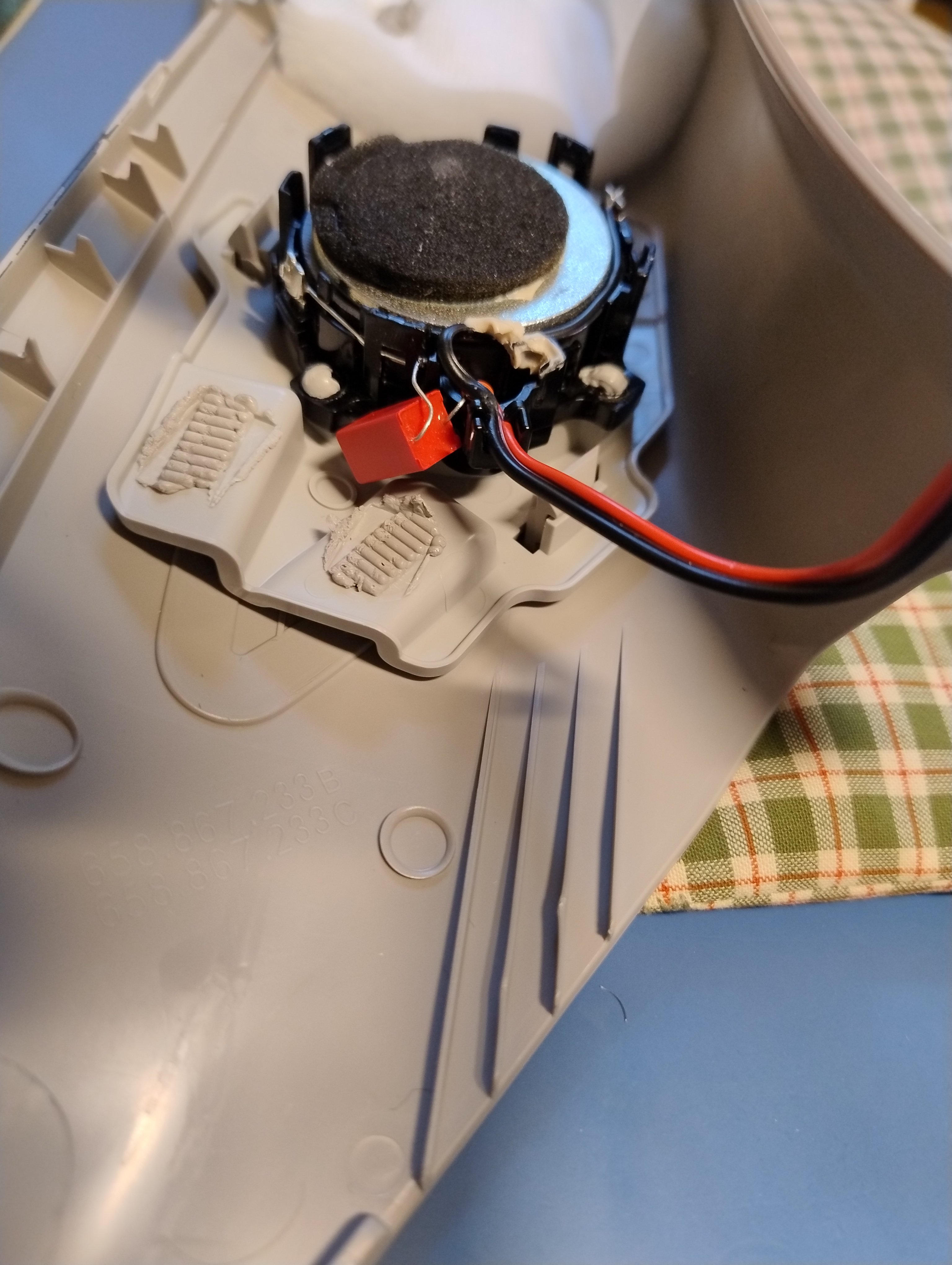
Hi, In Skoda cars, the standard speaker systems generally have an incorrectly selected high-pass filter (capacitor) in the tweeters. Instead of 3.3uF, they use 6.8, or worse, 10uF. According to the impedance formula (see https://calculator.academy/tweeter-capacitor-calculator/), this causes frequencies as low as 6 or 4 kHz to be transmitted to the tweeter. This frequency in the tweeter causes it to dominate the sound, and adjusting the frequency equalizer in the head unit doesn't help (or doesn't help much). Replacing all the speakers in the car with a different set also means that the set has better-selected bandpass filters and therefore sounds better. The factory speakers aren't bad, they just have incorrectly configured filters. Interestingly, in the VW cars I verified, such large capacitors were never installed in the tweeters (causing the passage of too low frequencies that should be generated in the woofer).@radoszczak please let us know if you find out anything from the dealerError B201A will occur after each software update, to remove it, calculate the appropriate checksums using, for example, this tool: https://mib-helper.com/im-so-xory/Hi, Try to upgrade to lower version first - 1233 or 1310 and then to higher version.
Important Information
Welcome to BRISKODA. Please note the following important links Terms of Use. We have a comprehensive Privacy Policy. We have placed cookies on your device to help make this website better. You can adjust your cookie settings, otherwise we'll assume you're okay to continue.