BOD20
Members
-
Joined
-
Last visited
Everything posted by BOD20
-
Is your Superb a diesel ? If so then this could be the diesel particulate filter (DPF) trying to do a regeneration clean. The regeneration creates a lot of heat so if you turn off the engine before the regeneration has finished then the cooling fans will come on for a few minutes to remove this heat from the engine bay. If your car journeys are short then this may not give enough time for the regeneration to complete. If the DPF is working correctly then driving the car for longer - 10-15 minutes or so - and keeping the car in a lower gear so that the engine revs are a little higher (not less than 2000) may be enough to finish the regeneration and resolve the problem. If this doesn't fix the problem then there may be an issue with the DPF system. On higher mileage vehicles the DPF can become full requiring further action. Another sign that a DPF regeneration is necessary is the gear change indicator on a manual gearbox in the instrument panel - centre top. This will usually advice early gear changes up to 6th gear. When a DPF regeneration is required the indicator will suggest slower upwards gear changes and may also advise staying in a lower gear at times.
-
A quick Google search reveals that this is actually genuine ! I don't know about you not knowing if your airbag has been stolen but I don't suppose the thieves care much about that.
-
The volume control seems to work on whichever sound is active at the time. So, if your radio is the only sound source then the volume affects the radio. If the call ringer is active then the volume affects the call ringer. If your reversing warning is on then the volume affects that and so on. It's kind of intuitive when you realise but not when you are looking for a specific setting to do this !
-
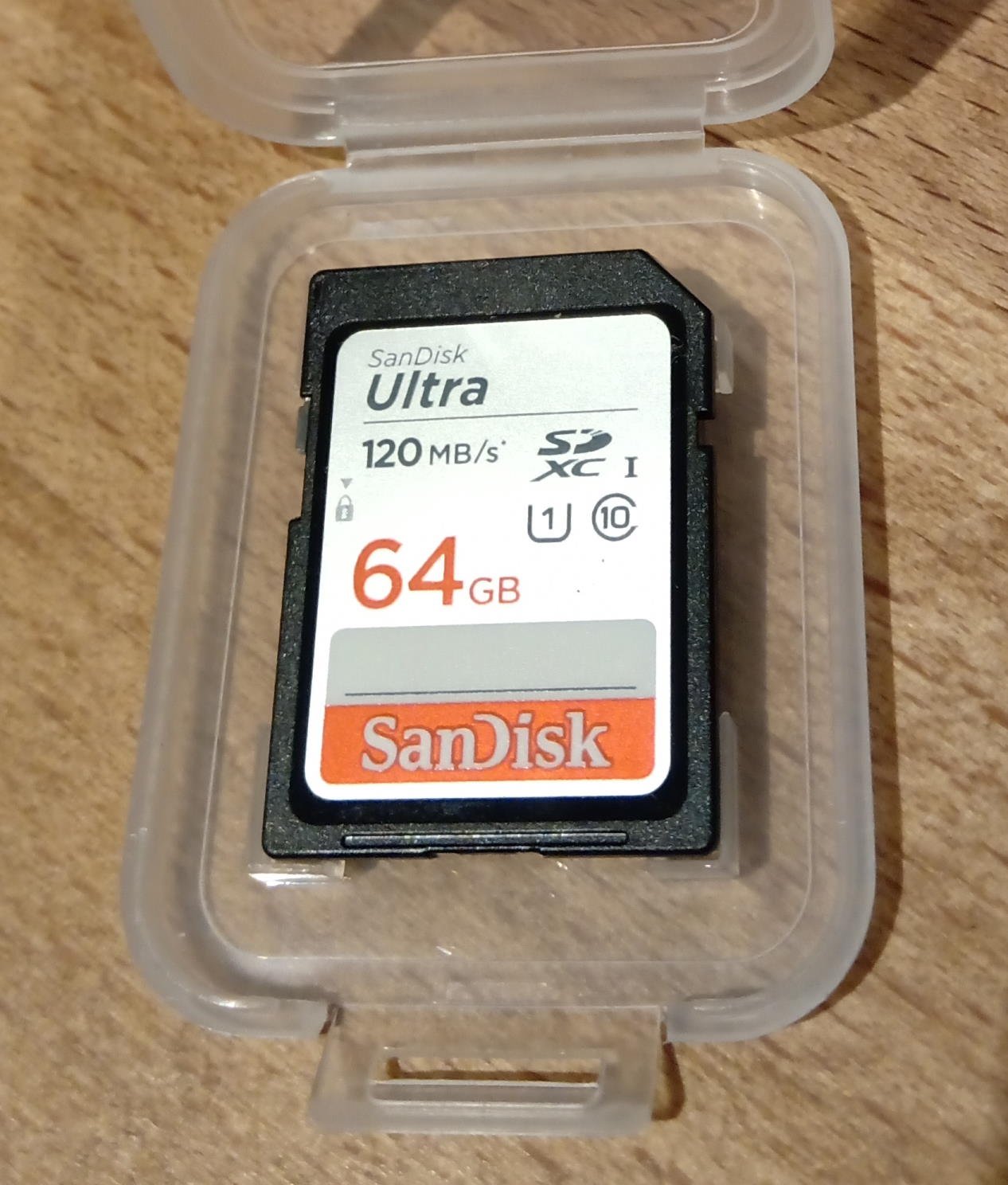
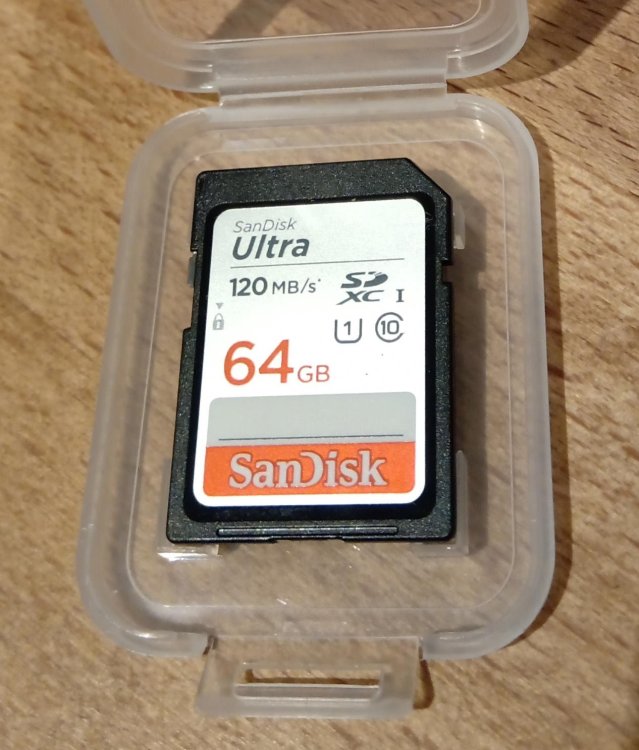
I have a 2019 Superb and have recently started using the SD card slot for music. I use a 64GByte one - see below. It's formatted to exFAT (which is the way it was supplied - I haven't changed or reformatted it at all). It cost about £8.99 - available just about anywhere that sells these things. I use a Windows PC to create folders on the SD card and copy MP3 files into the folders. It goes in the #2 slot (nearest the centre of the car) and works perfectly.
-
For future reference, I've attached a photo of the SD Card that worked for me. I got a 64GByte one - just in case the SatNav database increases in size again in future. It's formatted to exFAT (which is the way it was supplied - I haven't changed or reformatted it at all). It cost about £8.99 - available just about anywhere that sells these things. It took the best part of an hour to upload the database in the car, but there was a steady progress display on the Columbus screen to indicate how far it had gone.
-
Thanks for the replies everyone. What I am taking from this is that not all 32Gbyte devices actually format to the same real capacity and that there is no way of knowing what capacity you will get until you try ! I don't have a 64 GByte USB stick but I did try a 110 GByte SSD in a USB enclosure. That didn't work for me no matter what I tried with different formatting options and partition sizes. I've ordered a 64 GByte SD card since that's what Skoda recommends so I will give that a try and report back here. I don't know why the Satnav database has to be so large. It would make more sense to split the data into two or three smaller regions (e.g. Central Europe, Russia and the Baltics, Scandinavia) as I'm sure very few people move regularly between those areas.
-
I know how to update my Columbus satnav - I've done it twice before without any issues. However, with the latest ECE2022 update I've come across a problem so I'm looking for advice from anyone who has done this latest update. The download unzips to occupy 29.1 GBytes. In the past I've used a "32 Gbyte" USB stick to transfer this to the car. However, on examination it turns out that the "32 GByte" USB stick I have used actually only formats to 28.6 GBytes. Thinking that this was just an anomaly on that particular USB stick, I bought another one which again only formats to 28.6 GBytes. So I can't transfer the 29.1 Gb file to a 28.6 Gb USB stick ! I'm happy to purchase something else but I just wanted to check what others have used successfully - a 64 GB SD card ? A 64 Gb USB stick ? Something else ? So, f you have successfully updated your Columbus to ECE2022 - what worked for you ? Thanks
-
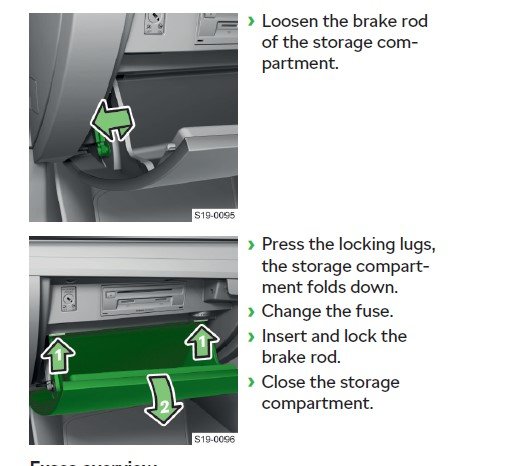
On RHD cars it's behind the glovebox. You have to loosen the glovebox lid to gain access (see photo)
-
The only other option would be a portable CD player with Bluetooth out. You could connect that to the Columbus audio system using the Bluetooth feature. Not so handy to actually operate the CD player, though.
-
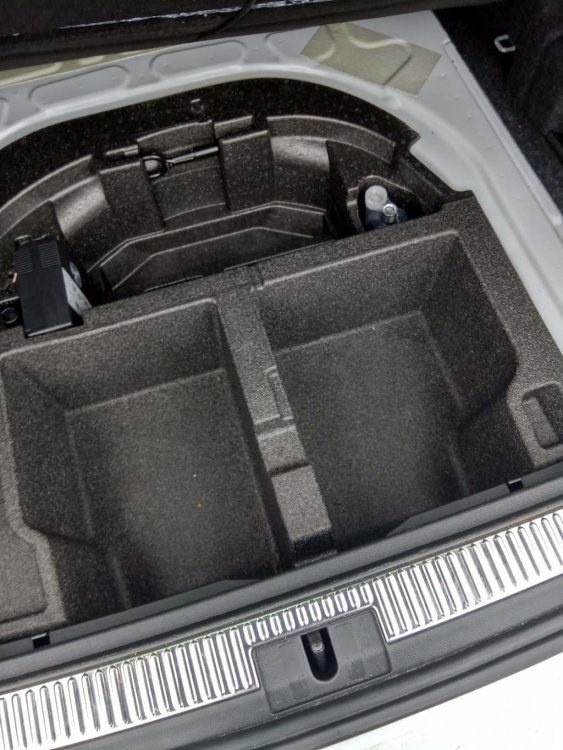
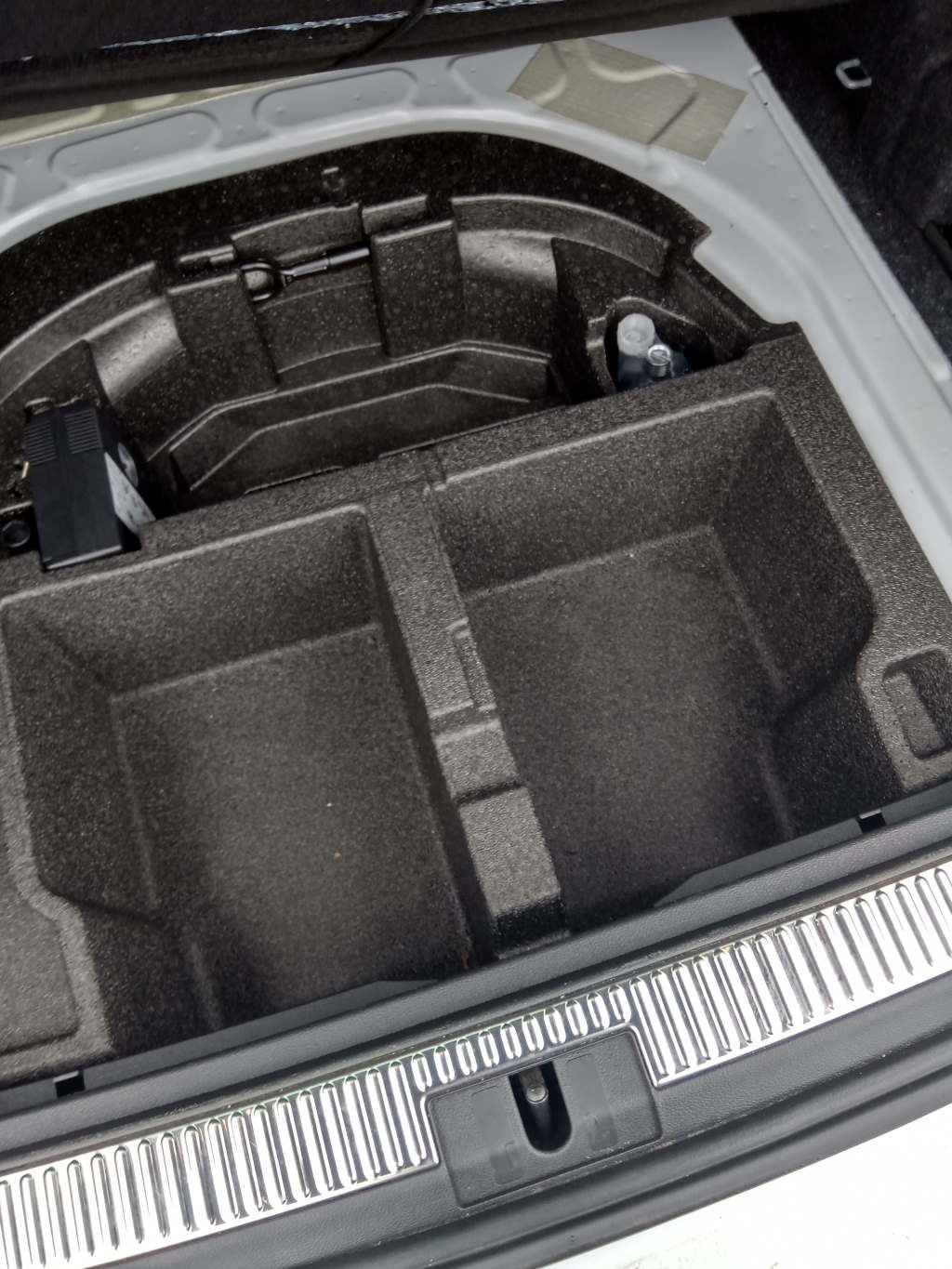
If all you want is a spacesaver wheel to get you home then here is my recommendation (based on my own experience with 18 inch wheels) 1. First ask on here if anyone has one for sale !! I missed a chance here that would have saved some time and effort. 2. You'll need the spacesaver wheel, a jack and brace kit, and a foam insert to support the floor properly. Skoda dealers will charge around £210 for the 18 inch wheel set. That includes everything you need and the tyre is brand new, unused obviously. 3. If you want to get it cheaper then head over to eBay. You should be able to find an 18 inch spacesaver wheel (just the wheel and tyre) for around £35. This will be a used item but query the seller and you should be able to determine that it will have plenty of tread for a spare. Note that all the VAG use the same spacesavers so an 18inch wheel for a VW Golf should fit the Superb and so on. The 18inch Superb wheel uses a 125/70 R18 tyre and the rim has the code "1K0601027B" stamped on it (the 16 inch wheel will have a different tyre size and code). 4. You can get the full jack, wheel brace and foam insert kit (but NOT the actual wheel) brand new from Kopacek Superb 18inch Wheel Change Kit here for around 60 Euros. That makes the whole kit less than £100. If you want to beef up the wheel brace with something that has a little more leverage then you'll need a 17mm socket on the end of it. Don't forget to ensure you have the little plastic "tweezers" thingy to remove the plastic wheel nut covers - that's not included in the Superskoda kit. And I highly recommend removing all the wheels and putting a touch of copper ease or similar around the inner centre of the wheel where it sits on the hub to prevent the wheel from sticking to the hub due to corrosion. That's all.
-
Before you splash out £300+ for a new mirror check for a second hand one first. Try eBay or any of the online car breakers for a price. If the ideal mirror isn't available (wrong colour, or some damage) you might still be able to use some of the undamaged parts from your mirror along with a secondhand one to make up a good one for the car.
-
Yes, you can use postcodes - I do this all of the time. Select a new destination and the address screen will come up - partially filled in. Tap on the "City" part of the address. The screen will refresh and a "Postcode" option will appear at the bottom left of the screen. Tap on this option then enter the postcode. You don't need to add a space between the two parts of the postcode.
-
Which model of SatNav system is this ? The procedure for updating is different, depending on the system you have. The Columbus system uses any off-the-shelf SD card or USB stick as a temporary transfer medium, after which the SD card/USB stick can be removed. The Amundsen system actually uses the SD card all of the time - it must remain plugged in - but it requires a specially formatted "Skoda SD card" in order to work. For information, you can format an SD card or USB stick to FAT32 in Windows as follows - 1. Insert the SD card/USB stick to the computer 2. Open Windows File Explorer (the little yellow "folder icon" in the task bar) 3. Locate then RIGHT-click on the SD card/USB stick icon 4. Select "Format.." from the popup window 5. In the next window, select "FAT32" as the "File system" 6. Click on "Start" Make sure you select the correct drive icon at step 3 above or you may format (erase) the wrong drive !!
-
This will work as long as the 3 files mentioned above are at the root (top) of the SD card/USB drive and not inside a folder on the SD card/USB, otherwise the Satnav won't find the files. When you "unzip" a zip file it will put the files inside a folder by default, although you can easily override this.
-
This is the procedure for the Satnav update for a Columbus 9.2 inch using a Windows 10 PC to download and prepare the update. No extra software required for a Windows 10 pc (i.e. you don't need to use 7zip or anything else). The procedure for Amundsen is different. 1. Went on to the Skoda update portal, put in my VIN and the ECE2021 maps update was available. 2. Downloaded the map file to my PC. It was 26 GBytes and took about 2 hours on my very average 32Mbps broadband connection 3. This gave me a zipfile called HIGH12_P189-EU_202045.zip (the latest filename may be different but similar) 4. I unzipped this to the hard drive of my PC (Right-click on the file and select "Extract All") 5. This took a while but I ended up with a new folder with the same name as the original zip file (minus the .zip at the end) 6. Inside this folder were two subfolders - Mib1 and Mib2 - and a file called metainfo2.txt. These 3 items are all that you need. 7. Took a 32 GByte USB Flash drive, formatted it to FAT32 and connected to the PC. 8. I selected the three items from step 6 above (i.e. the folders Mib1, Mib2 and the file metainfo2.txt ) and copied these to the Flash drive 9. This process took about another 2 hours 10. Connected the Flash drive to the USB socket in the car. 11. Switched on ignition, opened Satnav, tapped the settings icon, then "Version information", then "Update (SD/USB") 12. It took a few minutes but then it started to upload the data with a percentage display showing progress 13. It took about 40 minutes to complete the upload - ignition has to be on so best to do this whilst driving somewhere. That was it - all done successfully but note the time it takes to download, copy to USB, and install in the car (the files required on the USB stick are shown below)

-
I believe it works on the principal that if a tyre deflates then its circumference will decrease slightly, which means it will rotate more than the other tyres when the car is moving. This difference will be detected and displayed as a warning message. When you check/top up your tyre pressures (all at the same time) you should also recalibrate the tyre monitoring system (easy job via the infotainment display) to set the basis for future comparisons.
-
I see there is also "Smart light Assist" too This is especially confusing if you purchase a vehicle second hand, since you haven't specced the vehicle originally so you won't have been through the spec sheet to see what's included. Also, its often difficult (if not impossible) to obtain a spec sheet for anything other than the current model so you can't just find the specs for your 1 or 2 year old (or older) vehicle and look that up. And if you try looking online - well these features are often updated and/or renamed so you can't always be sure that the current definition of "Adaptive Front Light System" is the same as the one fitted to your older vehicle, or if it's called something completely different now. I consider myself reasonably clued up about vehicle features. I'm happy to mess around with settings and can eventually understand owner's manual instructions and look things up online. I'm surprised that my 2019 Superb Estate SE-L doesn't seem to have main beams that won't dazzle oncoming vehicles (since my older Octavia SE did have them) but I cannot find any definitive information anywhere that says it should have this feature or it definitely doesn't. I suspect it doesn't. And no, I don't mind dipping the headlights manually at all. It's just good to know what features your vehicle has or has not.
-
You are, of course. correct. We're talking specifically here about automatically avoiding dazzling oncoming traffic when on main beam. Skoda do confuse things somewhat by also using the terms "Light Assist high-beam assist" and "Dynamic Light Assist headlight assist" in the owners manual and then not providing any means of identifying which, if any, system is fitted to a particular vehicle. The difference is that the first actually dips the headlights whereas the second adjusts the light cone to avoid dazzling oncoming traffic. To confuse things further there is also "Adaptive Front Light System" (AFS) which you might reasonably assume had something to do with the main beams but which is NOT mentioned anywhere in the owners manual. I think that might be something to do with changing the beam pattern for different speeds and when you turn a corner to light up that side of the road. Having managed to find an old 2019 Super specification sheet I can see that the SE-L does have AFS but has neither" Light Assist" nor "Dynamic Light Assist" so no auto-dipping option for me then ! The 2019 Sportline specification also has AFS but doesn't have "Light Assist" or "Dynamic Light Assist" either, if that's any help ?
-
If the chips are not too deep then they can be repaired in place by Autoglass. They clean them up and put some kind of clear resin over them to fill them up. I had that done to my previous car and the repair was virtually invisible. You might even get it done on your insurance for a small excess charge. I had my Superb estate for less than a week when someone seemed to punch (how ??) the C-pillar and put a fist sized dent in it, breaking the paint at one point which made dent pulling impossible. It cost £430 to get the dent fixed and the area resprayed and blended to match the rest of the body.
-
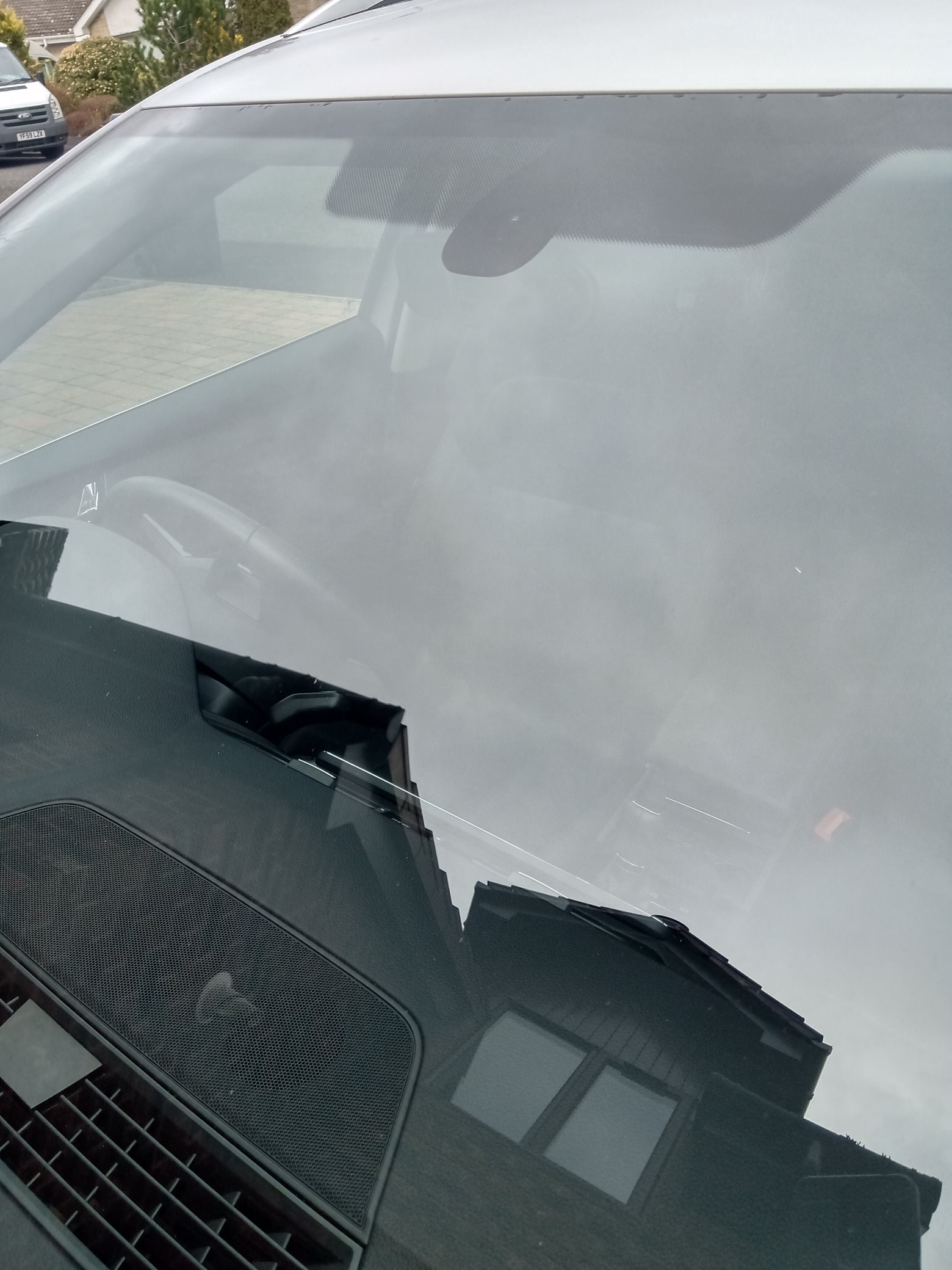
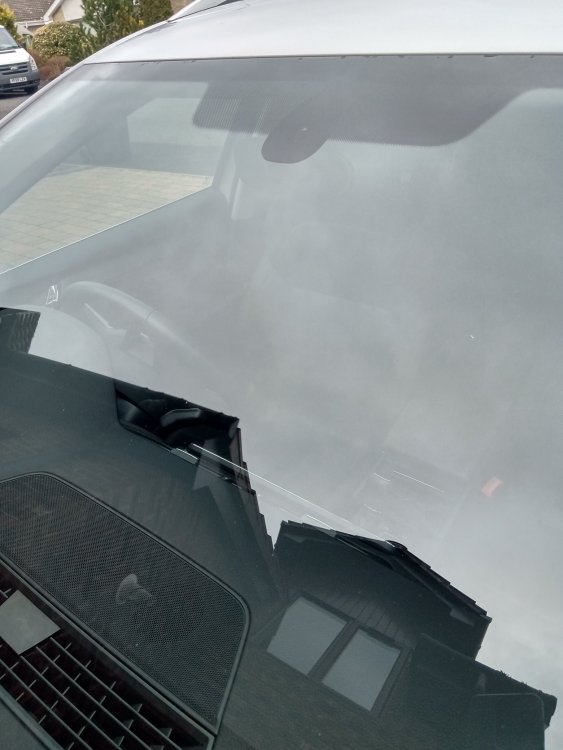
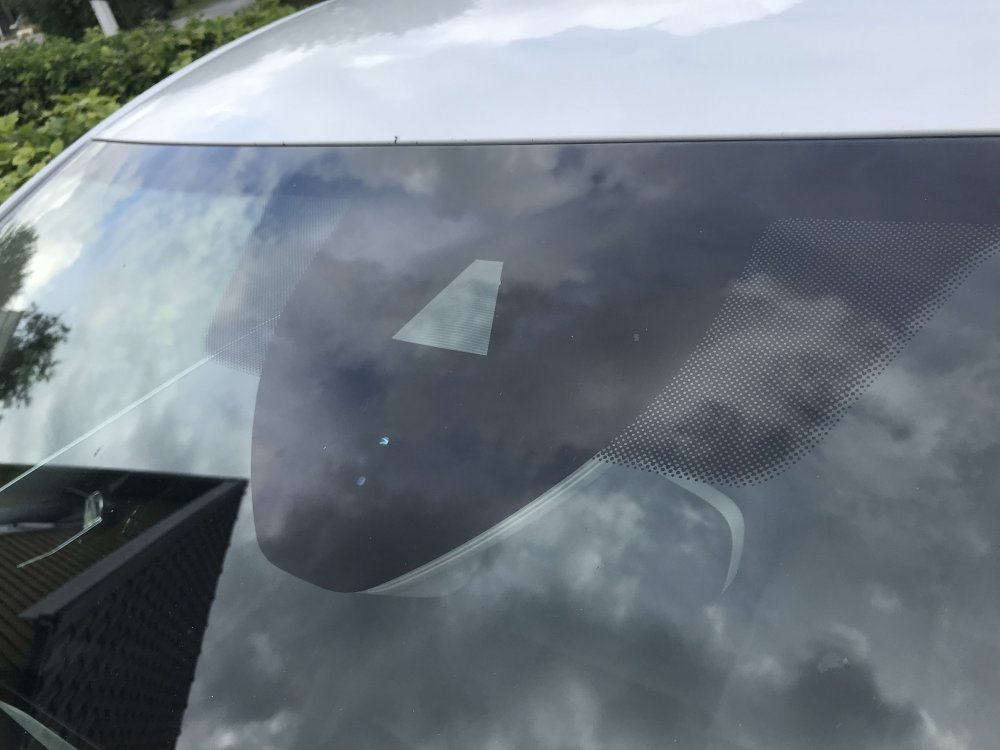
I have exactly the same issue. I also came from an Octavia with auto-dipping (halogen) headlights and assumed that my Superb SE-L would have the same feature on it's higher spec Xenon headlights. As far as I can tell I do NOT have this feature. The automatic headlights only seem to be available if you have the large "A5" camera on the windscreen in front of the rear view mirror. This is a much larger shaded area on the windscreen and has two separate locations for sensors but specifically a "triangular" cutout in the shaded area where the A5 camera is located (see photos for the different windscreen appearances) - the second photo has the A5 camera). If, like me, you have the smaller, more "rectangular" shaded area then it seems that you don't have the A5 camera therefore don't have automatic headlights. If this is the case then VCDS coding can't help. Someone please correct me if I'm wrong but that seems to be the situation with my Superb.
-
I've just taken delivery of a 2019 Superb Estate and plan to replace the wheel repair kit with a spacesaver wheel. Does anyone have any advice for changing or modifying the plastic molding under the boot floor so that the spacesaver will fit ? Anyone had previous experience of this ? Any advice greatly appreciated.