80sNRG
Finding my way
-
Joined
-
Last visited
Everything posted by 80sNRG
-
Ahoy there, sorry for not getting back to you sooner! There is no component protection on the screen, it's plug and play. If you upgrade the headunit itself, then that does have protection. I still have my VRS and the screen was definitely worth every single penny.
-
Ahoy there. I have a 66 place VRS pre-facelift with the cornering xenon lights. I got an alert on the dash about needing to check my drivers daytime running light back in January when it was particularly cold and wet. I checked the engine bay and somehow, the rear cover on my drivers side headlamp popped off and water had gotten in. The cover was sitting there in the engine bay, I tried to dry it out but with the freezing weather I was unsuccessful and the DRL has failed so it alerts everyday now. Am I right in assuming I need to replace the complete unit? Nothing about the unit looks user servicable. Am I right in assuming it's a bumper off job? I'm going to get a 2nd hand part, (these things aren't cheap!) can I get any adaptive Xenon unit from the pre-facelift 2013-2016 era and it'll work? Has anybody done this job? I assume I'll need to pop my existing bulbs and control modules on the unit. Any other jobs you'd recommend doing while the bumper is off? Thanks for any help!
-
After a few days, the problem has interestingly resolved itself. I like the part where I can lock my car again without the fear of it screaming at 1am. FYI the part number including sensor is 5E0823509B. If anyone is interested, while the car thinks the bonnet is open, it disables the wipers - but if you just start driving and smash a few steering wheel buttons to indicate that you don't care, they work. Thanks for reading.
-
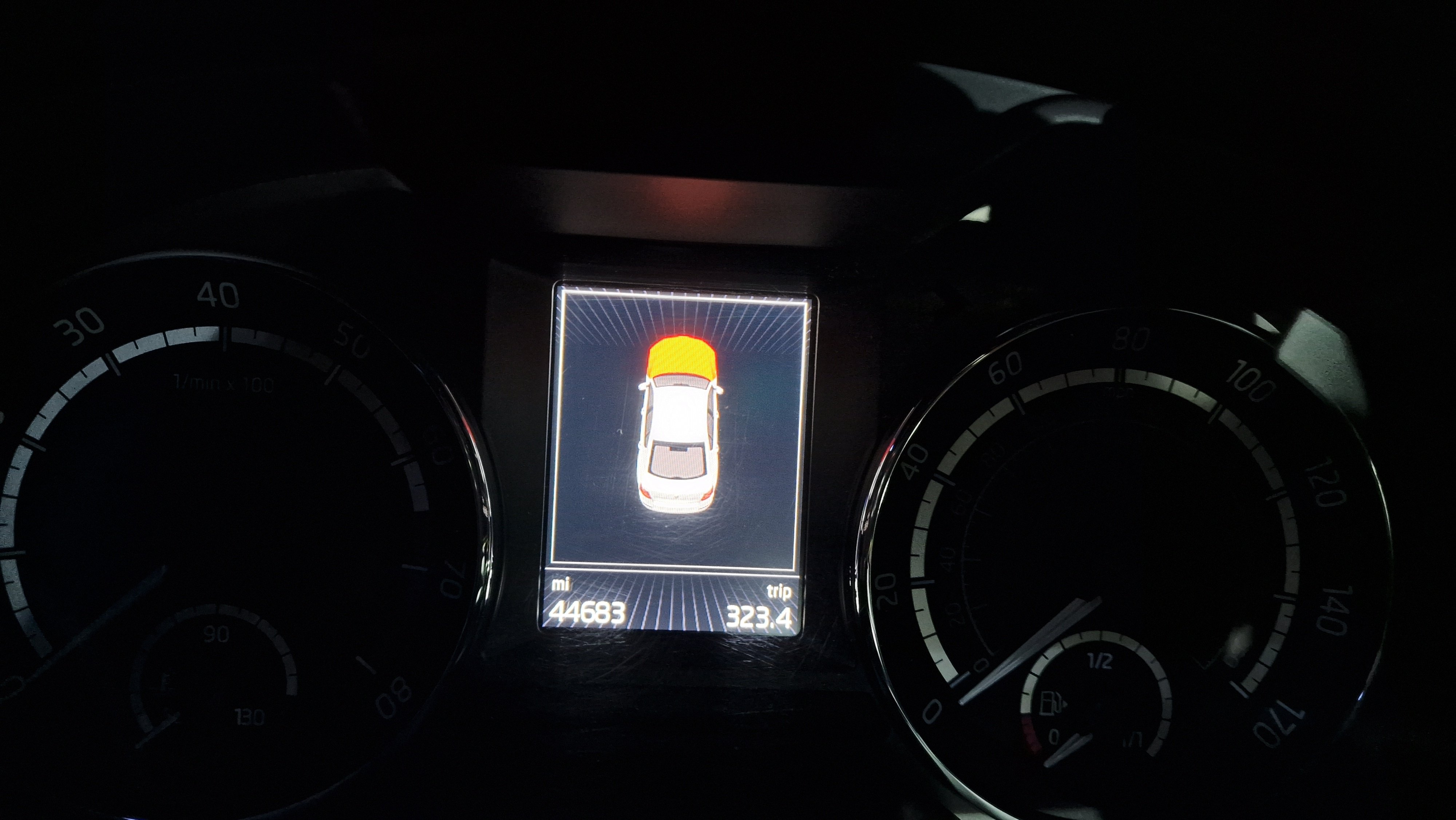
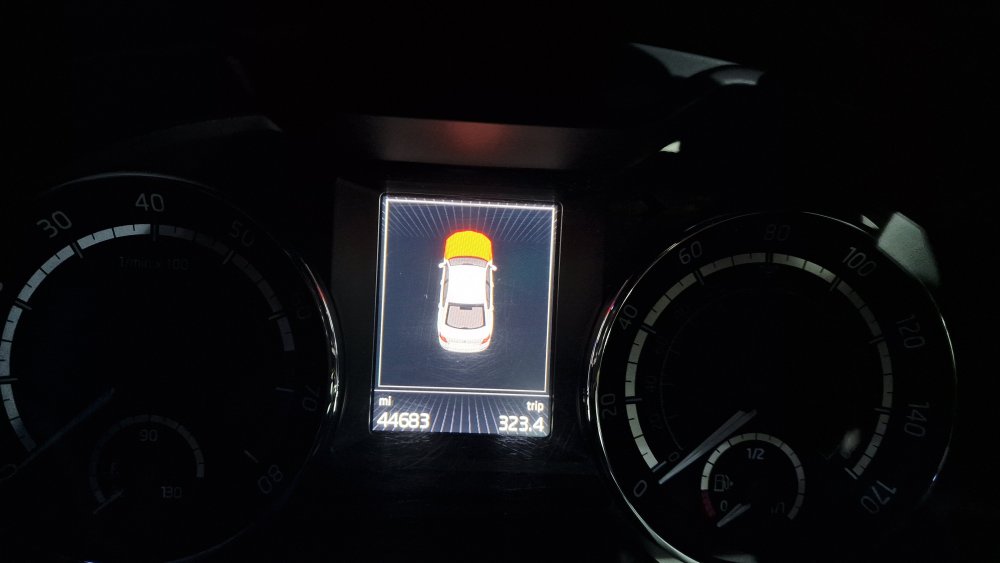
Car: 66 Plate VRS Hey there! As the title suggests, I might have a faulty bonnet sensor, I assume it's my fault but I was hoping for some clarification. I gave the car a clean earlier and while on the job I sprayed some silicone lubricant spray in the bonnet release catch as it felt a bit stiff, other than that I topped up a few fluids but changed nothing. 4 hours later (20 mins ago) the alarm goes off and the display between the dials indicates the bonnet is red (open) To clarify, the bonnet opens and closes securely just fine and vcds doesn't say there's any faulty sensors. I've tried exercising it, unlocking and locking the car, shouting, using wd40 instead but it still shows as open. I'm not going to do much now as it's pouring down and it's late, but any thoughts on what's failed and what replacement bits I'll need to buy tomorrow?
-
I swapped out my Amundsen screen for a Columbus one and I took some photos along the way, I hope this helps somebody. I suppose this guide is applicable to anyone wishing to remove the screen in their MK3 Octavia. No coding is required and there's no component protection on the screen. Difficulty: 1/5 Time: 30 minutes (Tops) Tools required: Radio removal keys, Electrical snips/side cutters or something sharp - you need to cut a locating plug off one of the connectors. Part(s): MIB2 Columbus Screen (5E0919606) Apparently the MIB2.5 5E0919605M will also fit, but the APP button will not work. I picked up my Columbus screen for £160. You may have to wait and keep searching for the part at a price you like. Step 1 - Find car LCD screen Step 2 - Insert radio keys. Right top and bottom keys fit this way round. You need 4 keys to remove the LCD screen. The notches on the keys need to face inwards towards the screen. You could remove the cover protecting the proximity sensors at the base of the screen but it's not necessary. Get something behind it and pop it off if you're that way inclined. Step 3 - Left top and bottom removal keys fit this way round. Step 4 - Push all 4 keys into the locating holes around the facia, Don't be rough, they don't require much force. Step 5 - Pull back on the keys (requires little/no force) and the screen will fall out. There are two connectors on the back of the screen, remove them both. Your screen is now free and you can now put your Amundsen LCD on eBay. Step 6 - Chop the circled locating block off the blue plug. Step 7 - Your blue plug should now look like this Step 8 - Put the connectors back in the only place they'll fit and push the new screen in. Job done. You're done! I hope this helps someone!