Skip to content

Jsstelt

Finding my way
  • Joined

  • Last visited

Everything posted by Jsstelt

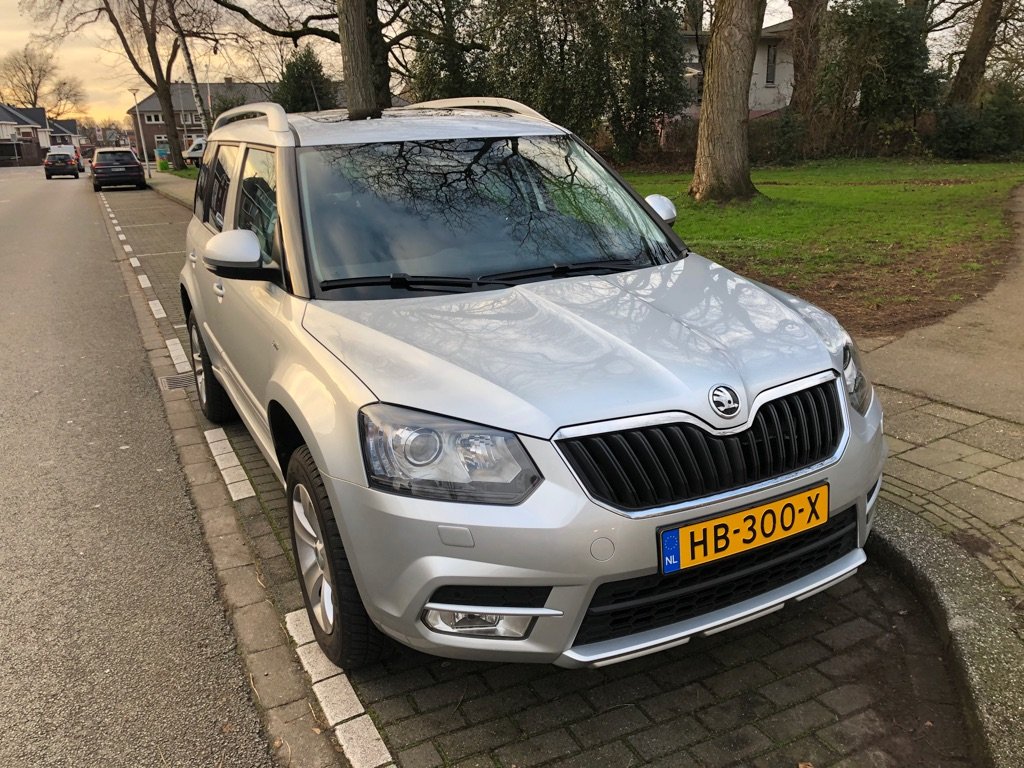
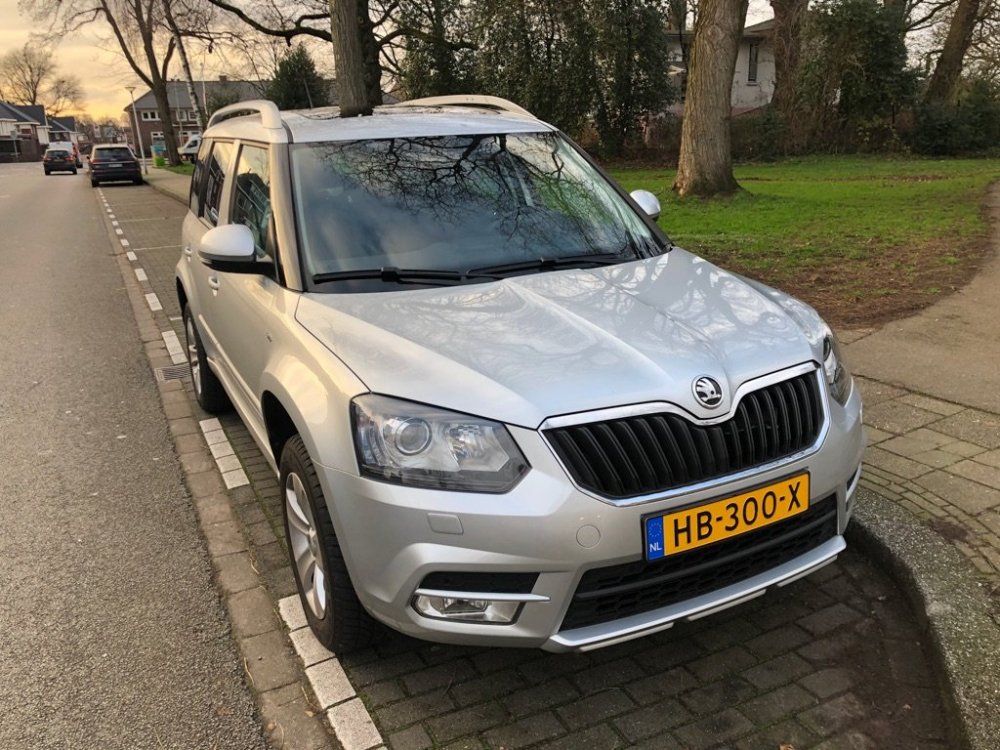
  1. Hi there, After my previous car the Dutch Brown Yeti, we bought a facelift model from 2015. The car was pretty fully equipped but there is always more to fit! (Retrofit!) It is a 1.2 TSI DSG with original nav, DAB, Sunroof, Keyless entry, Xenon. This is the car how we bought it in 2020. Things and Mods I allready done: - Change Mirror covers to glossy black - Wheels from the previous yeti we kept and put it on the new one. - Steering wheel from facelift model with DSG flippers - Roof rails we kept silver but changed the 4 covers to glossy black ones - Front spoiler to Monte Carlo black - Rear spoiler to Monte Carlo black - Side skirts / spoilers to Monte Carlo black - Rear Logo + Skoda Yeti names to black - Front Logo to black - Monte Carlo logos on the side - Wrapped the roof to black - Retrofitted PLA (Park Assist) So 4 extra sensors on the side so it can park itself - Enabled Apple CarPlay - Changed the climatic control to a luxury one (From AliExpress, See photo) Things to do: - Trailer Hitch - Alarm Horn (Already fitted but need to connect the cables and code it. - Active tire pressure monitor (The ones with the sensors in the wheels) more to come.... (Pictures also)
  2. What year Octavia? Octavia 2 is PQ and Octavia 3 is MQB
  3. I think it works on every Yeti, but mine is a 2015. The F version I had on my previous Yeti from 2010 (With the Green Illumination) It could be that the color must match, but I can't think of any electronics inside the DSG flippers. There is a 3 wire cable running to it, (1 wire for the button, 1 wire for the light and 1 for the common).
  4. Ive got this steering wheel: 565419091H from a superb 2017, white illumination. And fitted 5E0919719M buttons
  5. I'm also working on this, and you need this button set: 5E0919719M It's working for the Yeti, has DSG connectors and white illumination.

Important Information

Welcome to BRISKODA. Please note the following important links Terms of Use. We have a comprehensive Privacy Policy. We have placed cookies on your device to help make this website better. You can adjust your cookie settings, otherwise we'll assume you're okay to continue.

Account

Navigation

Configure browser push notifications

Chrome (Android)
  1. Tap the lock icon next to the address bar.
  2. Tap Permissions → Notifications.
  3. Adjust your preference.
Chrome (Desktop)
  1. Click the padlock icon in the address bar.
  2. Select Site settings.
  3. Find Notifications and adjust your preference.