




Mriggs
Finding my way
-
Joined
-
Last visited
Everything posted by Mriggs
-
like 2 previous updates to that older superb. So now this MTS2_EU_SK_ZRPO369T transfer to sd card this MTS2_EU_SK_ZRPO480T then run the update via sd card. infotiment unit is in developer mode green menu etc are visible All check your e-mails. @VLADO1106 in AMundsen maps are stored on SD, there are NOT loaded into any internal memory, so just inserting SD with unpacked maps should be enough. @WesternWalrus @Mriggs yes, it's possible to upgrade ANY MIB STD2 ZR unit, both with and without NAV, running at least 02xx software, to 0480. It's NOT possible to upgrade units with 01xx firmware to 0480 (or any other than 01xx). The key is MIB STD2 TOOLBOX. Units with OEM sat nav (Amundsen) can be done from SD. Units without OEM SAT NAV (Bolero) must be soldered (not possible to make it from SD). In both Amundsen and Bolero it's required to turn developer mode ON with some diagnostics / programming tools like VCDS, OBD Eleven, Vag Can Pro, ODIS, VC Tool.
-
Hello i have second car old superb estate that car has 5Q0035874B MST2_EU_SK_ZR_P0369T can i upgrade looks like lates is MST2_EU_SK_ZR_P0480T Its also possible modern layout or skin Photo Like this Modern layout
-
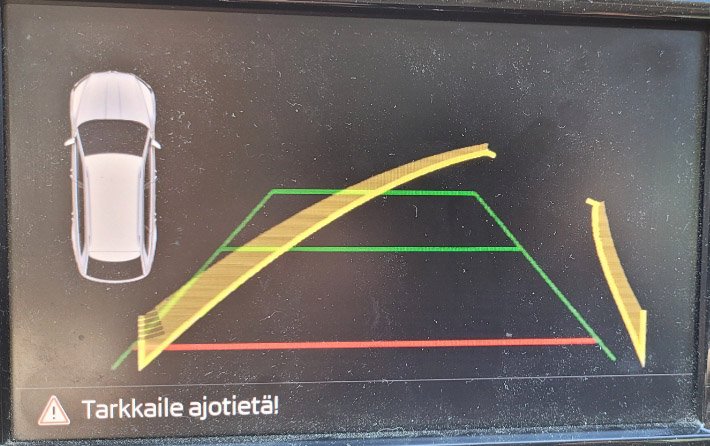
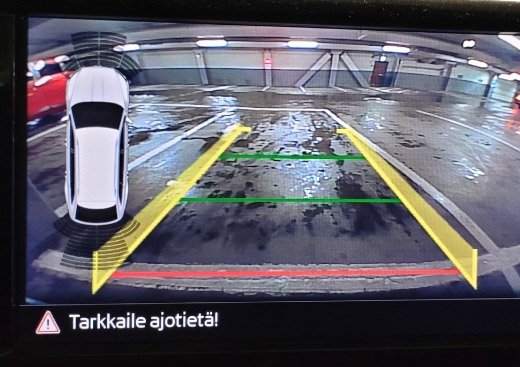
Hi skoda superb 3 estate has a problem related to reversing camera my family, another car in question has worked, but surprisingly started doing so attached photo. Can anyone say what could be the reason, no fault codes are not on the camera. Or anythinks in car
Important Information
Welcome to BRISKODA. Please note the following important links Terms of Use. We have a comprehensive Privacy Policy. We have placed cookies on your device to help make this website better. You can adjust your cookie settings, otherwise we'll assume you're okay to continue.