supercabbage
New here
-
Joined
-
Last visited
-
It is indeed! I work in software development and spend a lot of time digging around various user interfaces, bit of a foot in mouth moment.
-
I'm an absolute idiot, I was tapping the "Pixel 4" text instead of Android Auto... quite embarrassing!!
-
I have to agree with you regarding the sound system. I picked mine up yesterday and have been relieved by the sound quality if not blown away. The way some folk go on you'd think it was terrible.
-
I thought about that, but unfortunately the Pixel 4 is shipped with a USB-C to USB-C cable. From Googling around on the subject it appears that the Pixel 4 is quite problematic with Android Auto, which blows my mind. I work in software and can't for the life of me work out why Googles software wouldn't work well on Google hardware but is apparently more stable on older Pixel devices and non Google phones!?
-
I've tried enabling debugging, and setting the connection mode to Android Auto/Data transfer with no luck. I've also tried tapping "Android Auto" and no luck there either. Plugging in without Android Auto open doesn't seem to do anything.
-
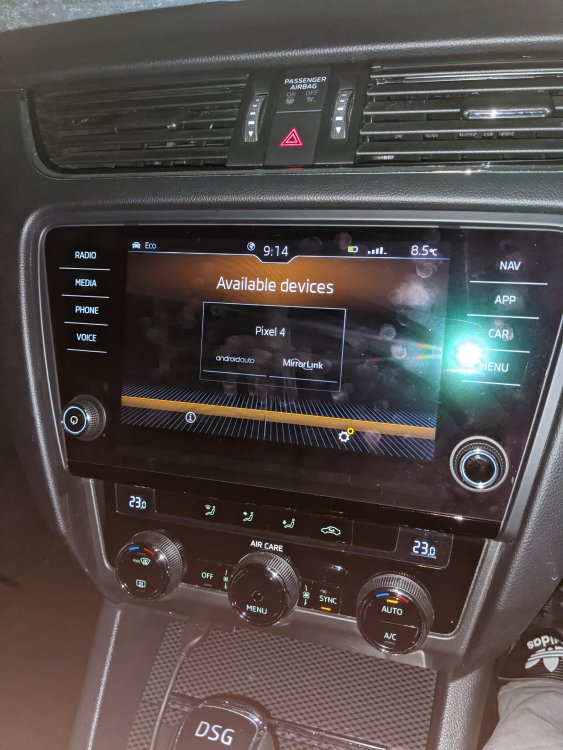
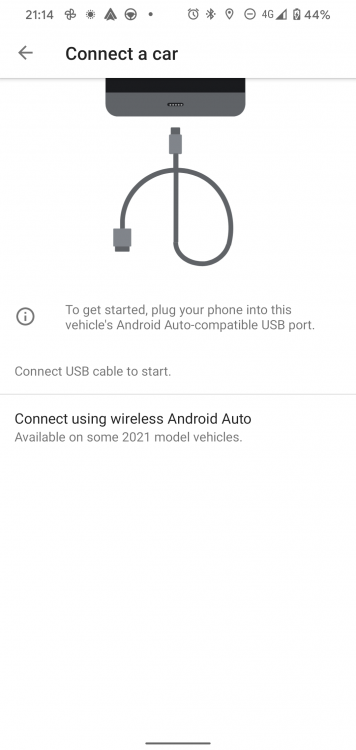
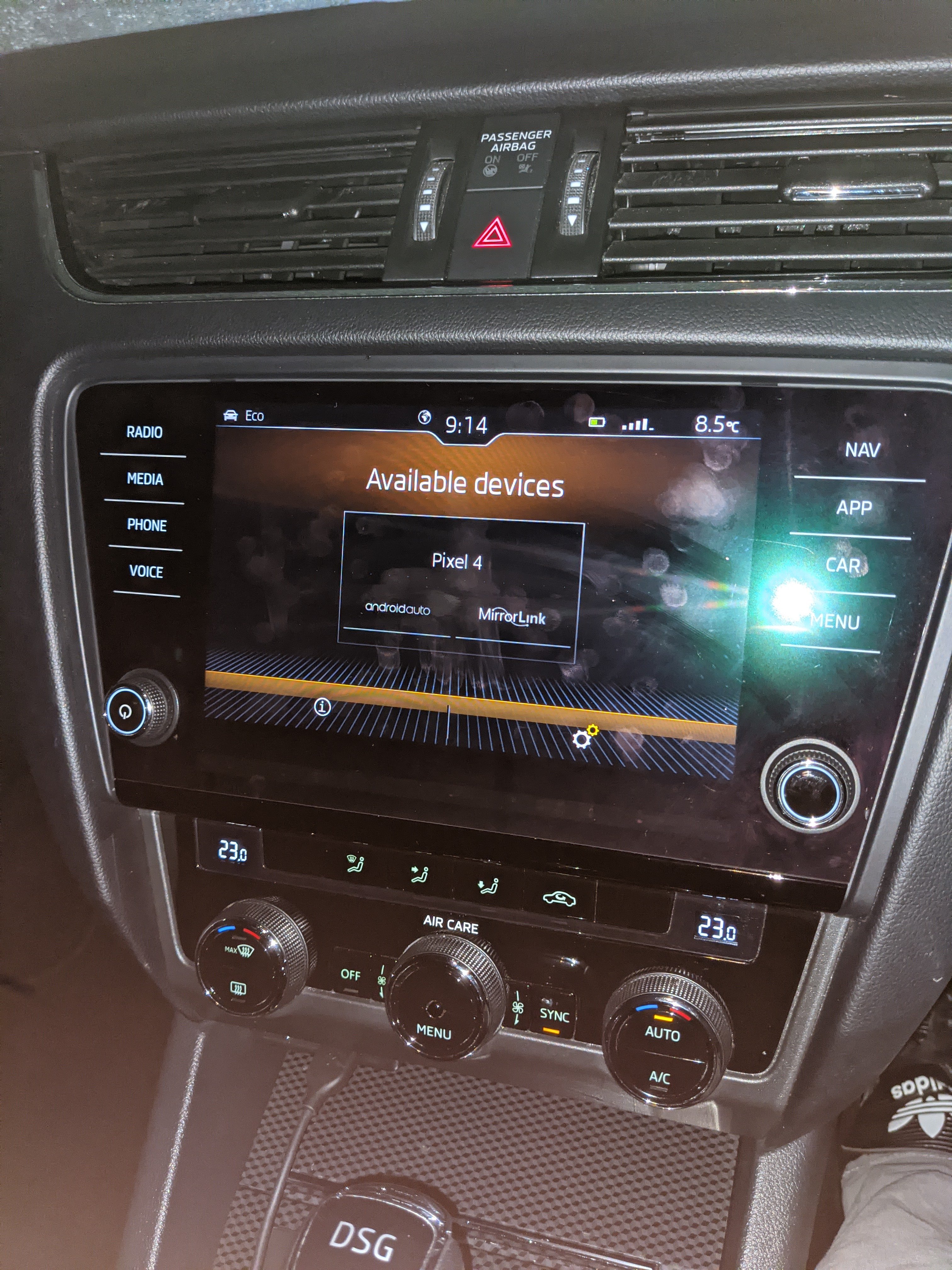
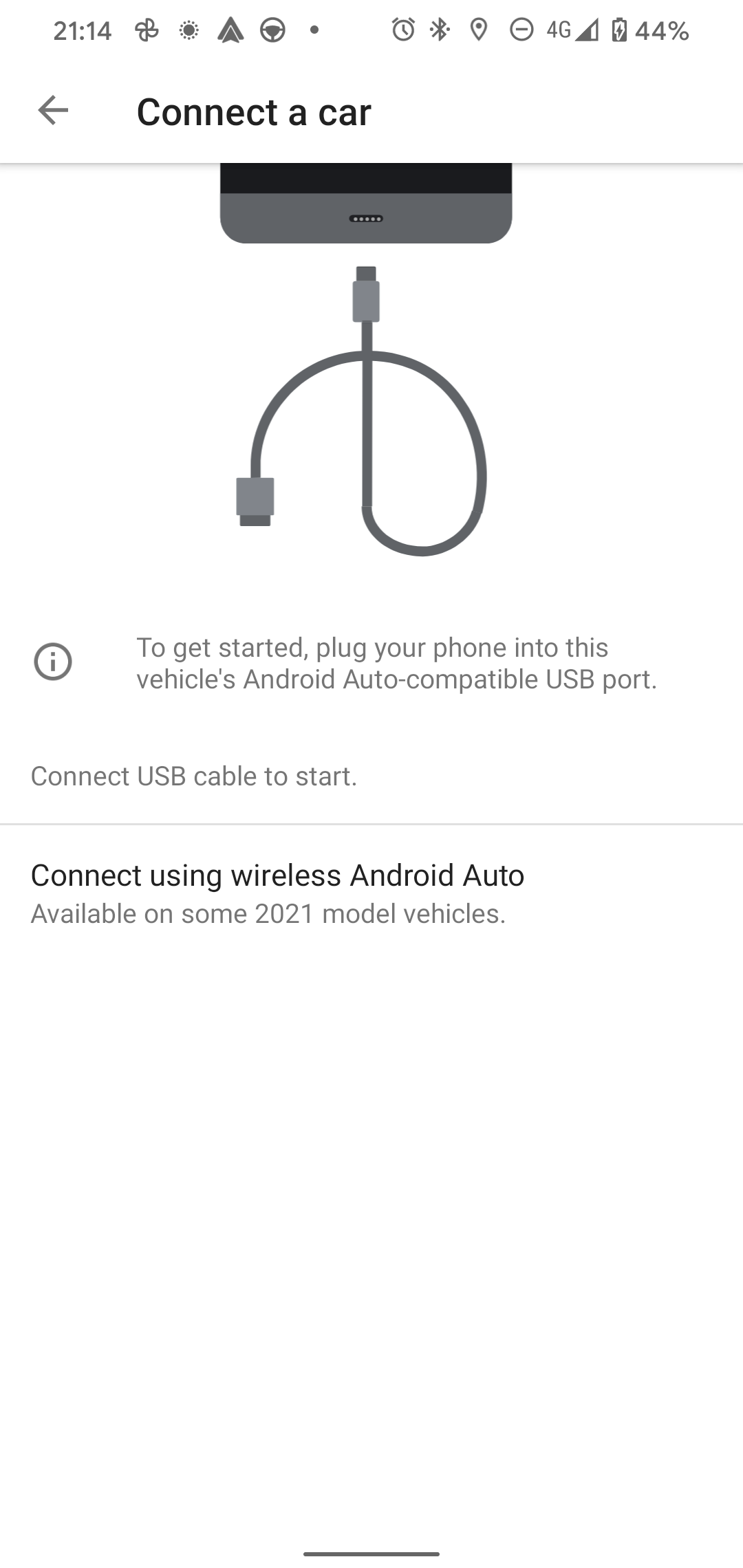
Hi all, I've picked up a 67 plate Octavia vRS MK3 (FL) Diesel today. Coming from a bone stock base model Ford Focus I'm absolutely loving it. However, I can't get Android Auto to work. I've chosen the "App" options on the infotainment system, then opened Android Auto on my phone to connect. When I plug the cable in I see nothing on the phone, yet the infotainment system recognises it Please see attached images, anybody have any ideas? I've seen mention that only certain cables work, but I've tried 3 USB-C cables with no luck, and find it bizarre that the car recognises the phone if this were the case.