Sparkybruce
Finding my way
-
Joined
-
Last visited
-
Yes the upgraded front LED option (standard on the M/C's) include the front fog / drivers lights with front directional indicators. The LED power is almost double the standard LED headlights and that is why they need the self leveling. The standard LED units that most people have are a lower brightness / power level and such they can have manual adjustment.
-
Yes Blind Spot Detection was standard on Model Year 19 and 20 but it was dropped from 21 onwards (as well as the boot torch & power socket). Drivers side mirror auto dimming ( as well as rear view mirror) was also dropped I believe.
-
Yes - for the older 0156 system software you get the greyed out icon even without the wireless charging hardware being fitted to your car. If you can get you car updated to later core software (something that took most of a day for me) then it isn't there any more (unless you do have the option fitted).
-
I am on variable service as my normal annual mileage is between 15 and 18K , but so far I have only covered 3K since I got the car at the end of Feb this year. We are starting back in the office full time from next week so I will soon be back to 1600 odd miles per month which will take me up to about 12K in the cars first 12 months. I am planning on getting the first service at that time as I to like the idea of an annual service (Just that the first one will be at 12Kish and the 2nd at 28-30K ish). My previous car was one of the 1.1 CRDI Kia Rio's which was 1 year up to 20K miles which worked a treat till I traded it in at 126K miles for the Kamiq.
-
Ah - it sounds like you are in the same situation as me. I can get the satnav to display the speed limit through one of its settings - and I get a speed sign on the satnav screen - but nothing in the virtual cockpit. For me I think that is because I do not have that option. I can however add a traffic sign tab into the home screen which shows extra signs (though I'm not 100% sure that it is reading signs - or getting them from the GPS location). The Satnav screen only shows speed limit signs - but from the home tab I also get traffic lights and lane narrowing's which do correspond with actual road signs. The traffic light signs only show up as I drive past them though.
-
Ah - are you referring to Traffic sign recognition? ( After a quick search through the forums for VZE)
-
Where do you see VZE mentioned?
-
Ok - on earlier made cars they would display the wireless charging icon even if they didn't have that option fitted. If you look in the center console bay where the two USB-C sockets are do you have a flat mat or one with a couple of tabs at the front? (It might be that Australia spec includes the wireless charging as standard). If your mat is a flat one then you do not have the wireless charging. tech-3-400x225.jpg (400×225) (dealersolutions.com.au)
-
I used to have that Icon greyed out with my previous 0156 software (even though I did not have the wireless charging option fitted). With the update to the 0278 software even that greyed out icon has been removed.
-
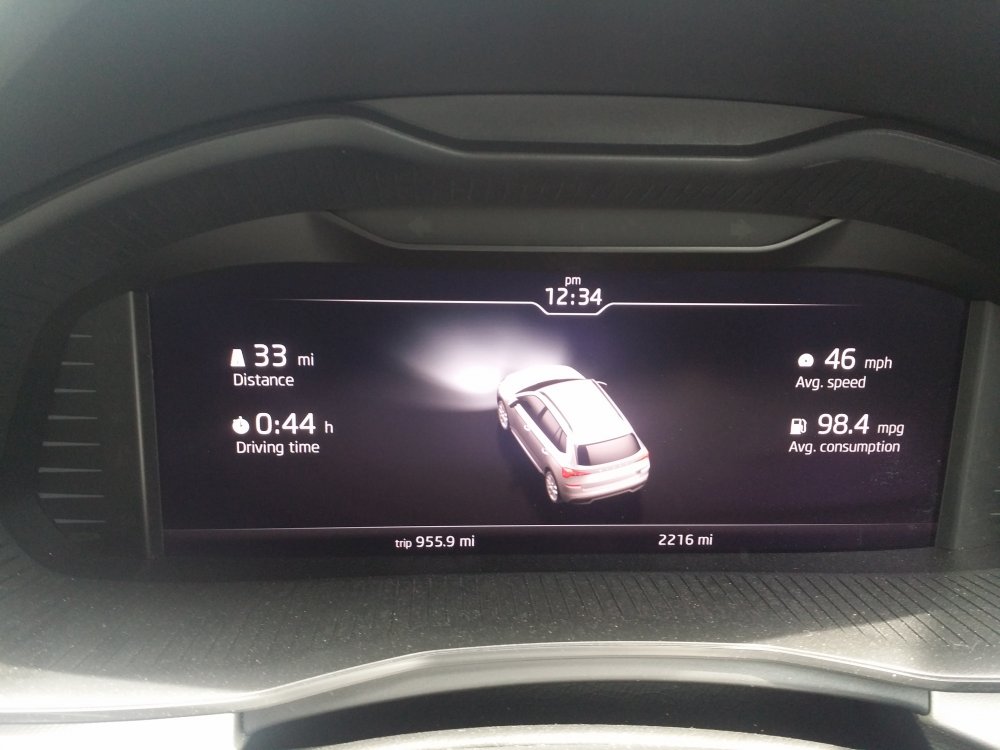
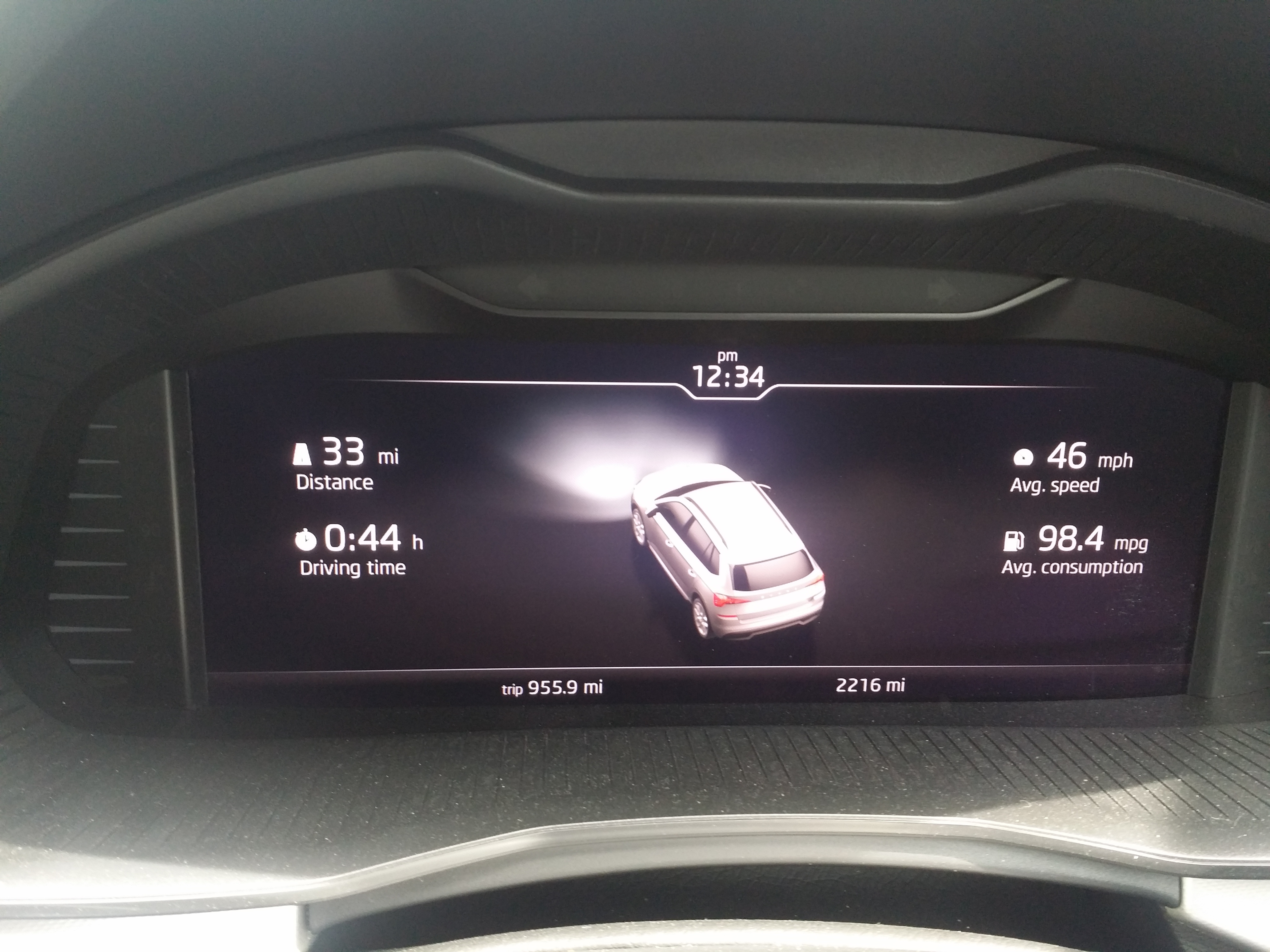
Here is a picture of one of my best trips. I have a 1.6TDI SE L and this was a clear run on dual carriageway roads. (In fact until I turned off the dual carriageway for the last mile of the trip it was at 103mpg). Following lorries at 55-60mpg with cruise control set. When I drive at 70mph the mpg drops into the mid-high 60's to low 70's mpg.