Scubajorgen
New here
-
Joined
-
Last visited
-
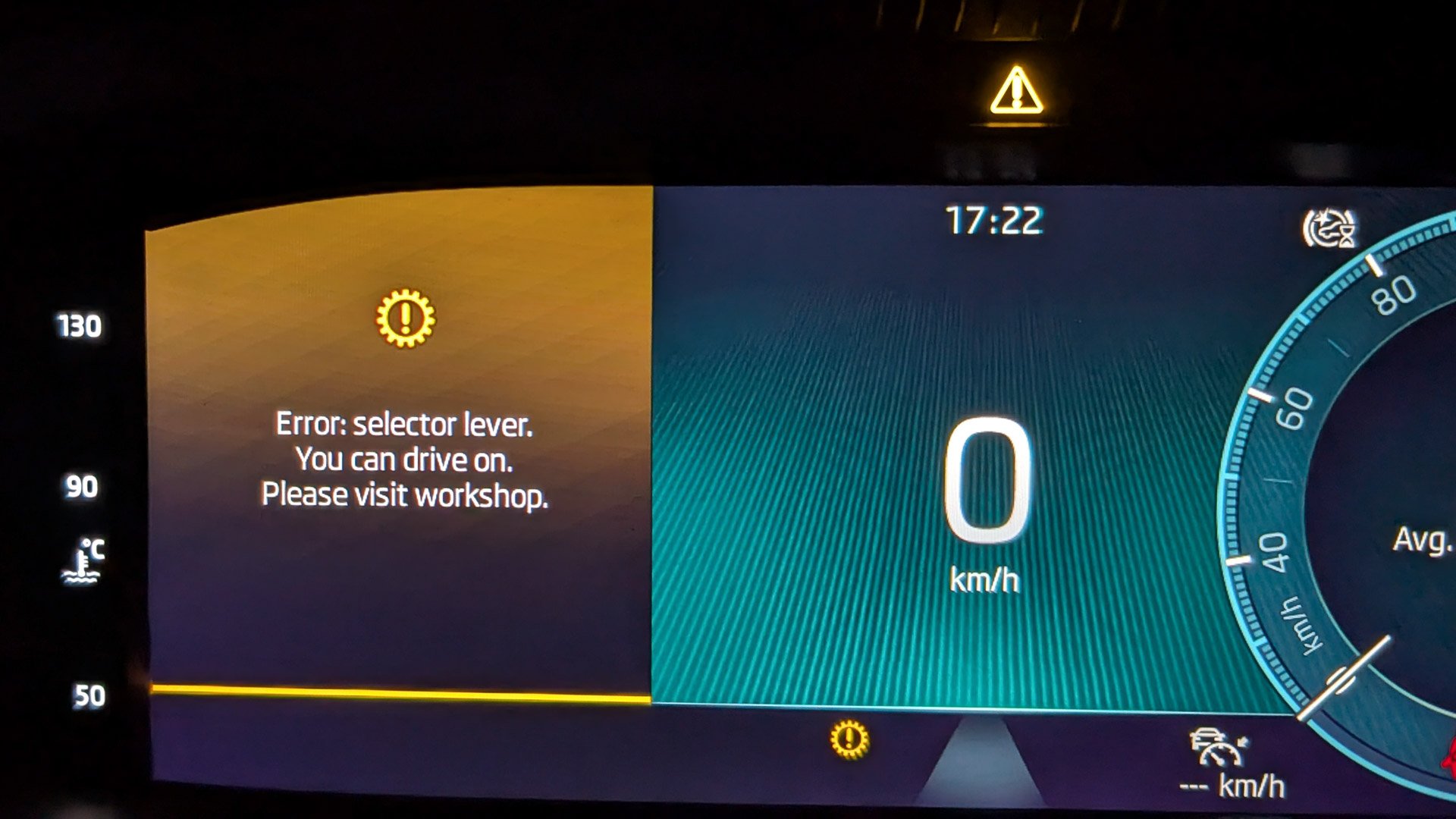
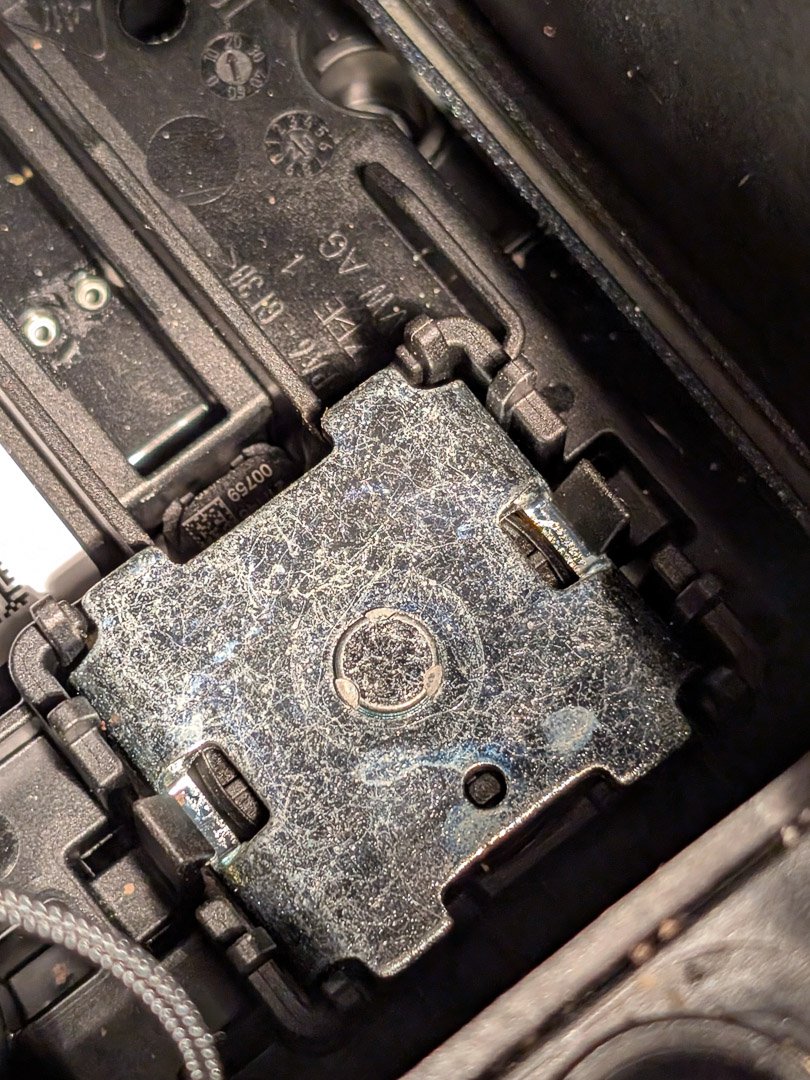
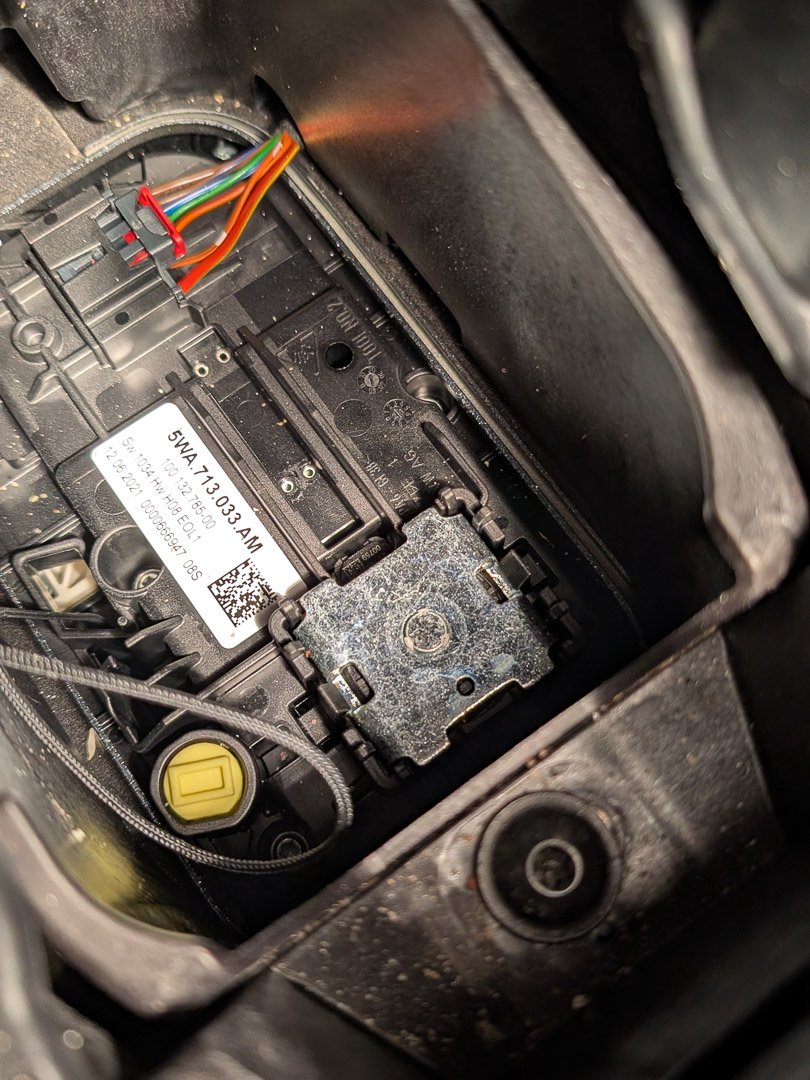
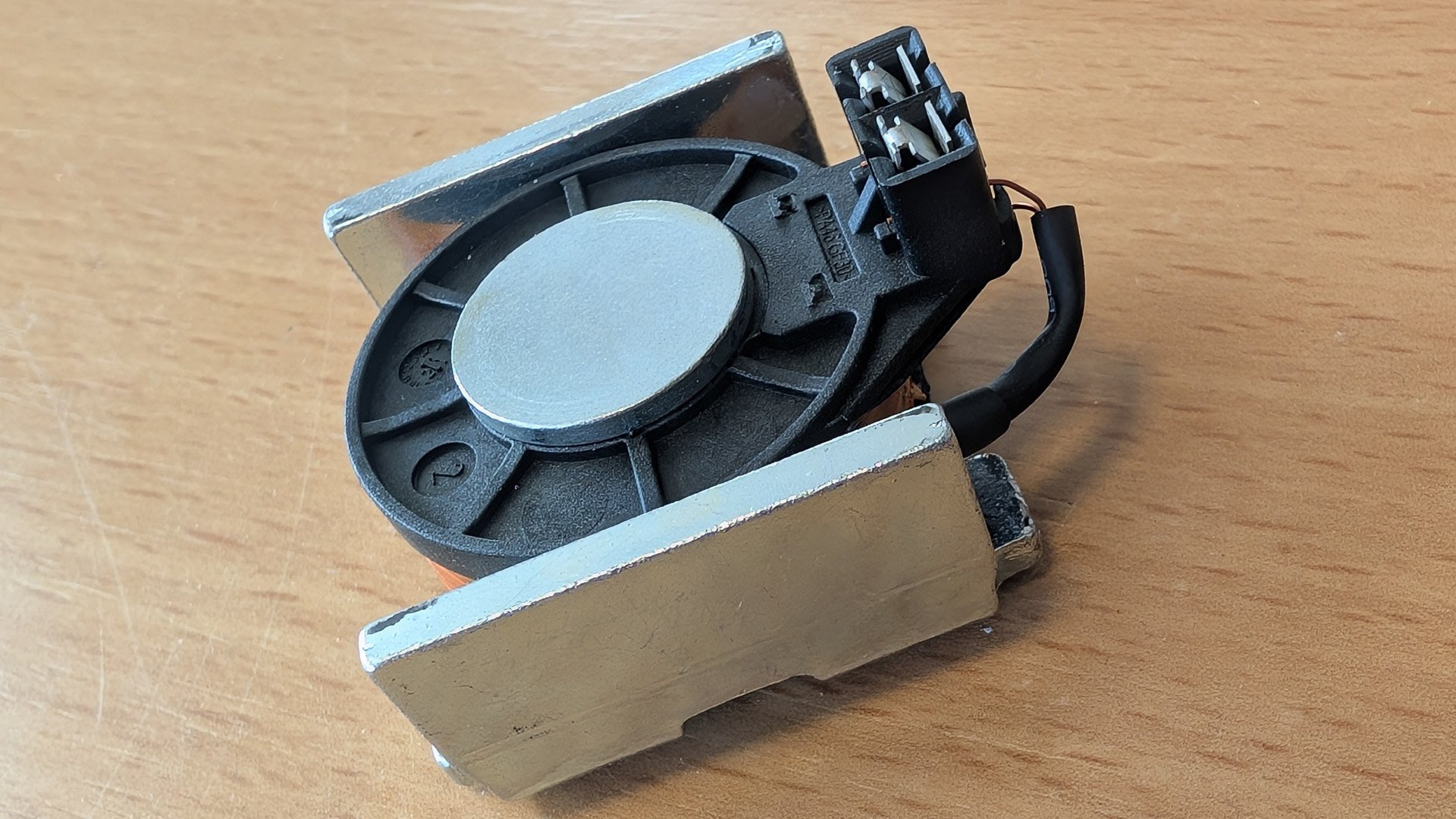
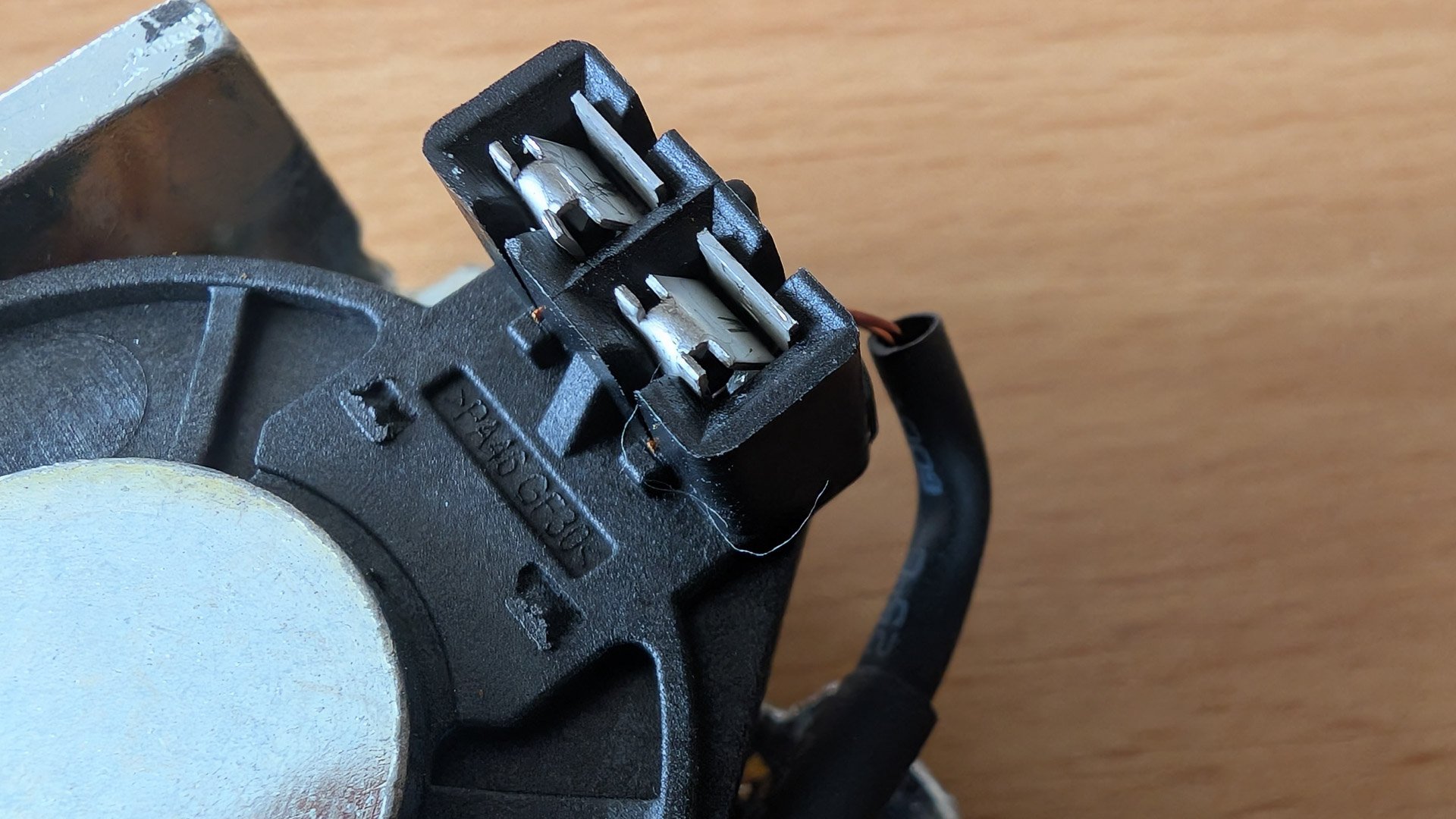
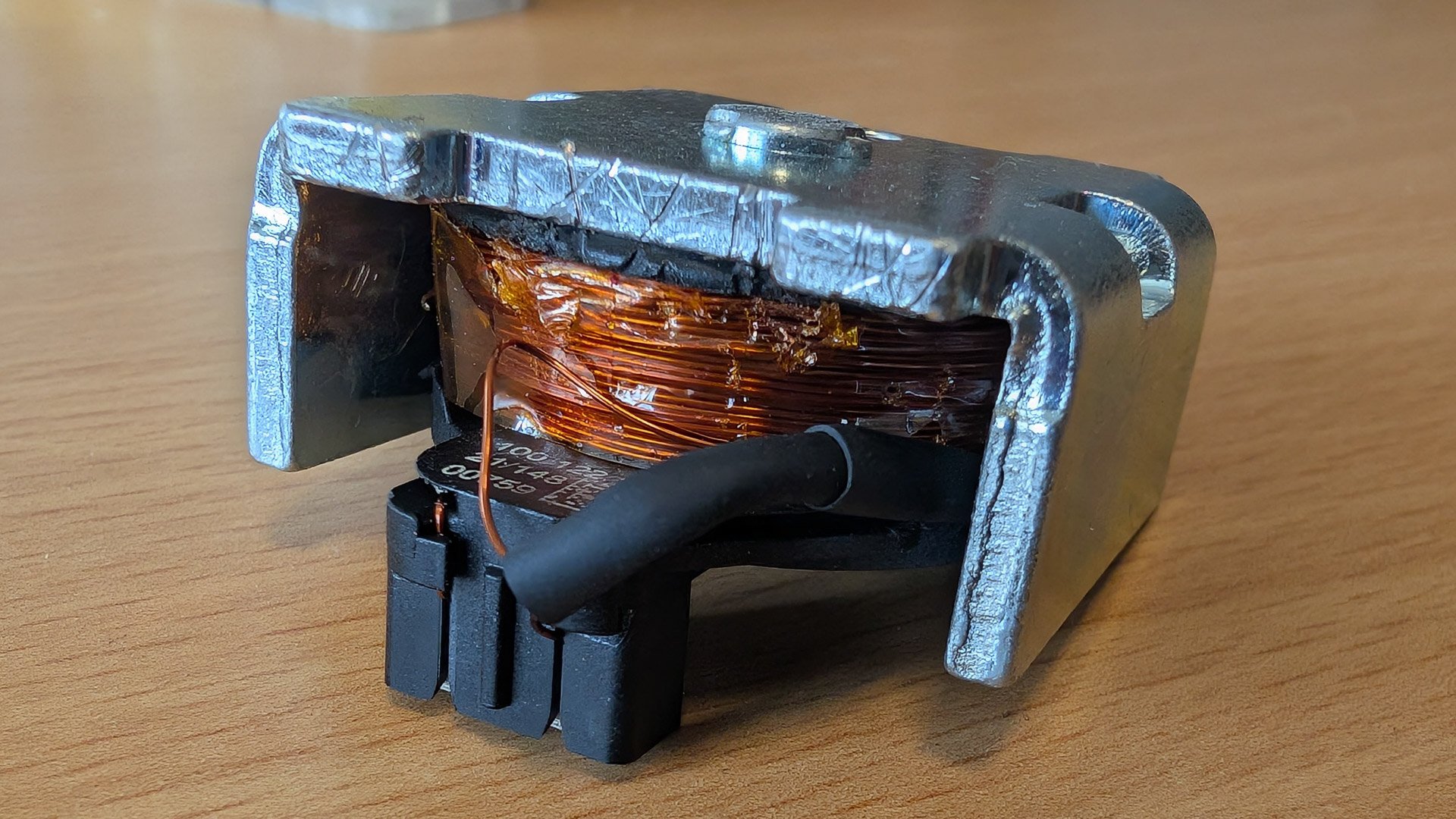
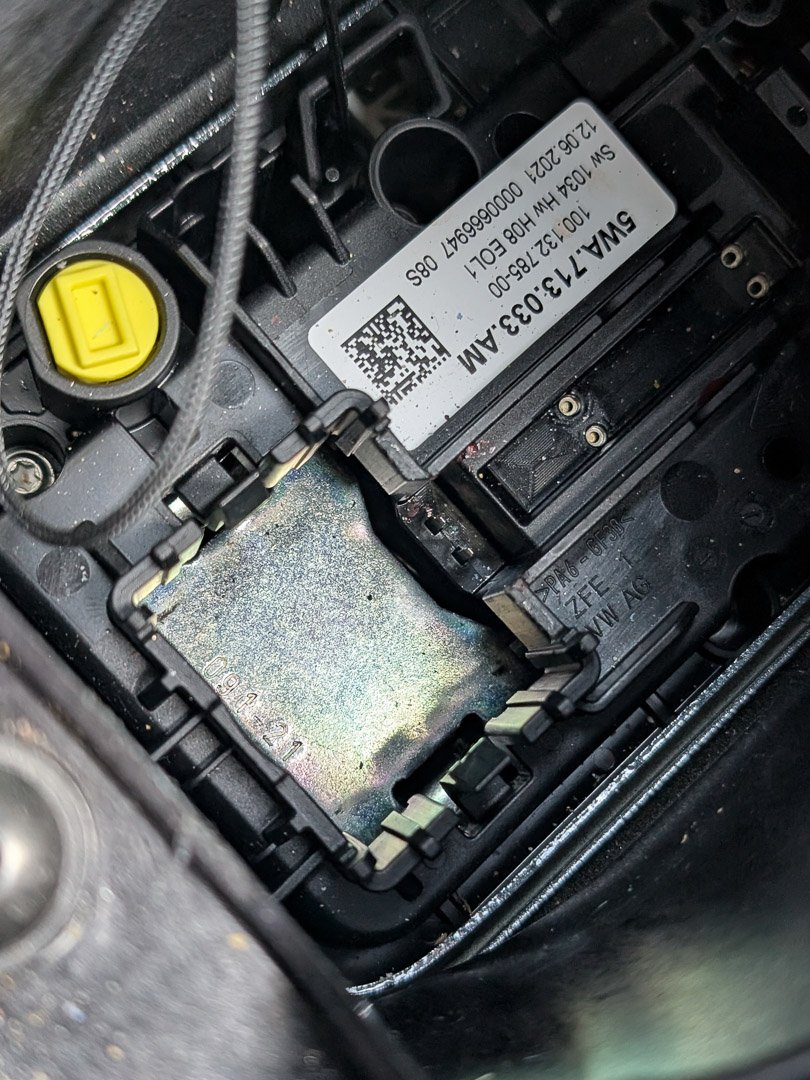
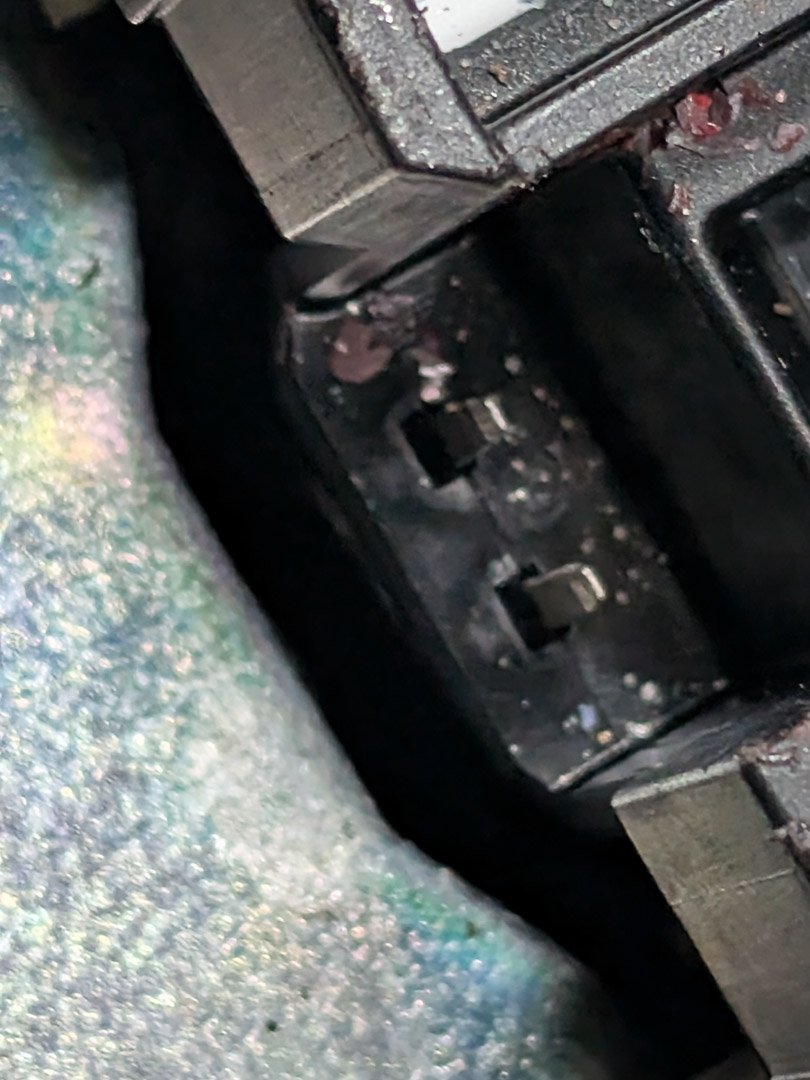
Thanx a lot for this post! It solved my problem! I followed the same procedure: I opened up selector switch section (I bought the tooling for this; I did not detach cables so I left the selector switch section in place but opened up Removed the foam piece Removed the solenoid This really gave me a hard time. It was stuck very tightly, hurt my hands doing so Bent the clips *) Placed it back Tested it: problem gone Closed The solenoid wire was broken; it might have been the cause of the problem or it happened during removal. So I had to loosen the other end of the broken wire from under the plastic (using a dentist hook) and solder it to the loose end still attached to the clip. Isolated it with shrink sleeving and it measured 5.5 Ohm again. The warning After removing selector and foam There it is After removal and soldering Bent back clips Soldered wire Empty socket The contacts in the socker I wonder if they sell the solenoid as a spare part... I do not see it on Google, which is a bad sign. I guess you have to replace the entire switch electronics.
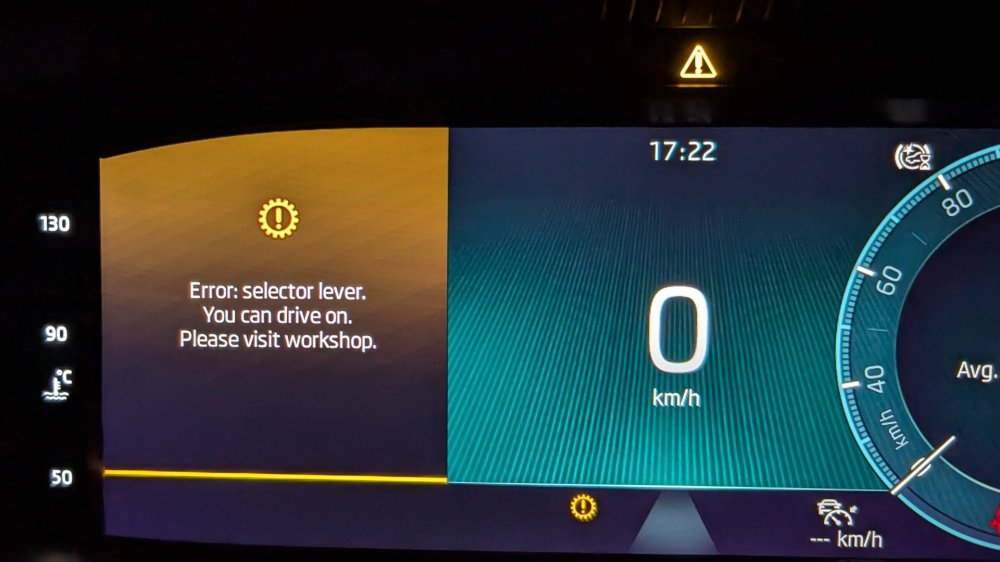
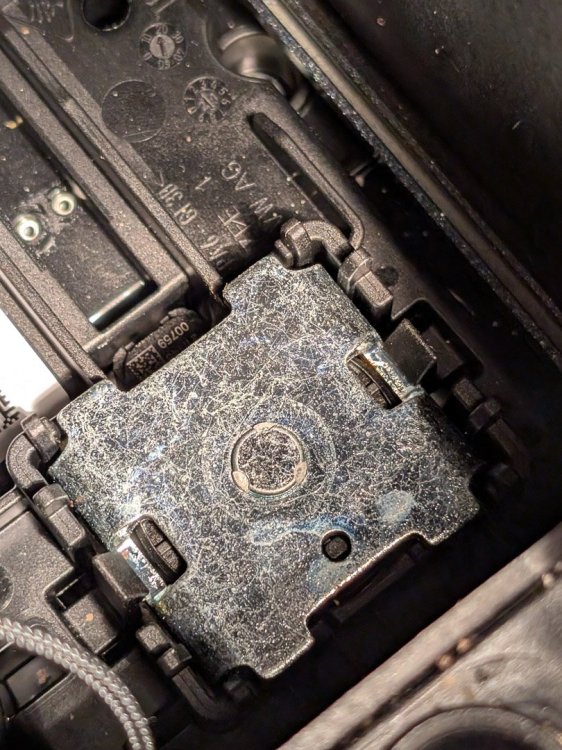
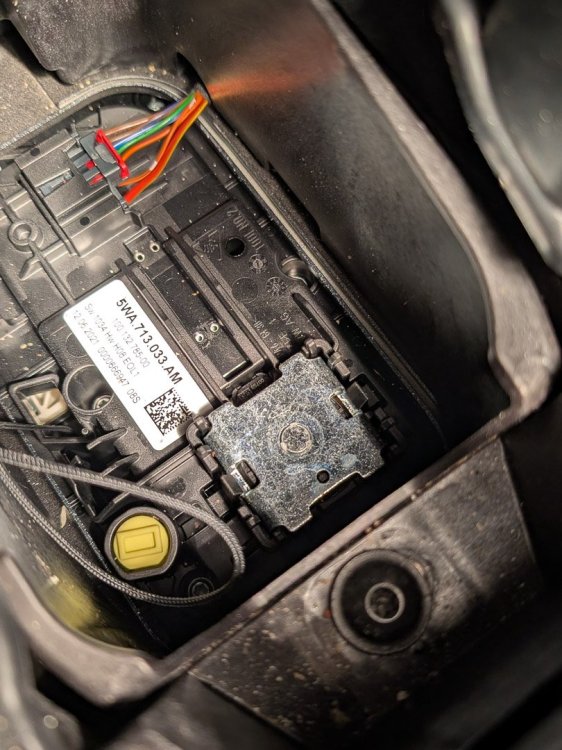
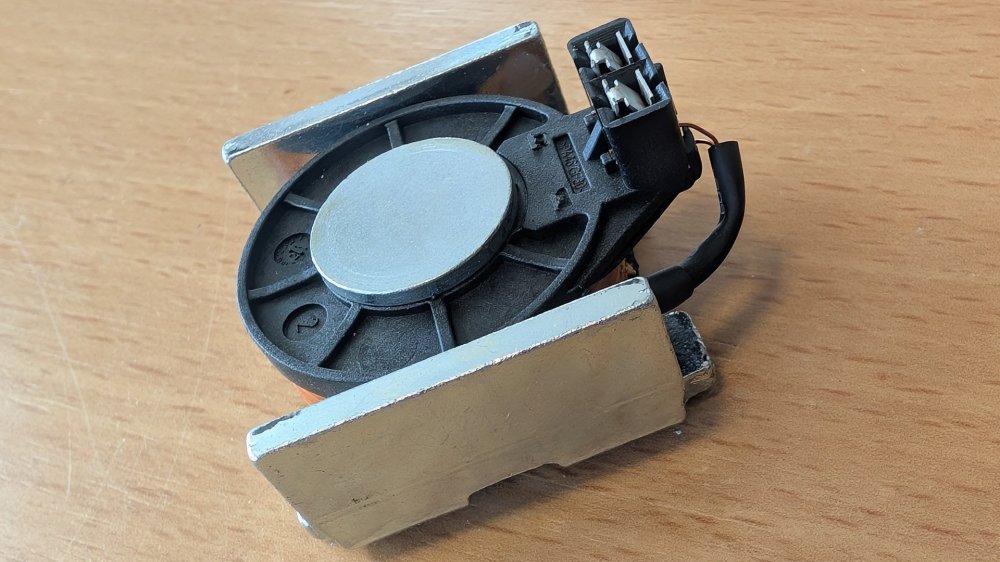
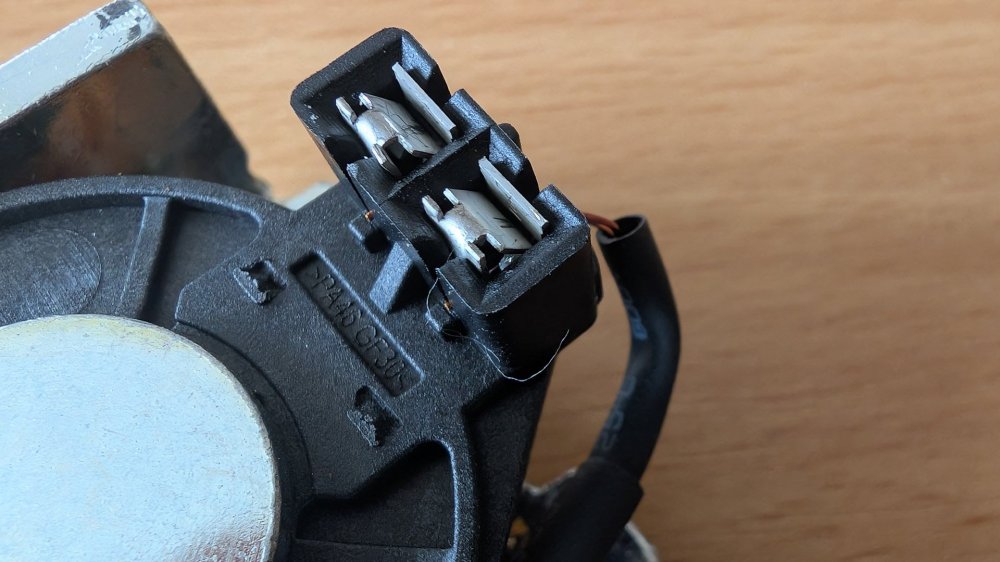
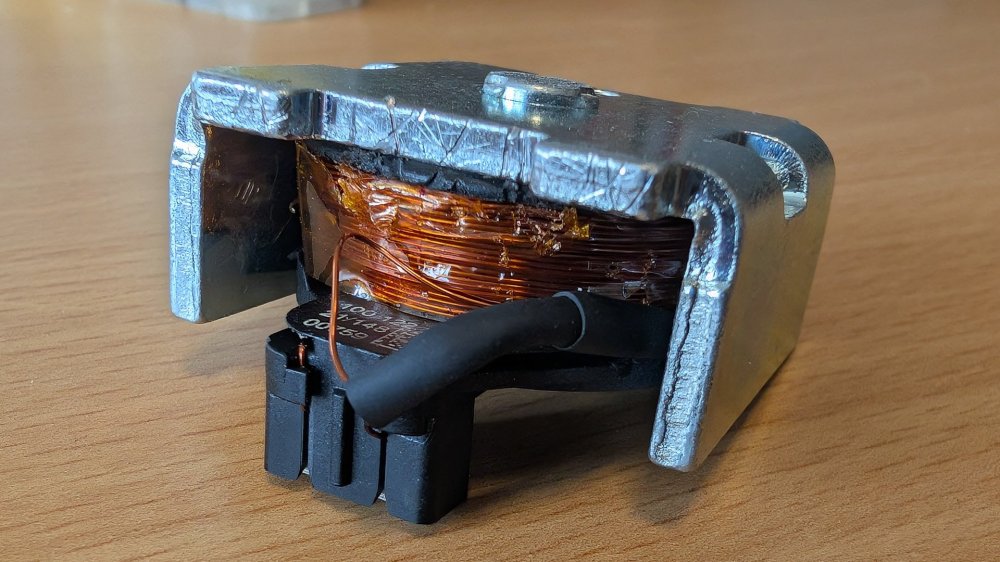
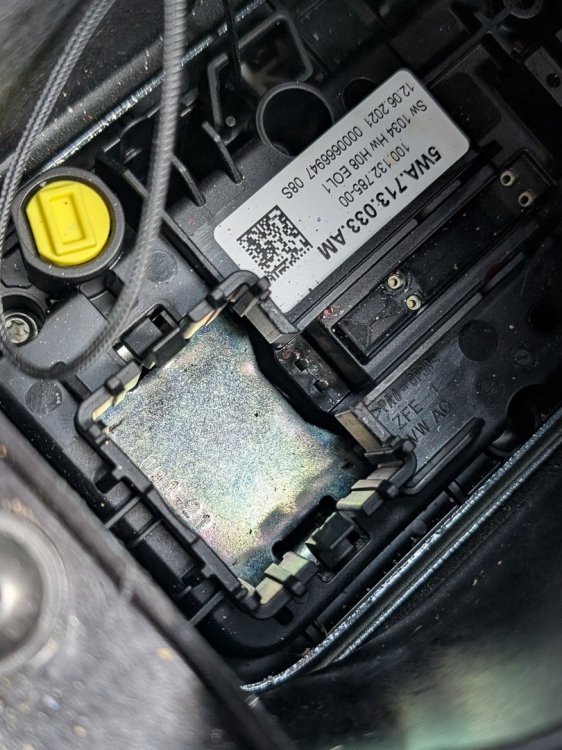
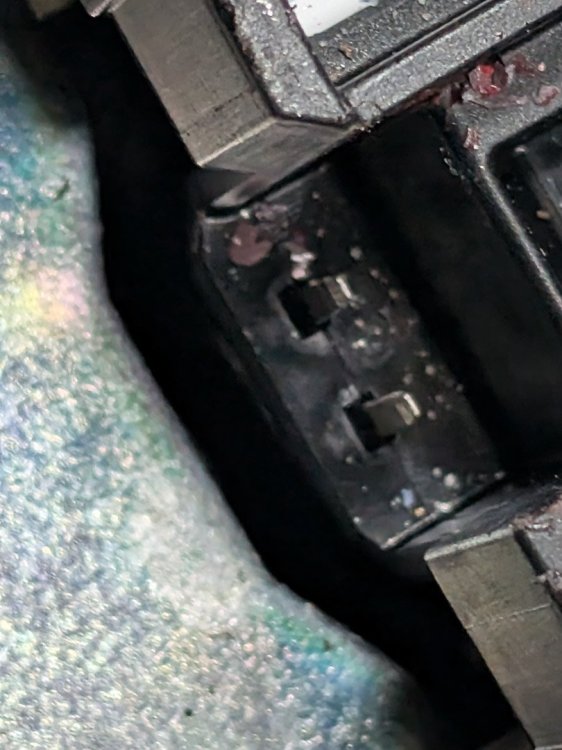
-
Same here on the Octavia IV that I received in september 2021. Some preferences are stored Air conditioning settings Radio favourites Active user A lot of preferences are not stored Driving mode (always returns to 'normal'; this however may be a feature since I read in the manual or somewhere) Headlight (always returns to 'auto'; I prefer always on) Navigation settings (roadsigns, north-up, home, work, favourites, etc) Assist settings (always return to all on) The sceen I left on previous ride (always starts in home) ... I went to the dealer. They said they executed an update (no effect visible in system info). They requested: 'See if your problem is solved'. Unfortunatelly it was not solved. Only hope is that Skoda solves the stuff in next update :-(