




TheGreyKaroq
Finding my way
-
Joined
-
Last visited
-
I spent MONTHS trying to sort this and the fix is actually REALLY easy now I know! This may not work for everyone so please don’t shoot me but my Karoq was just hanging for AGES! And then error. All I did to fix it, after months of searching, was create an accounts at www.Skoda-connect.com Click login and the next page gives you the ability to create an account. Follow the steps. Once done you can connect BUT you will then get an error saying licence invalid. It turns out you need to pay £44 per year for a licence here https://www.skoda-auto.com/connectivity/connect Then as if by magic everything works! If trying to tether to an iPhone hotspot you need to turn on Maximise Compatibility within your Personal Hotspot settings. Even then it didn’t find mine so I manually entered it and it works perfectly. I hope this helps
-
Thanks. I have read that it may need a firmware upgrade but you need internet access for that! I have found a guy on here who seems to have access to firmware so will keep you updated
-
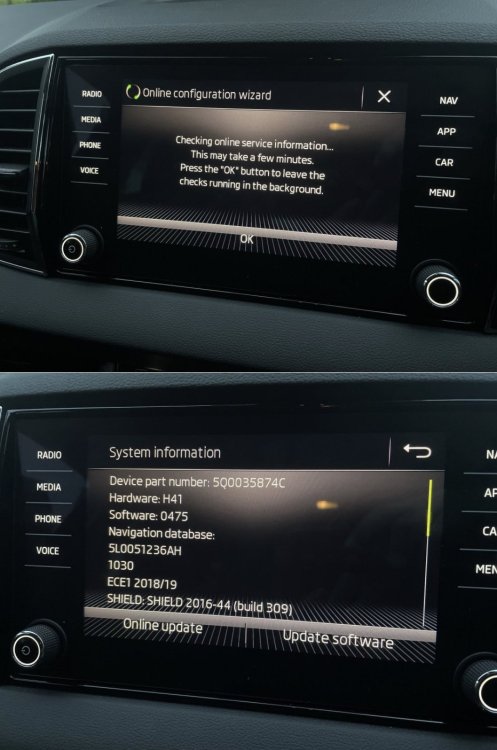
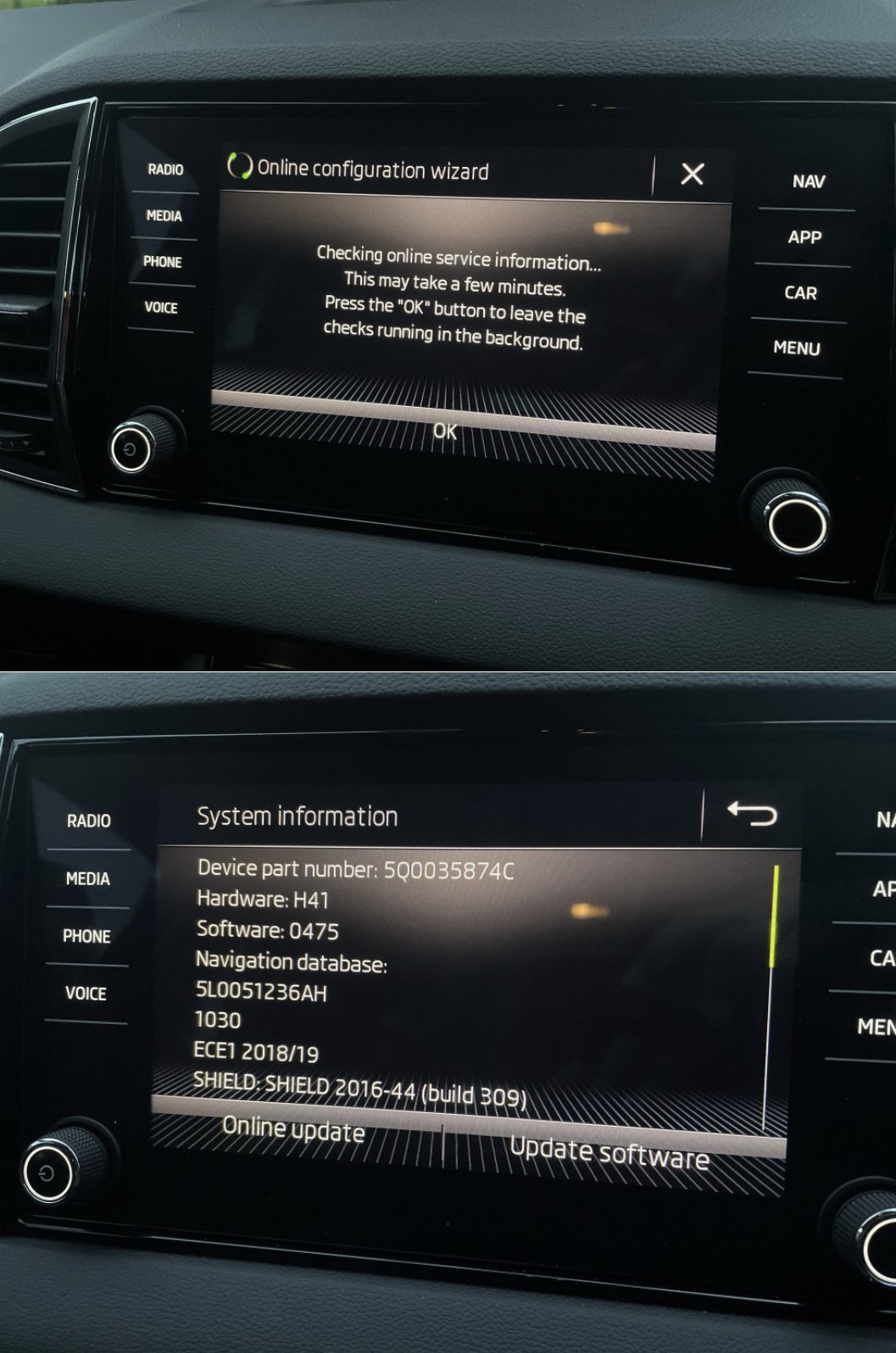
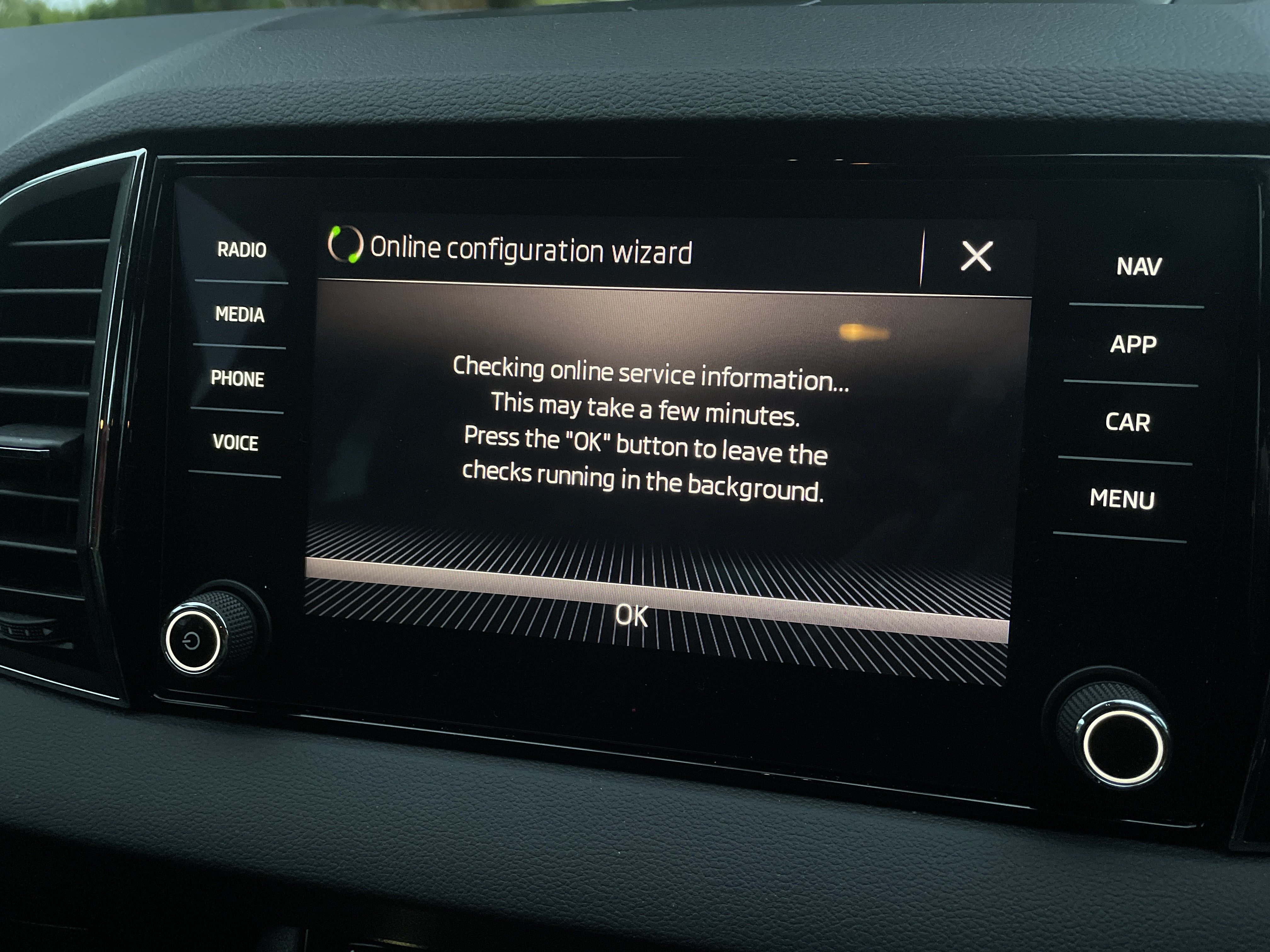
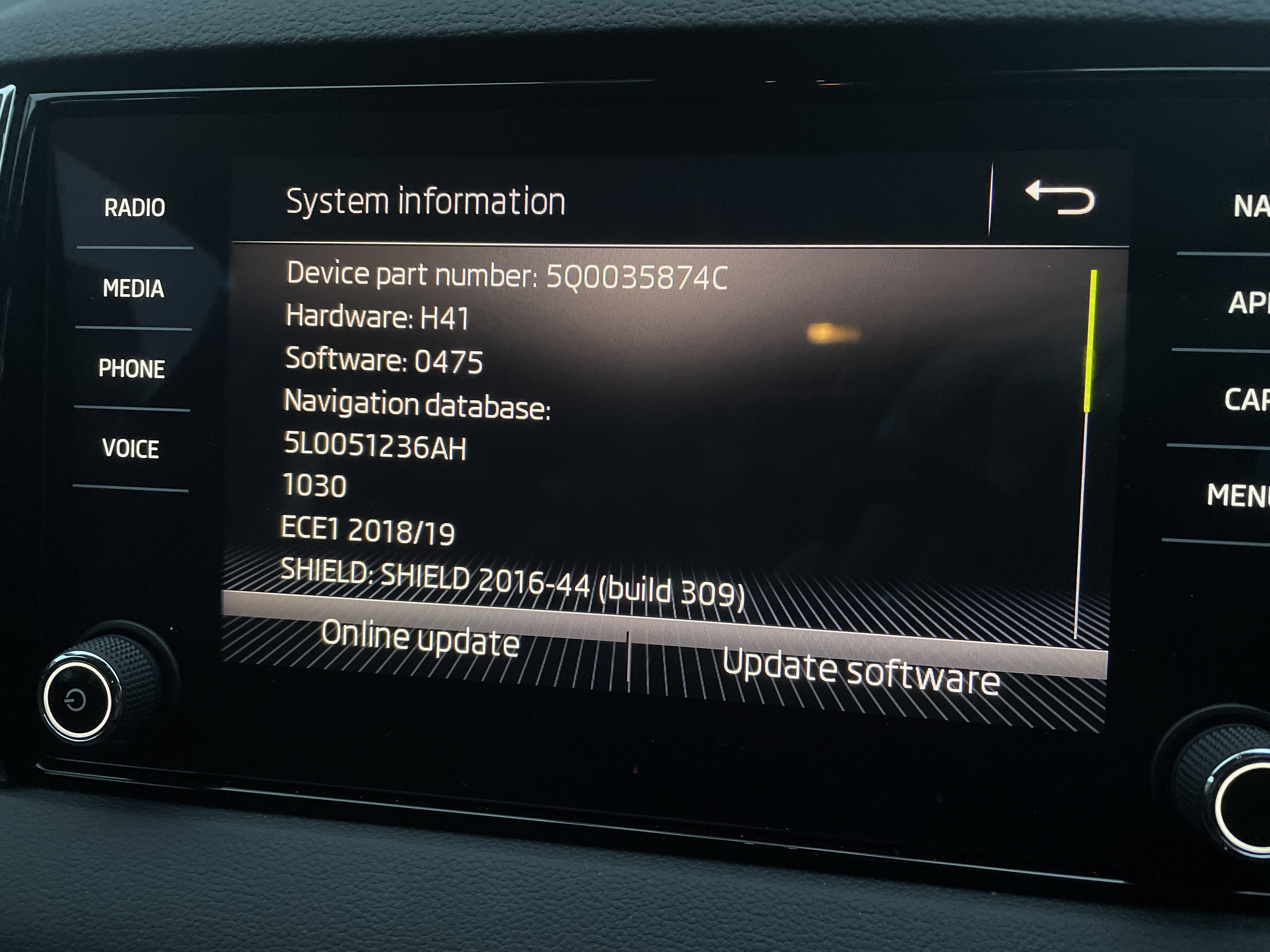
Hi. Just bought a 2019 Karoq and it will not connect to internet. WLAN says its connected to my iPhone 12 hotspot but then it sits on configuration spinning wheel. I believe it may need a newer firmware update? Any ideas?
-
On a different note I see you managed to update your maps. How did you download it as for me the site just hangs and never downloads more than 3mb
-
I have EXACTLY the same problem and on same version as you. Please can someone help

Important Information
Welcome to BRISKODA. Please note the following important links Terms of Use. We have a comprehensive Privacy Policy. We have placed cookies on your device to help make this website better. You can adjust your cookie settings, otherwise we'll assume you're okay to continue.