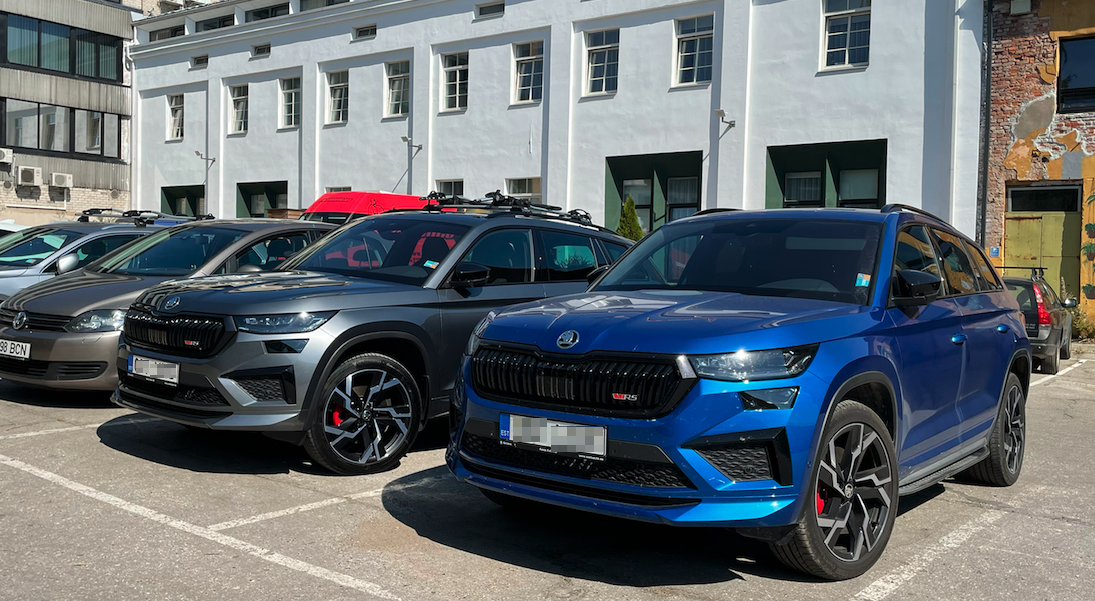
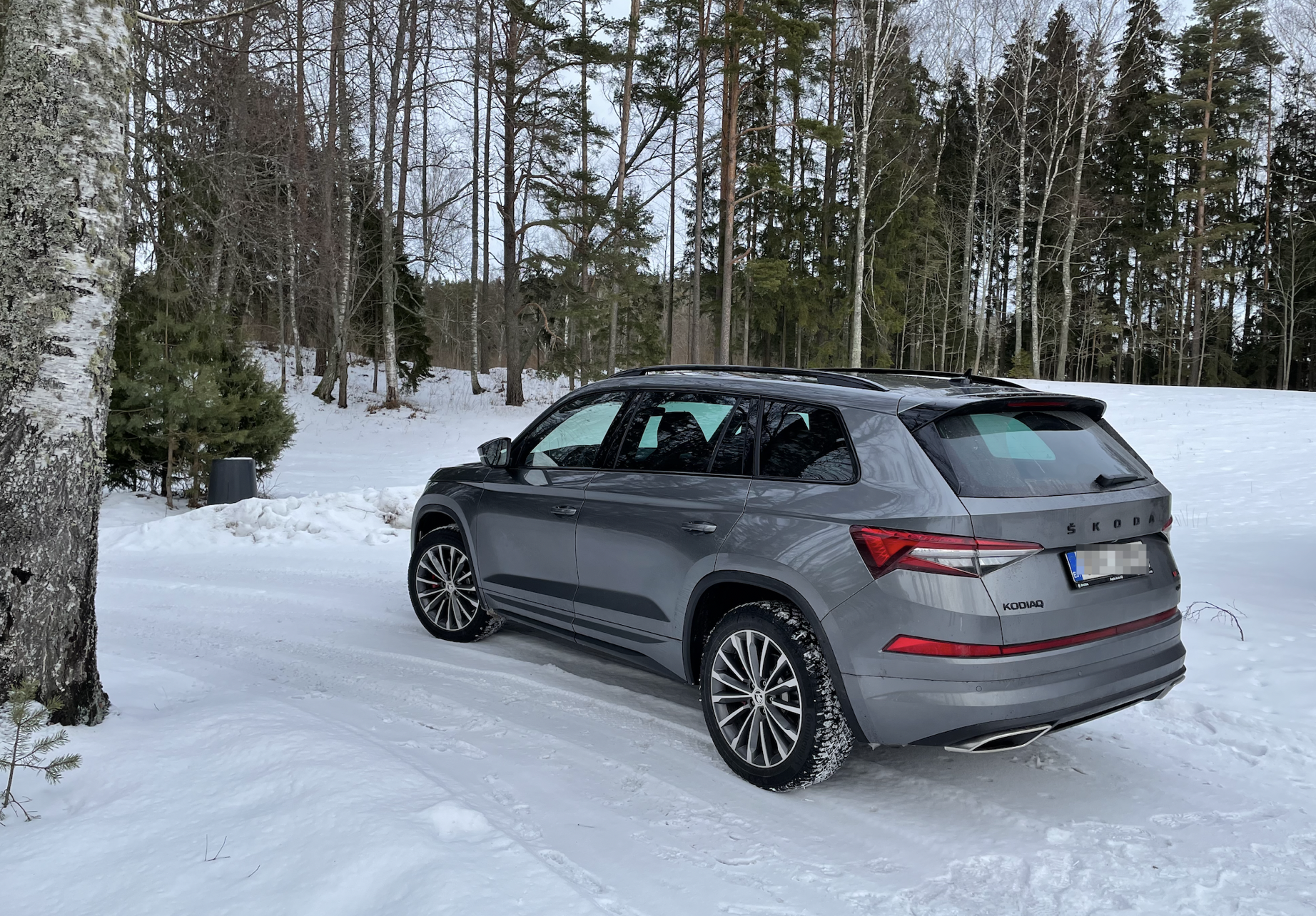
graphiteKodiaqRS
Finding my way
-
Joined
-
Last visited
-
I've seen some with them on.
-
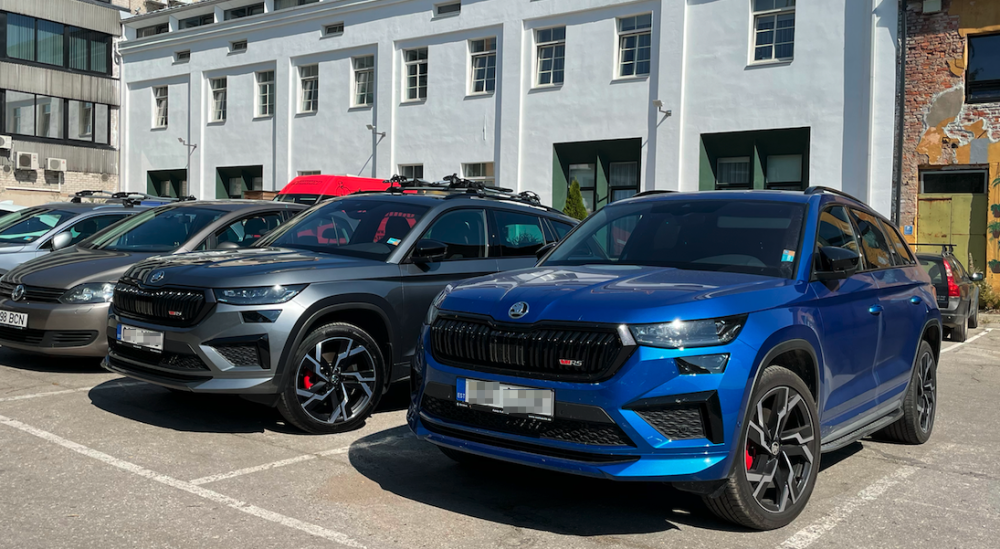
A random image.
-
I ordered a special plate for my VRS: 001 VRS Fits perfectly.
-
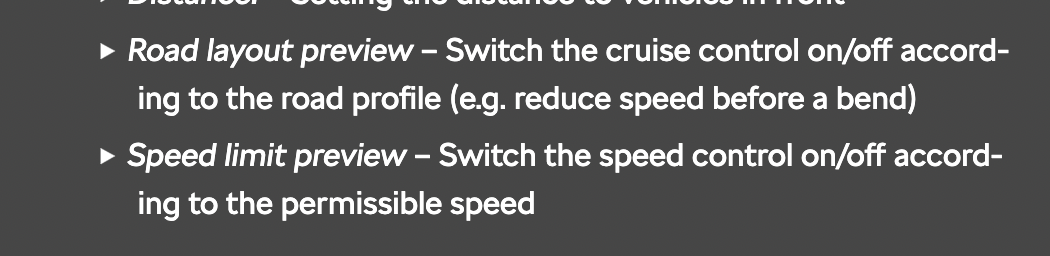
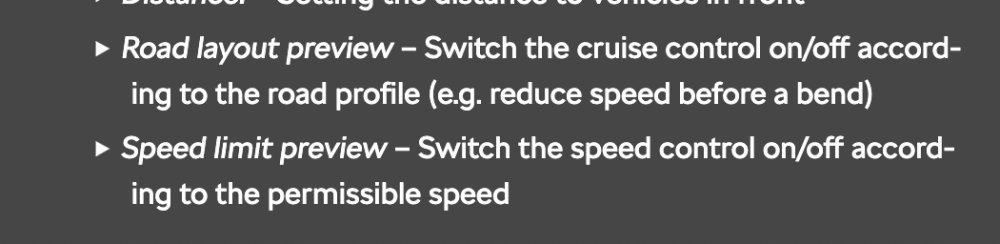
Yeah, can't argue with that really. There are couple of things that annoy me that I should look up in the manual. For example, when driving with ACC on, it automatically adjusts the speed to traffic signs. Want to get rid of that (I'm not ignoring them, I just want to lower/increase the speed on my terms, not on car's). I think these:
-
Thanks. I missed the ASR step. About user manuals - never read a user manual for a car and never will. I'll try Google but won't go beyond that. Things need to be simple to use.
-
Tried yesterday. Put it on sport mode. Pressed down brakes and then applied gas but "nothing" happened - the revs didn't go up. Maybe I was doing it wrong.
-
Standard Kodiaq yes, Sportline, kind of equal vRS, definitely no
-
But then i get this notification on screen to turn on the lights which is very annoying.
-
Happened to me yesterday...
-
Yeah, there's light sensitivity: low and high. Need to decipher.
-
While we are at this topic - I feel like the lights come on too soon in low light conditions. Any way to "remedy" this?
-
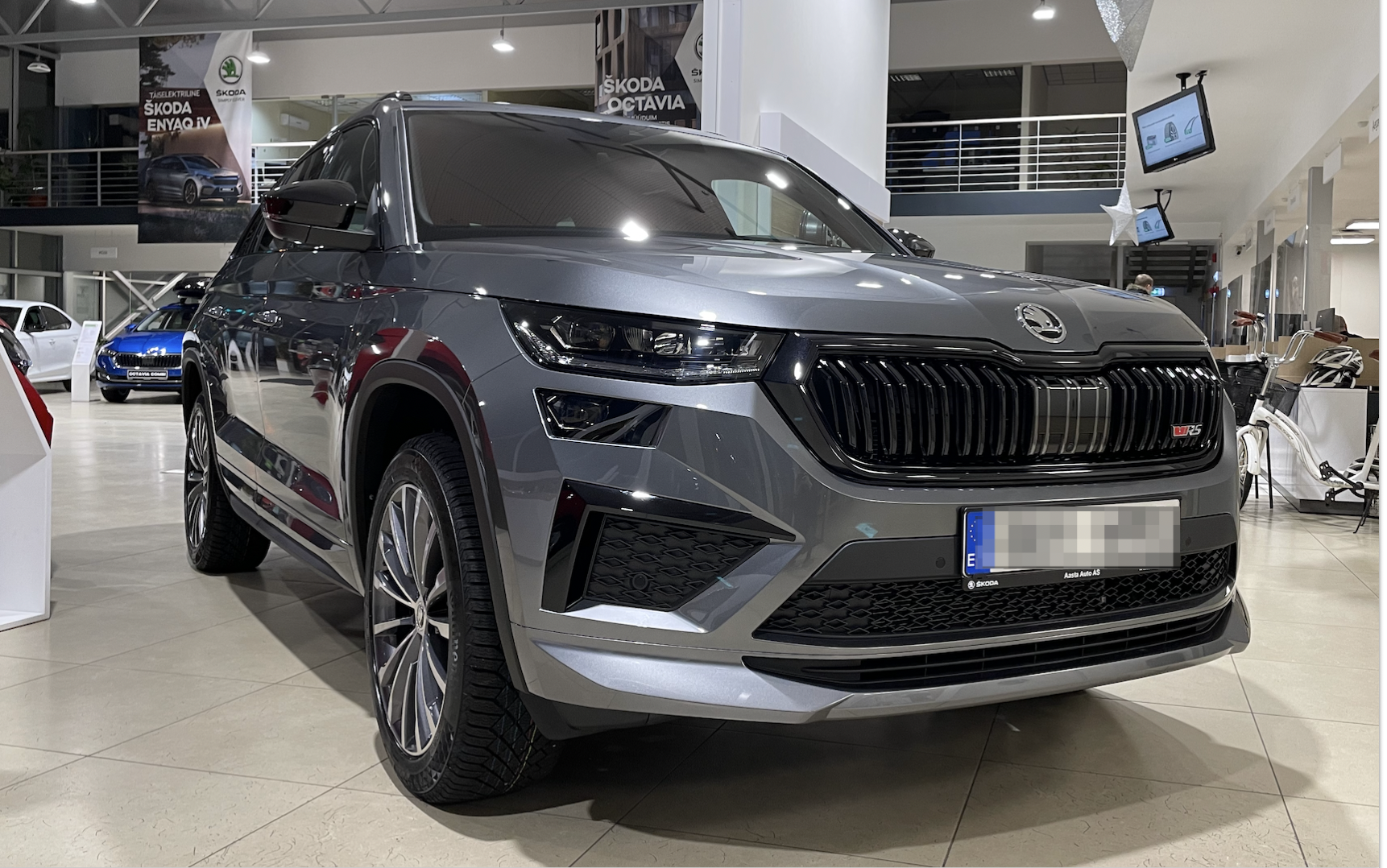
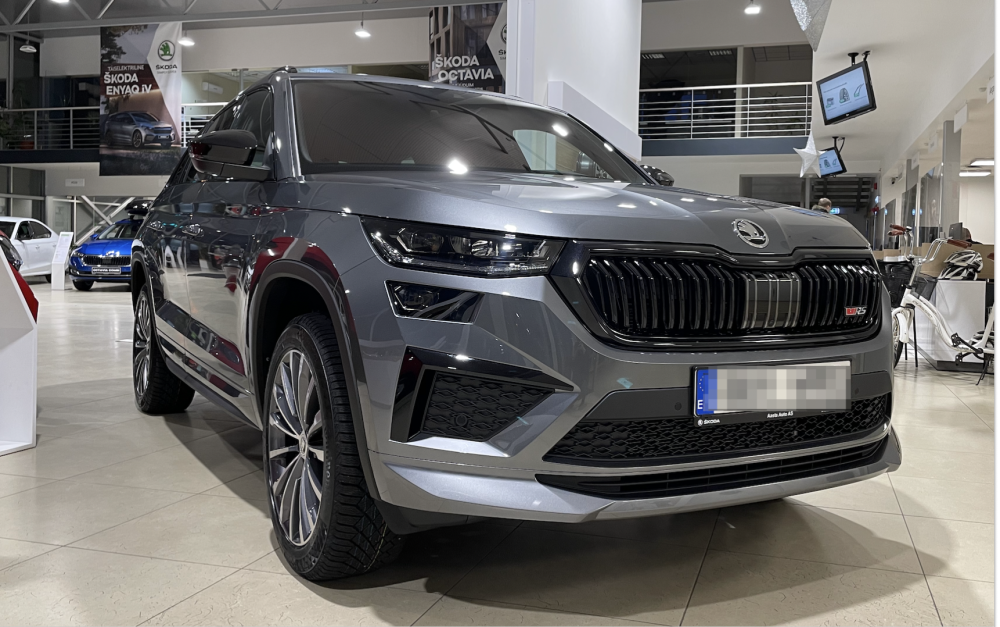
Yes, it is graphite grey. But it looks very different I agree. Before, the pickup at the dealer's:
-
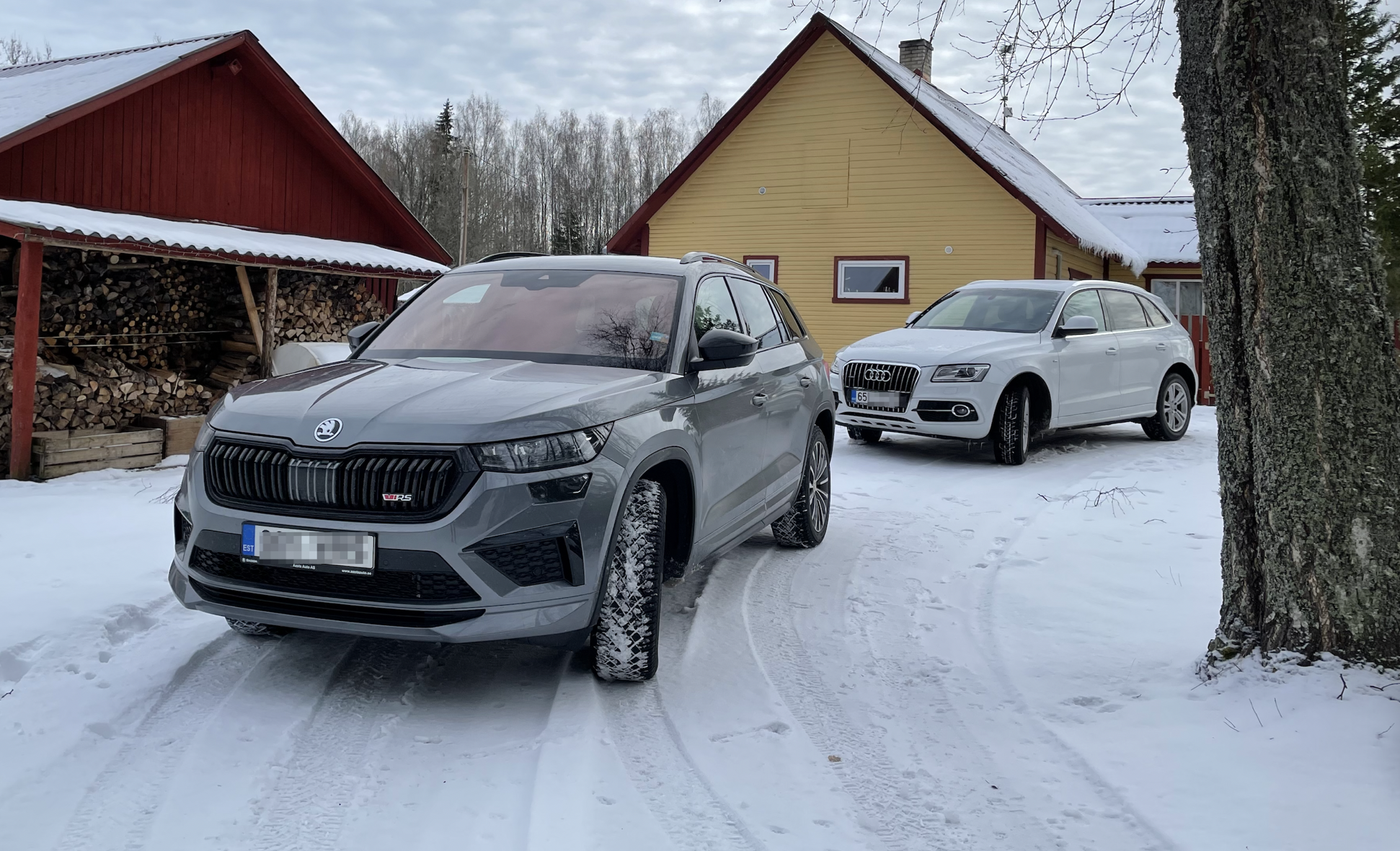
Finally some daylight The white Audi is the car I drove while I waited for my RS (for some reason it is just RS here). Kodiaq is so much better than that Audi (and we all know Audi isn't a bad car. That one had similar engine too - 169kw 2.0TSI. For winter, I put on 19'' wheels.
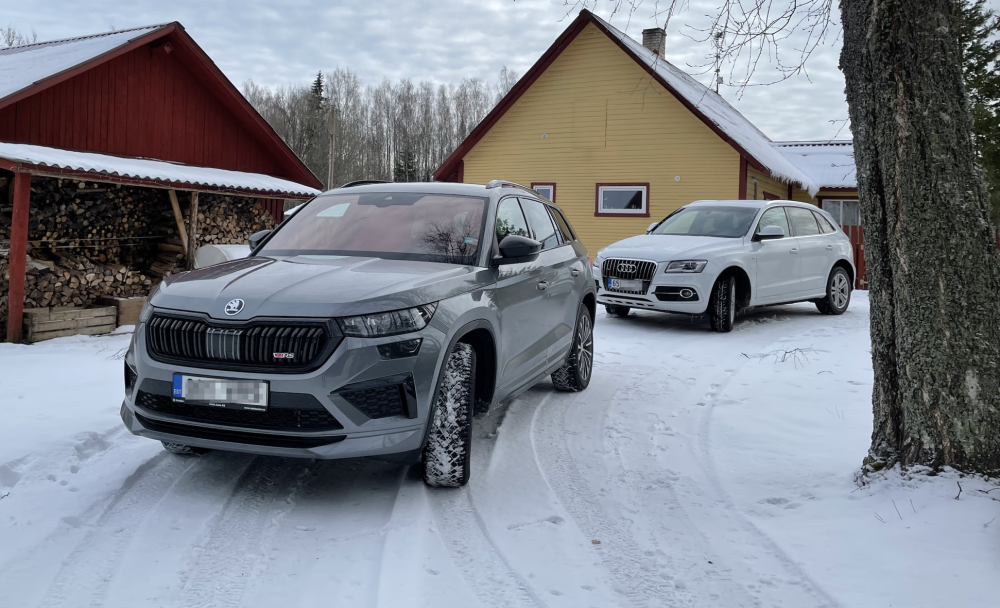
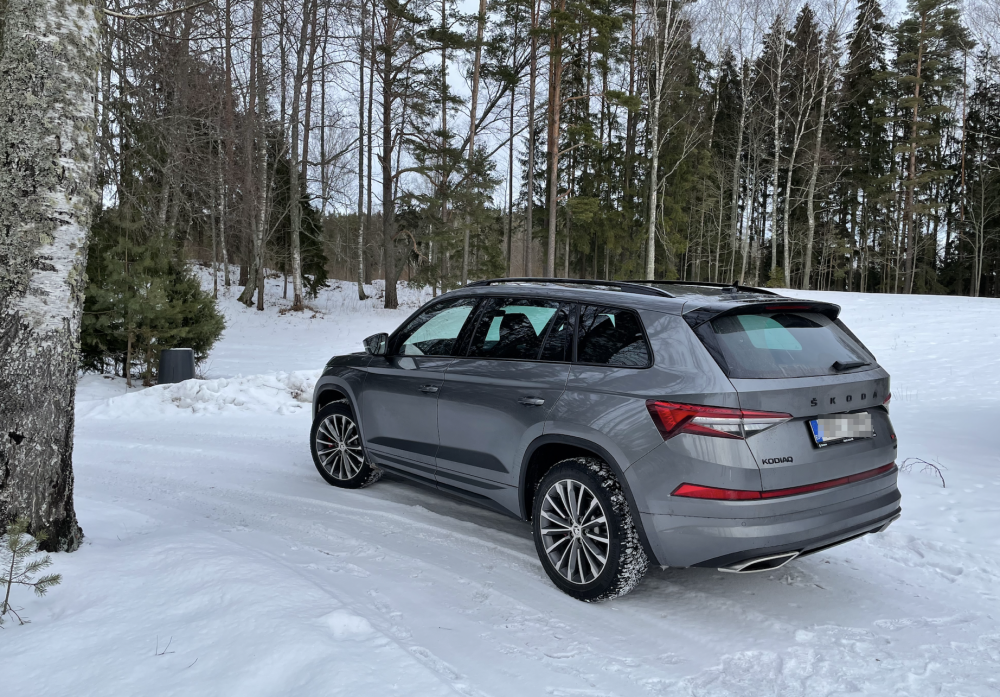
-
I had to stay at the office for quite a while and once I got out it was dark and snowing IMG_0683.HEIC IMG_0682.HEIC
-
In the first week of Dec I made a query to the dealer and got the response that build week was just added and it was week51. On that week, VIN didn't become available yet. Then the holidays happened. VIN appeared in the 2nd week. And two weeks later, here we are.