FernandoCamino
Finding my way
-
Joined
-
Last visited
-
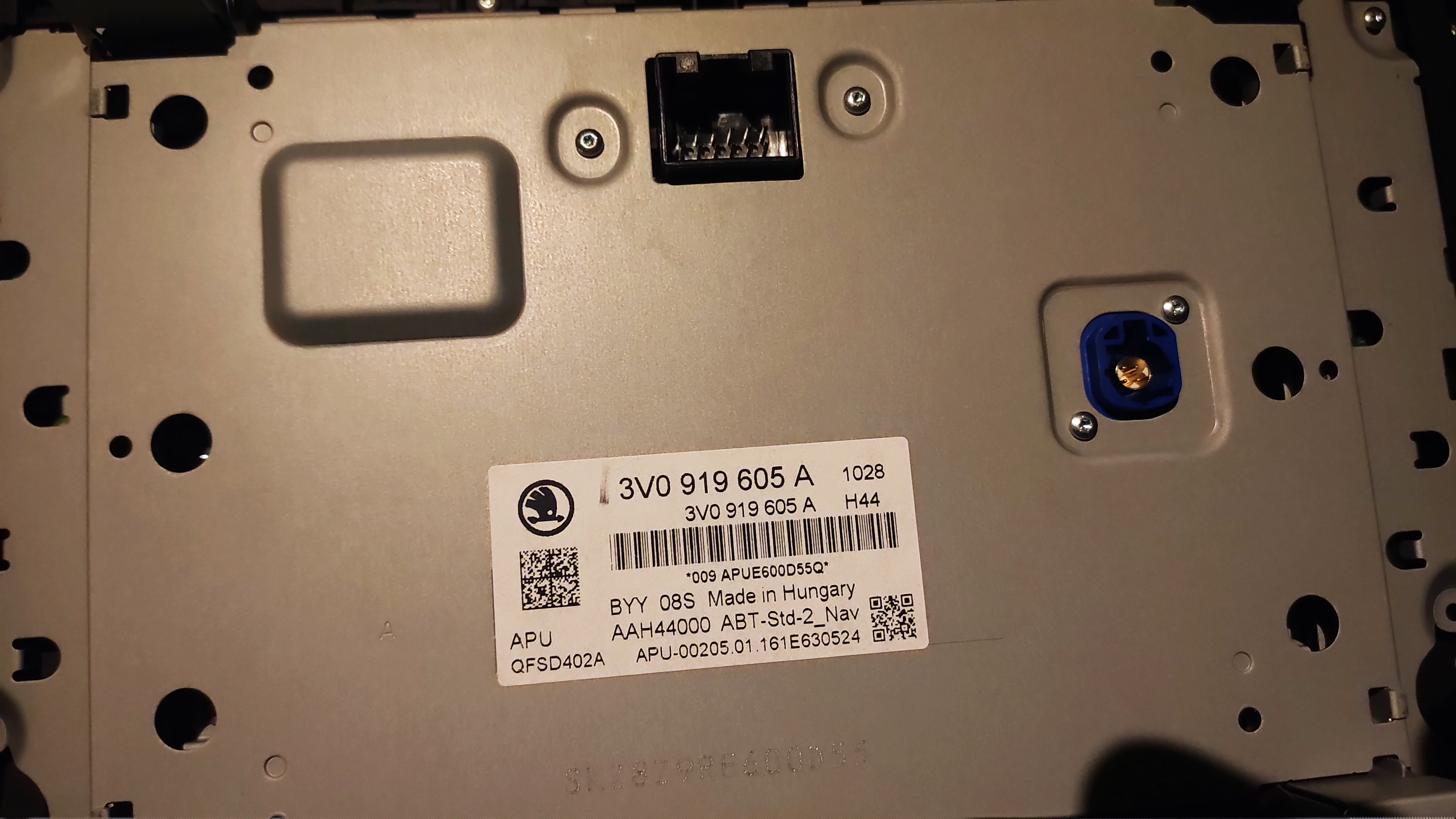
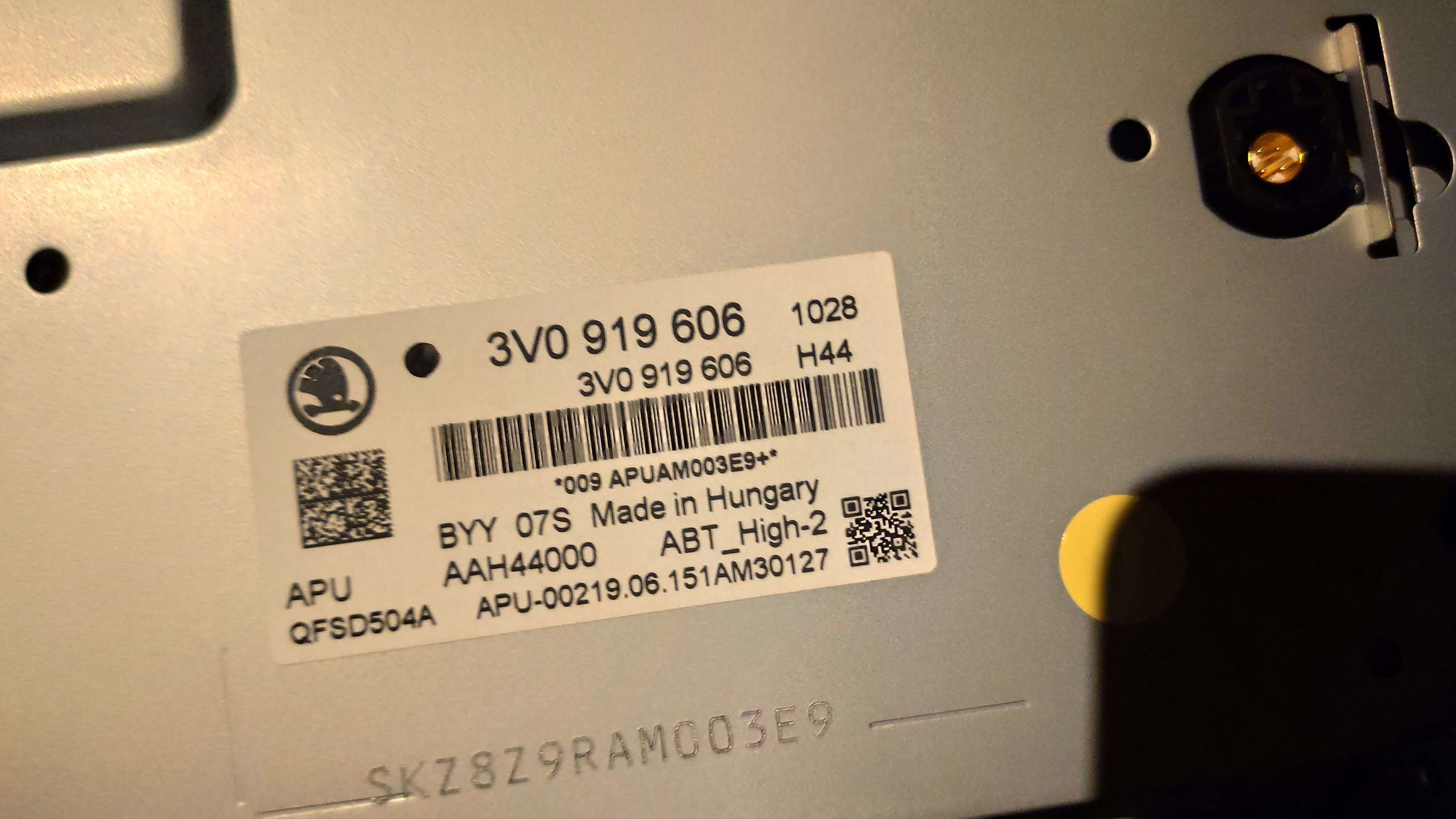
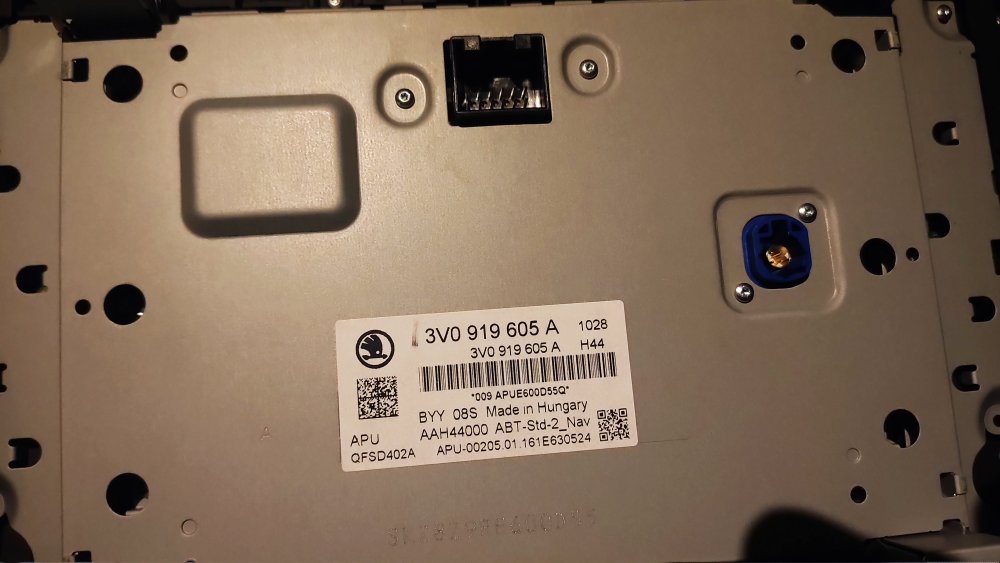
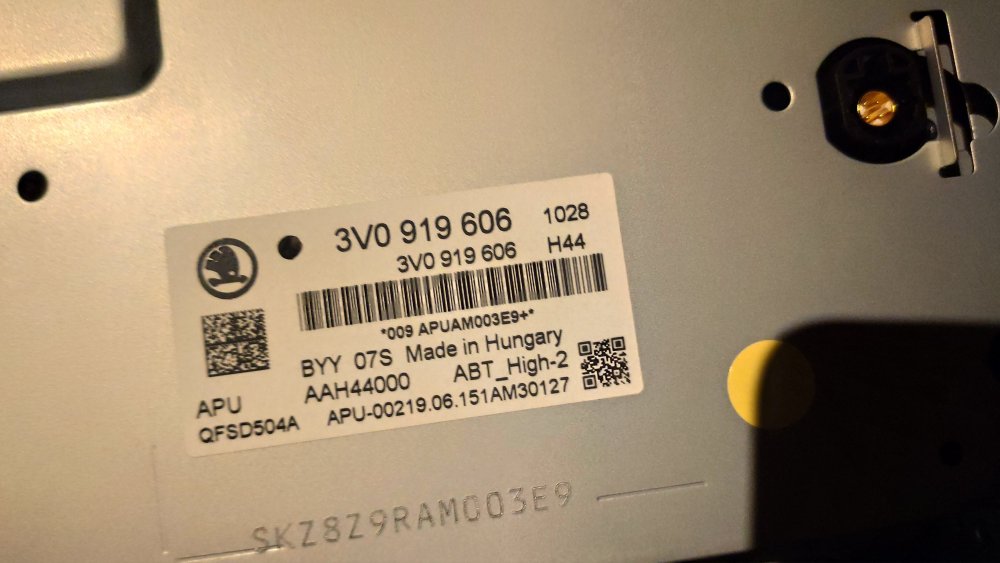
Hi! There are a couple of pics with their back label, apart form that I don't know any more details like names and stuff. I think that by googling the art number (big number on top of the label) you'll get all the details.
-
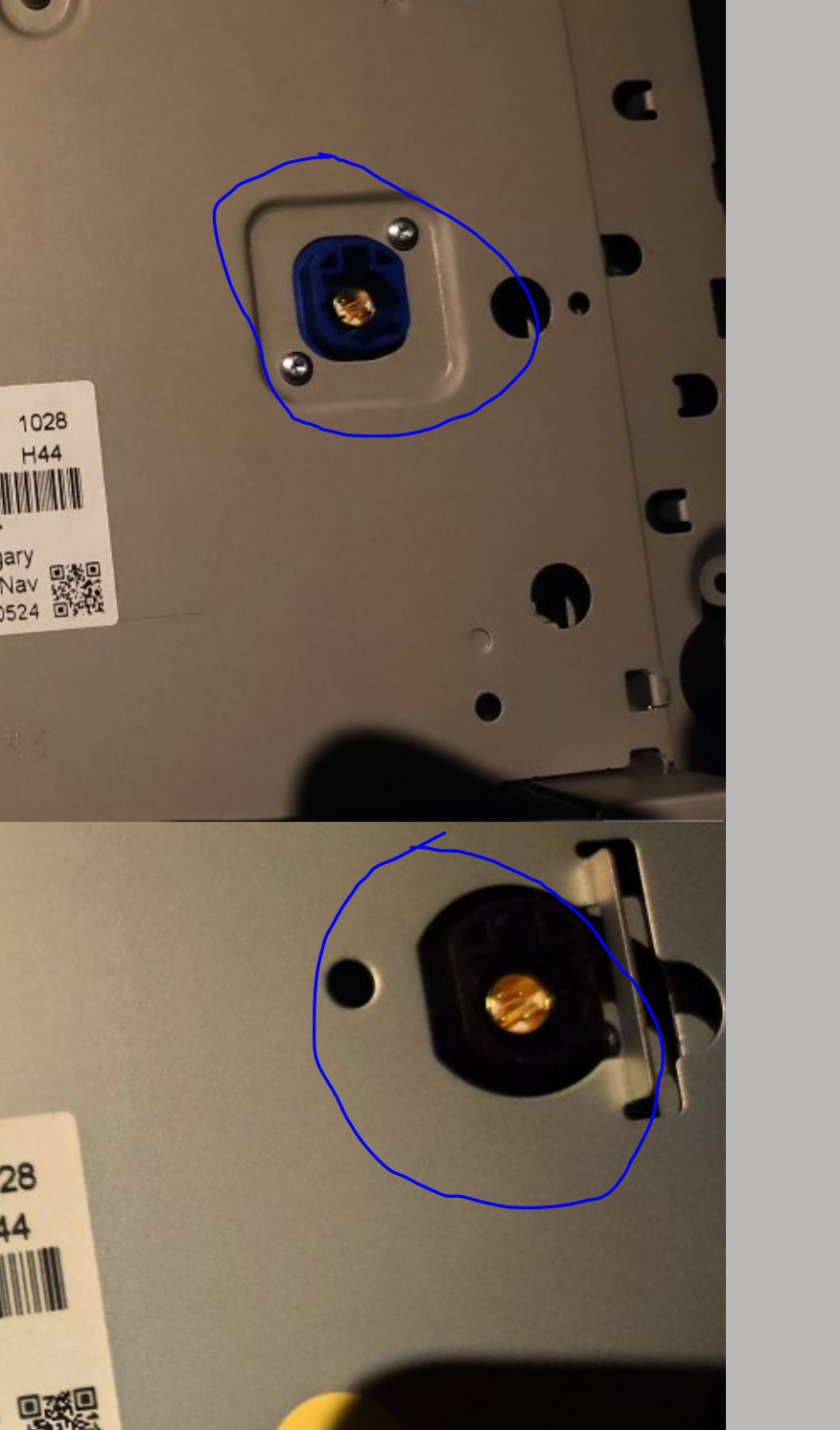
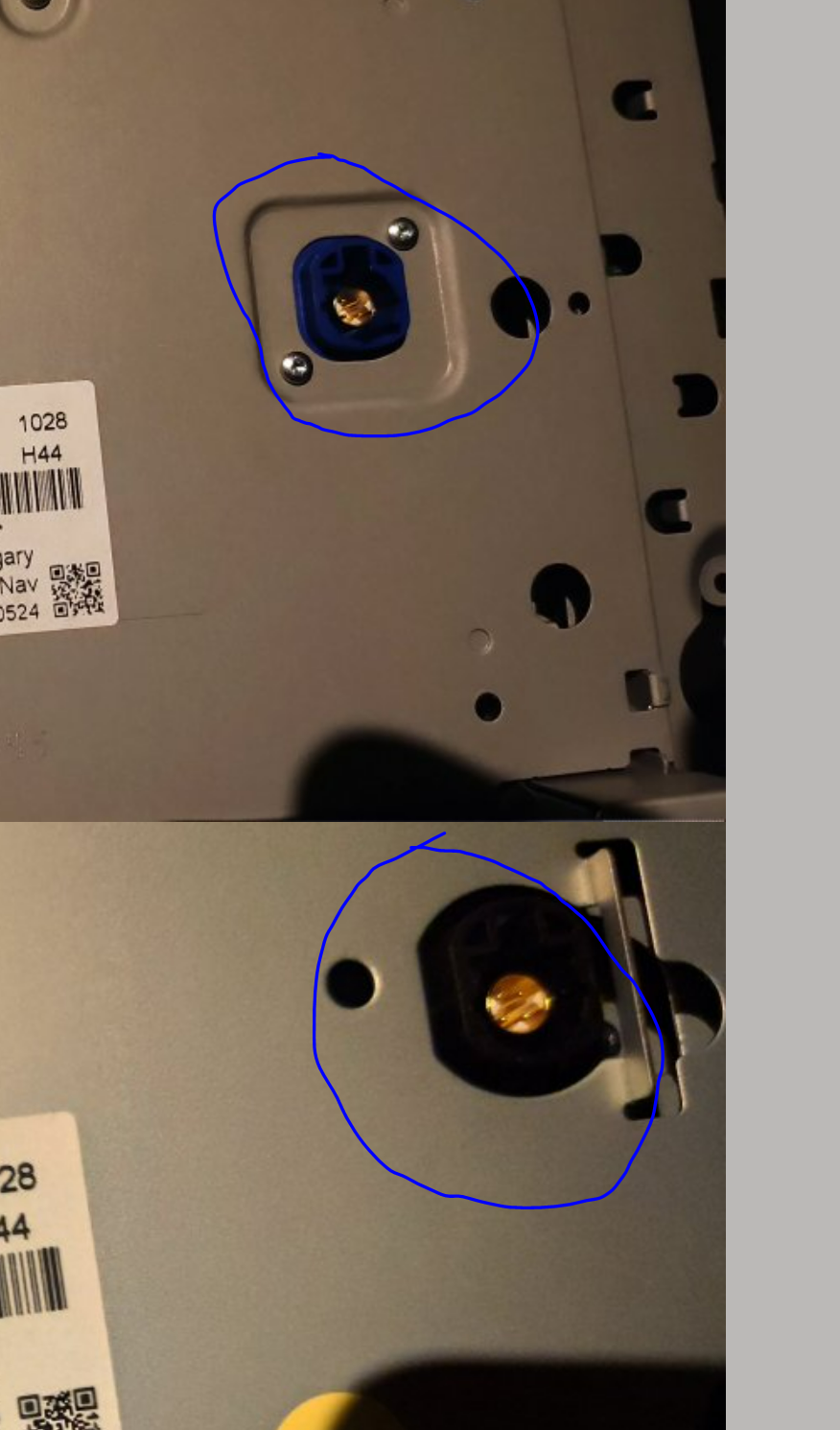
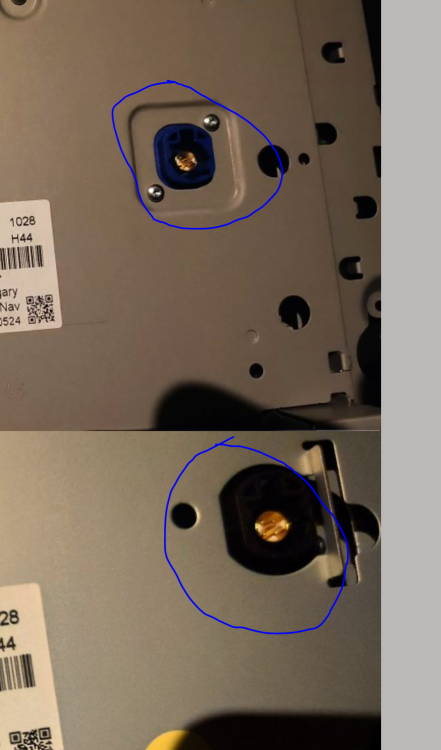
HI! So I literally just swapped the screen and it worked like a charm. I already had smart link, Android Auto, Carplay etc. working in the old screen, so I assume I don't have the very basic/oldest glovebox unit? The only thing I needed to do is cut out a plastic tab from the cable that goes into the hole I'm showing in the image below. I'm also including the labels of my old display and the new display, the new one being the last pic. Hope it helps!
-
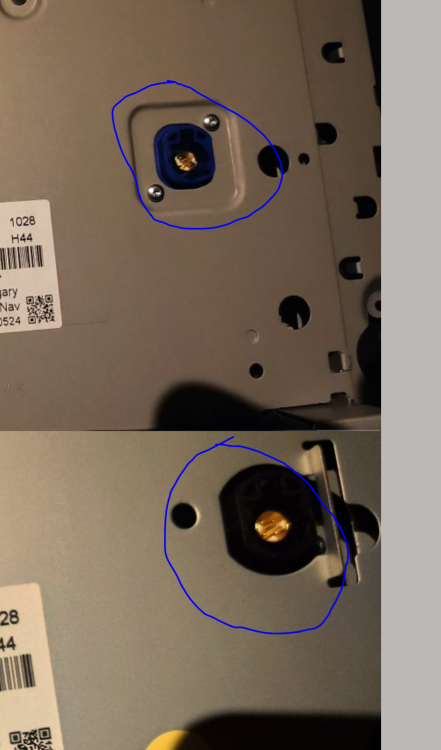
HI! So I literally just swapped the screen and it worked like a charm. I already had smart link, Android Auto, Carplay etc. working in the old screen, so I assume I don't have the very basic/oldest glovebox unit? The only thing I needed to do is cut out a plastic tab from the cable that goes into the hole I'm showing in the image below. HI
-
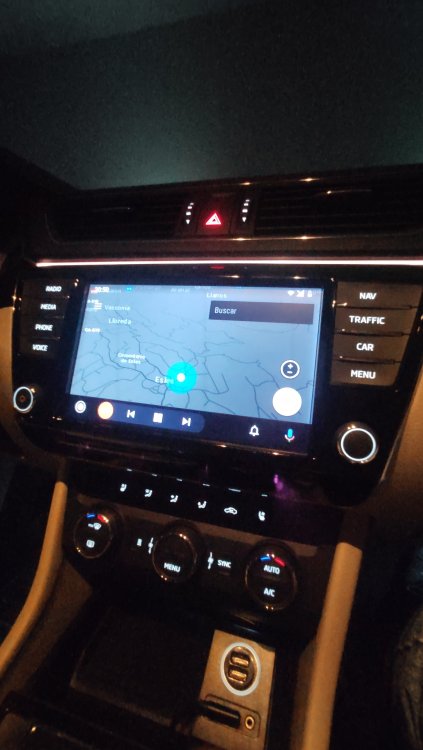
@pab567 you are the man! Everything works like magic. Just needed to cut those little plastic molds from the 4-pin cable. It really is plug&play. And I thought I had to spend 900 bucks in a control unit, do some coding and component protection crap. They'll ake my life, but not my bigger display!
-
Cool! Was that the reason preventing my new display to properly work? I thought it was just an antenna
-
Sorry, I meant to say I've plugged the 3V0919606 display, which is the one with a balck screen when plugged.
-
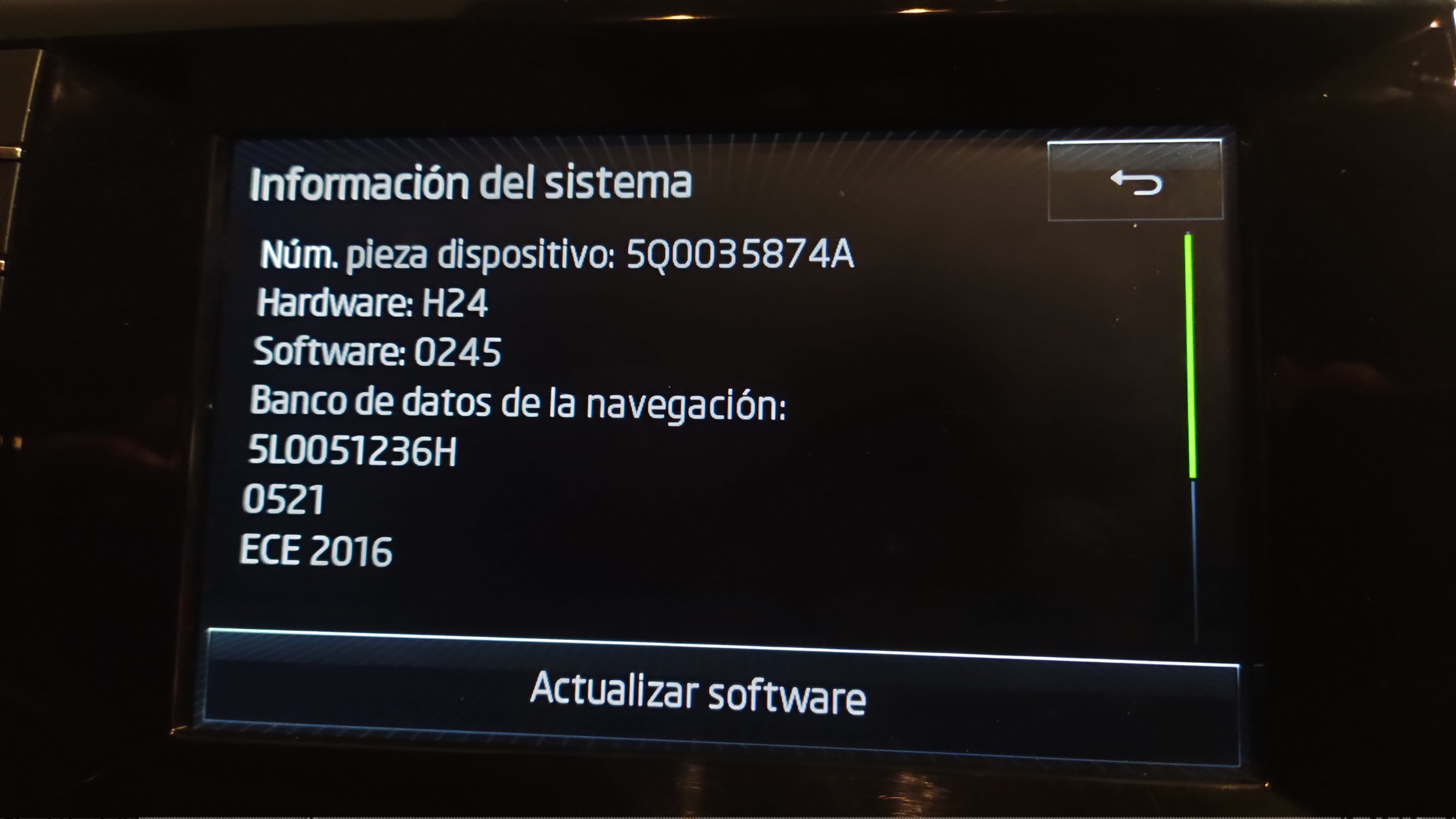
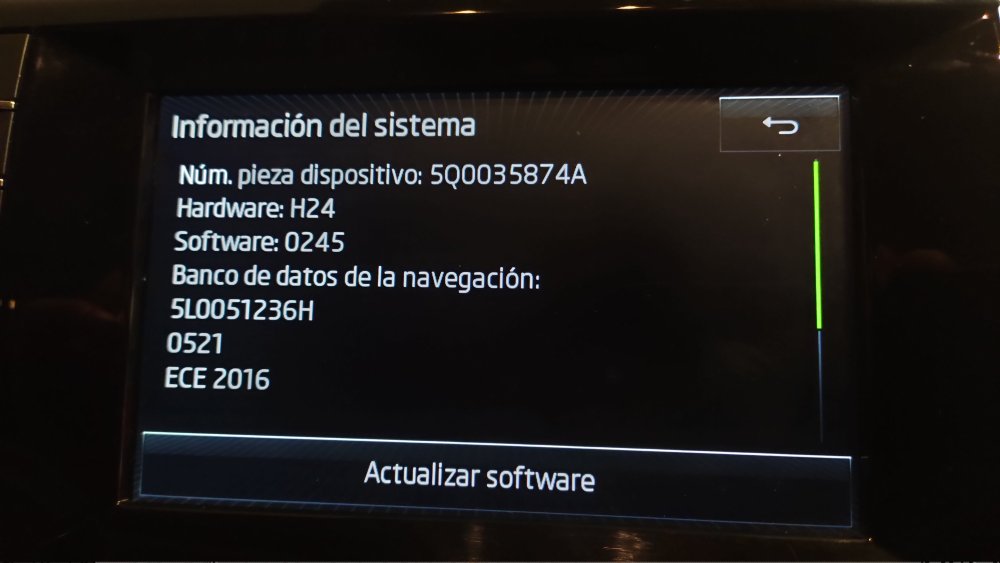
Ok cool! I never use NAV or TRAFFIC buttons as I always go straight to Android Auto / Carplay. The glove box unit I have is 5Q0035874A. I've plugged the 3V0919605A display and the buttons light up but the display is all black. Does it need some VCDS coding? Also, the smaller cable doesn't fit, I guess it's the radio or something right? Don't need that anyways. Thank you so much for your time guys! this is a great forum!
-
Oh I see, so I bought an MIB2 Columbus display and what I have is a MIB2 Bolero unit, so no chance for me to use this display without changing the control unit, right?
-
Thanks for your reply! My current screen is 3V0919605A, does this mean I have MIB 2? The display I bought is the 3V0919606, but I dont know if its A, B, D etc. (Picture of labels below) Is the one I bought MIB 2.5, and therefore, would require me to change the control unit too?
-
Thank you so much guys! Really appreciate the help. @pab567Can you shed some light on this? I'd be eternally grateful as I have about a week left to return the display 😅
-
Thanks so much Simon!!
-
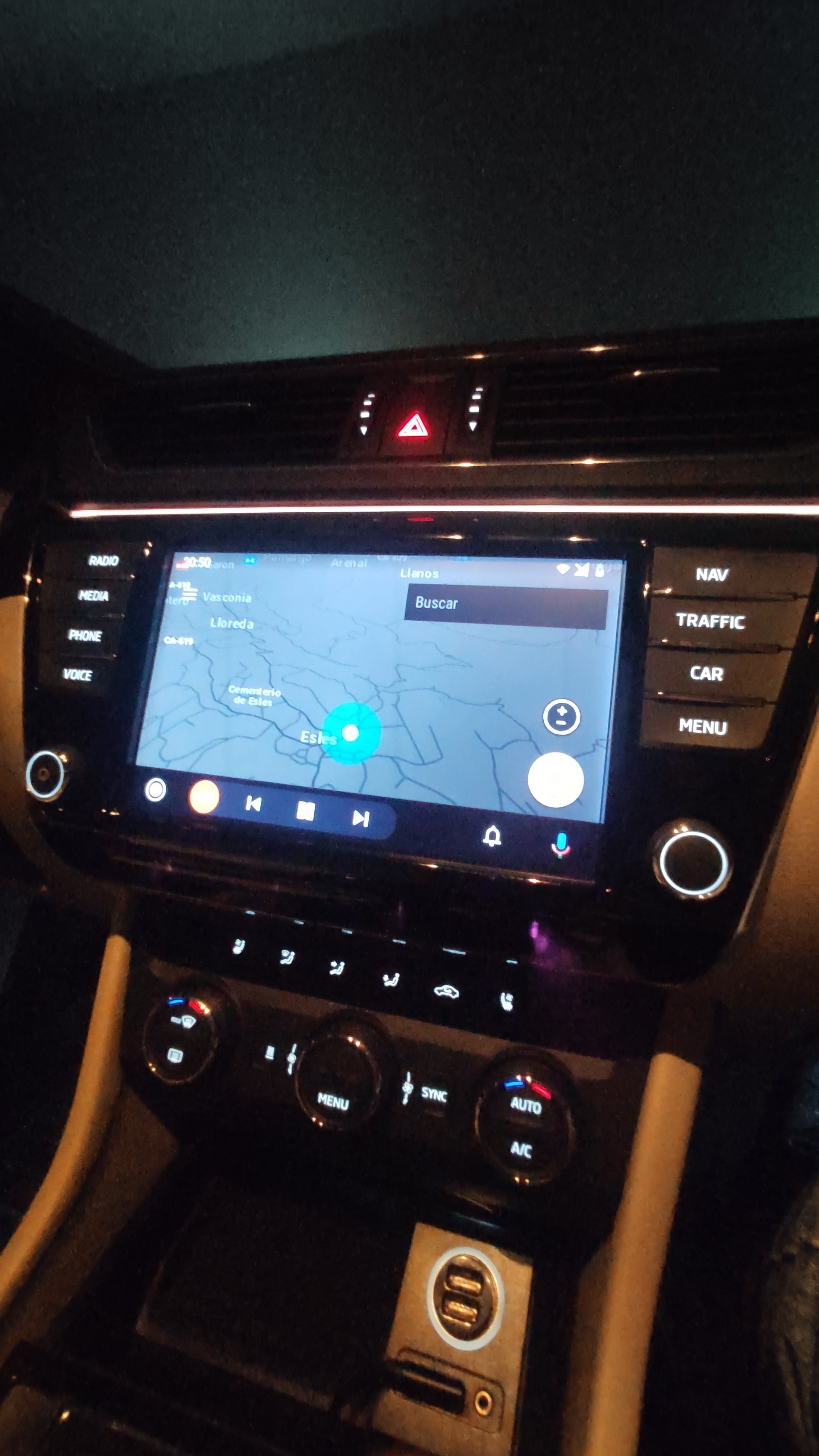
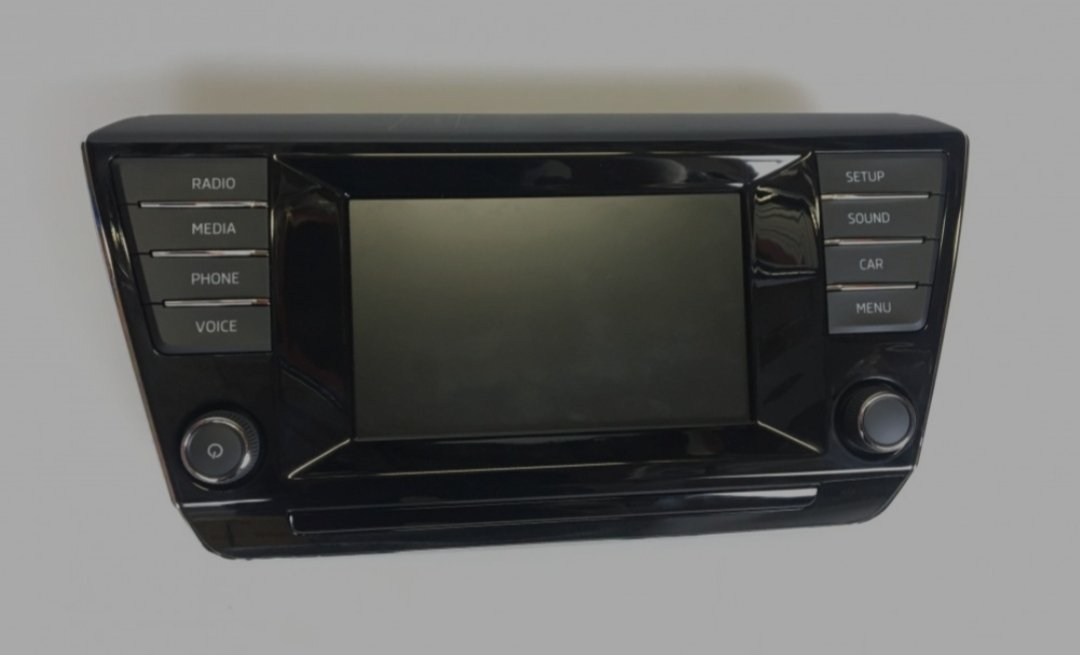
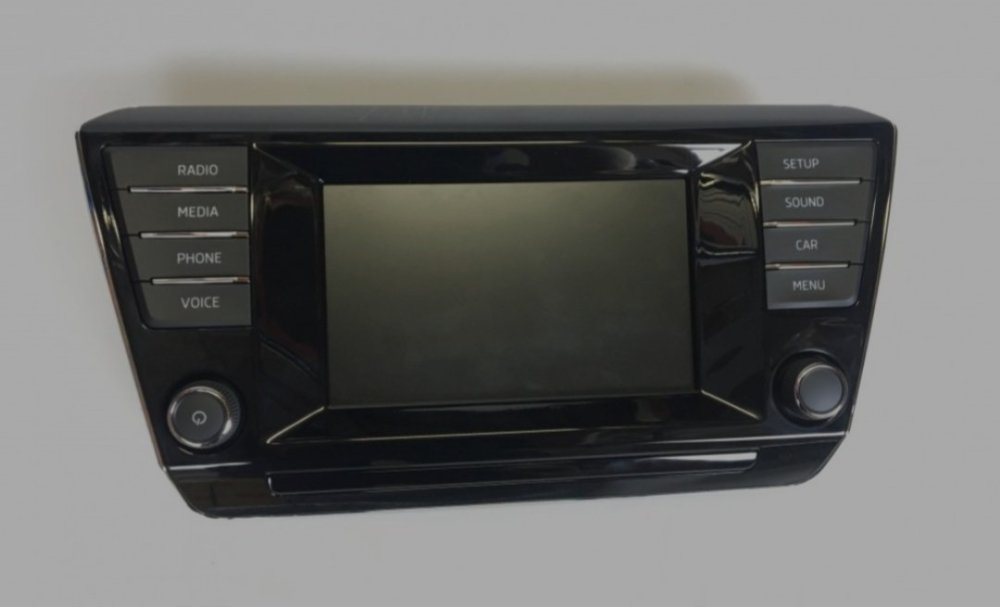
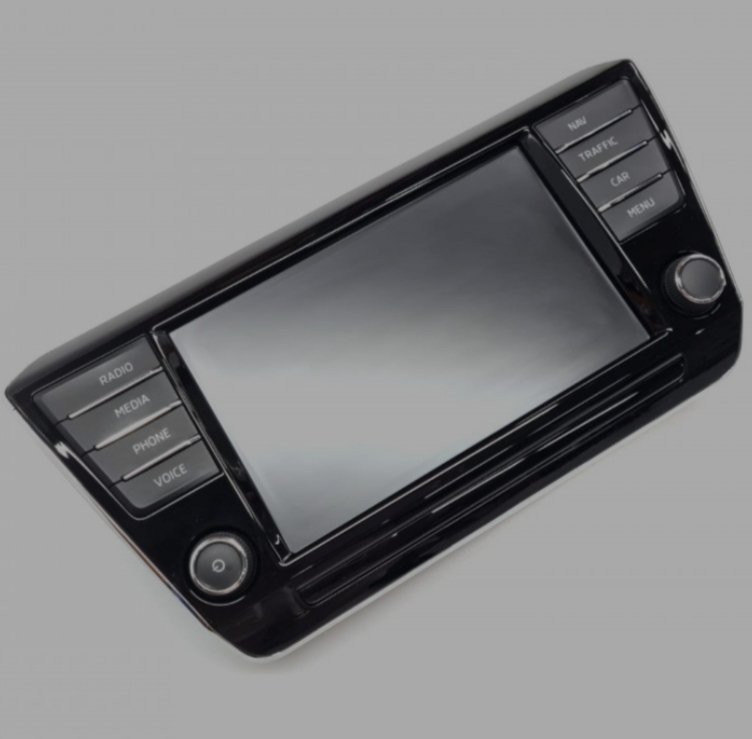
Hi! II know there's a million posts about this but for the love of god I haven't been able to find out if its really possible to upgrade from the small display (1st pic) to the 8" display with buttons (2nd pic) without having to buy a new control unit (the one in the glovebox). I also attach my system info page (3rd pic). Any help would me really appreciated!! I have already received the 8"inch screen but when I plug it, nothing happens. Do I need to perform a SW/FW update or am I definitely screwed?
-
*Absolutely invisible when they're off
-
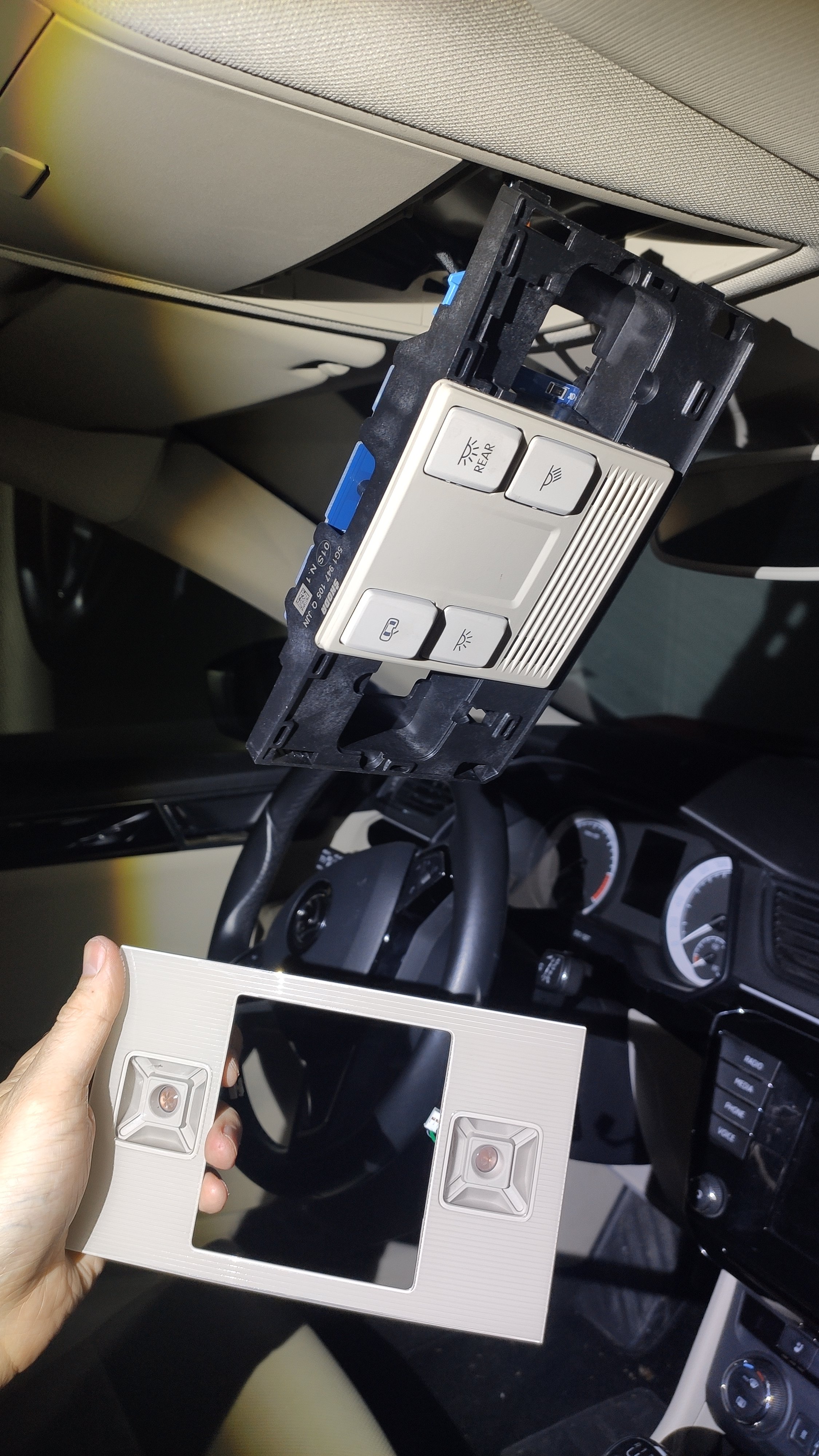
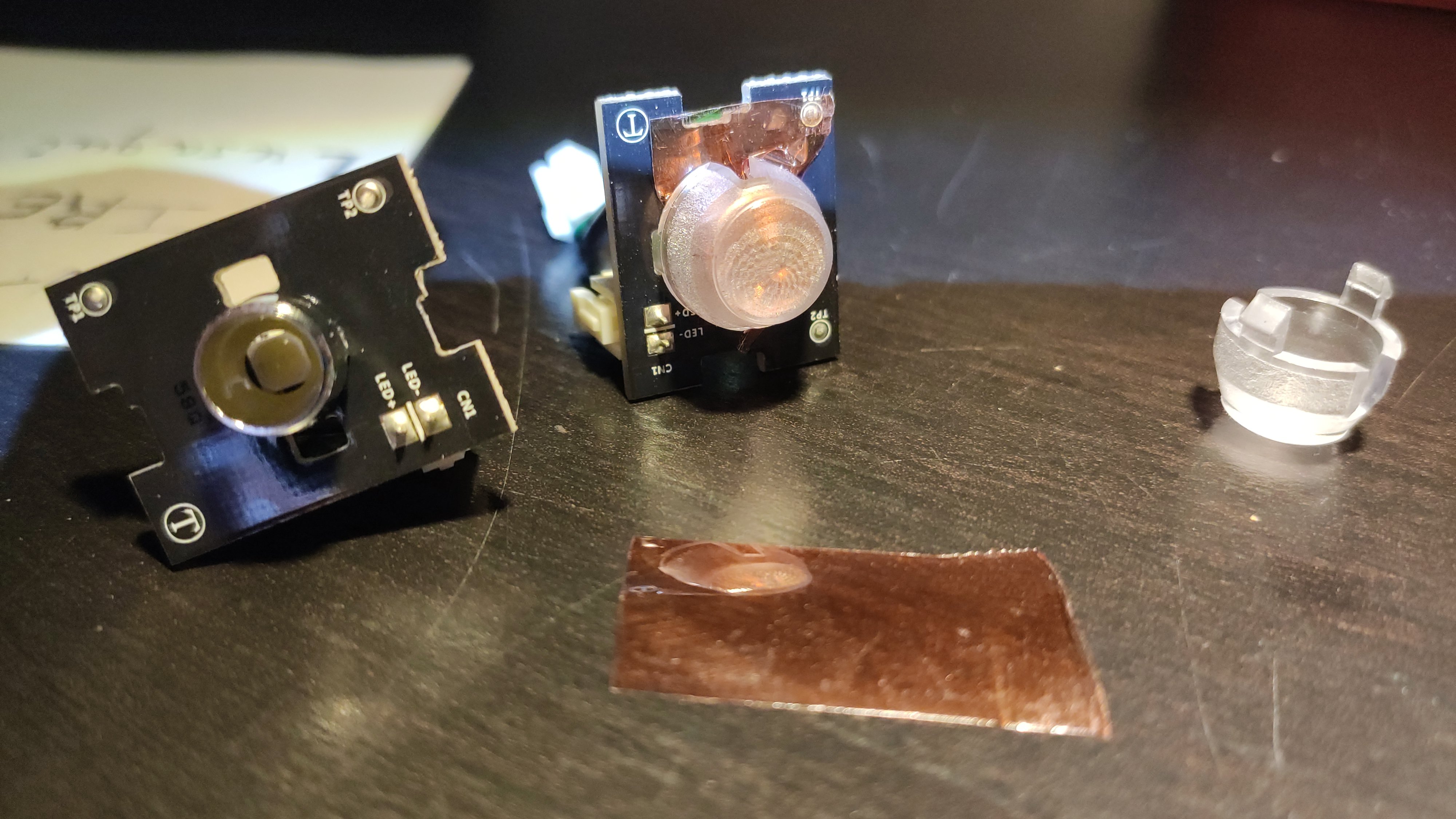
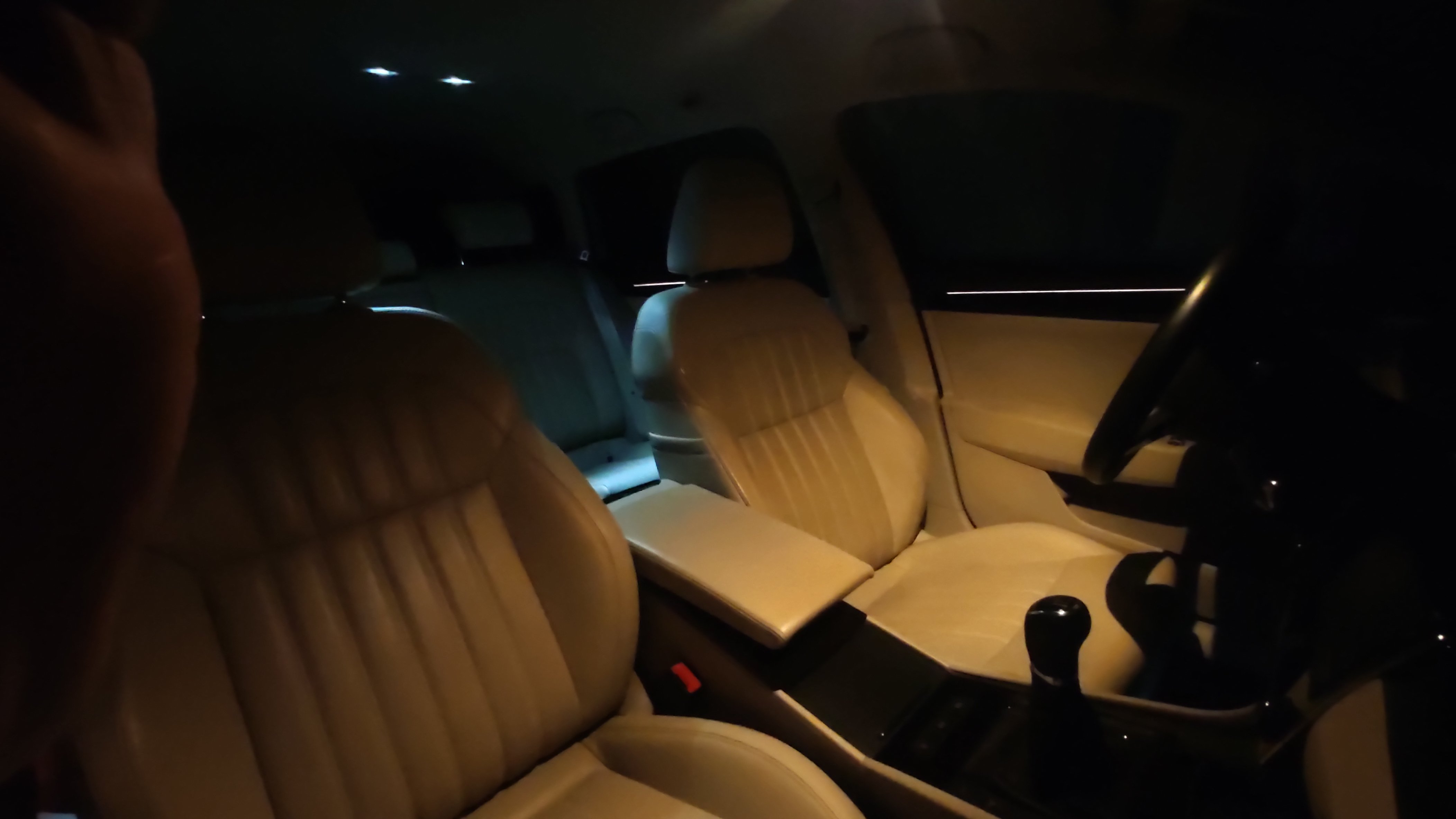
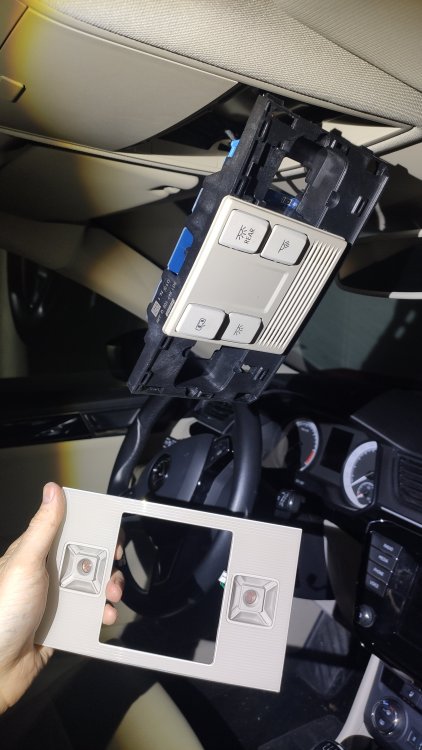
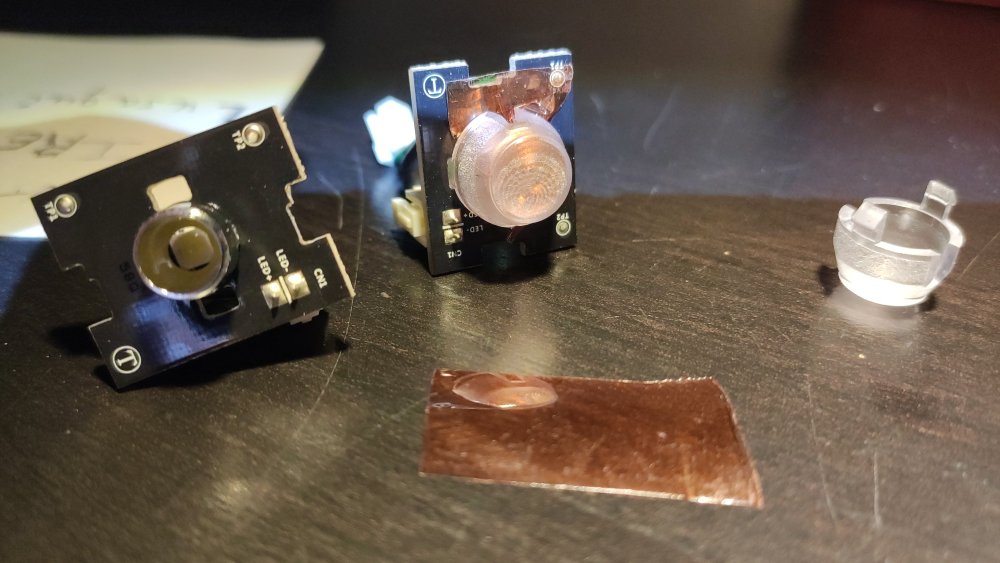
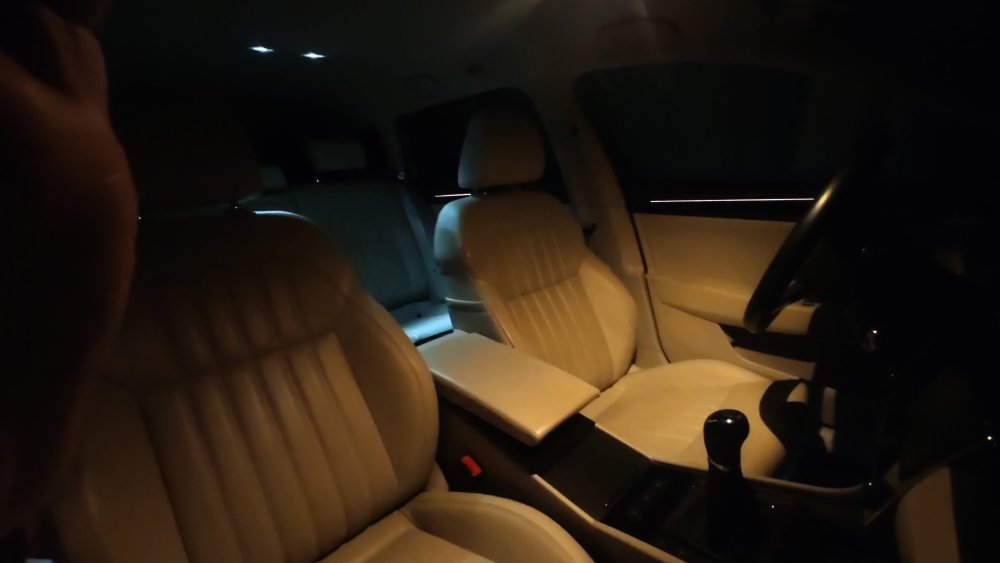
Today I took out the interior lighbulbs and put a piece of warming filter inside. Absolutely when they're off but they now give warm light, just like the old incandescent bulbs. It's a matter of taste, of course, warm lighing just creates a better atmosphere than the cold light from modern LED. In the last picture you can see the difference between the front and the back, before I modified those too. Super happy with it!
-
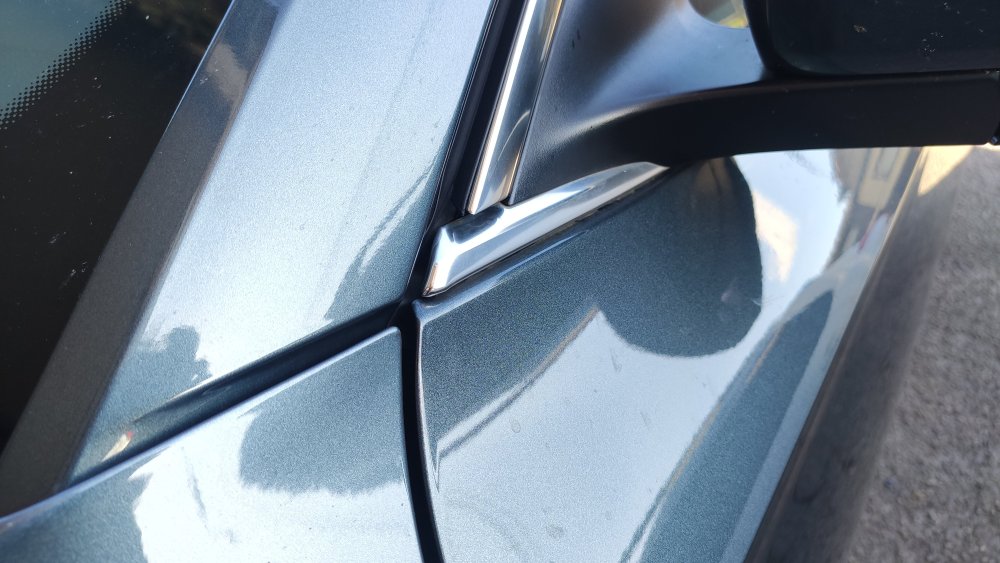
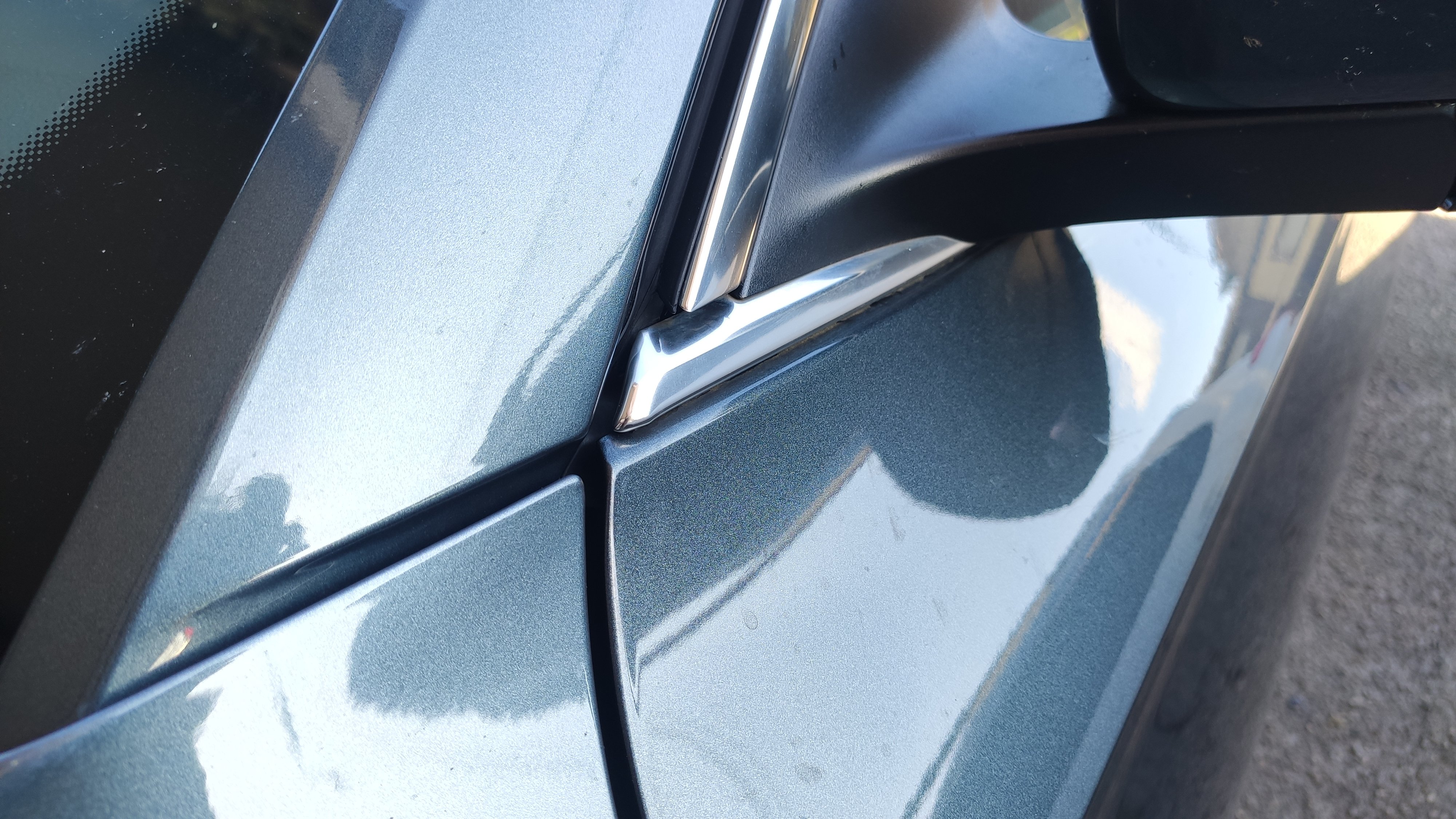
In case this might help anyone, strongly pushing the horizontal crhrome insert inwards will reduce and even eliminate the whistling sound, at least it worked in my case. In order to address the issue even further, I might put some thin felt stripes inside the door frame, in the mirror/hood meeting area, in case it might deflect or stop that bit of air coming in, which seems to cause the issue as well in my car. In the attached picture, the chrome is already pushed in, but it was clearly sticking out before.