Figgis
New here
-
Joined
-
Last visited
Everything posted by Figgis
-
Hi. Service and MOT or okay but I'd be weary of the warranty. I have been having problems with the Blind Spot monitoring system since Aug 23 cars has been in 4 times and they don't know what the problem is. I'm sure they thought I was imagining it. Provided video evidence and only admitted there was a fault when I went on a test drive with a technician and he saw why I was complaining for months. Now Skoda want me to pay for more diagnostics to find the fault. How much is that going to cost? It seems to me they have an unpublicised limit.
-
Problem solved. Formatted SD card on a windows laptop ExFat (64gb card) allocation size 2048 (as on my Mac it doesn't actually give the option to choose) Unzipped the download straight to SD Card on laptop. Everything after that worked fine. At least I shouldn't have a problem next time. Thanks for all your replies.
-
Car was 3 years old didn't come with a card. Its a Columbus unit. Thanks for your replies.
-
Doesn't specify Skoda SD Card in the Skoda PDF Guide. But as my crystal ball is malfunctioning I could be wrong. Thanks
-
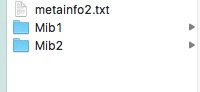
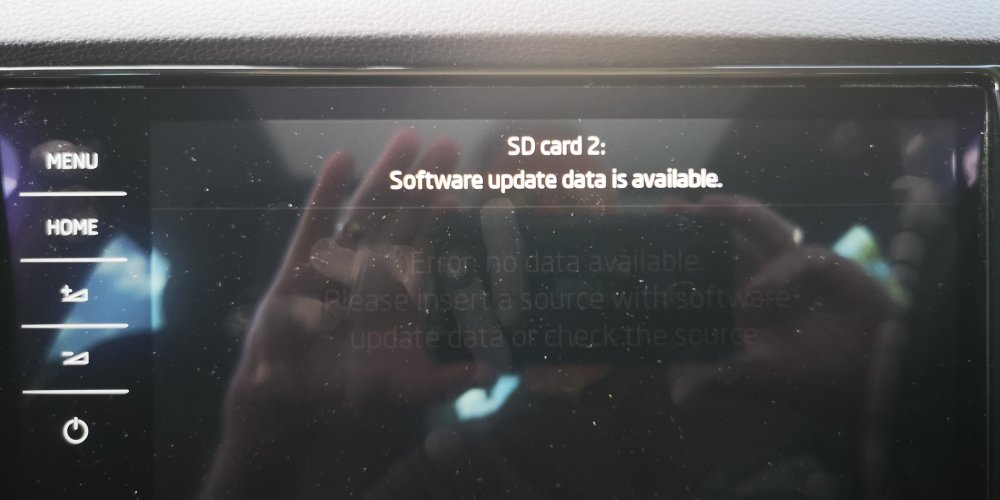
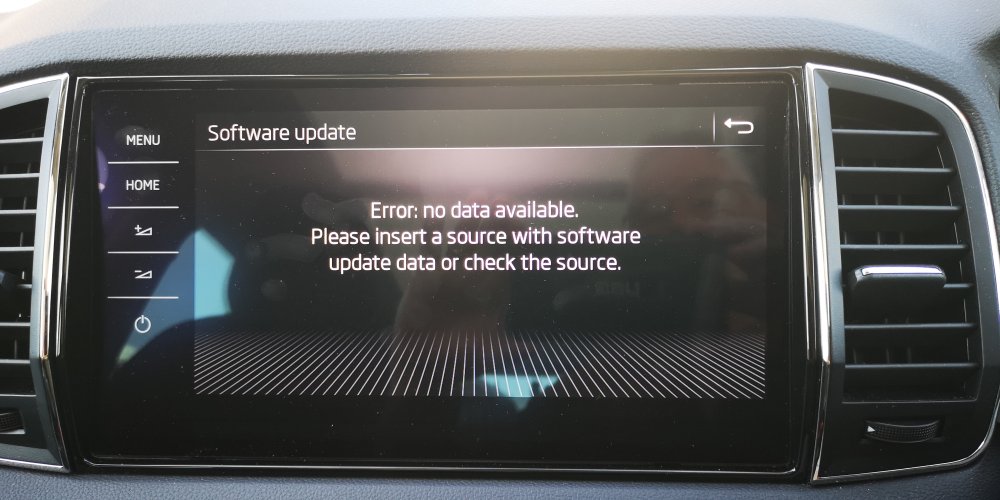
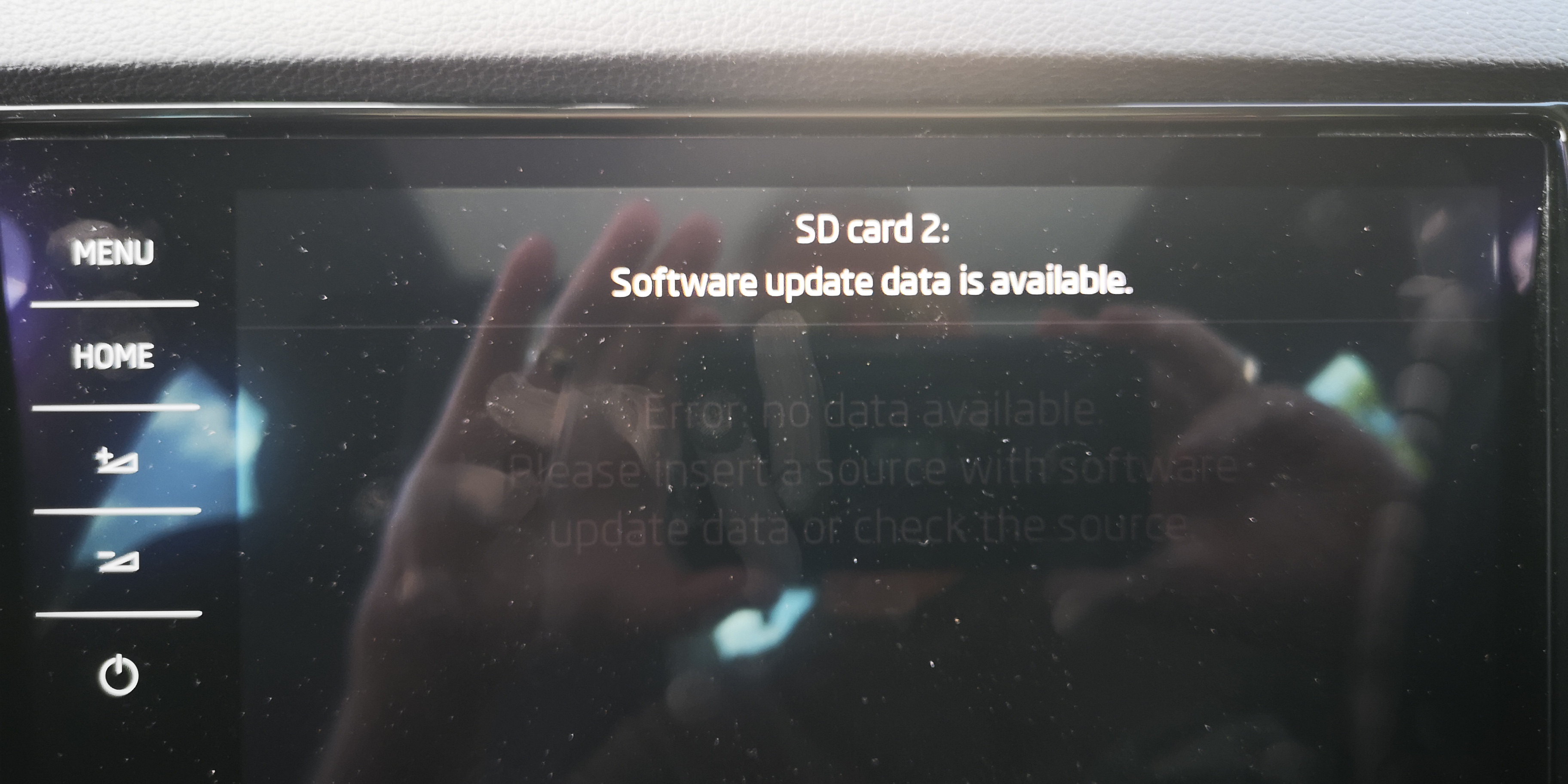
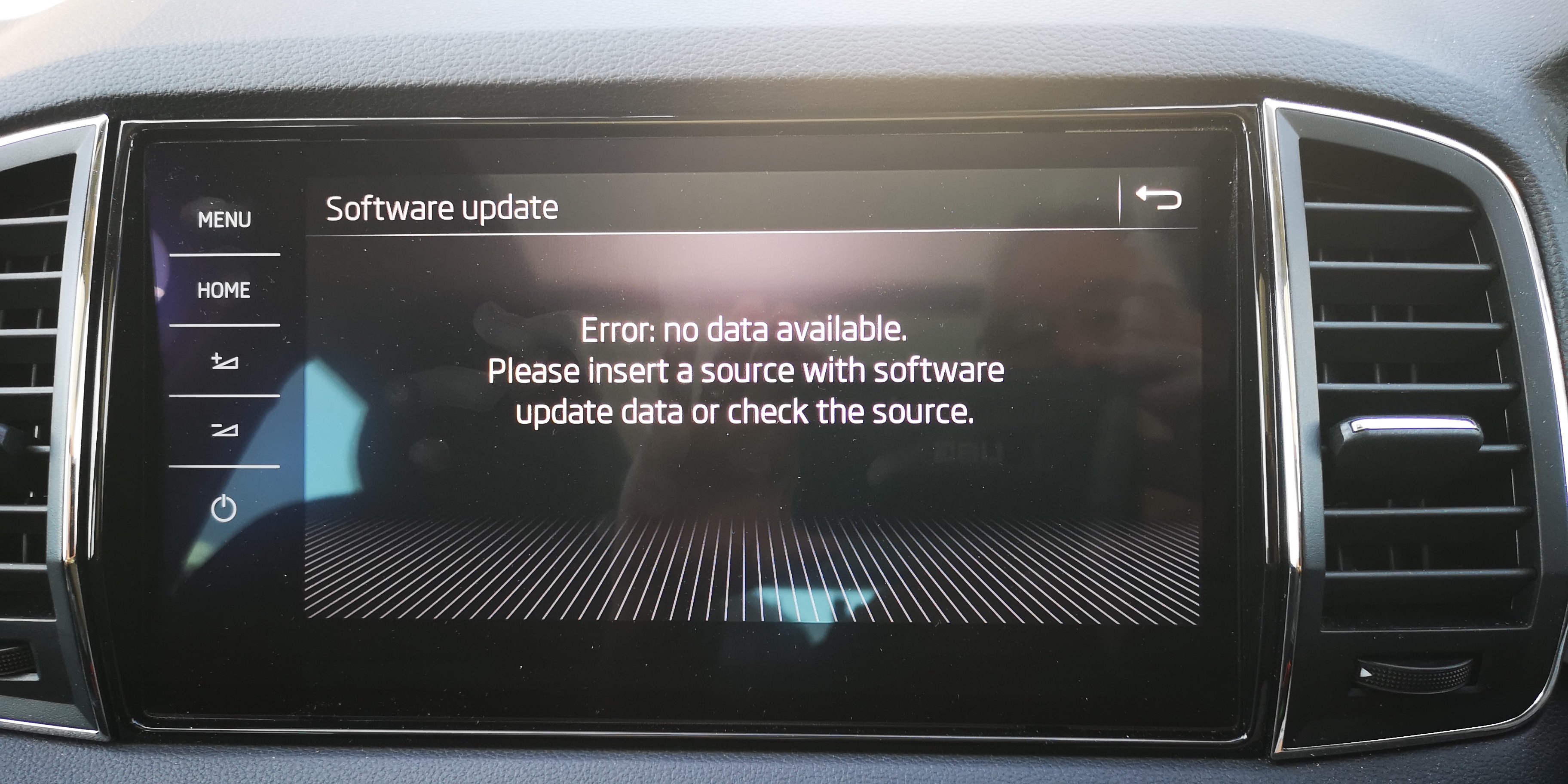
Having read lots of posts on map updates it seemed relatively straightforward. Well how wrong can you be. Downloaded maps (using vin number) HIGH12_P330_EU_202322.zip, unzipped files, formatted 64gb SD card exFAT, Copied unzipped files to SD card (no hidden files) Moved to Karoq to install. Display says Software update is available SD 2. Select update from SD 2 little spinning icon then message "error no data available" See pictures. Any suggestions welcome. Thanks