Otacon
New here
-
Joined
-
Last visited
-
@MRB007, did you solve this issue? Just curious as I (might) have the same myself. 🙂
-
Hi everyone, First of all a special thanks to @silver1011, @skomaz and @2010OctaviaScout, You guys saved me alot of money as it appeared to be the hose that caused the issue. The locking mechanism / connection mechanism for the hose was a strange one. I had to reattach it like 3-4 times for it to attach properly, and so I can actually understand why my mechanic though it was attached but then popped off again. So after a few attempts I was able to attach it properly and the car ran perfectly fine again. No glow plug light. Engine light was still there so I took it back to my mechanic and he cleared fault codes. Haven't had a single light afterwards! So again thank you so much all of you - really saved my weekend. All the best!
-
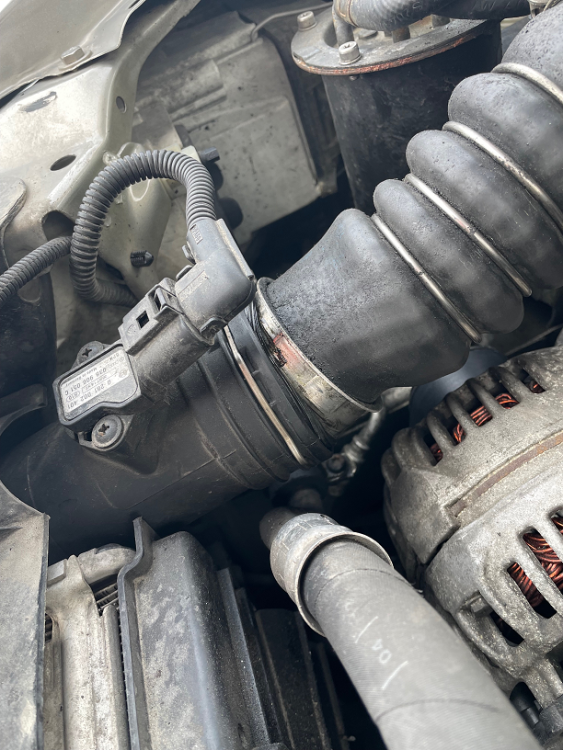
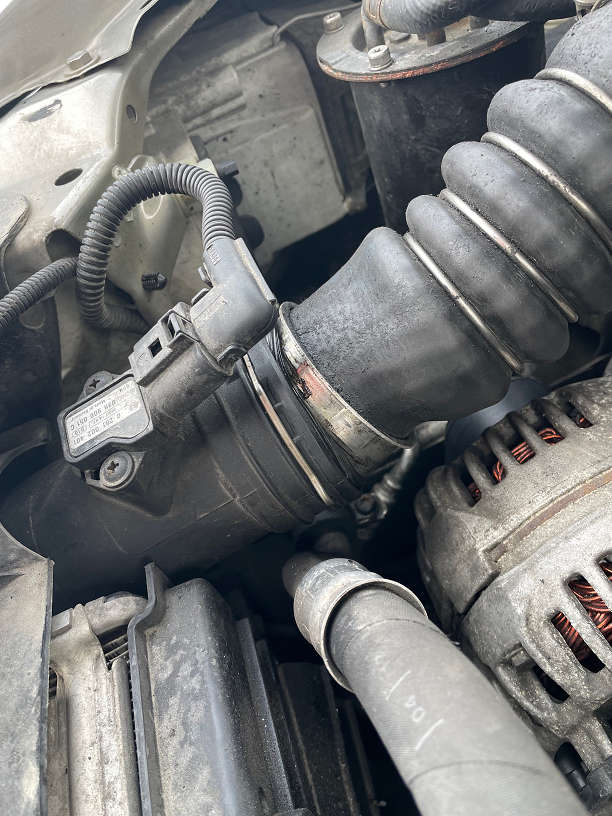
Good afternoon @silver1011 and @2010OctaviaScout, I'm sorry for bumping such an old thread but I just wanted to thank you both for kind and helpful posting here. I have the exact same issue as @2010OctaviaScout described in his initial post after having the garage replace the serpentine belt on my Skoda Octavia 2007 just yesterday. After reading that there was an intercooler hose that had popped off I went out to see myself and this is what I found: Actually this photo is taken after I (very lightly) tried to reconnect it again, so it was even more loose and open prior to me taking the photo. I'm not entirely sure but I guess it is a MAF sensor sitting on top there, and that this most likely is the reason to why I am having the "Check engine"-light coming up. When I try to accellerate a bit the car goes into limp mode and I strongly suspect this has got to do with it. I have scheduled a new visit with my garage so they can look into it and eventually replace the clips holding it in place and the gasket. Will update the post as soon as I can verify. 🙂