Octavia360
New here
-
Joined
-
Last visited
-
Ok i'll double check the wiring again.. I have the wiring diagrams and everything looks right so i'm a bit stumped. I shall report back! And just confirming do my 4x cameras need to be flashed to 5WA in order for it to work for RHD? My 6C Overhead camera module is also 5WD 907 556...
-
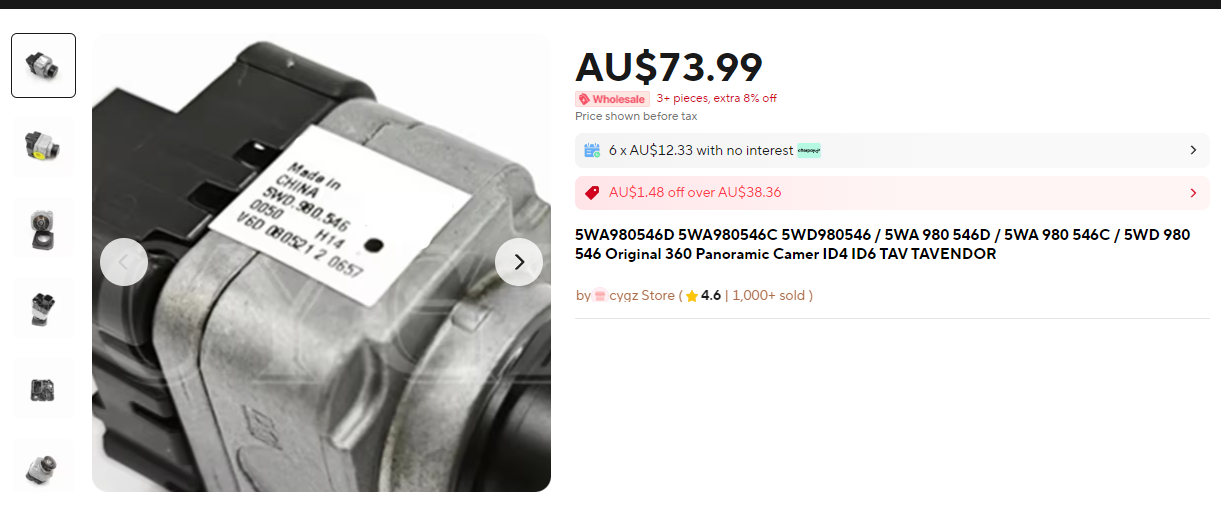
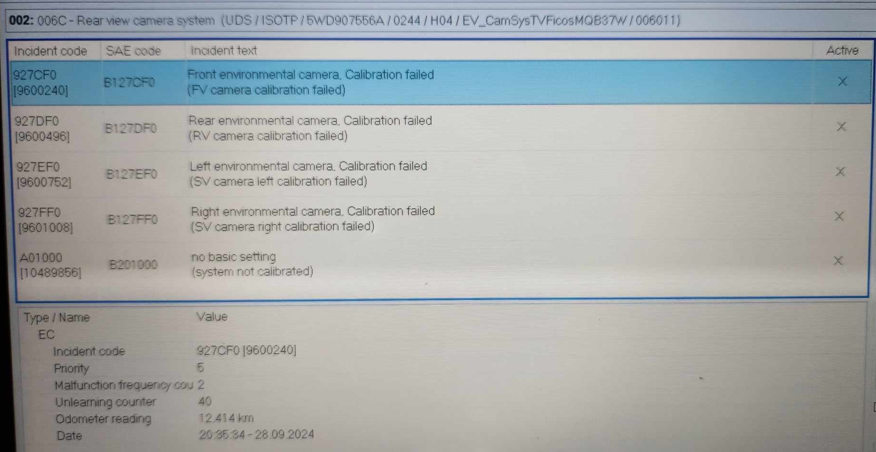
Thanks for your reply! Interesting, my camera part is currently 5WD 546... should it be 5WA 546 instead? Just curious if its a compatibility issue as my previous reverse camera was indeed 5WA 960 556 And is there anyway to tell if the cameras are healthy? I can't seem to see any errors in ODIS - just the calibration error which is expected since not coded yet... Nothing seems to be wrong with the wiring either.
-
Octavia360 changed their profile photo
-
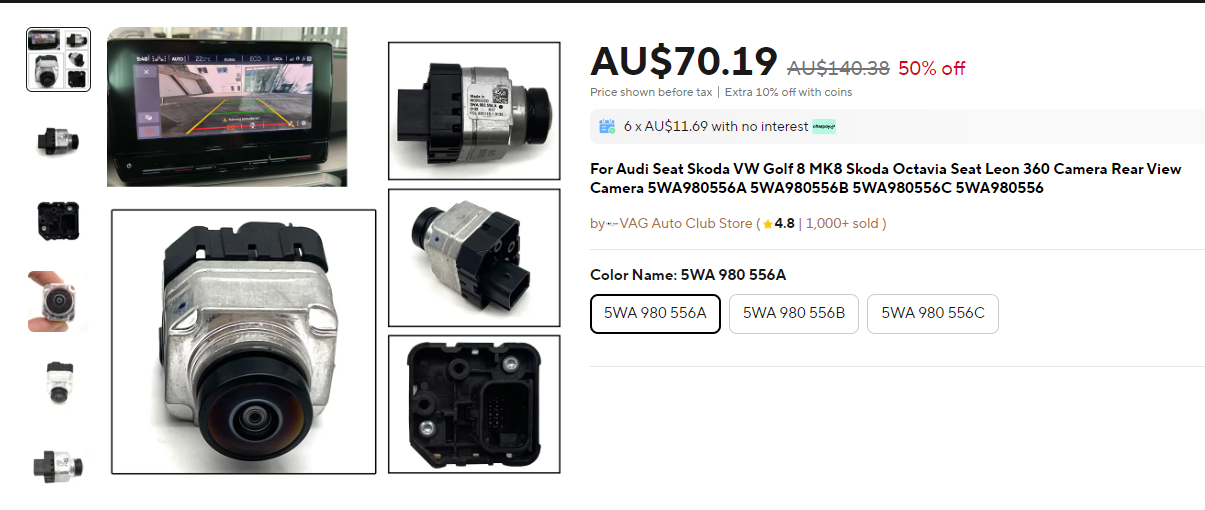
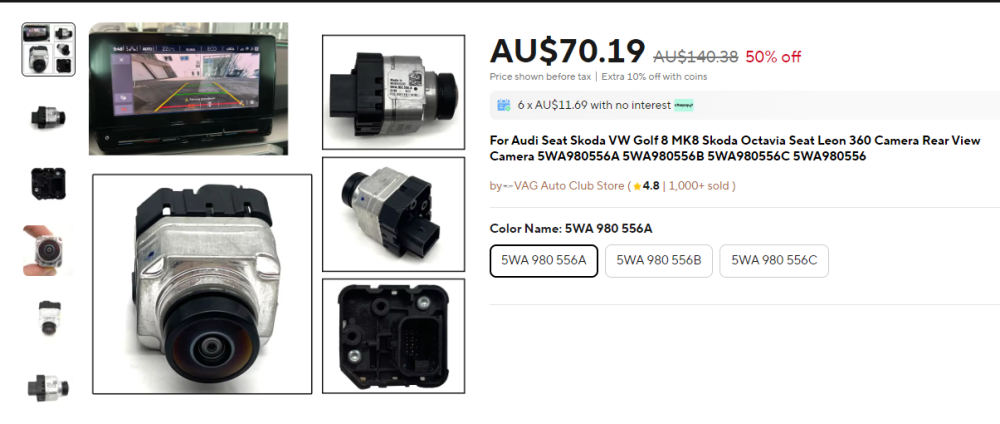
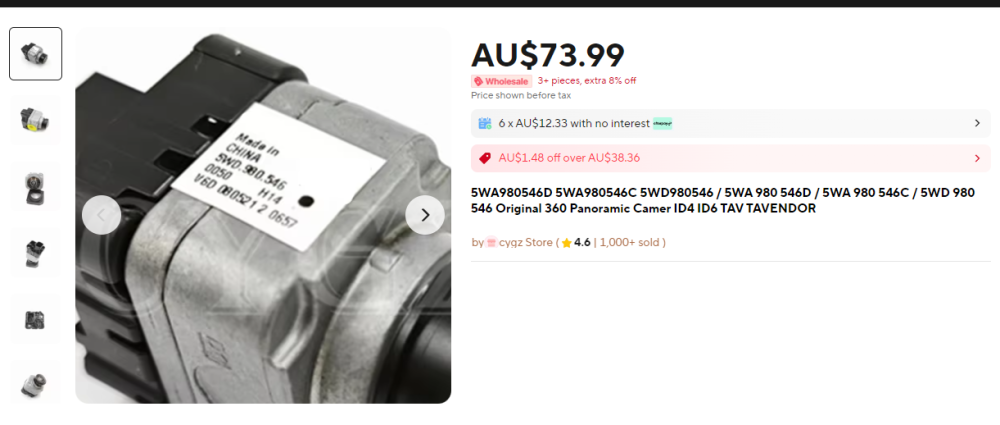
Hi guys, So I'm in the middle of doing a 360 camera retrofit for my Octavia but i'm getting a bit stuck. All the parts are installed and coded but i'm not getting any video output so i'm trying to eliminate possible issues. I'm thinking 1 potential issue could be incompatible camera parts.. Does anyone know what the difference between the reverse cameras are? From my research there's a couple part numbers - 5WA 980 556 A/B/C (made in morroco) - 5WD 980 546 (made in china) Other than the manufacturing origin, does anyone know what the other differences are? And if there are any compatibility issues with my RHD car (im based in Aus)? Hope some experts like @East_Yorkshire_Retrofits could help out too! Thanks everyone in advance!
-
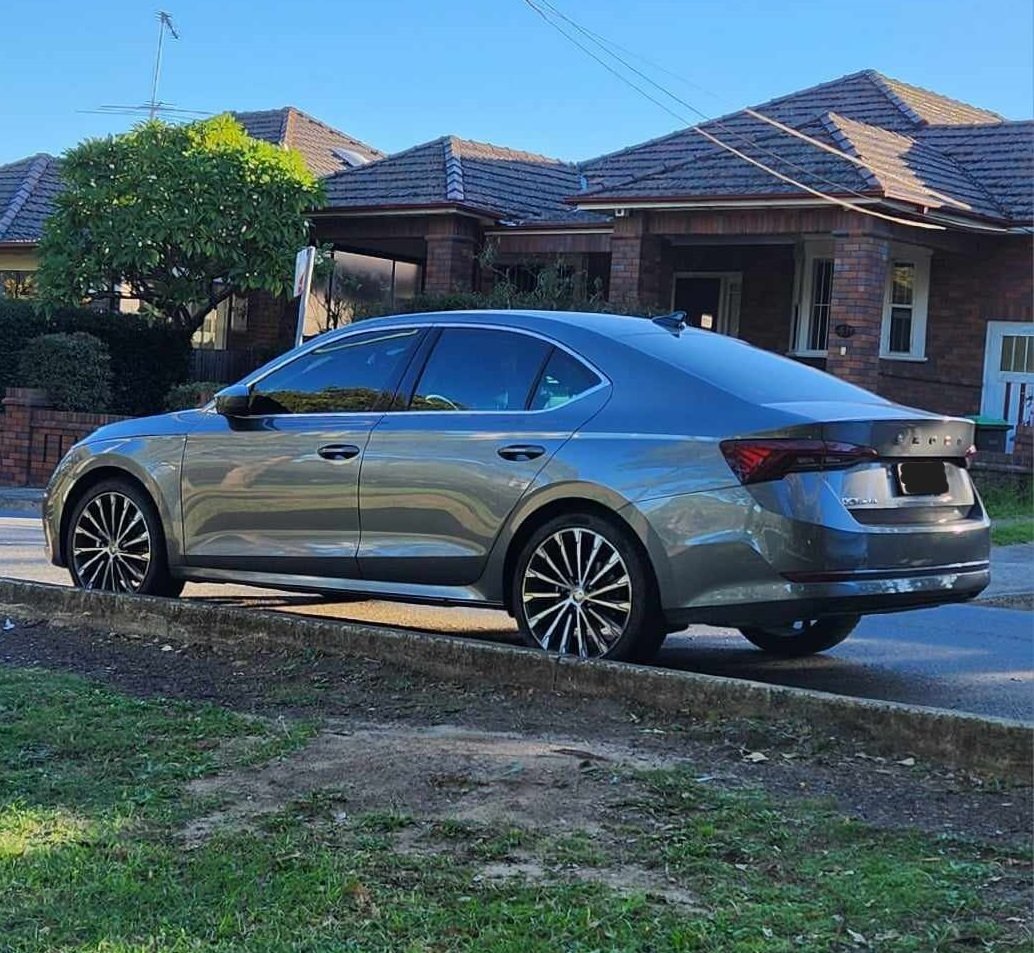
Hi everyone, Greetings from down under! I'm the happy driver of an MK4 Octavia with the 140kw 2L engine and although it's not an RS it still feels quite nippy and am extremely happy with my car! I was tossing up between the Peugeot 508 or the Audi A3 but honestly, nothing could beat the value of the Octavia I'm looking to do a few things with it and will definitely need some of this brilliant forum's expertise! Cheers!