Tommybear1979
New here
-
Joined
-
Last visited
-
If you encounter any Skoda Connect issues after infotainment update, try to pull and put back fuse 17 (instrumentspanel and Emergency call). That did the trick for me last week. (Fuse pull tool in lid of fusebox under the hood).
-
For me it did. For TimonPumba I don't know.
-
Update from my end. Somewhere I found that pulling and putting back the fuse #17 (instrument panel + emergency call) could help. It did! Problem solved! For anyone searching how to pull the fuse. The fuse box under the hood contains a tool for it.
-
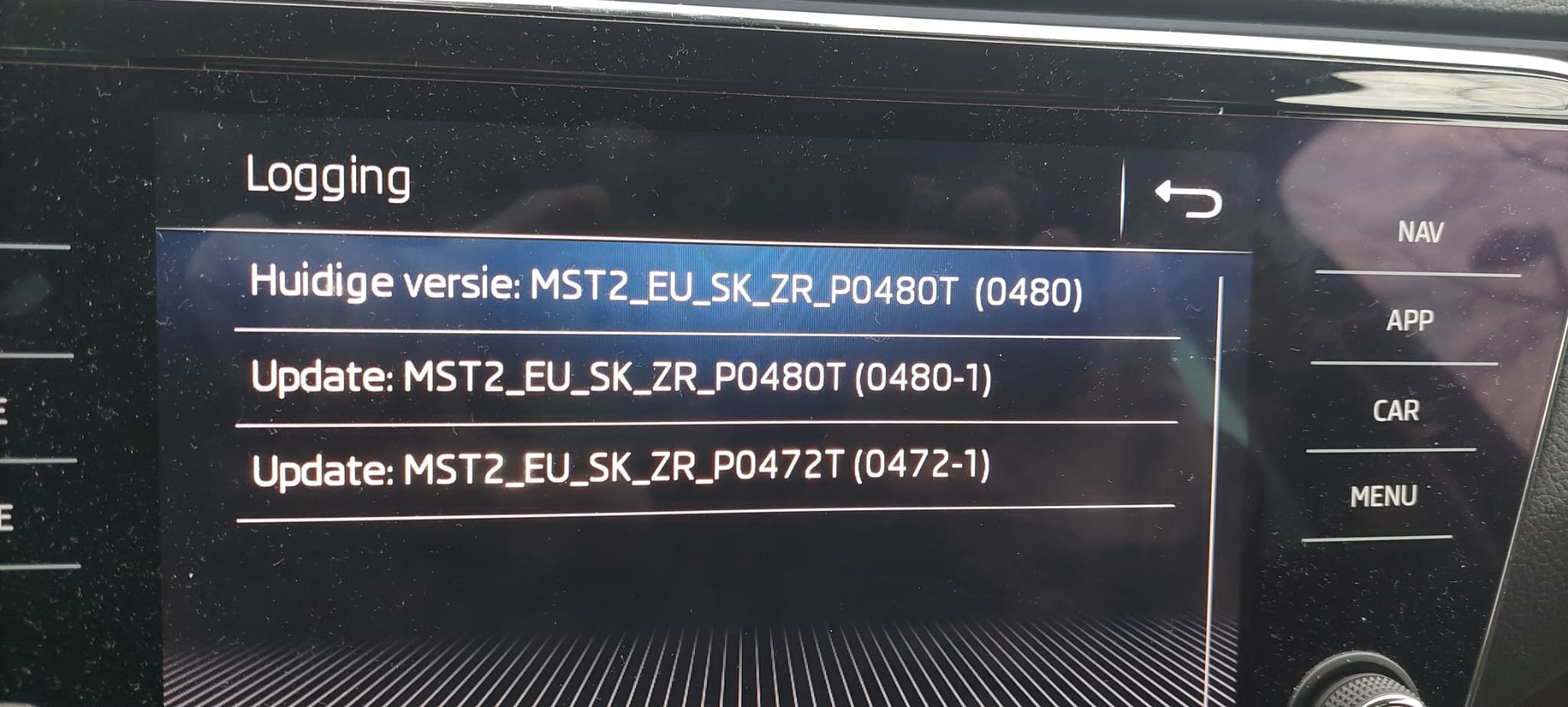
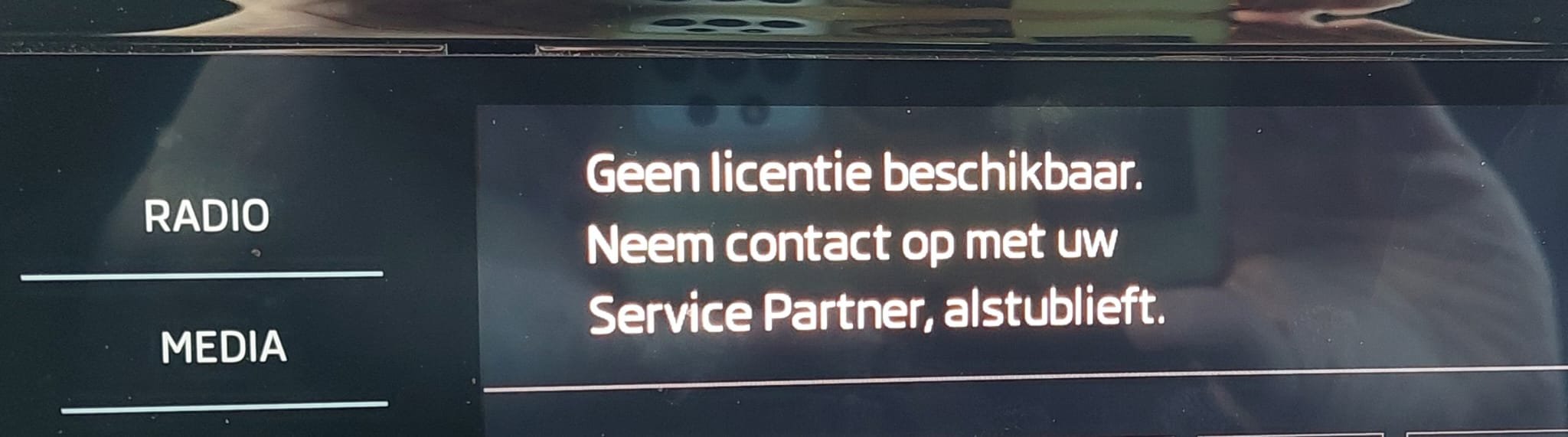
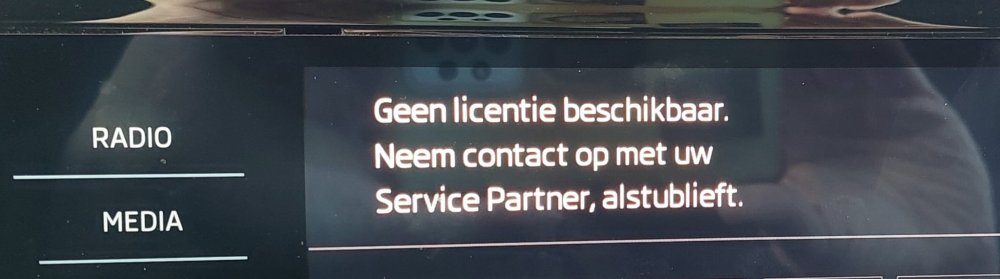
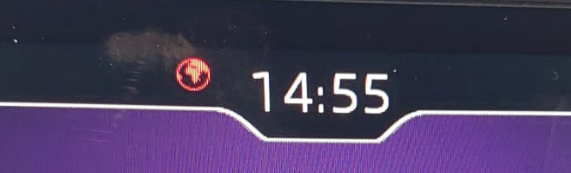
Hi All, I've upgraded my infotainment but Skoda Connect doesn't work. I've done removal of Skoda Connect account through the My Skoda app. And also put the infotainment back to Factory Default. After adding the car in My Skoda app, recreating Skoda Connect account. It tries to activate my car. But the car doesn't accept the Code on that site and put in Car screen keypad. When I press the Info or Repair buttons (not sure about translation but it's the two button next to ceiling light with the 'i' and the 'tool') it gives this message; Is it possible to downgrade the software to see if Skoda Connect picks up again? I have MST2_EU_SK_ZR_P0478T available to me, although my original firmware was MST2_EU_SK_ZR_P0472T. I assume this red sphere also indicates something is wrong? Thanks for helping out! gr. Tom
-
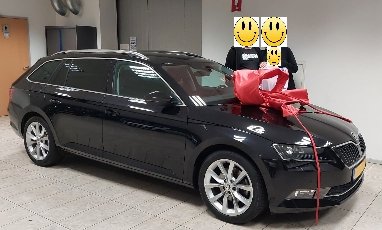
Hi All, "Hallo" is the Dutch "hello". I'm Tom from the Netherlands and I've driven 2x Superb combi and 1x Octavia combi as company/lease car (all Diesel) Since last November I'm driving a privately owned Superb Combi III 2019 1.5 TFSI Gr Tom