matekhr
Finding my way
-
Joined
-
Last visited
Everything posted by matekhr
-
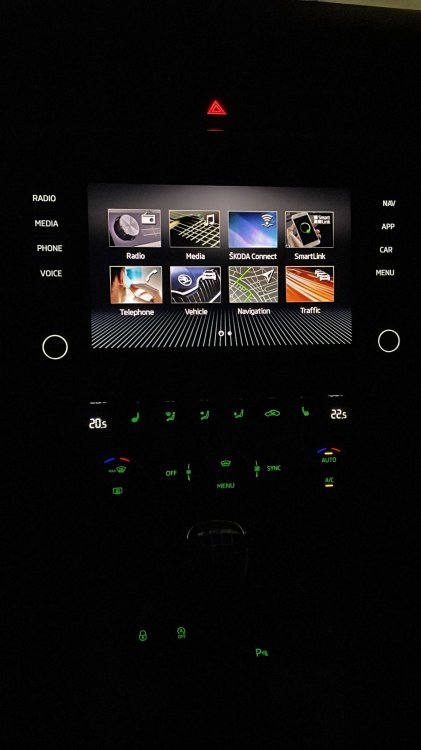
Thanks to the help of @Cairus my device is in fully working state again! FW 0480 installed, everything OK Great man, always ready to help!
-
@Cairus Can you share a working eMMC image of MST2_EU_SK_ZR_P0369T or MST2_EU_SK_ZR_P0480T please? I tried byte17/skin0 and Emeargency update, but nothing...
-
Thank you Cairus, your message is a game changer for me But I still have some doubts: 1. Can I use QNX virtual machine? Even in that case I have to study how to flash the unit, because my QNX knowledge is basic level only. 2.Regarding modified metafile, is it only needed to set all "RequiredVersion" lines to zero (when it has a different value) or something more? It's probably explained on the forum, but there are really many pages to read.
-
Thanks for your help. This time I was careless, but I'll do my best to recover the unit. So, my question is still open, if anyone can help, it will be very appreciated. BTW, can you give me the needed info to 480 upgrade (from3xx)?
-
I'm not sure, but you are probably right. Is there any "manual" and needed files around, I have some soldering and programming skills....
-
No, I didn't. Can you give me some more info? Is there a way to restore the unit?
-
Hello, I recently bought a 2017. Octavia MK3, and after reading a lot of threads on this forum I decided to upgrade an Amundsen firmware. Original FW was MST2_EU_SK_ZR_P0363T, which I succesfully upgraded to MST2_EU_SK_ZR_P0369T and everything was fine. According to this thread and mib-helper page, it is possible to upgrade it to MST2_EU_SK_ZR_P0480T, so why not? I did it from toolbox, SWDL menu and the upgrade started fine. But after third reboot the unit bricked and screen doesn't power up any more. I tried to hold power and menu buttons for a longer time than 20 sec. but nothing. VCDS can see the unit, but the screen doesn't show up. Any help will be very appreciated, because I'm running out of ideas....