Tonna
Finding my way
-
Joined
-
Last visited
Everything posted by Tonna
-
So problem solved, after taking the dash apart I found that the dab plug had not come out but the innards of the plug had come loose more than likely due to pulling at the head unit to remove before finding out that the cables were short and before taking the dash apart to to the job correctly. So I've fixed the plug by fiddling with it and a touch of super glue . Let it set ,put it back together and voila everything works as it should . Thank you to the members who replied and commented on my post ,any help was appreciated. Cheers
-
Yeah there's one either side ,I cut them both but still wasn't enough to pull all of the way through, I'll have the dash out tomorrow and hopefully see what's happening.
-
Yeah I was thinking that I've accidentally pulled the dab plug out when refitting. So I'll have to strip it all back out to check. I've nothing plugged in anywhere to be honest. So it's the only thing that comes to mind. With mine you have to undo most of the lower dash panel to access the back of the unit because as I've said you cannot pull the unit fully out as the cables seem to short. There's a distinct lack of space behind there . Cheers
-
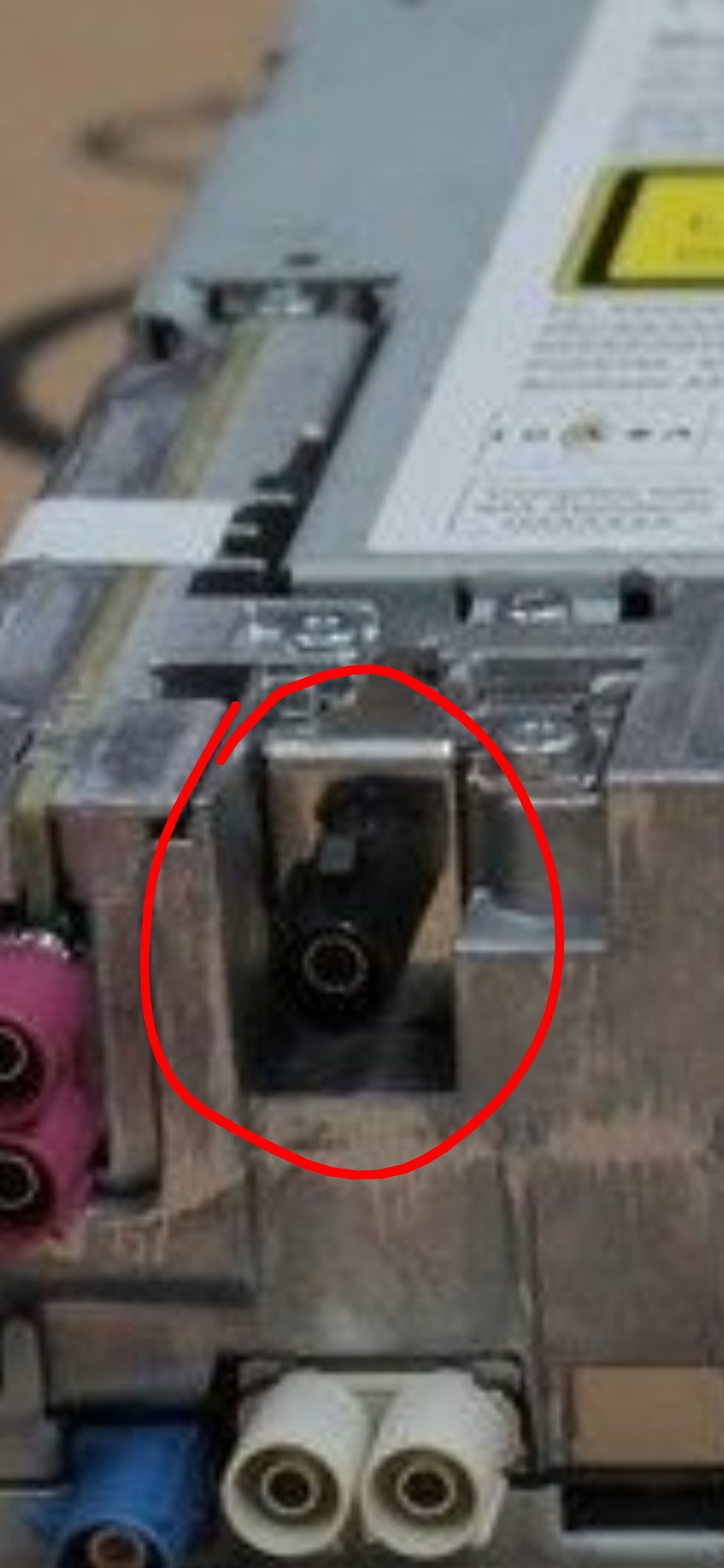
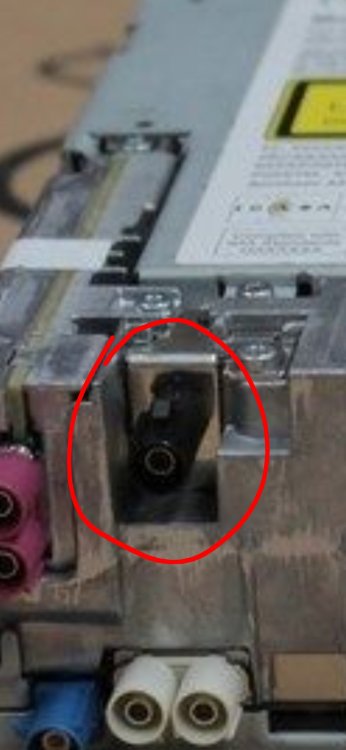
Hi all, I've found this picture online with it saying that this (circled) is the dab Ariel port. I didn't realise that there are so many different fakra connectors. Can any of you tell me which one this is ? Apparently there are A,B,C,D,E,G,K and Z I've got no idea,
-
This type with can bus , I had to remove quite a lot to get the head unit out as the wires would not let me pull it completely out as they seemed to short
-
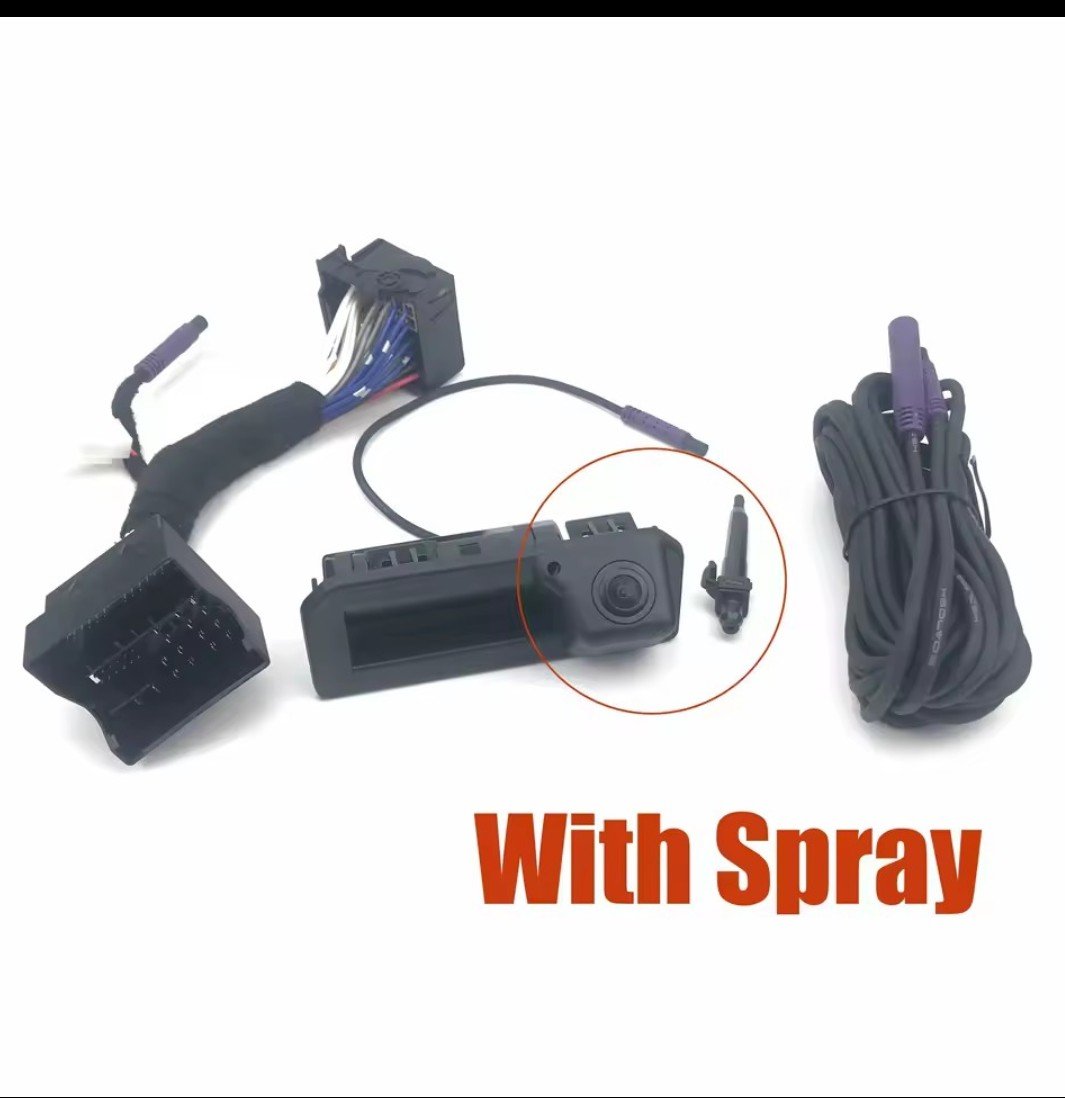
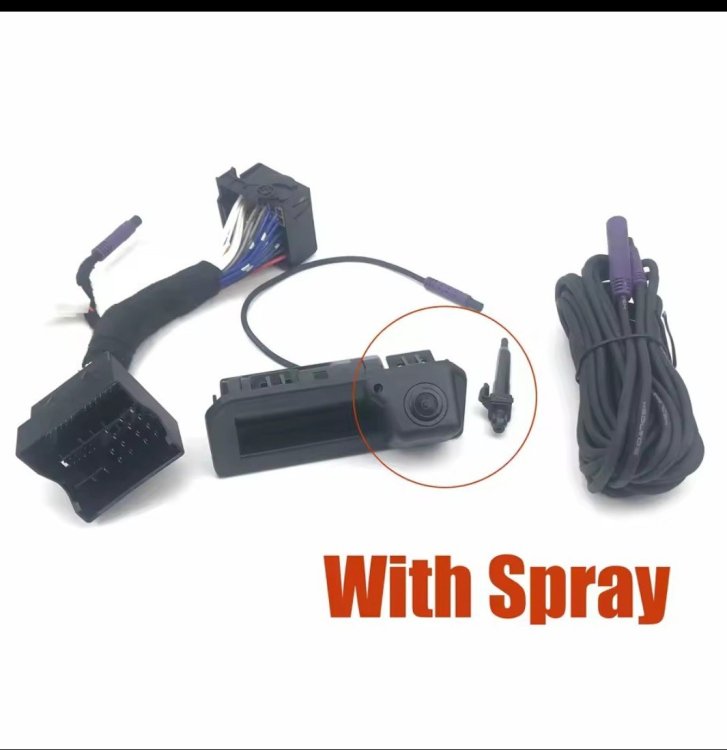
Hi , I've just fitted an aftermarket reverse camera , the boot handle type. It came with a wiring harness which plugged into the back of the Columbus Head unit and to the existing harness. Everything work fine except I now have no dab . I've put it on the diagnostic and it says dab open circuit. Any ideas would be gratefully received