



Skip to content

Scout boot net programme?
Featured Replies

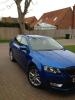
My satin grey Scout Tdi was delivered on wednesday and so far I'm very impressed. Initially is was getting serious backache (which i didn't get in the vRS, where I just jumped in and comfortable from the start) but I seem to have found a comfortable position.

Fuel economy, driving over the lincolnshire wolds appears better than expected, getting 45 to 50 mpg on 30 minute drives( hope the DPF doesn'y cause problems).

Regarding the boot net programme, a found the 3 different nets lying on the boot floor and have fitted them after a fashion but is there any photos / instructions as to fitting them?

big square one for floor, long rectangle one fits up by where the boot opens near to floor and the small ones to the side.

AFAIK (in my limited time with an Octavia myself) its only the vRS that has the DPF.

Steve

  • Author
AFAIK (in my limited time with an Octavia myself) its only the vRS that has the DPF.

Steve

I'm afraid the scout got it too, wish it hadn't from all the trouble i've heard it causes

  • Author
big square one for floor, long rectangle one fits up by where the boot opens near to floor and the small ones to the side.

I've got the side one fitted correctly then, The rectangle one I've fitted as you said the the large one should go, so that's easily swopped over.

I must be having a thicko moment though as I can't picture how you say the rectangle goes!:confused::confused:

Create an account or sign in to comment

Recently Browsing 0

  • No registered users viewing this page.

Important Information

Welcome to BRISKODA. Please note the following important links Terms of Use. We have a comprehensive Privacy Policy. We have placed cookies on your device to help make this website better. You can adjust your cookie settings, otherwise we'll assume you're okay to continue.

Account

Navigation

Configure browser push notifications

Chrome (Android)
  1. Tap the lock icon next to the address bar.
  2. Tap Permissions → Notifications.
  3. Adjust your preference.
Chrome (Desktop)
  1. Click the padlock icon in the address bar.
  2. Select Site settings.
  3. Find Notifications and adjust your preference.
