Superhoop
Finding my way
-
Joined
-
Last visited
-
Just coming back to this. Will Ottocast / AA Wireless etc work even though Smartlink is not activated in the head unit?
-
Thank you very much for the reply FnLn. Do you have any links / instructions for the cable / dongle solution you mention?
-
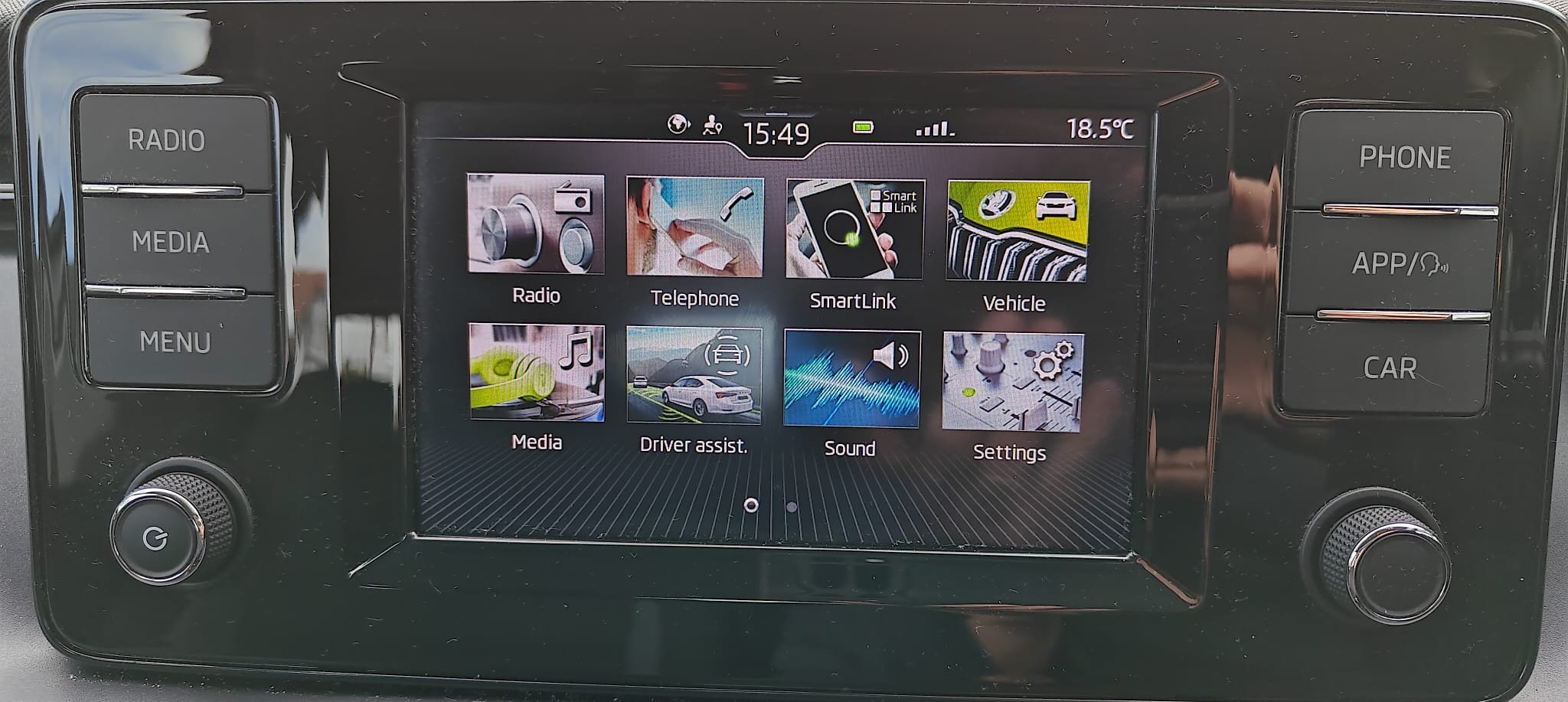
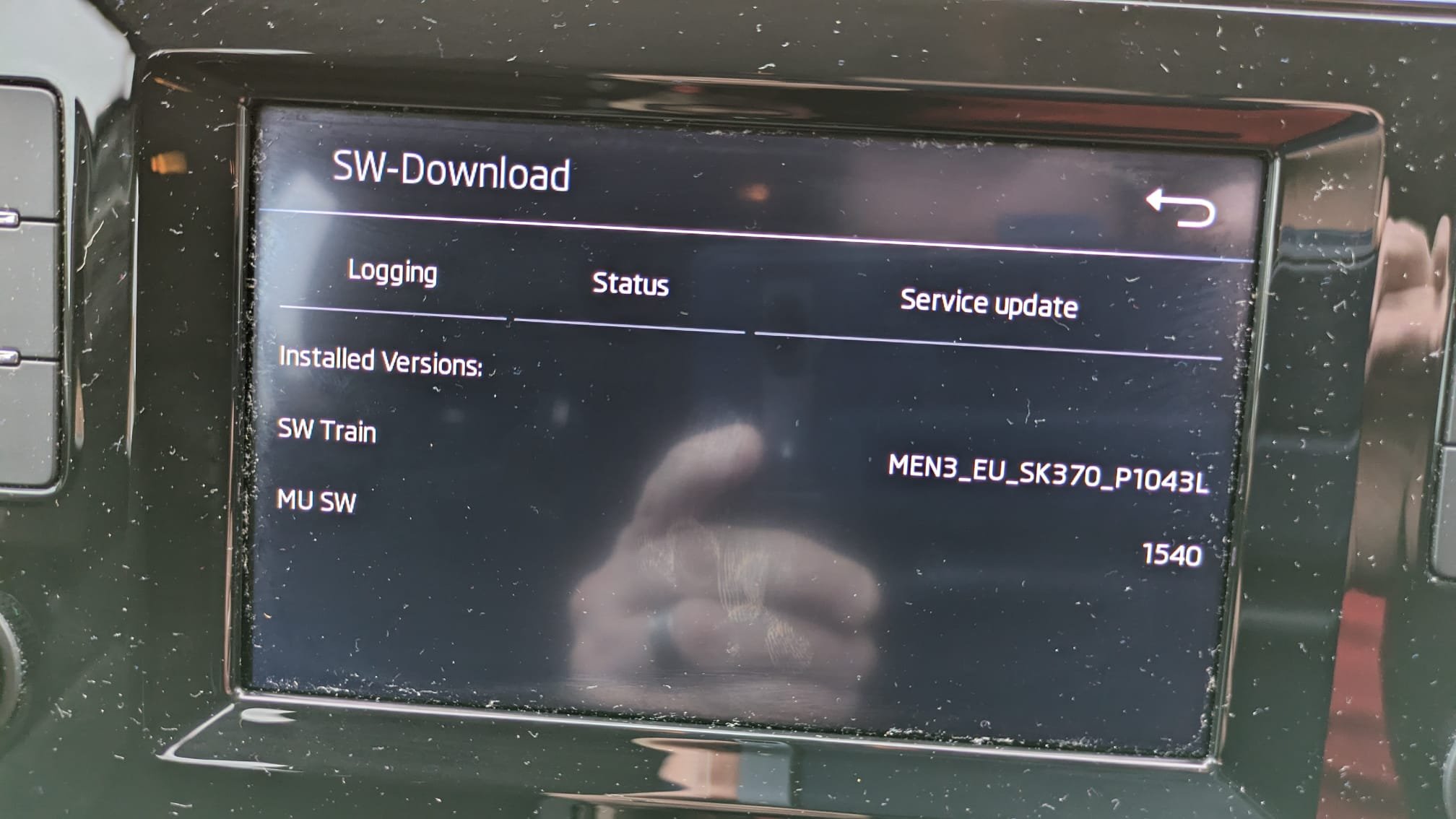
Just bought a 21 Scala. The infotainment unit (is it a Bolero??) suggests Smartlink is available, although it is not activated. The Skoda dealer quoted me £250 for activation. I see elsewhere that activation can be achieved quite cheaply and easily for other units, e.g. MIB 2. Any suggestions for this one please?
-
I've had my Octy for 18 months, a 21 plate. I had all the SOS Pop issues and a bunch of updates to resolve. The outstanding issue that still annoys me is that the Satnav doesn't remember anything that I program, Home, any stored locations, history, settings, nothing. Has anyone else had this issue? Is there any known resolution? Thanks
-
Hi there - two questions: 1) Is it possible to retune the DAB radio without wiping out all of the set favourites? The only way I have found to do this is by using the Setup Config Wizard - but it wipes everything 2) The manual suggests I should be able to get AM radio, but it doesn't seem to be an option on mine. Anyone had this problem and solved it? I know it's not the biggest loss in the world, but AM is just handy for listening to BBC 5 Live in remote areas. Thanks
-
It did work lol!
-
I know it's off topic but how did you do that with the Dab station lol?
-
Thanks for the useful replies!
-
Hi all Just taken delivery of my new SE L Octavia - love it so far. It's the third Octy on the trot for me. But I have a silly question... My last two Octavias had an easy to use trip counter, with a reset button on the dash. Has that gone on the Mk4? Could be that I just haven't found it yet... Thanks