Kapper
Finding my way
-
Joined
-
Last visited
-
Fantastic! I'll do that tomorrow - thank you so much, Pete.
-
Hi, Pete. I'm using a rather cheap HEX/usb-thing, so I was a bit uncertain and suspected what you just pointed out - no F129 but G65 instead. Glad to hear I'm not blind - and that I can stop looking for it and focus elsewhere. Compressor won't kick in, so I'll have to figure out a way to test if clutch is getting power/data/else that tells it to engage. Right now it just seems offline/dead. Thanx a million for the quick answer, Pete! - Kasper
-
Hello all. Car is a Roomster 1.6 petrol from 2008/2009 (BTS) with Climatronic. Aircon compressor won't kick in, and I get these codess: 01274 - Air Flow Flap Positioning Motor (V71) 000 - - 00792 - A/C Pressure Switch (F129) 000 - - I hope you can help with finding the F129 - I can only find the G65 when looking on the car. I've checked service manuals, wiring diagrams and all, but I cant find its location. Any help will be much, much appreciated! All the best, Kasper
-
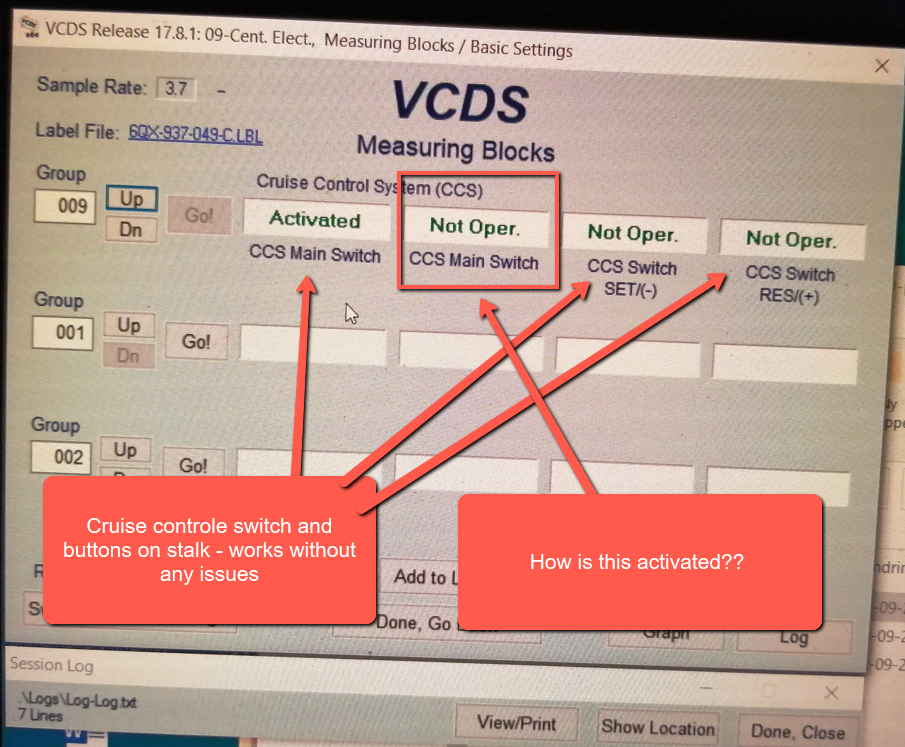
Info: Skoda Roomster 2009 1.6 L (petrol) VCDS: 17.8.1 Hi, everyone. My cruise control does not work, and I've been fault-searching and eliminating usual suspects mentioned in other posts on the forum: Brake pedal switch: works (registers in grp 066 data fields) Brake light switch: works (registers in grp 066 data fields) Clutch pedal switch: works (registers in grp 066 data fields) Switch on stalk: works (registers in grp 066 data fields). 'Resume' and 'Set' buttons: (registers in grp 066 data fields). But I've come across something that boggles my mind: In VCDS -> 09-Cent.Elect. group 009 (Cruise Control System CCS) field #2 is says 'Not Oper.' consistently (see photo below). What is this refering to? What part of the CSS is not operating? What needs to happen in order for the to get activated? Field #1 switches between 'Not Oper.' and 'Activated' when I flip the on/off switch on the stalk. But what the hell is field #2? I hope some of you can enlighten me or lead in the right direction.. Best wishes and thanks, Kasper, Copenhagen