
B284
Finding my way
-
Joined
-
Last visited
Everything posted by B284
-
Maybe not a solution, but I have a regular Octavia 1,5TSI from 2020 (manufactured 2019/09) and normal bulbs in the doors. I switched them for the white LEDs with "Octavia" written on the ground when opened (from SuperSkoda) and they are working perfect without any coding or anything. Maybe the LEDs are defect in some way that you got from SuperSkoda?
-
teamt84: Have had the same done to my Octavia 3 FL MY20 (1,5TSI DSG). I have Amundsen and Lane Assist from factory. A friend of mine did the coding via OBDeleven. It was rather tricky, (sadly I don’t know exactly what he did) but in the end it worked with no error codes, so it is possible! But I think it’s awkward with the fusion mode, it will often change the displayed speed limit to the one from the satnav. I get that it’s good to do so if it can’t detect a road sign, but if I drive by a 40-sign, it displays 40, but seconds later from nowhere it adjust itself to 50, without passing a new sign. That’s irritating. But I guess that’s just how it’s supposed to work if the camera and satnav isn’t consistent. Hope that you work it out, without any errors!
-
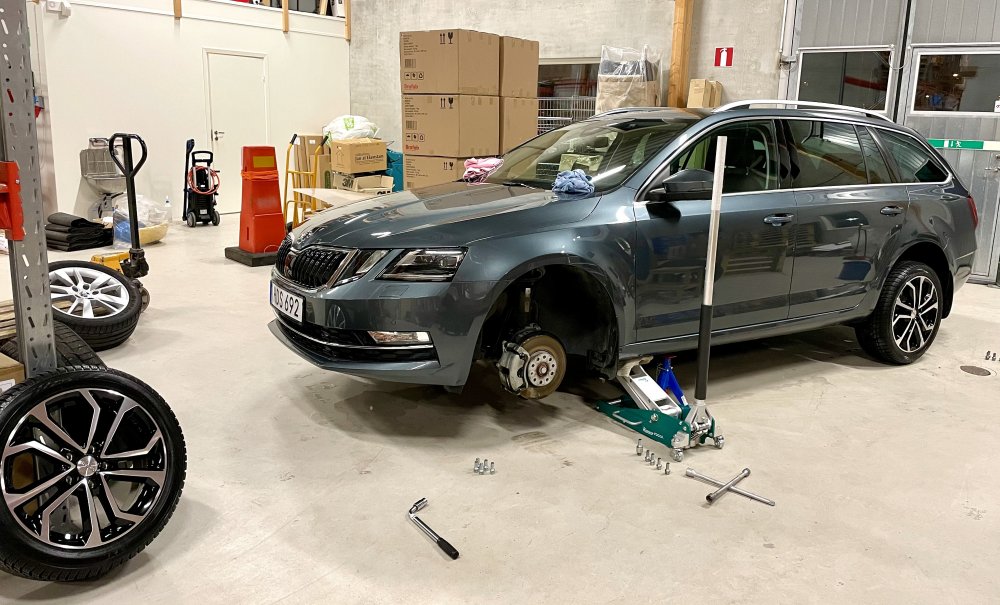
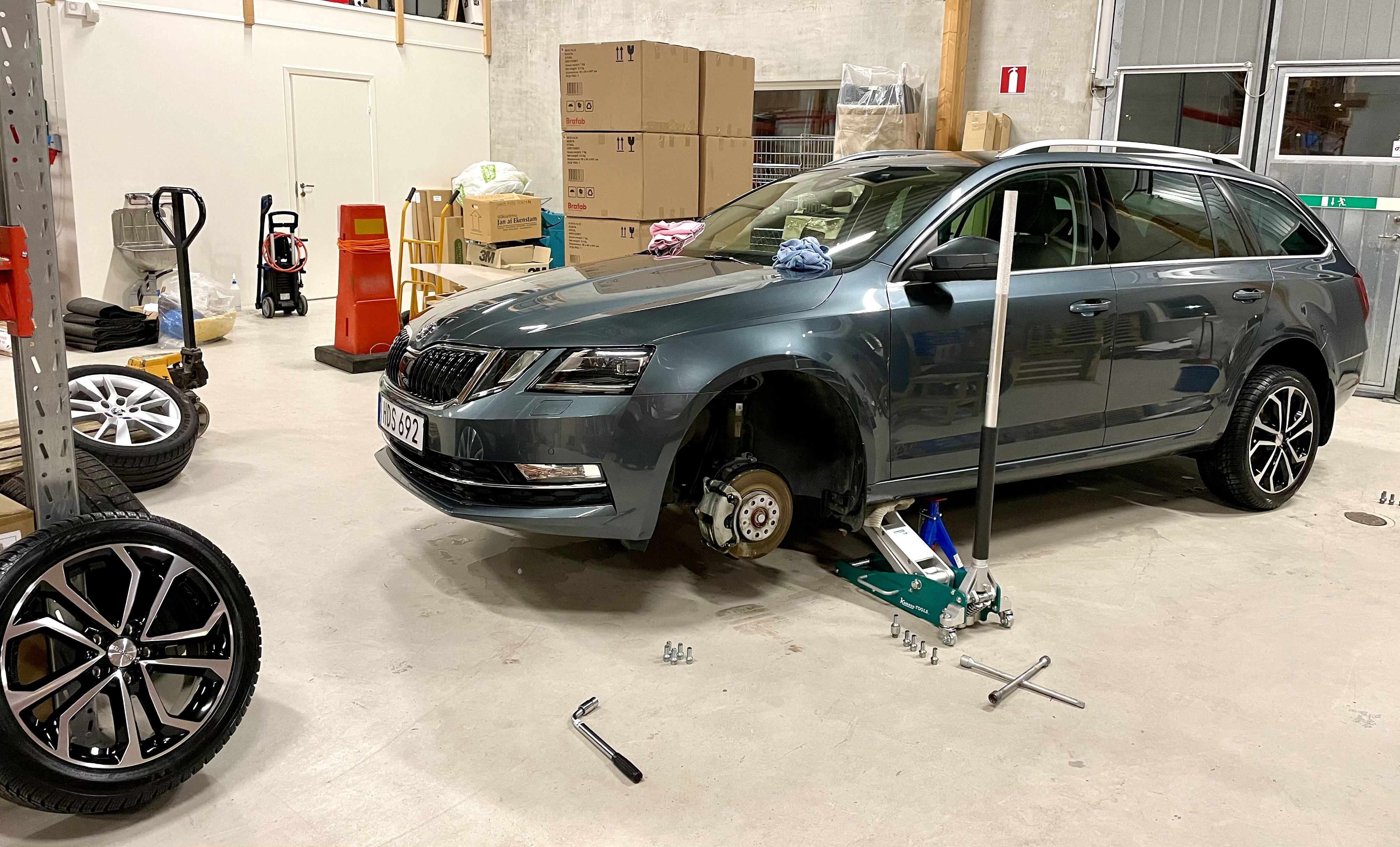
Hello (hej) hansen1! A fellow swede here! Always have had studded Nokian-tires before, but almost everyone I spoke to preferred the studless versions. So, I had to try it for myself this time. Here in Skåne it’s rarely bad winterroads where I drive. I know that narrower tires is better in snow, but I like the look with 17” wheels and wider tires, so I bought 225/45R17 Nokian WR Snowproof on Dezent TA-rims. Last winter was the first I had these wheels, and they worked great in the mild winter that was. Nice steel rims you got! And - is it Michelin tires you use? Ha det!