cigaro
Finding my way
-
Joined
-
Last visited
Everything posted by cigaro
-
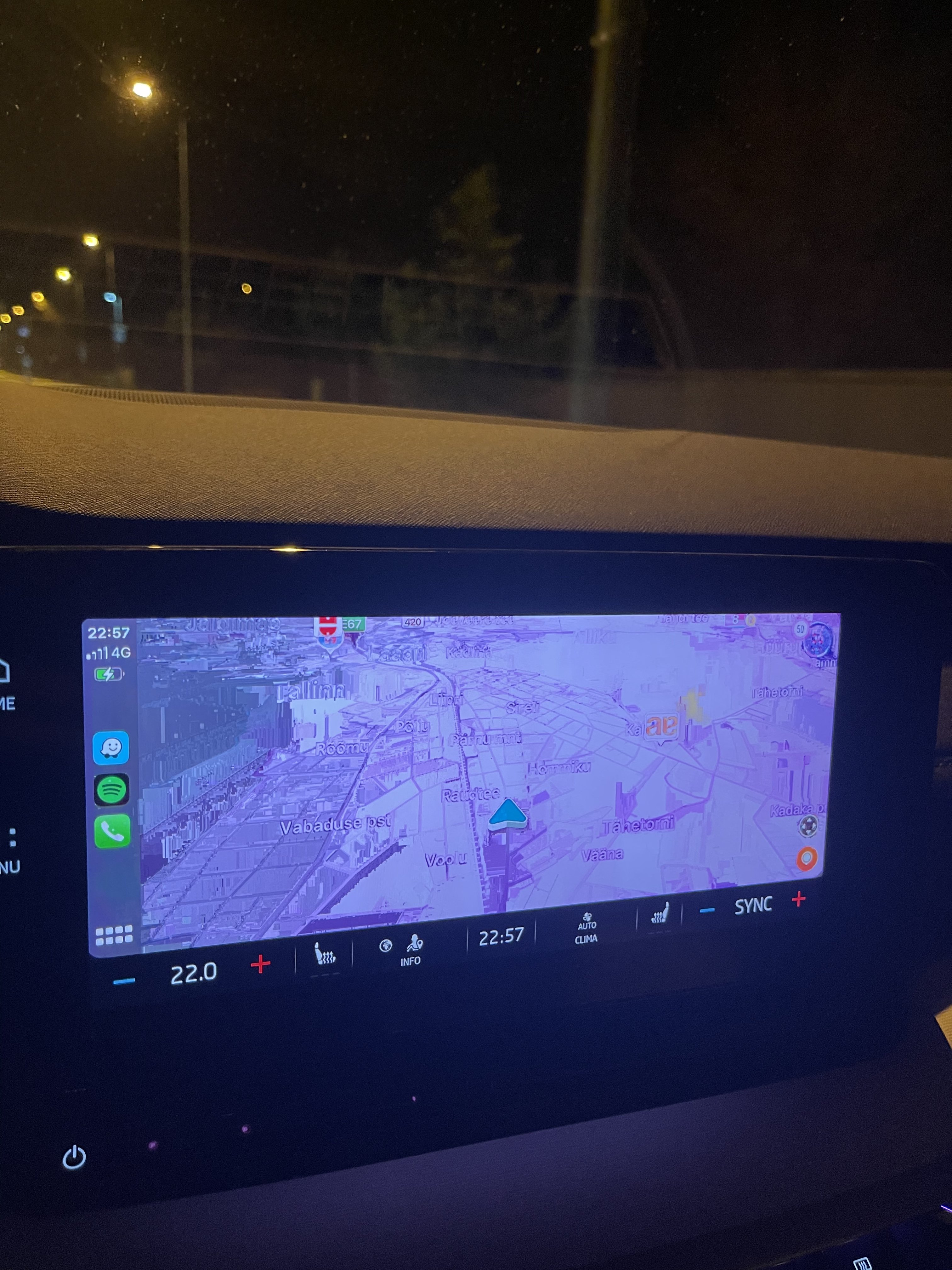
Adaptive cruise control works like a charm, line assist is very agressive and sometimes annoying. Rain and parking sensors are doing their job. Have issues only with infotainment system using carplay - issue that is on the picture + every now and then get the black screen if trying to start carplay and then it needs to be restarted. Had the issue with matrix lights also but the dealer said that the lights were set too high and they lowered them. Oncoming cars don’t flash now but imho left headlight is now set too low.
-
Had this kind of a problem using Waze via CarPlay but it happened only one night two times in a row a week ago (the car is 5 mo old). Hopefully it will not be a problem again.
-
Had the same problem with my previous iPhone 8. Upgraded it to 12 Pro Max and no problems so far.
-
Press CLIMA button. Go to Classic AC menu. If you have the heated screen feature, you can find it there.
-
I also have the matrix lights and get flashed once in a while. Hopefully it will get better after some software updates.
-
No problems with my previous iPhone 8 or new 12 Pro Max so far. Sometimes, if switching to CarPlay on the infotainment menu, the screen is black and only restarting infotainment system helps.
-
Always choose the best lights on the options list. And no ptoblems with the auto hold so far.
-
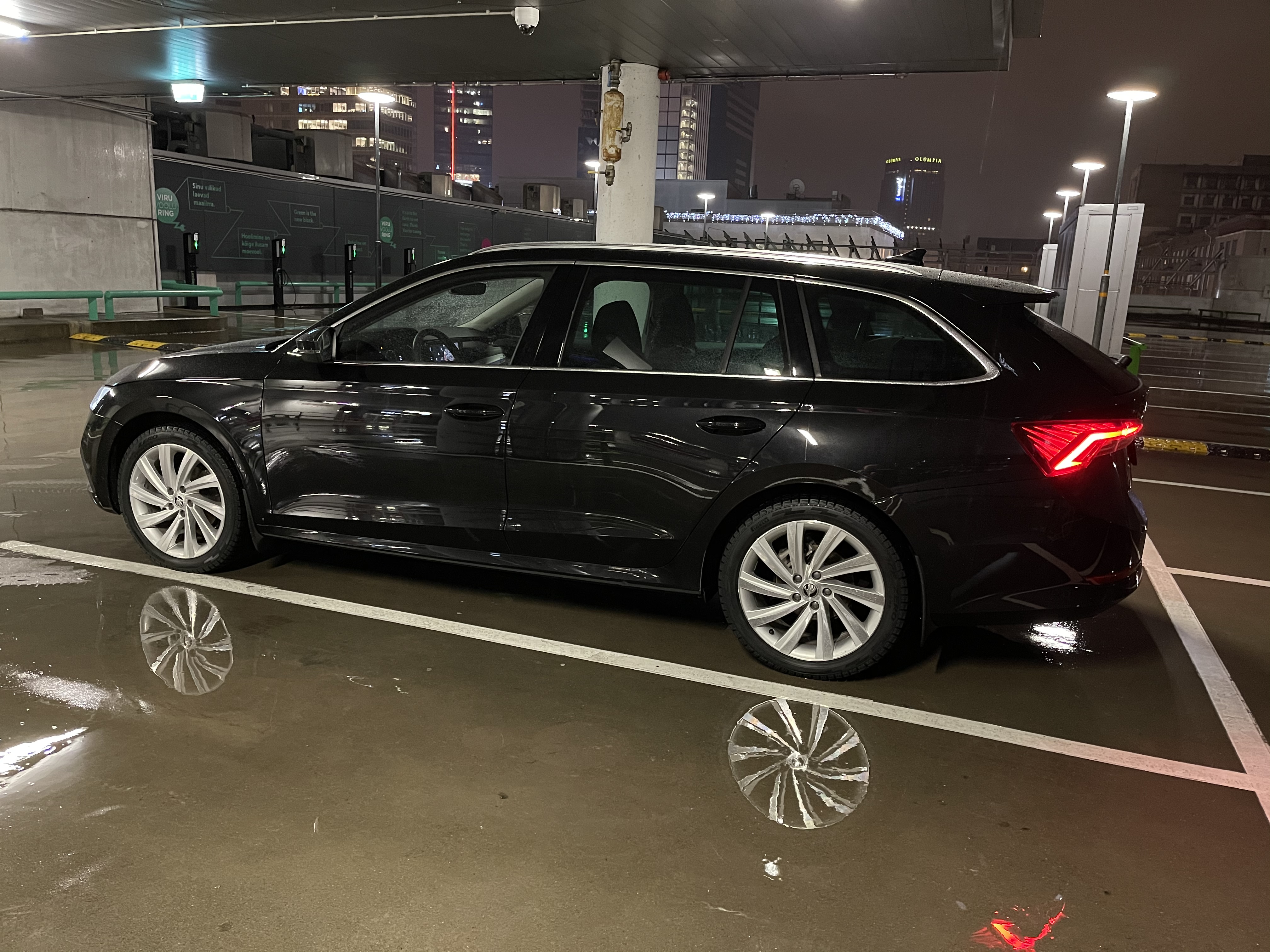
Those are 18” Perseus with 225/45/18 tyres and standard suspension.
-
My G-TEC
-
Went to the dealer yesterday because of the recall. It took them 2,5 hours. The only thing that I noticed was that now if I press steering wheel heating button on it, it doesn’t activate the clima menu on the main screen. Still having problems with wireless CarPlay - it keeps restarting infotainment system 1-2 times a day at random moments. Extremely annoying issue. Otherwise I am very satisfied with Octavia mk4.