Skip to content

Roby83

Finding my way
  • Joined

  • Last visited

  1. if it were as you say it would always do so, not only when I am logged in with my user skoda.... also because I have the same behaviour with carplay
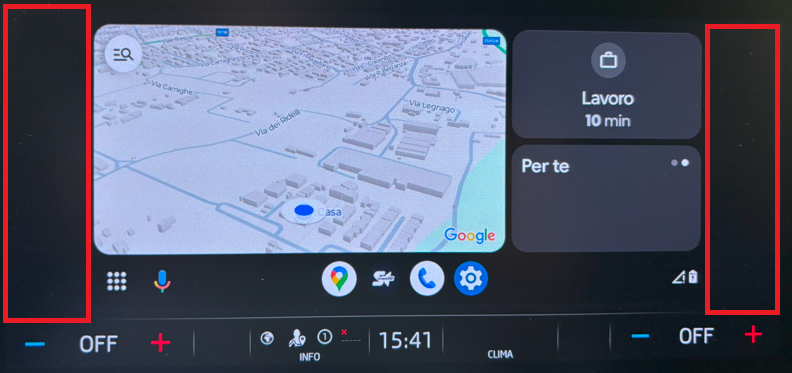
  2. No no.... widgets have nothing to do with it. it is just the size of aa/carplay that changes whether I am logged in as a guest or with my user
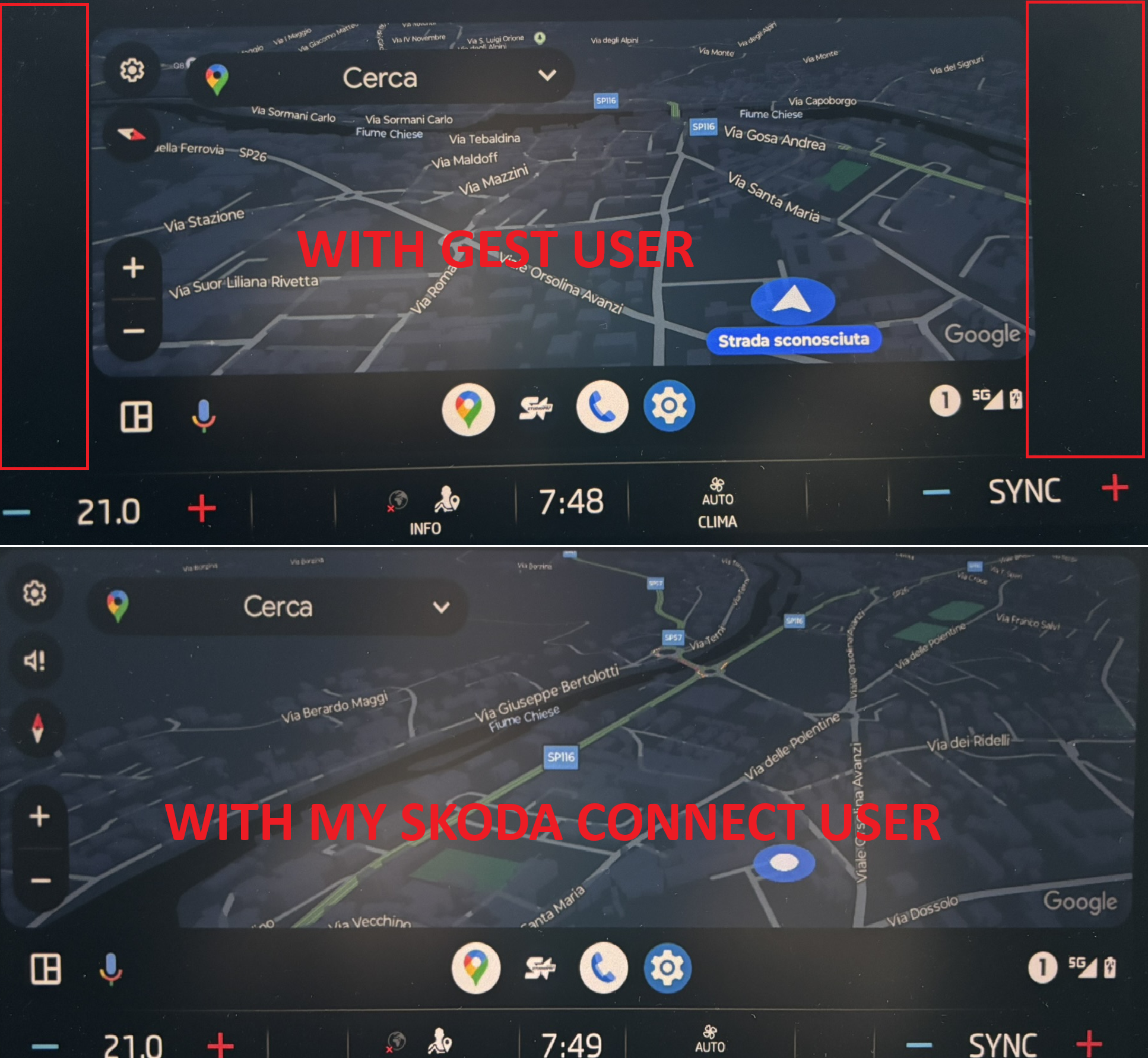
  3. I think I've found a bug... android auto/carplay are only smaller when you are logged in with your skoda account, if you log in as a guest they go back to full screen... crazy! Can anyone try to certify my thesis?
  4. all i know is that i used to have a renault with a freaking r-link and it had problems... Then I switched to ‘German’ with stao ****ing mib and it's even ****tier..... I'm really fed up and disappointed
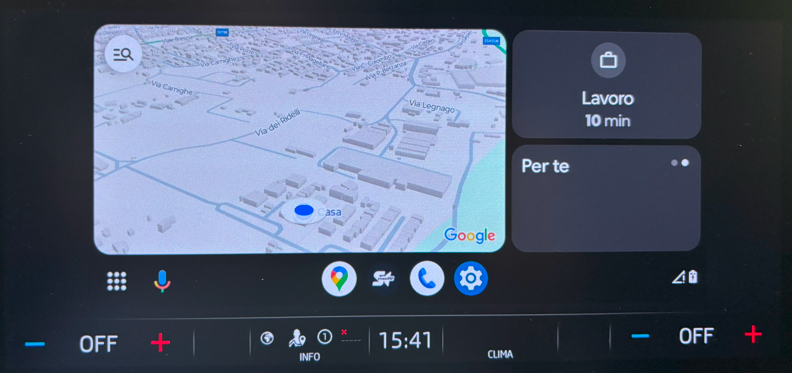
  5. I apologise, I did not explain myself well... they are no longer as wide as the screen... they now have two vertical black bands on the sides.
  6. hi guys, after the update android auto and carplay no longer go full screen, any ideas?
  7. I don't think so... except that I have an active data subscription... But on the shop, for example, I can browse correctly... Traffic info works....
  8. So, I tried disconnecting the battery and resetting infotaiment. The devices connect to the wifi of the mib 3, but it doesn't assign the ip to it! it seems that the dcp server doesn't work...
  9. let's wait for the experts... but I think you need to restore the initial settings...
  10. Try, go to the shop, and uninstall.
  11. Hello, everyone. Suddenly Android Auto and CarPlay have stopped working in wirelss mode only, via usb they work fine. Ever happened to anyone? Thank you.
  12. thanks updated from 1969 no issues
  13. Hi, successfully upgrade from 1969. Thanks a lot!
  14. fox033, I notice that you also have the gray world with red x. mine started two weeks ago. How long have you had it?
Important Information

Welcome to BRISKODA. Please note the following important links Terms of Use. We have a comprehensive Privacy Policy. We have placed cookies on your device to help make this website better. You can adjust your cookie settings, otherwise we'll assume you're okay to continue.

Account

Navigation

Configure browser push notifications

Chrome (Android)
  1. Tap the lock icon next to the address bar.
  2. Tap Permissions → Notifications.
  3. Adjust your preference.
Chrome (Desktop)
  1. Click the padlock icon in the address bar.
  2. Select Site settings.
  3. Find Notifications and adjust your preference.