




jacekben76
Finding my way
-
Joined
-
Last visited
-
I don't know the source/content; I recommend downloading it from https://mibsolution.one/#/1 After installation, load 1985 or 1989 instead of 1969. PS. Check your inbox.
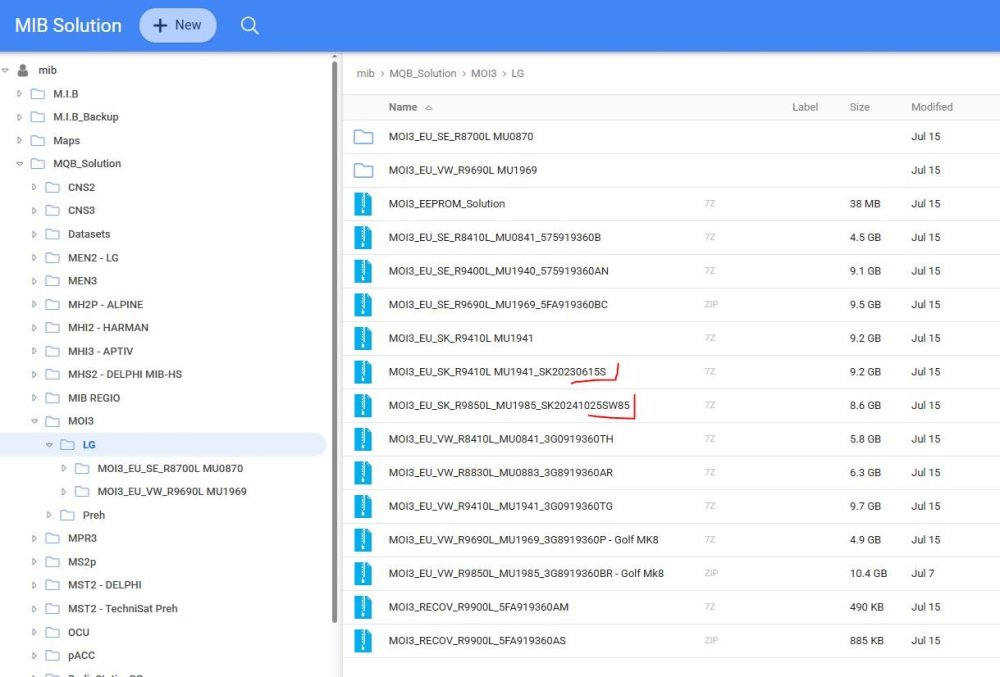
-
For this version, I do it in two steps: 1803->1941->1989. 1. Download both files, unzip them on your computer. 2. Copy the contents of 1941 to a flash drive (preferably a good, branded USB-C) to the root directory. 3. Insert the flash drive into the USB-C port. 4. Open/tilt the hood. 5. Start the engine (it's best not to drain the battery). 6. Hold down the Menu button until the tablet enters service mode. 7. Select "Update" and select the USB-C port where the flash drive is (it will be highlighted). 8. Select "Install." 9. Wait, wait, wait - 2-3 restarts and it's done. The whole process takes about 15-20 minutes. 10. After a while, an additional fix will probably be released via OTA. 11. Repeat the procedure with the 1989 file. 12. Enjoy the new software. ;) If you need more information or help, send me a private message.
-
I don't know if I'm wrong, but this is probably the version for you?
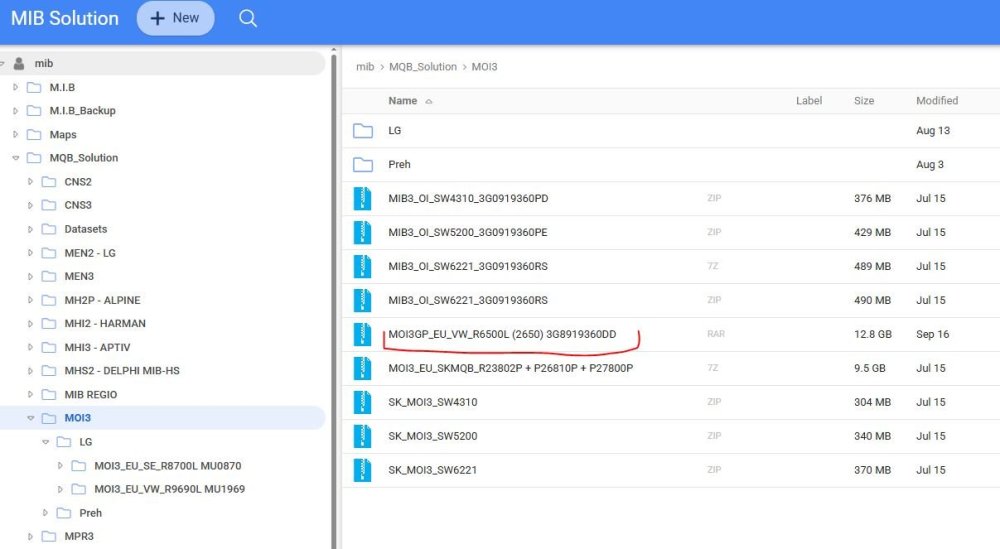
-
we are looking ;) as I wrote above - so far I haven't noticed any differences
-
Have you noticed any visual changes? I haven't, so I assume it's an overall improvement in stability?
-
-
for peace of mind do it in two steps: 1941->1985.
-
feel free to update as soon as possible, the previous version you had was one of the oldest 😉👍
-
Hi! Does anyone still have and could share a link to SW 1896?Hi! Does anyone still have and could share a link to SW 1896?has anyone tried updating directly from 1806?
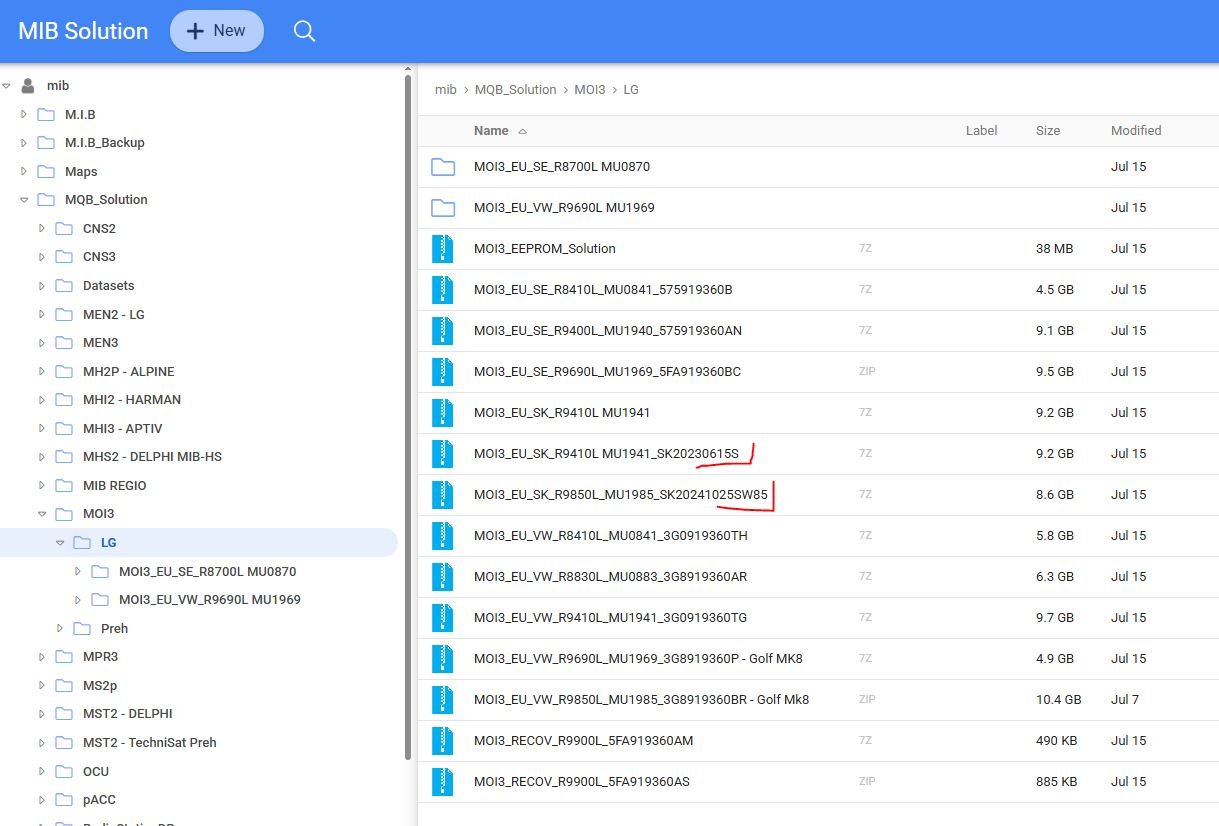

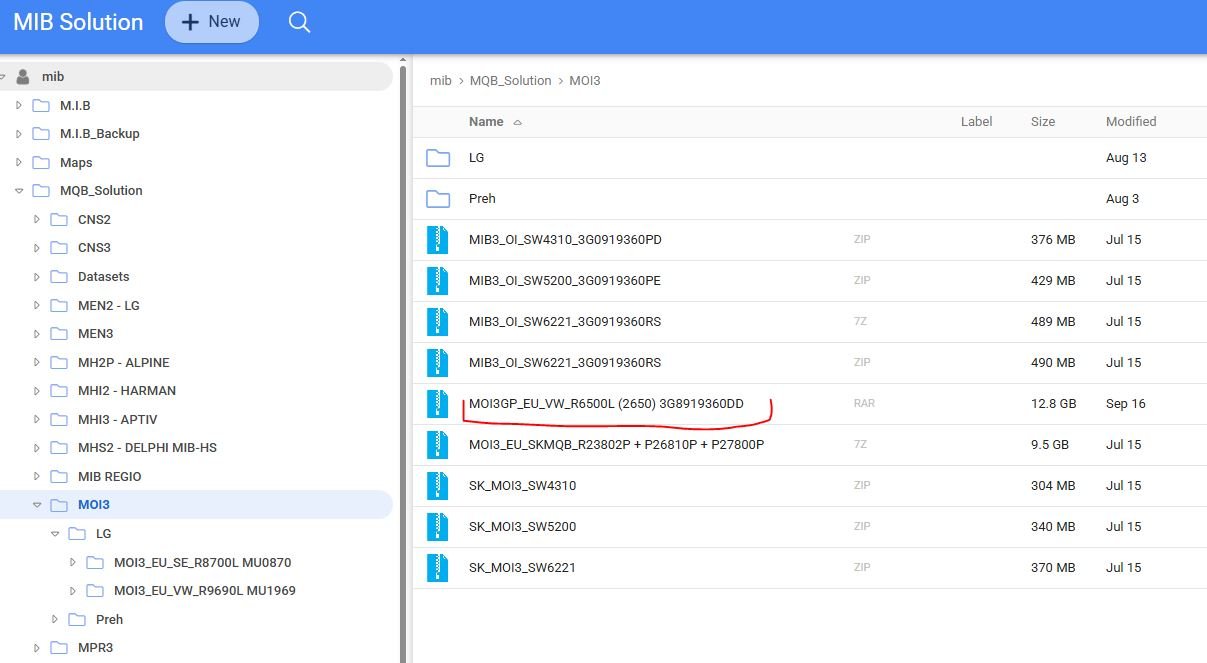

Important Information
Welcome to BRISKODA. Please note the following important links Terms of Use. We have a comprehensive Privacy Policy. We have placed cookies on your device to help make this website better. You can adjust your cookie settings, otherwise we'll assume you're okay to continue.