Zlatko580
Members
-
Joined
-
Last visited
-
-
-
-
-
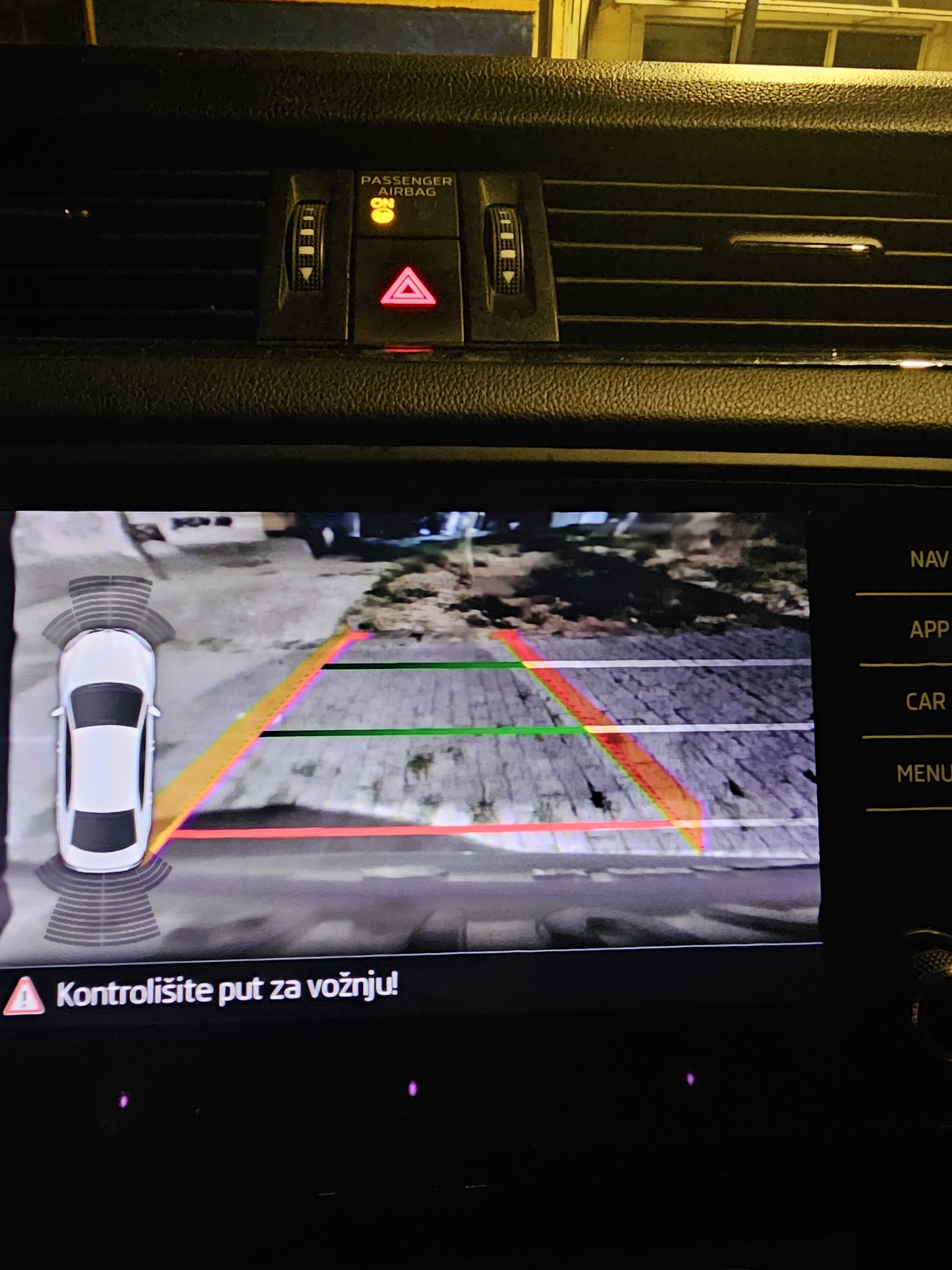
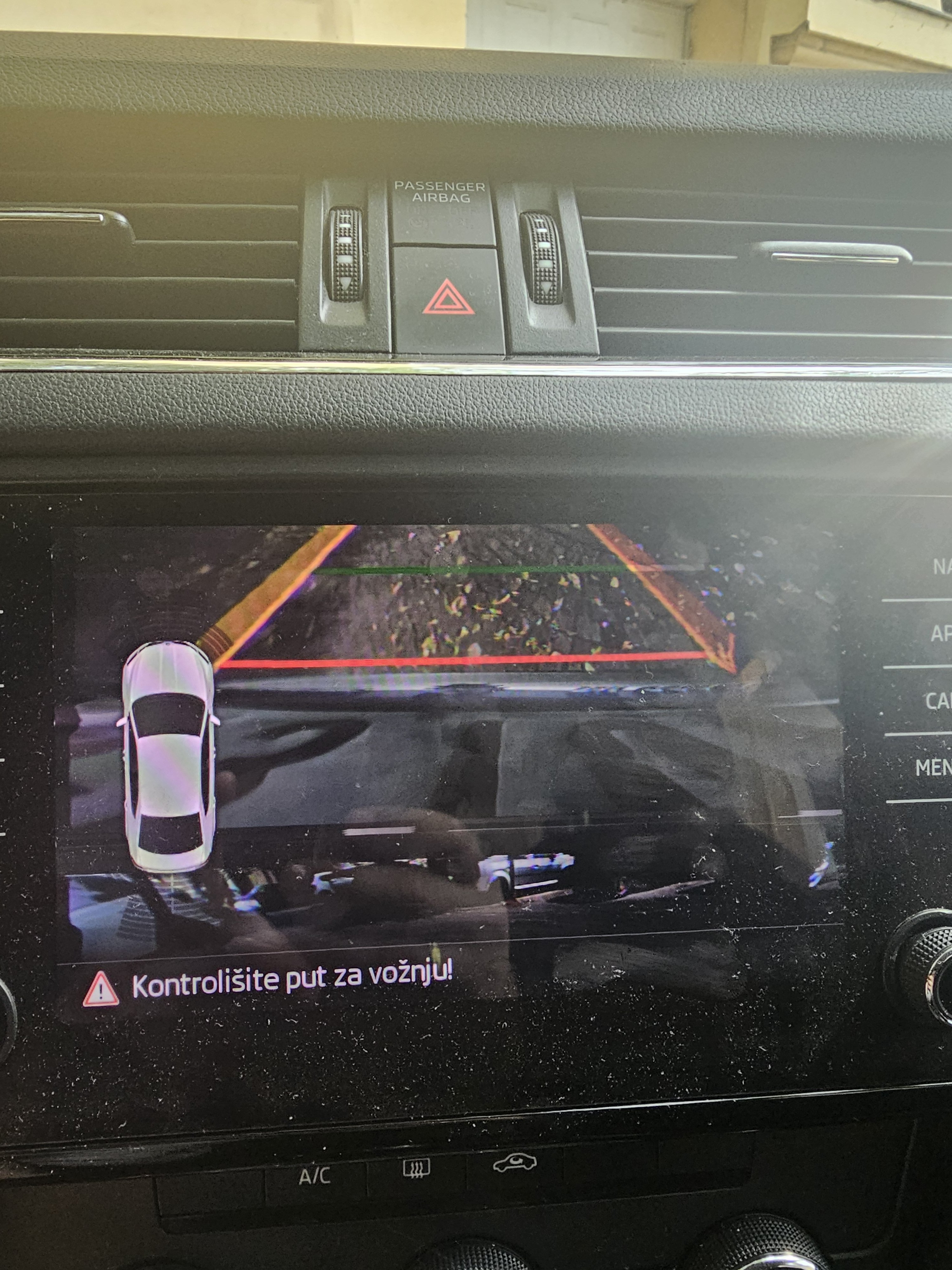
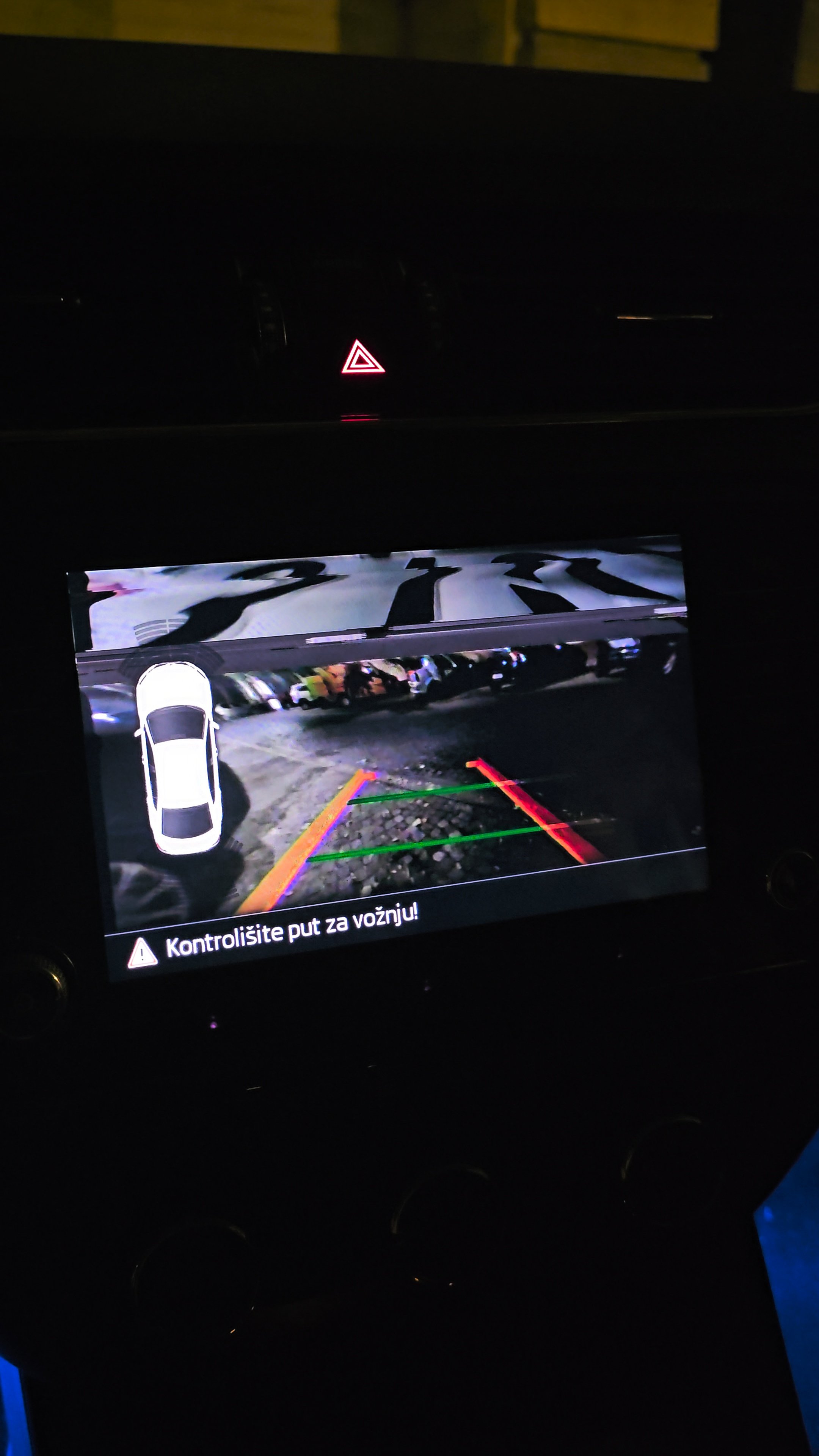
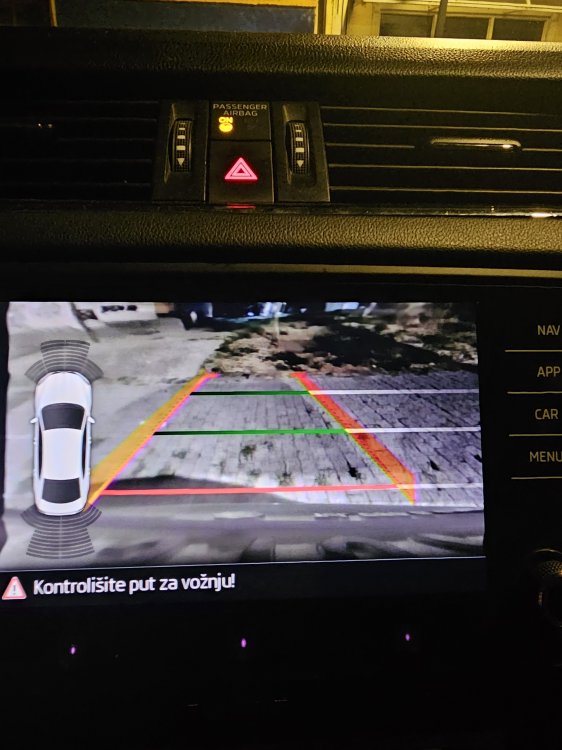
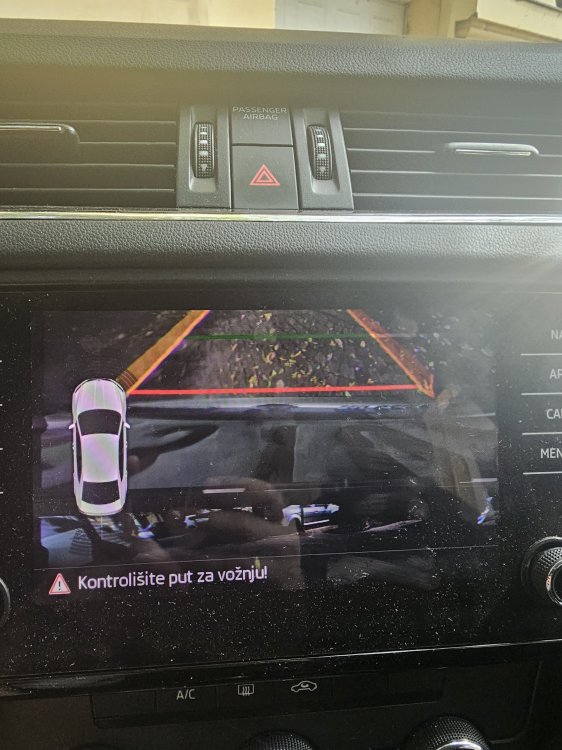
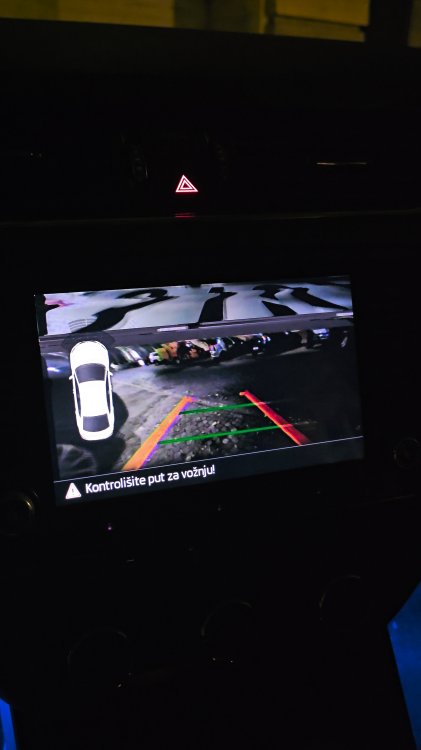
Hi everyone, I bought an RVC High camera (4M0980556A) on AliExpress and installed it according to the wiring diagram. After coding, the camera worked, but the image on my MIB 2.5 Amundsen was distorted/glitchy, and I had a few communication errors with other modules. I then reflashed the camera via ODIS-E to 5Q0980556B (as suggested on some forums) and loaded the dataset for the Octavia A7 FL. The communication faults went away and the dynamic guidelines appeared, but the image distortion remains the same. The only DTC left is for calibration. I'm currently working on a calibration tool, but I'm worried that calibration isn't the root cause of this image distortion. Has anyone experienced a similar issue, and what could be causing it? Any help would be greatly appreciated!
-
-
That's the expected outcome. There's a small possibility that, for some reason, the USB was disabled when you first reset the multimedia to factory settings. Or that the USB got some internal error and stored error code, until you delete error code in 5F module it will be disabled. It's certainly not possible to solve this without diagnostics. Cheapest option would be some Real HEX-V2 VCDS clone (FlyOBD is best) on Ali for 50€, it pay itself very quickly.
-
ODIS, VCDS, OBDeleven... You can write original .bin but it would be very very weird if that causes problem with usb. I never heard of that kind of problem after activation fec. EDIT: Maybe you just didn't pluged in HSD cable connectotr properly in the unit when you put back unit in car after activation?
-
-
-
What update do you need?
-
-
-
-
Did multiple devices with this method, never get this problem. There was people which had this problem, solved with desoldering eeprom chip, or desoldering atleast vcc leg. Before desoldering double check did you connected everything ok, try with and without 1.8v adapter, if everything fails, I would try to unsolder vcc leg.