



Skip to content

fabia sport 1.2 / 1.4 petrol owners
Featured Replies

Just a few questions about them, any owner will probly know them :)

Do they have a glovebox light?

Do the dials/clocks display outside temp, average mpg(fuel computer?) and so on... or just the normal time and trip?

Do they all come with aircon?

Do they come with esp?

Are the 1.2 petrol engines belt or chain driven?

Do they come with any other extras?

Thanks for any answers :)

Edited by hutchysrs50

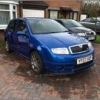
The original 1.4 sport had manual windows and no CDl, these were both retro fitted at the dealer (sometimes) you can tell the the window switches being in the centre not on the doors and the blanking cap over where the winder handles were.

Nice wheels though, obviously much saught after seats, red seat belts on some if not all of them and the fake tail pipe are some other features. Also the 1.4 was the 75bhp engine, drum brakes at rear.

Yes the 1.4 was replaced by the 1.2

  • Author

ok, thanks for your help. so im guessing they dont come with a fuel computer or outside temp display etc then?

sorry but i havnt had a defined answer yet :angel:

ok, thanks for your help. so im guessing they dont come with a fuel computer or outside temp display etc then?

sorry but i havnt had a defined answer yet :angel:

I used to have a 1.2 sport and that did have a trip computer and an outside temp display

  • Author

I used to have a 1.2 sport and that did have a trip computer and an outside temp display

Thank you for the reply! :)

when you say trip computer does it just tell you how many miles you have done, or.. tell you adverage mpg like a fuel computer.

sorry to go into depth but where was the outside temp displayed and did you have to press a button to get it to show up?

Thanks :angel:

  • Author

The manual explains the operation of the trip computer...

See http://www.skoda-aut...ages/fabia.aspx

Ahh brilliant, Thanks for the link.

Thanks again for other replies :)

Edited by hutchysrs50

Create an account or sign in to comment

Recently Browsing 0

  • No registered users viewing this page.

Important Information

Welcome to BRISKODA. Please note the following important links Terms of Use. We have a comprehensive Privacy Policy. We have placed cookies on your device to help make this website better. You can adjust your cookie settings, otherwise we'll assume you're okay to continue.

Account

Navigation

Configure browser push notifications

Chrome (Android)
  1. Tap the lock icon next to the address bar.
  2. Tap Permissions → Notifications.
  3. Adjust your preference.
Chrome (Desktop)
  1. Click the padlock icon in the address bar.
  2. Select Site settings.
  3. Find Notifications and adjust your preference.
