



Skip to content

2011 Octavia VRS window problem
Featured Replies

Hi guys,

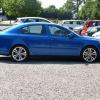
It's good to be back! I was lucky enough to find another job with a company car so I was forced to sell off my 1999 Octavia SLX. I was asked what I wanted as a company car BMW or Mercedes..... so I said Octavia VRS.....They said yeah but seriously....anyway we couldn't get a brand new one due to the model change so we brought an 11 plate VRS diesel DSG in Race Blue and it is every bit as good as I expected it to be...to the point that two colleagues now want the Octavia as their next company cars!

Anyway to the matter in hand...earlier in the week I went to open the drivers window and it didn't want to go first time, it moved a couple of mm then stopped, I pressed the switch again and it worked properly, yesterday I went to do the same and again it didn't want to go only this time it took a good few attempts to get it to work properly, during my attempts I tried the other windows (from the drivers switch pack) and they were the same so it looks like I could be having a problem with the drivers side switch pack....my question is : is anyone aware of this issue, anyone know what the problem is likely to be and how to fix it?

I would expect that any repair would be warranty but if I can avoid the hassle of getting it in to the dealer I would prefer it

Thanks in advance

Rog

try lowering each window, and keep the button pressed for a few second then raise it and hold the button for a few seconds.

Mine does this after battery is disconnected. Eddies suggestion works for me to reset the system.

  • Author

Thanks guys, I have given it a try, they seem to be behaving at the moment

Cheers

Rog

Mine does this after battery is disconnected. Eddies suggestion works for me to reset the system.

+1 or fuse out and in.

+1 or fuse out and in.

you still need to reset the one touch

Create an account or sign in to comment

Recently Browsing 0

  • No registered users viewing this page.

Important Information

Welcome to BRISKODA. Please note the following important links Terms of Use. We have a comprehensive Privacy Policy. We have placed cookies on your device to help make this website better. You can adjust your cookie settings, otherwise we'll assume you're okay to continue.

Account

Navigation

Configure browser push notifications

Chrome (Android)
  1. Tap the lock icon next to the address bar.
  2. Tap Permissions → Notifications.
  3. Adjust your preference.
Chrome (Desktop)
  1. Click the padlock icon in the address bar.
  2. Select Site settings.
  3. Find Notifications and adjust your preference.
