nauticat
Members
-
Joined
-
Last visited
-
I just checked - Croatia too....
-
try sneal's advice and check if your details in the app match exactly the details on the driver's license that the dealer inserted
-
I have it but I don't use it much, I try to rely on my own senses and on sensors. I have never had a camera before so I'm not used to using it. However, in some situations it has shown itself helpful... So, basically my recommendation would be the same as Ajdolin's: Hahahah, never would have guessed you were also a female My husband also had a couple of incidents where the car had to come to an abrupt halt, so I think I will follow you advice 🤪😂
-
I would say that the "less than a year long wait" club is more exclusive 😂
-
Double post, sorry
-
It's a shame there's no permanent way of turning it off
-
Me too, as soon as I get in the car I turn it off
-
Same here (xiaomi 11t and redmi note 9 pro)
-
Not sure if this helps, I have SW 1898 and the oncoming drivers have blinked 2 times in over 3 weeks of owning the car
-
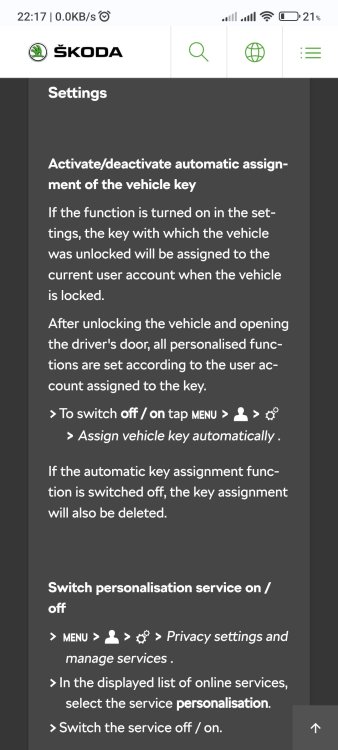
To answer your second question - yes, she will have to create her own account. She can do it through my skoda app on her phone and then log in on the infotainment or create an account in the infotainment (menu - users - plus sign). As for the key assignment, follow the instructions in the photo (haven't done that so am unable to help)
-
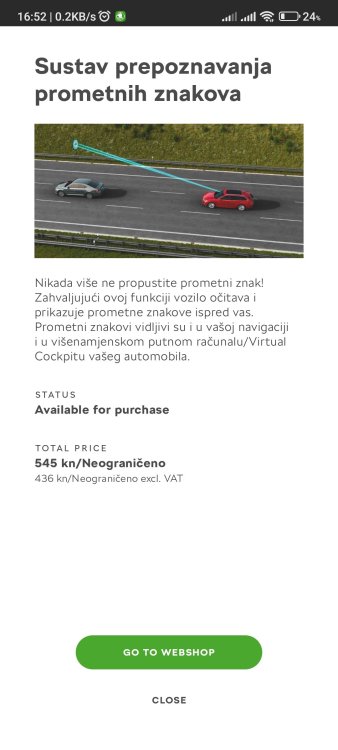
I have it as an option in my webshop Octavia 2.0 tdi Style, produced 08/2022, sw 1898
-
Congratulations to both of you and hope you have many many great miles ahead
-
Color 2 is light directed to your feet, but you need to select a 2.coloured box to use it (like Jmagee has in his photos)
-
We cancelled the blind spot detection (side assist) hoping for a faster delivery
-
The logo projector was factory fitted, I didn't order it separately. Unless it came with some package like ambient lights without me being aware of it. I just checked the specifications on the quotation and can't find it anywhere...