MonkeyBoy2283
Finding my way
-
Joined
-
Last visited
Everything posted by MonkeyBoy2283
-
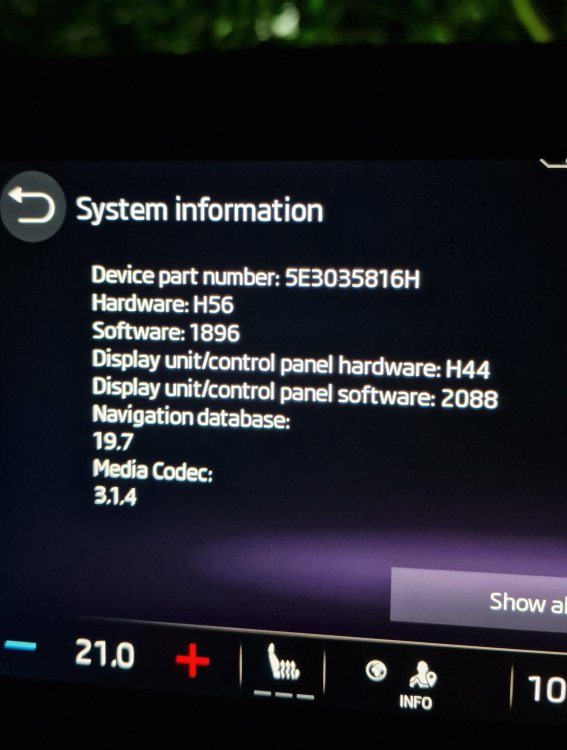
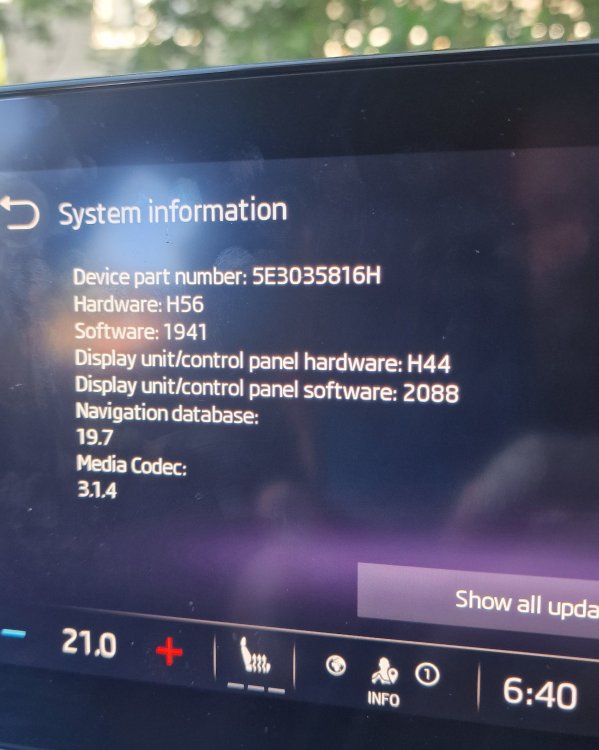
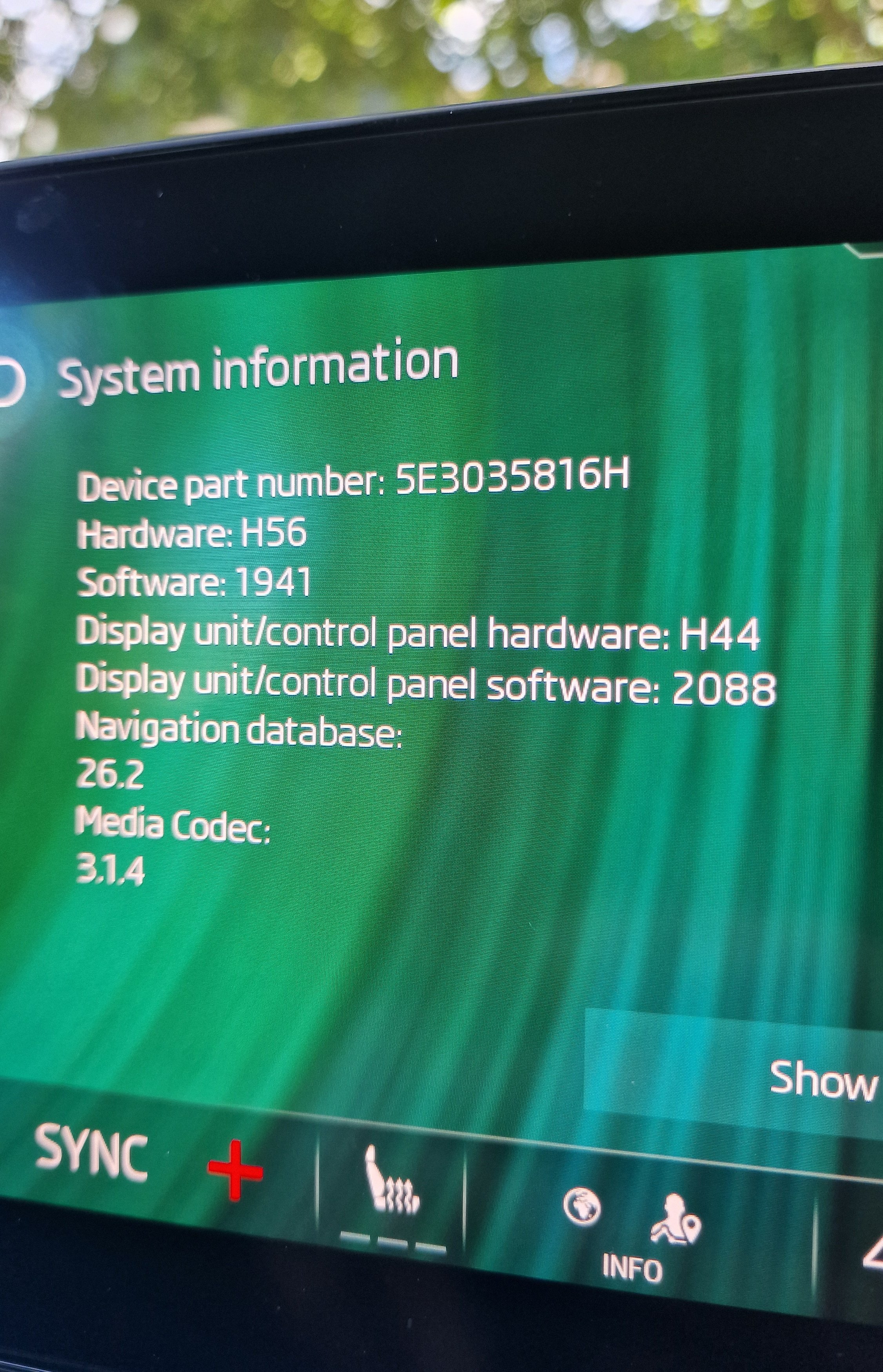
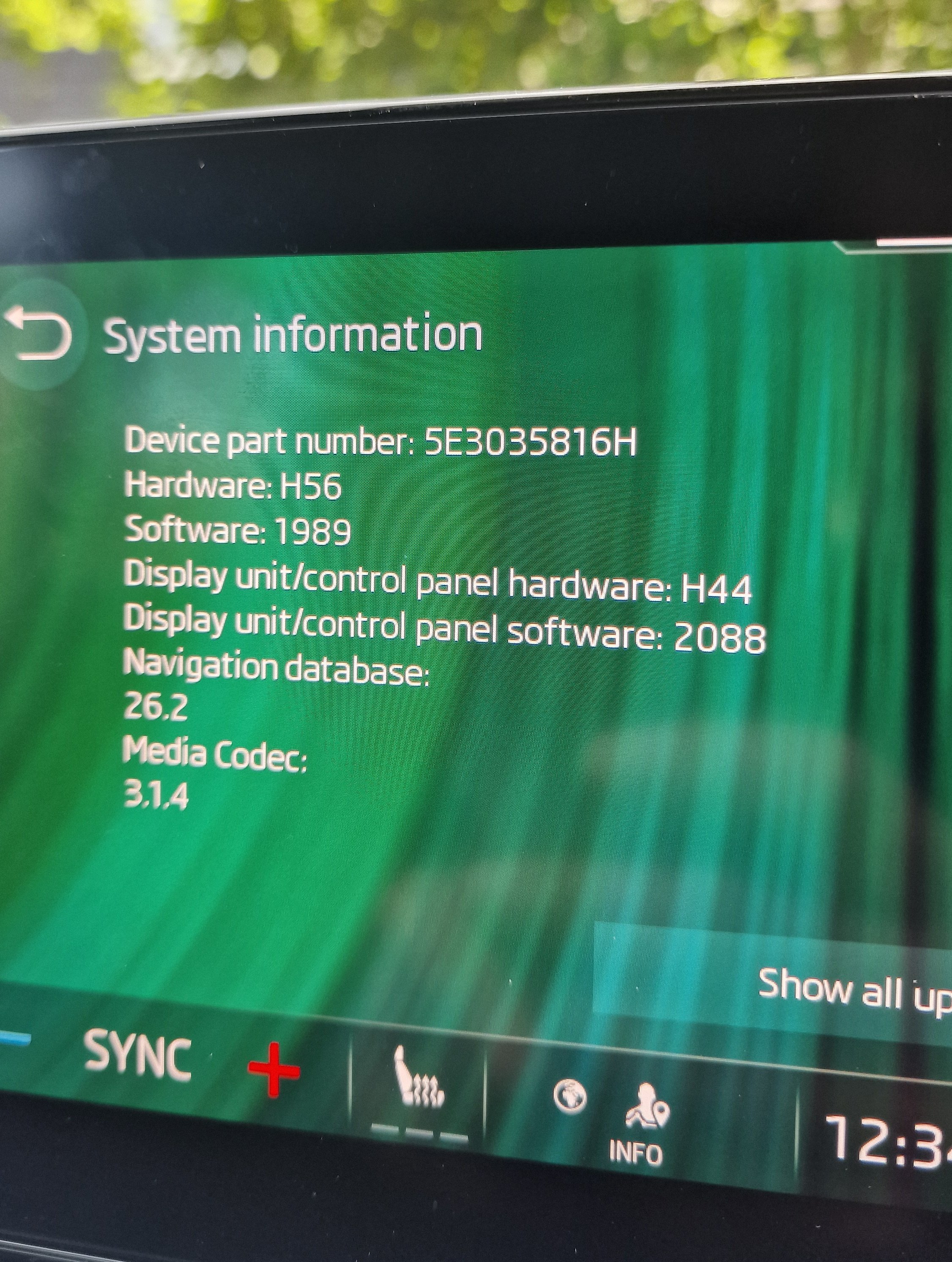
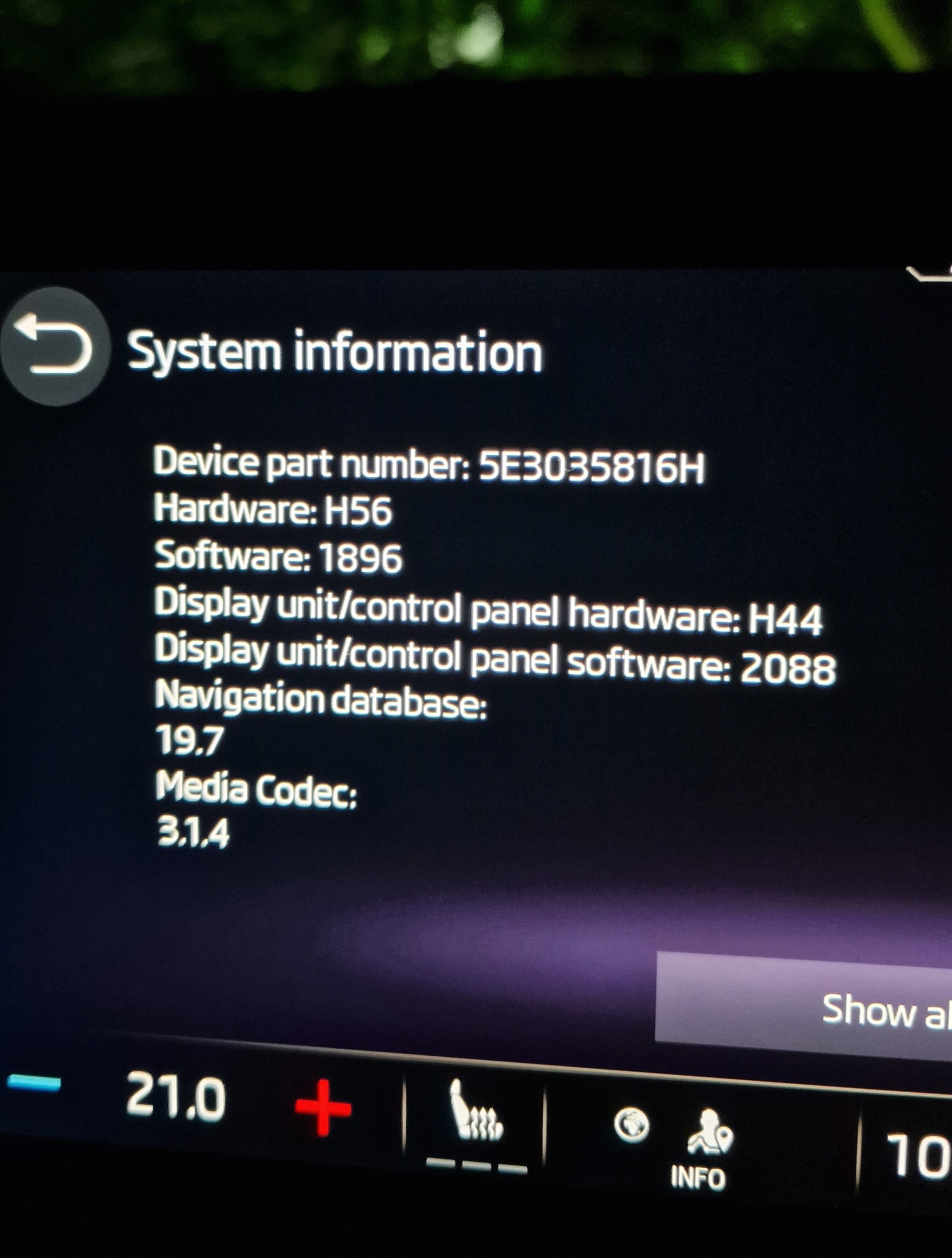
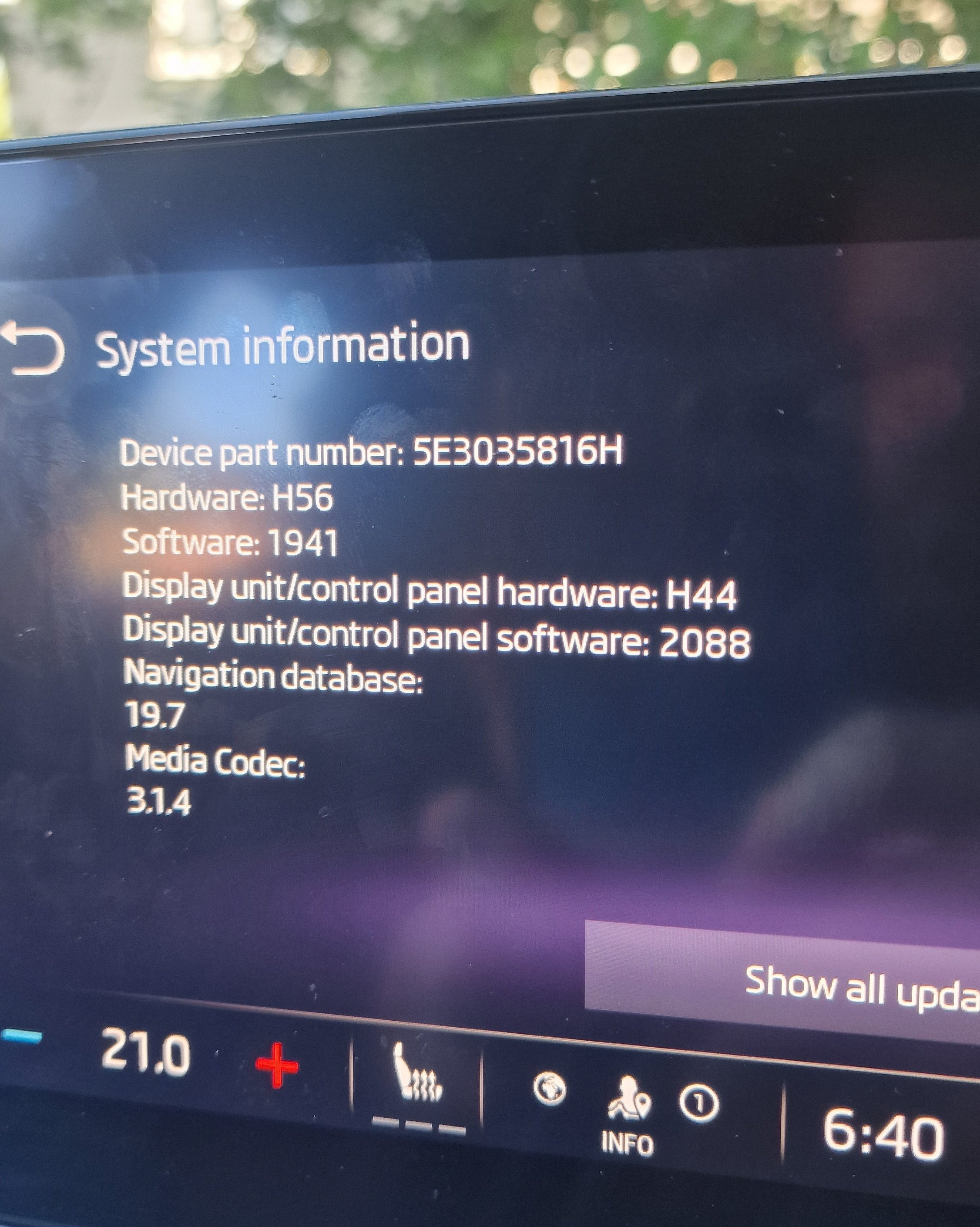
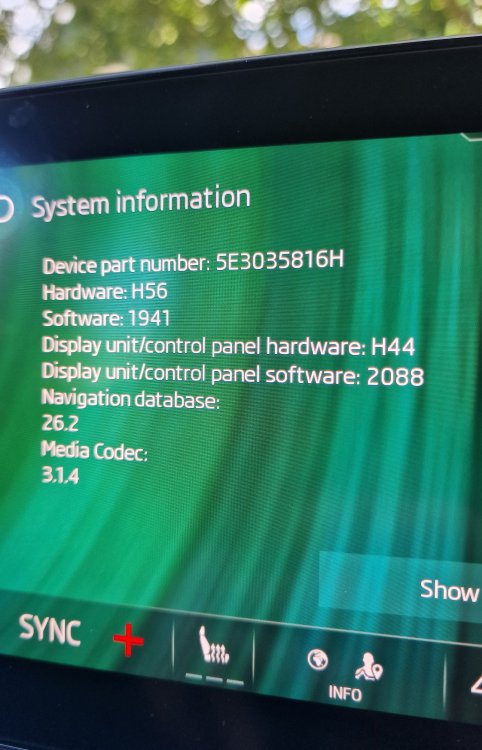
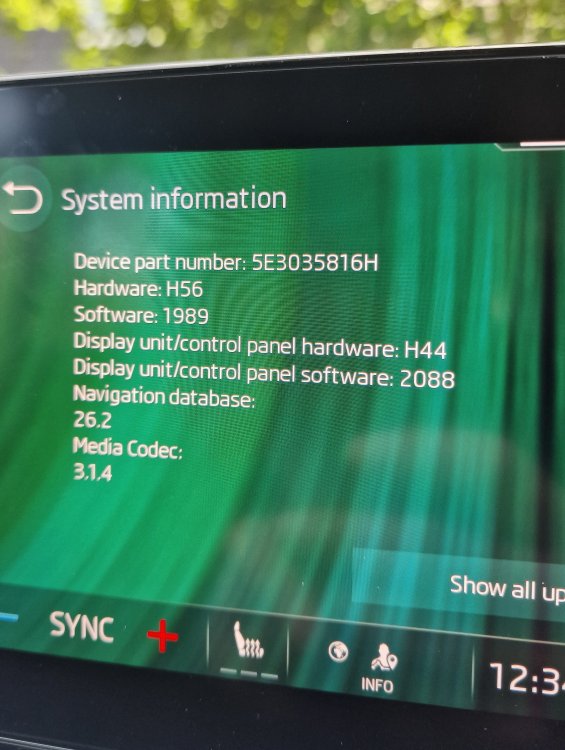
Octavia Mk4 Estate 1.5TSI Manual – SE L First Edition Manufacture Date: 2020 Infotainment Hardware: H56 Display Unit/Control Panel Hardware: H44 Display Unit/Control Panel Software: 2088 I formatted the USB stick to exFAT copied the files to the root, when I did the update, I had the engine running, the windows open and the AC turned off. The car started with 1896 when I received it, then I flashed it to 1941 with no issues, I have now just run the update to 1989. After the update to 1989 I did a full factory reset from the normal setting menu following the advice from here, it took about 15 minutes following the on-screen process, so a little faster than the 1896 to 1941 jump. This went smoothly with no issues, not seen a massive difference to from 1941, but I did see an option the choose what side if the road I am diving on, I believe this was missing from the early versions, but I don’t remember seeing it before. The only “problems” I have are related to Android Auto, as I still don’t seem to have the open to run is wirelessly, I can only open it if the USB cable is attached, not sure why this is because everyone else seems to be running wireless after updating. When I am using the Android Auto it also seems to not fully run full screen, it seems to have a slight boarder around it, I have seen this mentioned in the forum before, but I did not see this when using 1941, I have not seen if there is a fix of setting to have it full screen.
-
Octavia Mk4 Estate 1.5TSI Manual – SE L First Edition Manufacture Date: 2020 Infotainment Hardware: H56 Display Unit/Control Panel Hardware: H44 Display Unit/Control Panel Software: 2088 I formatted the USB stick to exFAT copied the files to the root, when I did the update, I had the engine running, the bonnet and the windows open and the AC turned off. I started with 1896 and moved to 1941, this took about 25 minutes following the on-screen process listed in the original post. This went smoothly with no issues, the main thing I noticed was how fast the screen was after the update.