Alan7690
Finding my way
-
Joined
-
Last visited
Everything posted by Alan7690
-
Mine is all working again as from yesterday so hopefully now all sorted
-
I sent a email to Skoda support and got this back so they’re looking into it. If I use Android it’s all ok same with the web app https://www.skoda-connect.com/. So only an issue on iOS for me Thank you for bringing this issue to our attention. We are sorry to hear that the issue persists and apologize for any inconvenience caused. We have forwarded the information to our technical department and they will investigate the issue further. We will let you know as soon as we have a solution. Thank you for your patience and understanding. With kind regards, Support for Digital Services
-
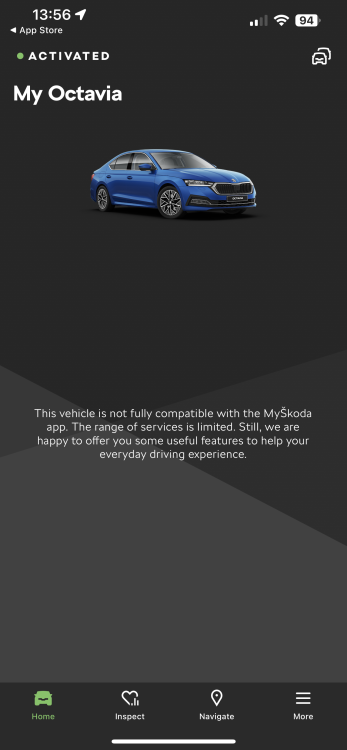
Since MySkoda app update to Skoda Essentials I get this message, but it all appears to be working ok
-
Yes it's now on 1896
-
My car was in last Thursday for a service and software update and so far, no pop pop and everything still working ok 😊
-
Car booked in on the 6th Oct for a service and software update and they knew about this issue. Free loan car as well while it's in
-
Anyone else noticed after the pop pop if you switch the instrument display to navigation it says navigation currently unavailable but it's ok on the touch screen
-
Got the same issue and noticed that the info and globe icon disappears from the display for a while after the pop pop. Mine has had a few over the air software updates but none for the dealers. Also after a minute or so the dash panel pops a message up saying SOS activated.
-
I've not found it on my SE L
-
Yes eSIM data is turned on
-
Mine's not worked since late Wednesday. If I go to the section it just comes back saying activating and never does or give me any other options. Anyone have any ideas?