




SteveMcK
Members
-
Joined
-
Last visited
Everything posted by SteveMcK
-
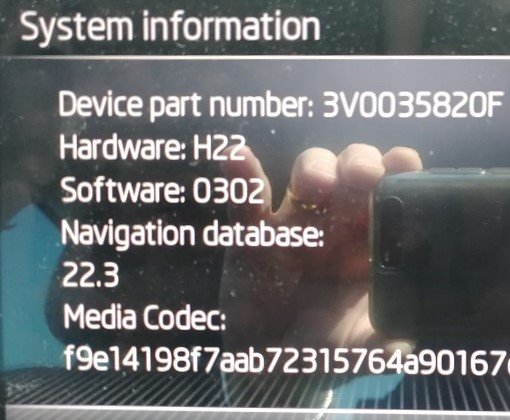
Interesting indeed, I got mine in November 2021, the SW/HW version screen is:
-
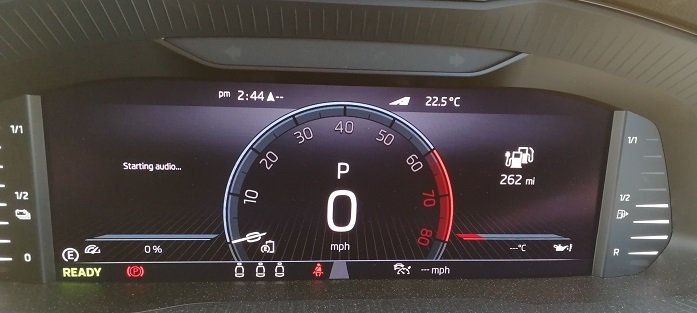
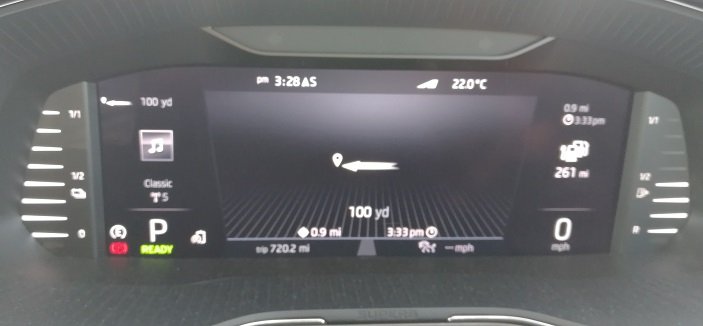
Not quite, see the attached before & after pictures. I have been playing with various VC console layouts, but I really don't remember it doing this until recently. It's very irritating, looks like I'll just have to add it to the list of "infotainment" annoyances.
-
Hi, I have a 6-month old Superb iV. I have the Virtual Cockpit configured to a custom view, essentially the sport setup (central dial speed/revs) with audio & range configured for the side images. Recently (I'm pretty sure it only started a few weeks ago), whenever I select "start" for a route from the SatNav the VC display changes to show the navigation directions in the middle and I have to click twice on the "cycle through VC displays" button on the RHS of the steering wheel to get my chosen config back. I'm sure it didn't do this before. I've checked all the settings, and can't find anything I might have changed, accidentally or intentionally, which might cause this. Has anyone else seen this, or am I imagining that this didn't happen before? If anyone can point me to a setting I may have missed it would be much appreciated. Thanks, Steve.
-
In my experience French garages and accessory shops have no idea that there is even a difference. Ask for headlamp deflectors and the response is gallic bafflement. Once you explain the problem they may agree that it's a good idea, but "sorry M'sieur, never seen them". I generally had to order them via Amazon.
-
My best guess is that you probably don't want the system to do an upgrade & reboot while you're zooming down the motorway 😁 so insisting that the engine be off is just a safety precaution.
-
If you have the SD slots you have the older (and apparently better) infotainment system. With the newer one (MIB3) I think only the USB-A in the central box and the USB-C in the front console are actual data ports. The one in the rear ashtray only has power for charging, but no data connection.
-
Hi all, I've just taken delivery of a new Superb iV, after previously having driven an Audi A5 and a Ford Mondeo. Lovely car so far, I'm still learning what it can do. Cheers Steve