Skip to content

djukak

Finding my way
  • Joined

  • Last visited

  1. What is excellent is that Phonostar added logos for Bosnia radio stations in this last update after I wrote them an e-mail in july last year. Not all of them, but many. They did really a great job.
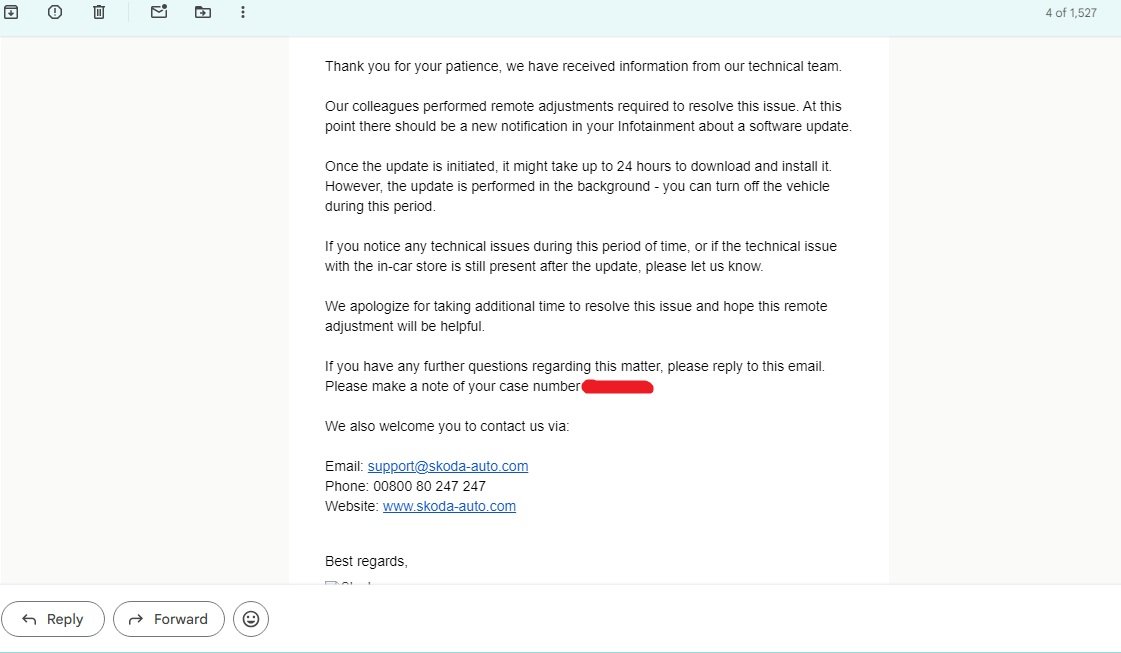
  2. I hope you will manage to fix this. I did O3A8 few days ago, while car was turned off while updating and everything went great. I had to log in again, but most of the settings was pulled from my account. I only had to do some minor tweaks (like ambiental lighting for example, and home screen).
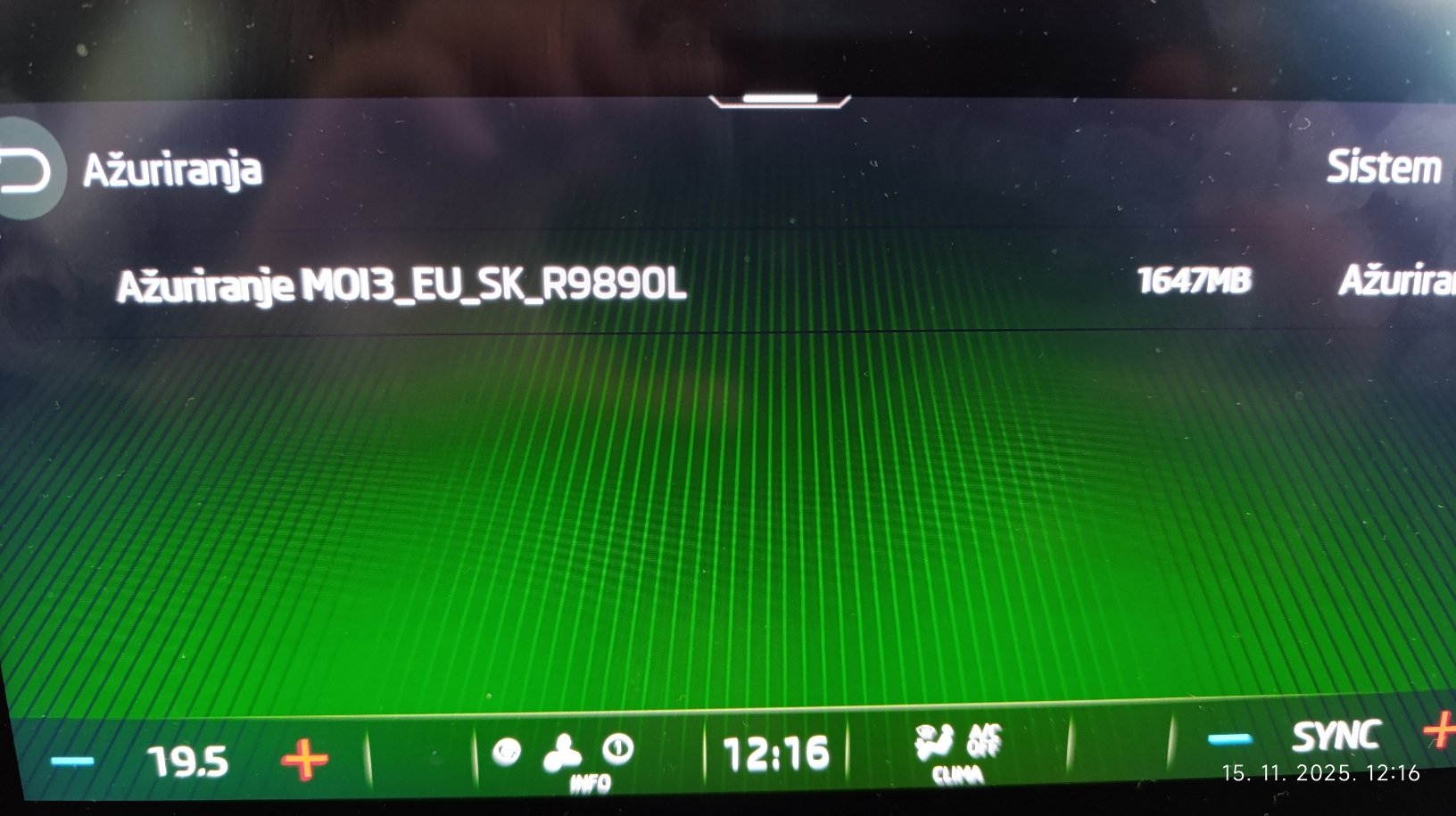
  3. I just got my notification about this ocu update today, but i will wait for a while and see if there are any problems with it.
  4. After confirmation screen this seems to be resolved. For a few days i have not received update notification.
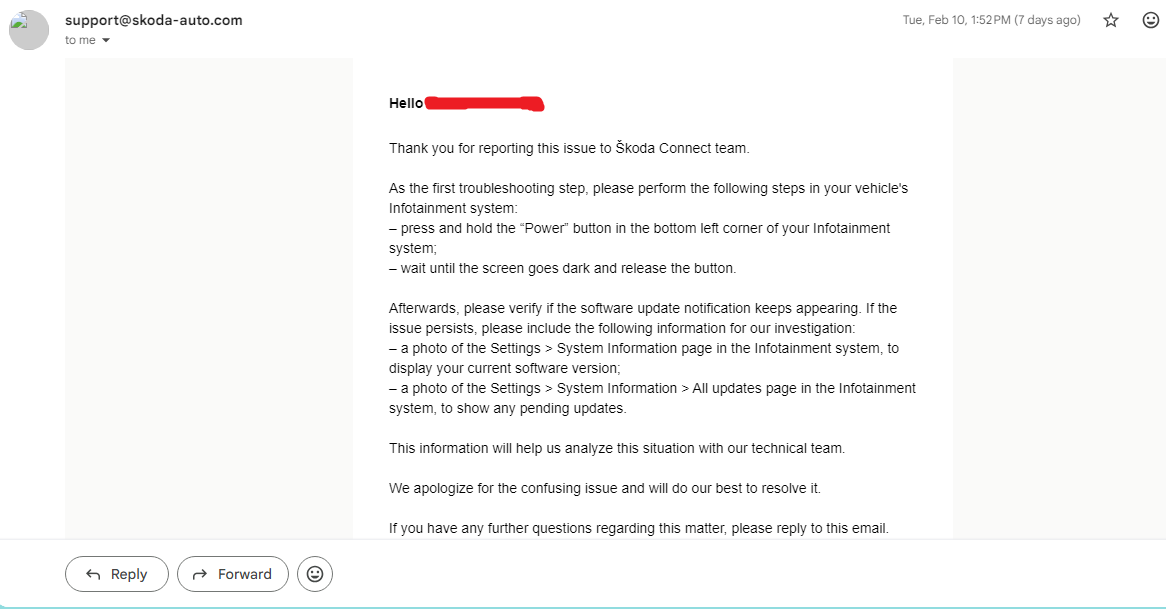
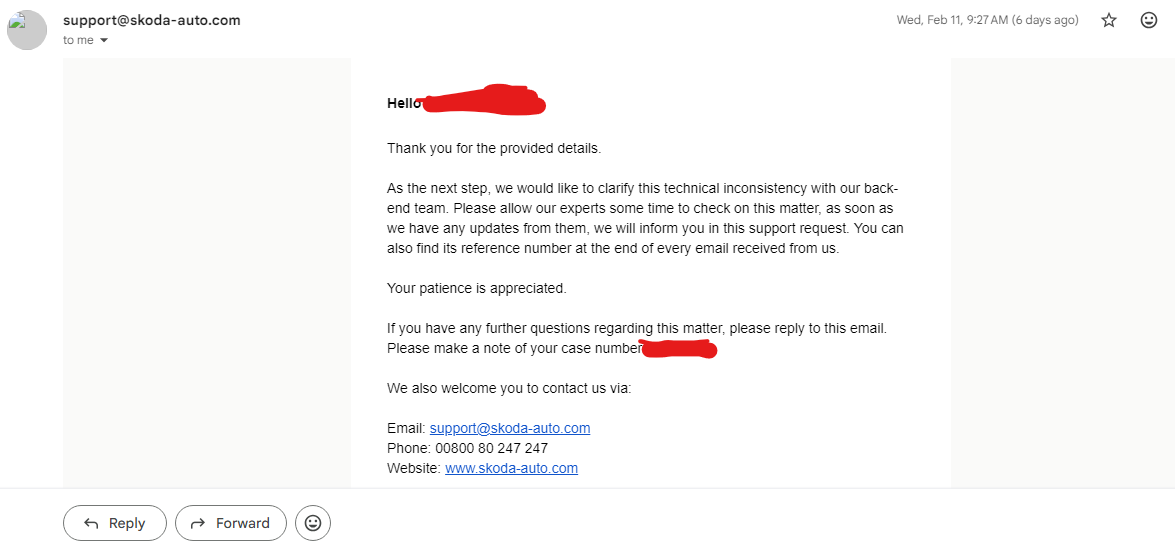
  5. I got similar response as @JamesK We will see it it is fixed.
  6. Yeah,I am also Primary and only user.
  7. I also got reply from Škoda support, but like the others, it seems generic.
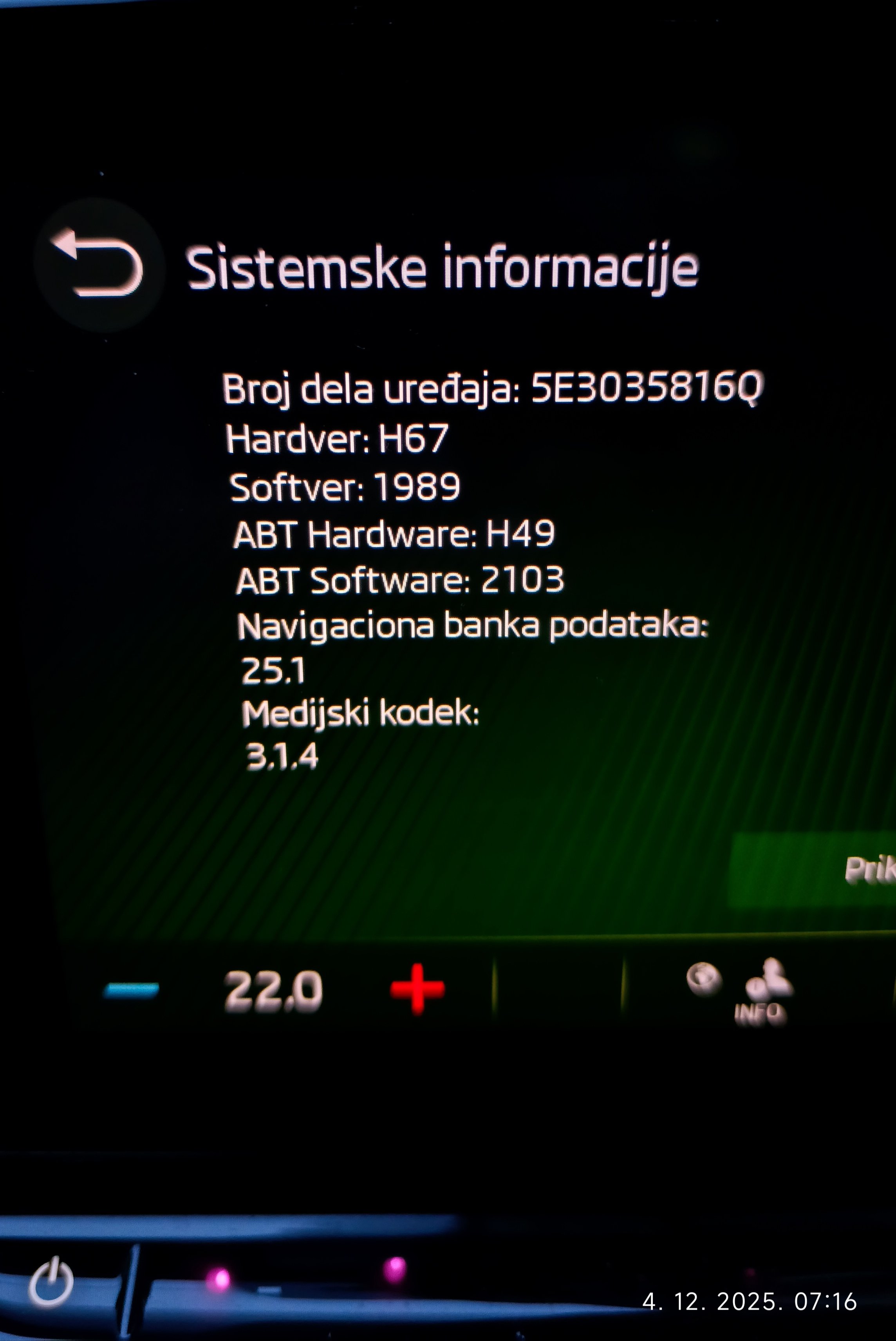
  8. I also thought it was only mine. I have Octavia made in 2024, software version is 1989 (latest). I wonder what is the solution.
  9. I have updated the system via OTA 6 days ago. So far everything works just fine. Maybe it is just a feeling bit the screen seems a bit more faster and responsive. Also one thing, icons on menu screen now can be rearranged. I haven't done factory reset.
  10. Did you install it with the engine running?
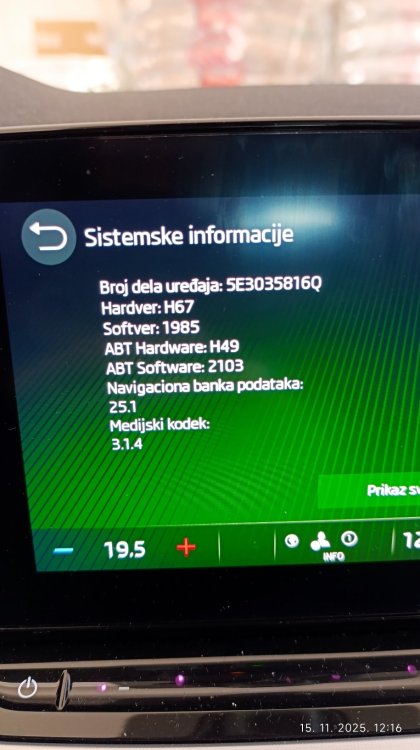
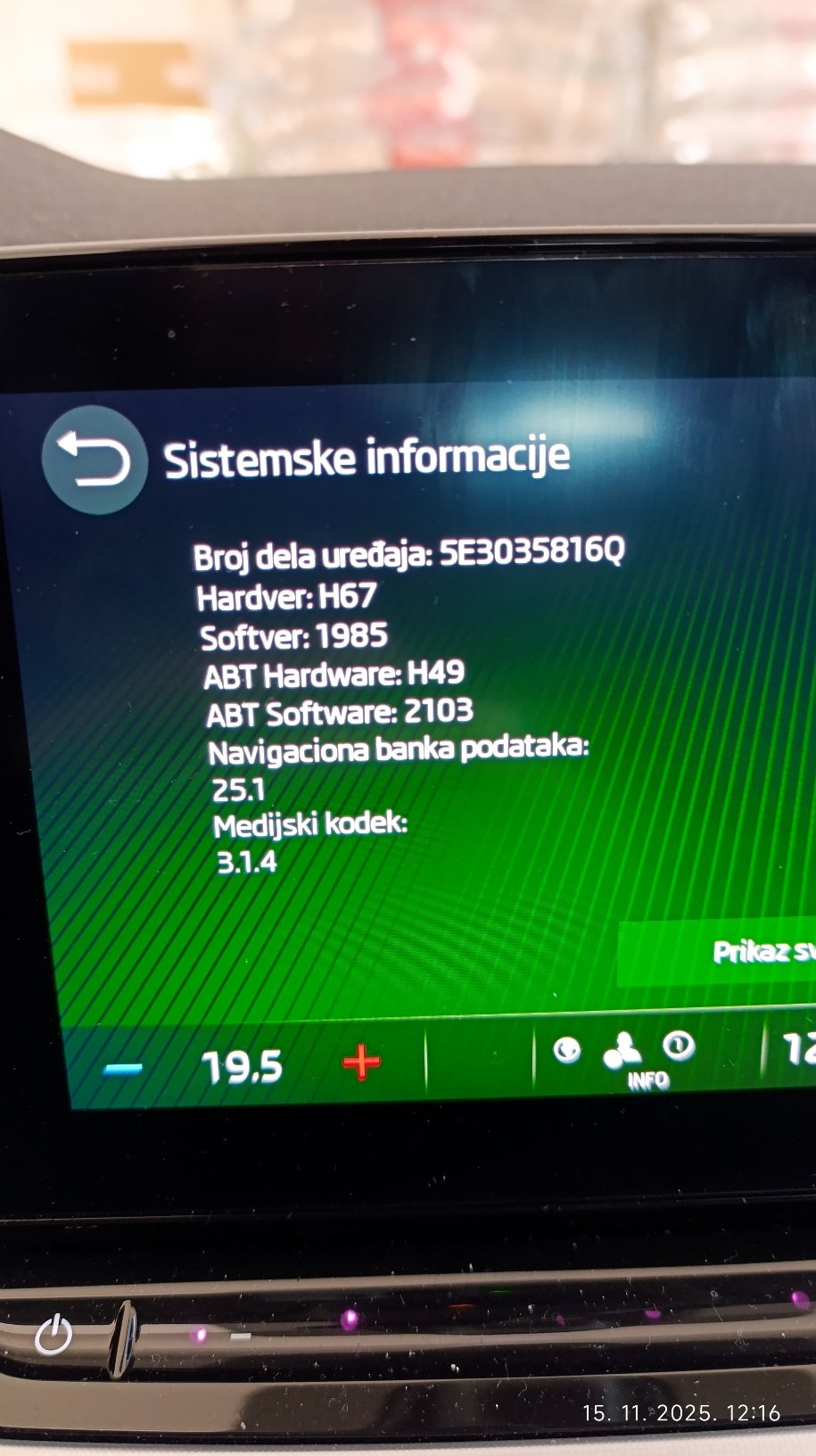
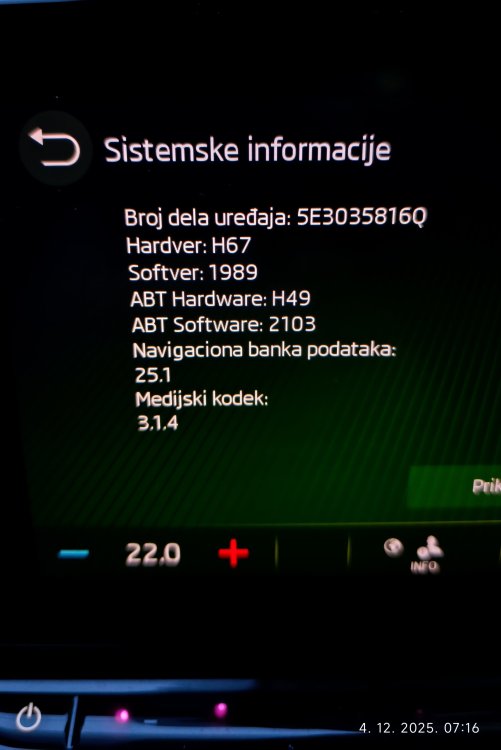
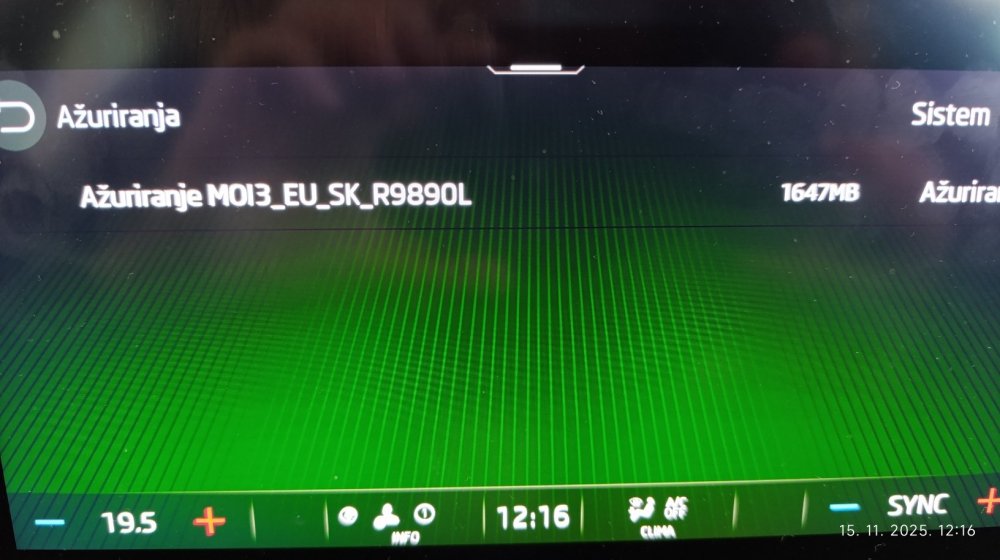
  11. This morning I received OTA notification about 1989 update. I own 2024 Octavia and its hardware is latest version before facelift, as you can see in the attached photo. But since many people had problems with this update i hesitate to install it. Maybe i will wait some time and see what is gonna happen...
  12. I would also like to disable auto locking, but it seems it's not possible anymore.
  13. Hello. Can you please tell me to what mail address did you write, because I would like to write to them too and see if they can add logos for Bosnia radio stations. You can send me PM also. Thanks

Important Information

Welcome to BRISKODA. Please note the following important links Terms of Use. We have a comprehensive Privacy Policy. We have placed cookies on your device to help make this website better. You can adjust your cookie settings, otherwise we'll assume you're okay to continue.

Account

Navigation

Configure browser push notifications

Chrome (Android)
  1. Tap the lock icon next to the address bar.
  2. Tap Permissions → Notifications.
  3. Adjust your preference.
Chrome (Desktop)
  1. Click the padlock icon in the address bar.
  2. Select Site settings.
  3. Find Notifications and adjust your preference.