yerbito
Members
-
Joined
-
Last visited
Everything posted by yerbito
-
Hello. Thanks for your answer. I hope to receive the camera next week I'll try to get those rackets and hold the camera using them
-
I will buy the one with tow USB-A that you told me. Thank so much.
-
Please, can you show me those brackets to buy the same ones?.
-
that is another option, but I had not found any so small that it did not protrude from the lighter. Iwill try one of them.
-
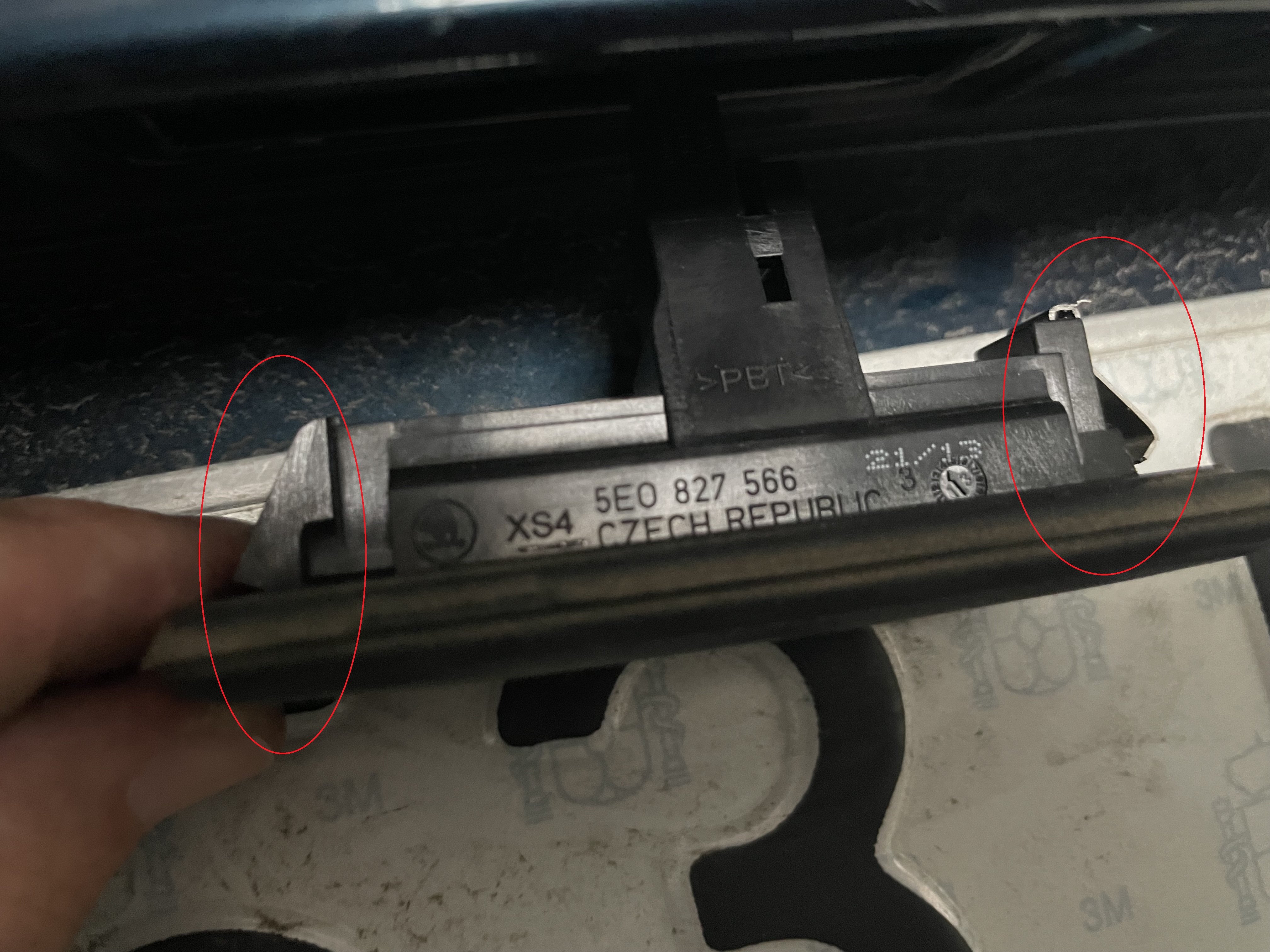
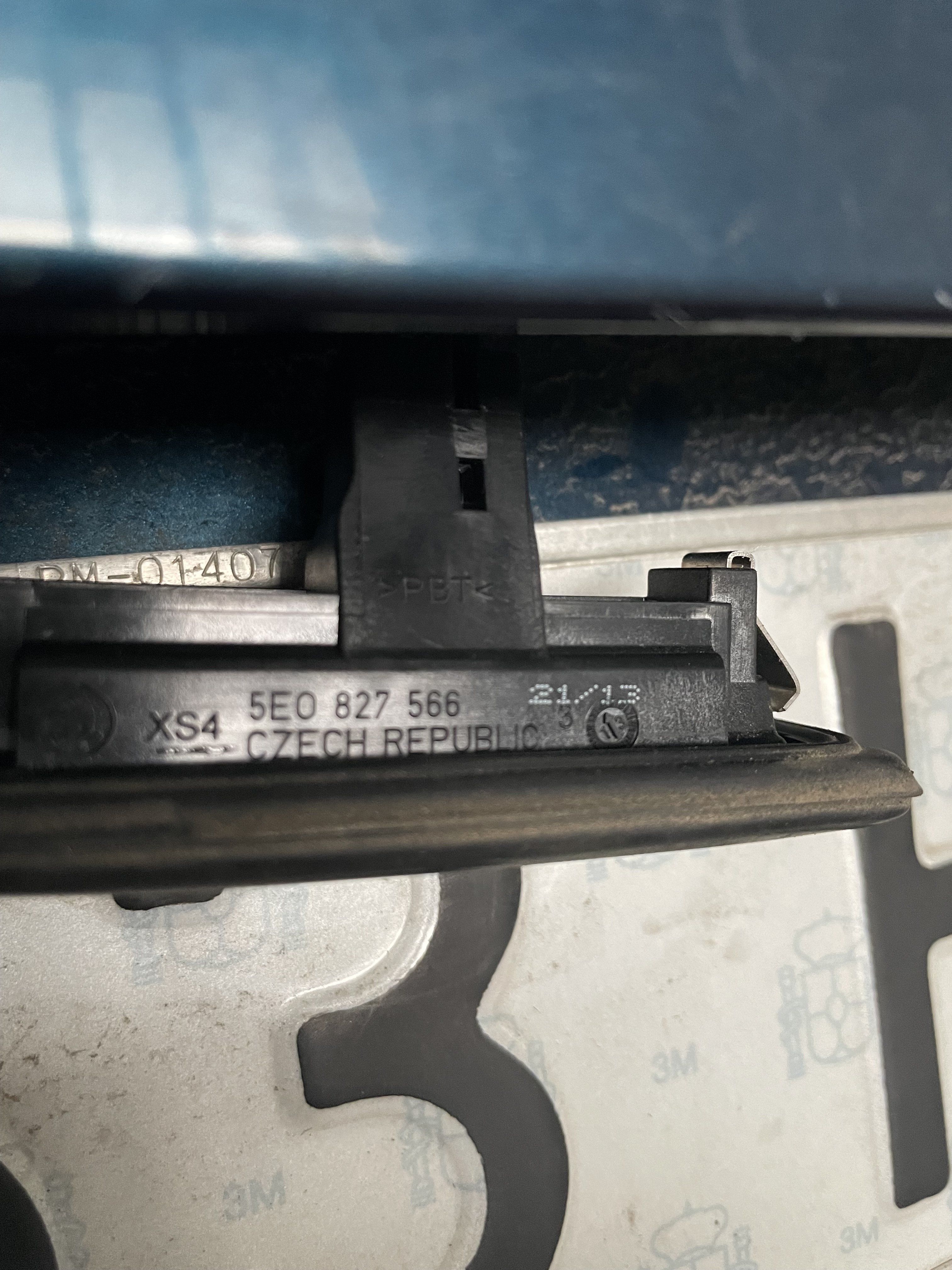
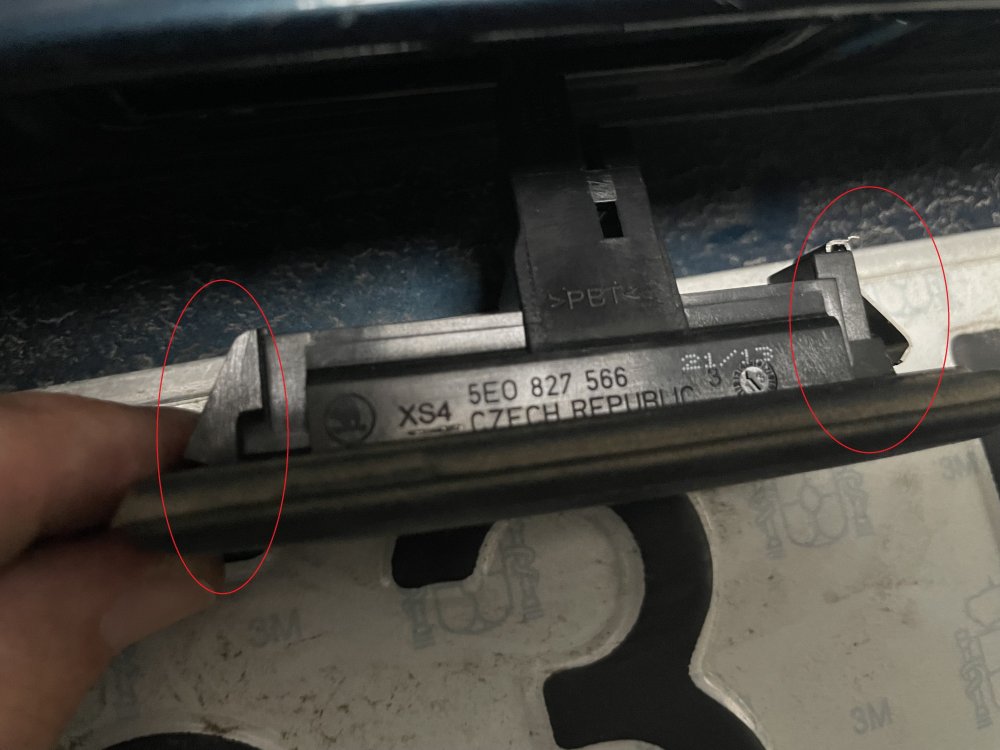
Thanks so much for your response. That item can fit, but my original trunk handle has not the screws
-
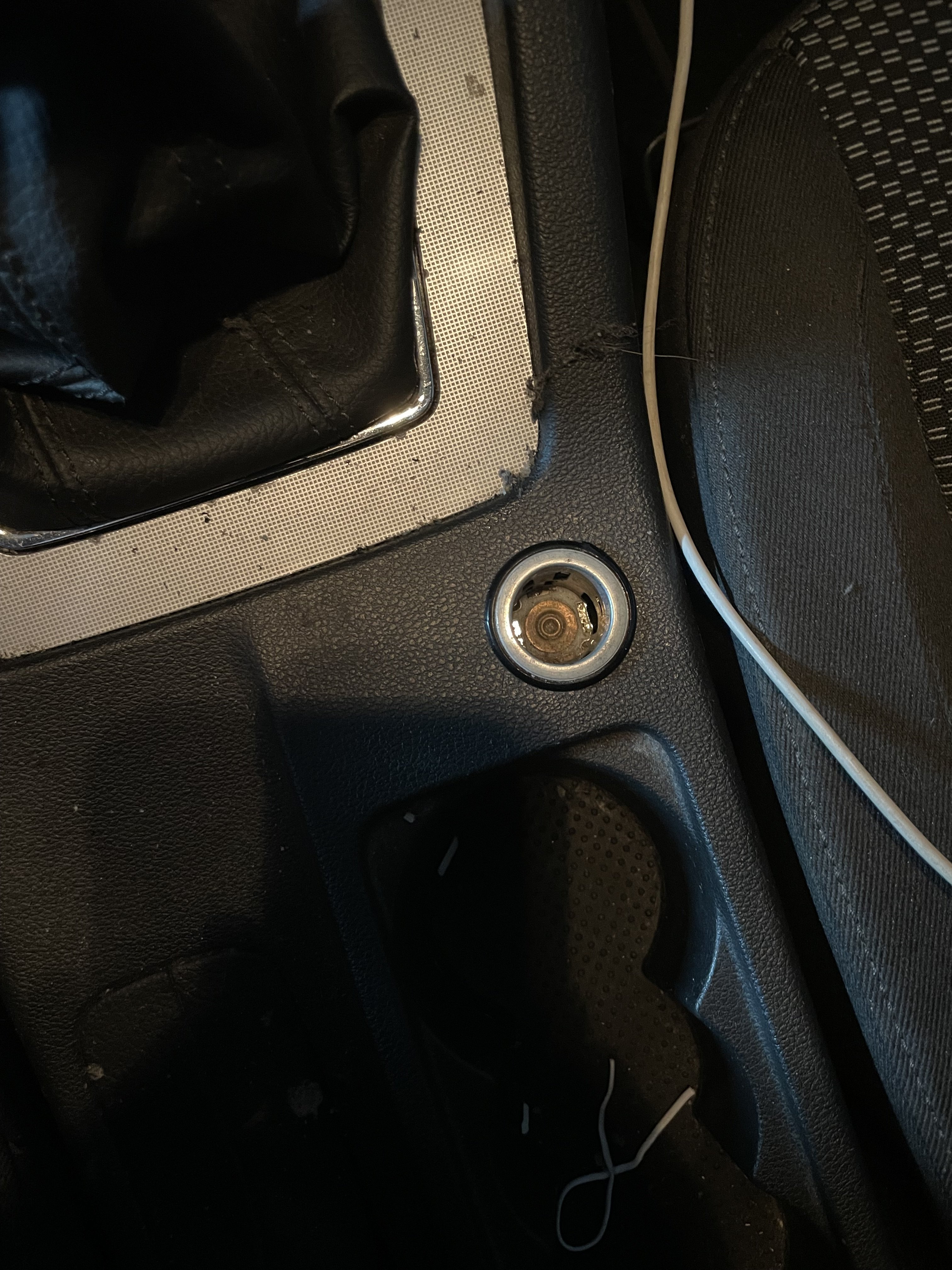
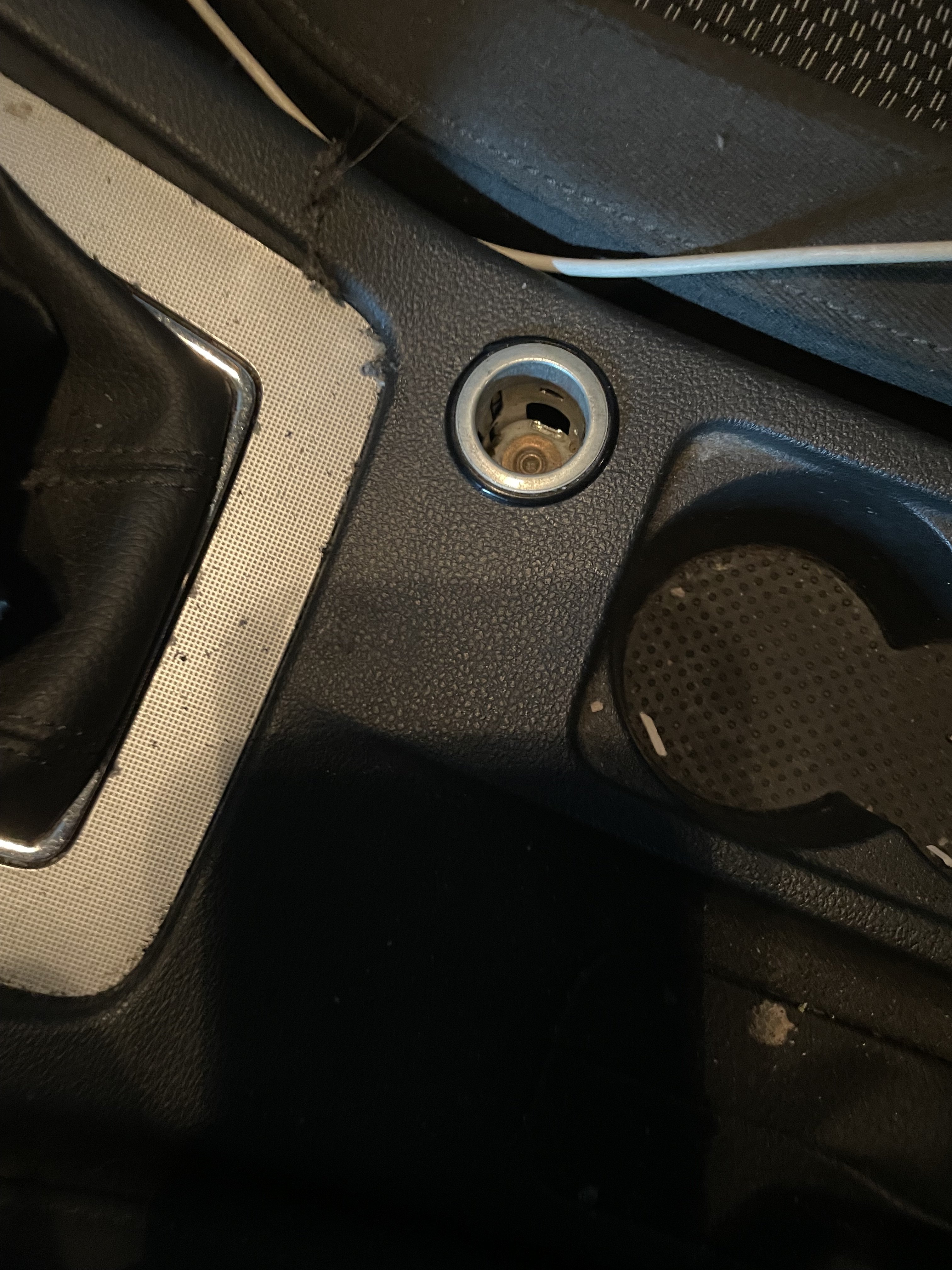
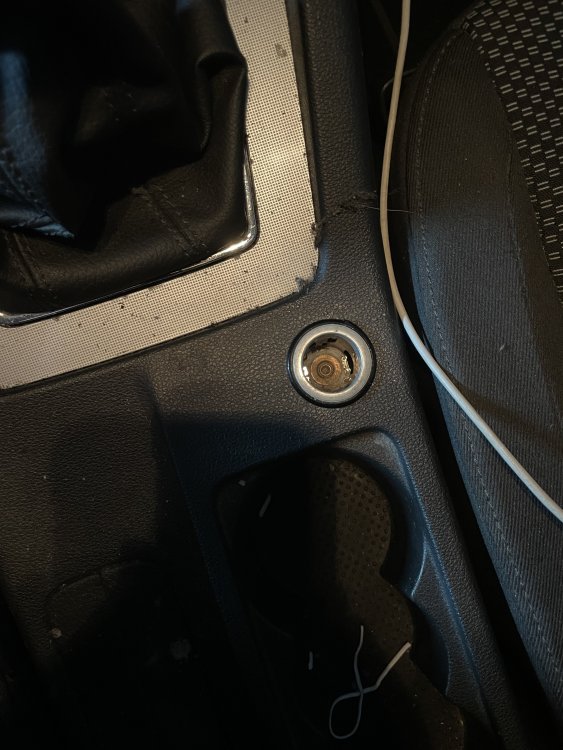
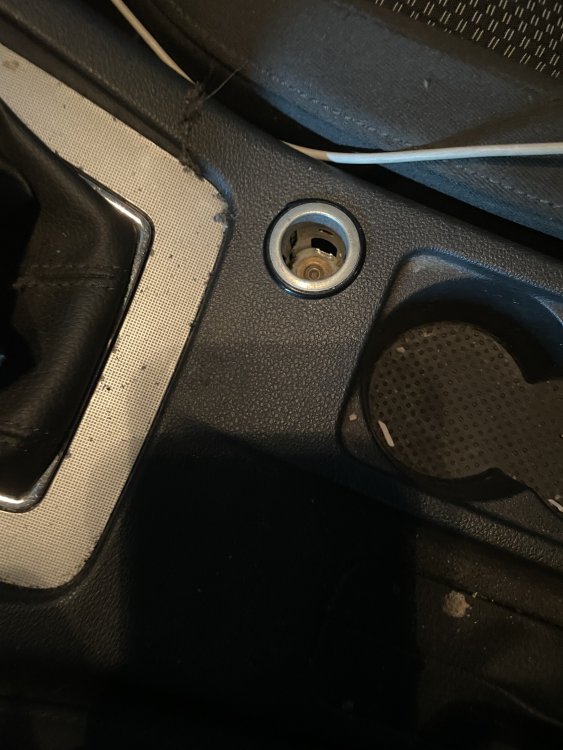
Hi guys. I want to cange the lighter for a dual usb connector (qc 3.0 if it is possible). Is there one that fits in the original hole and that it is not necessary to cut cables? Thank you.
-
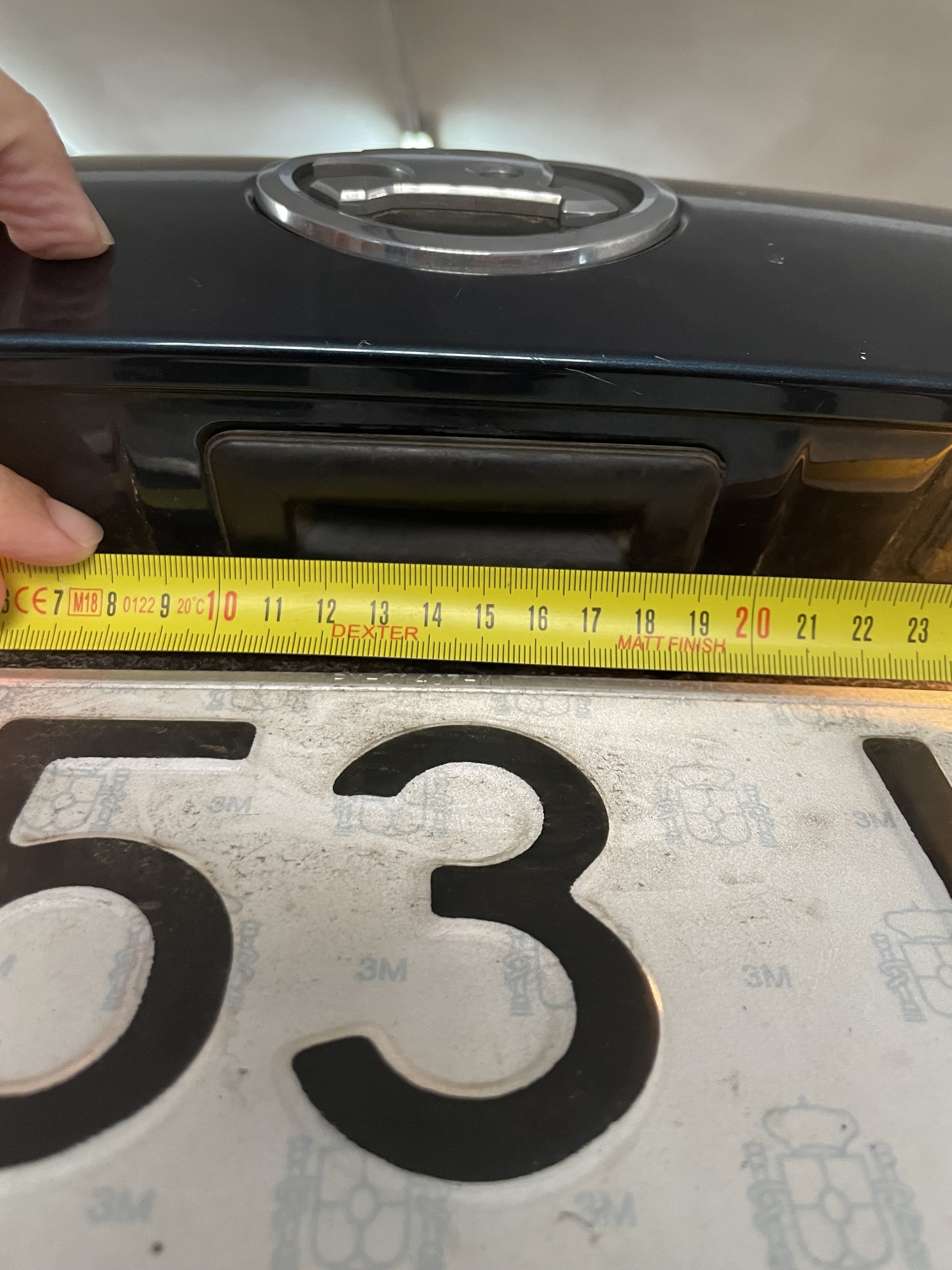
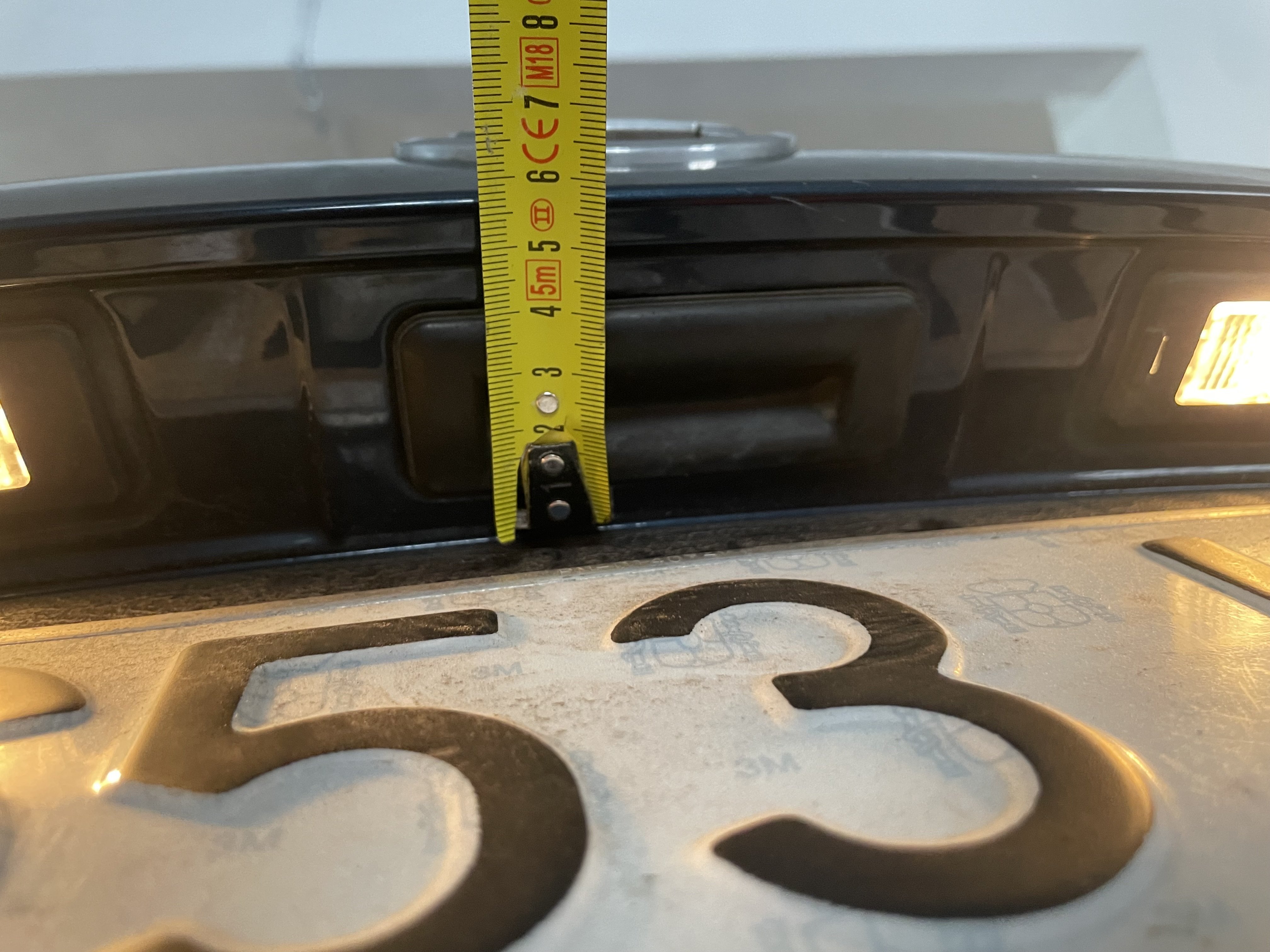
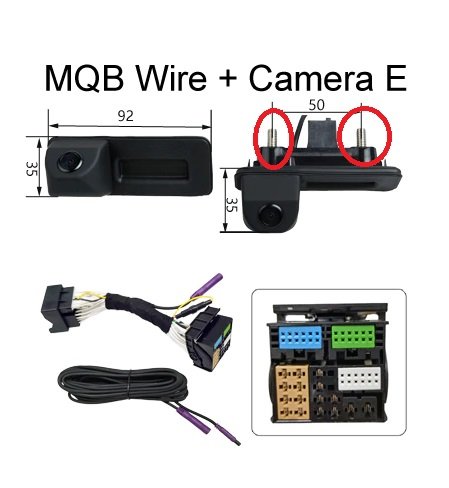
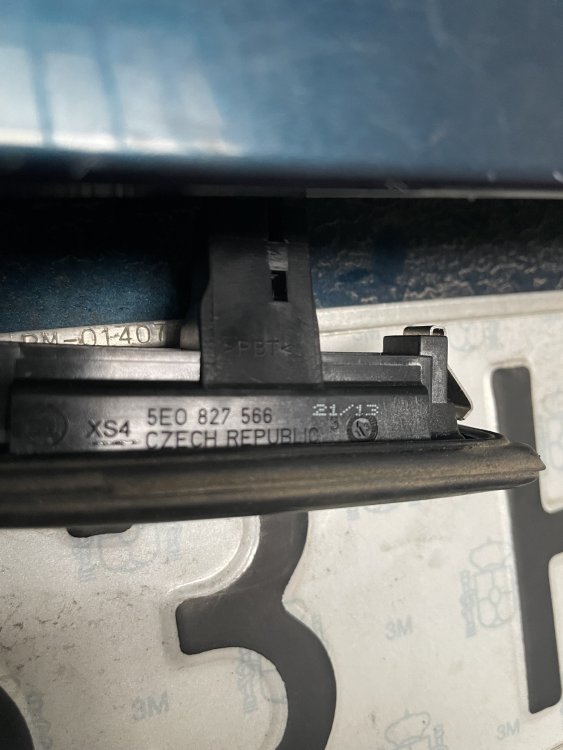
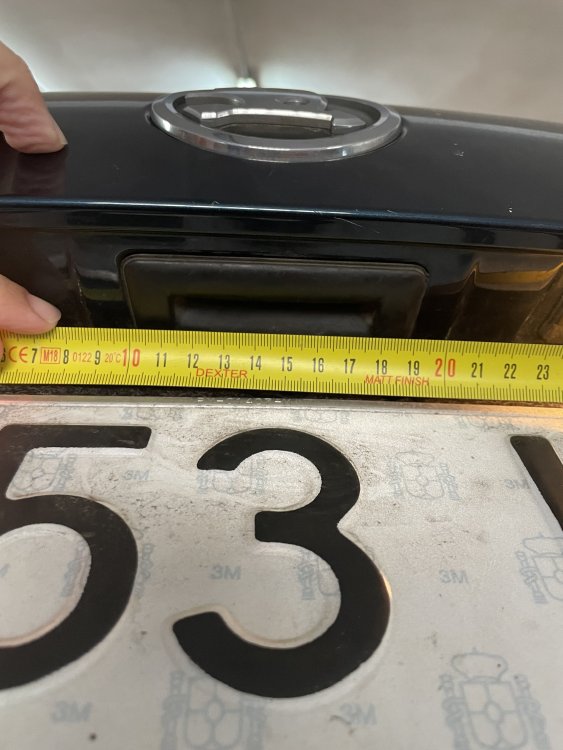
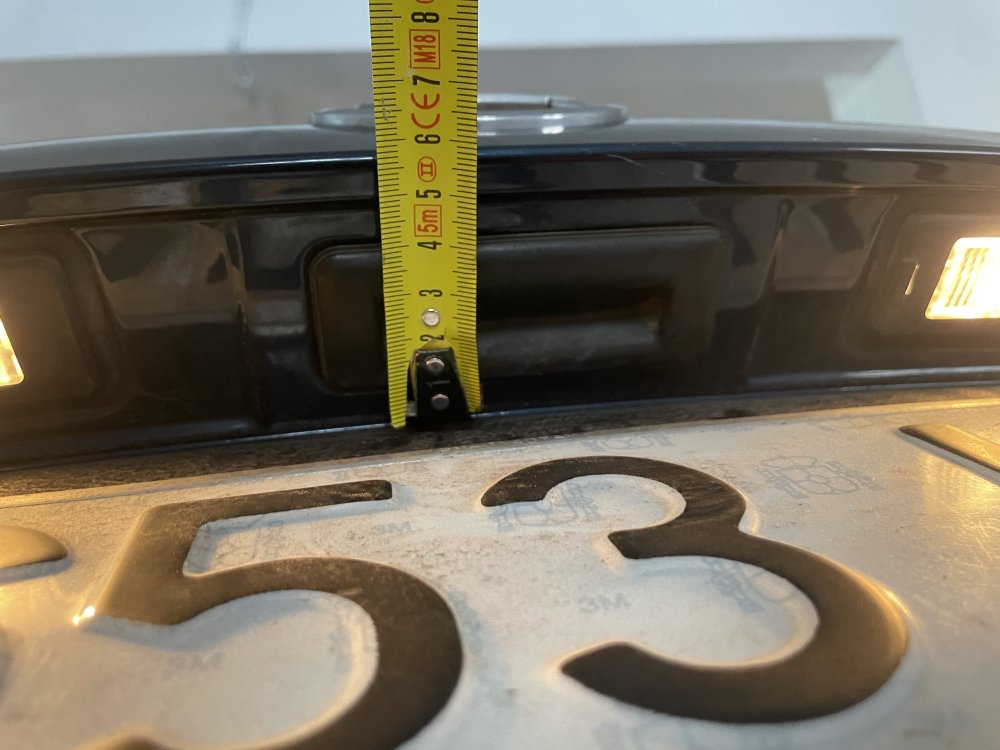
Hi guys. I update my mib 1 and Bolero screen on my Nov'13 Octavia III to Mib 2 And Admudsen screen. Now, I want to install a rear camera but I don't know which I should to use. My car doesn't have parking sensors. I found on aliexpress a lot of cameras for install on trunk handle but my car trunk handle is smaller (about 92x34) I think I will have to use a normal camera and make a hole in the door to install it, then connect it with this connector: https://es.aliexpress.com/item/4000337786129.html?spm=a2g0o.cart.0.0.39627a9dBo7o6A&mp=1&gatewayAdapt=glo2esp Witch is the best option for you guys?
-
Thanks so much. I will do that.
-
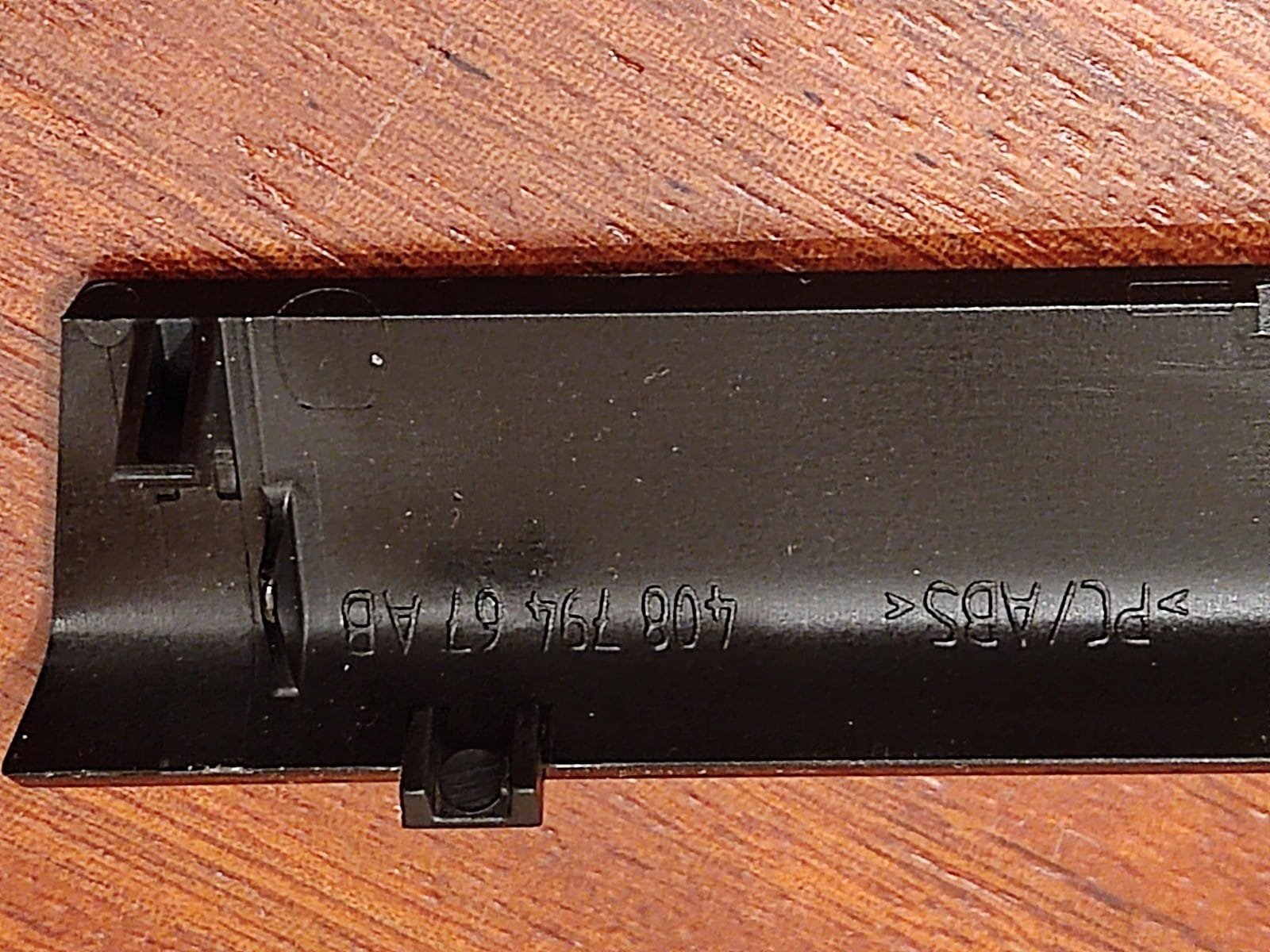
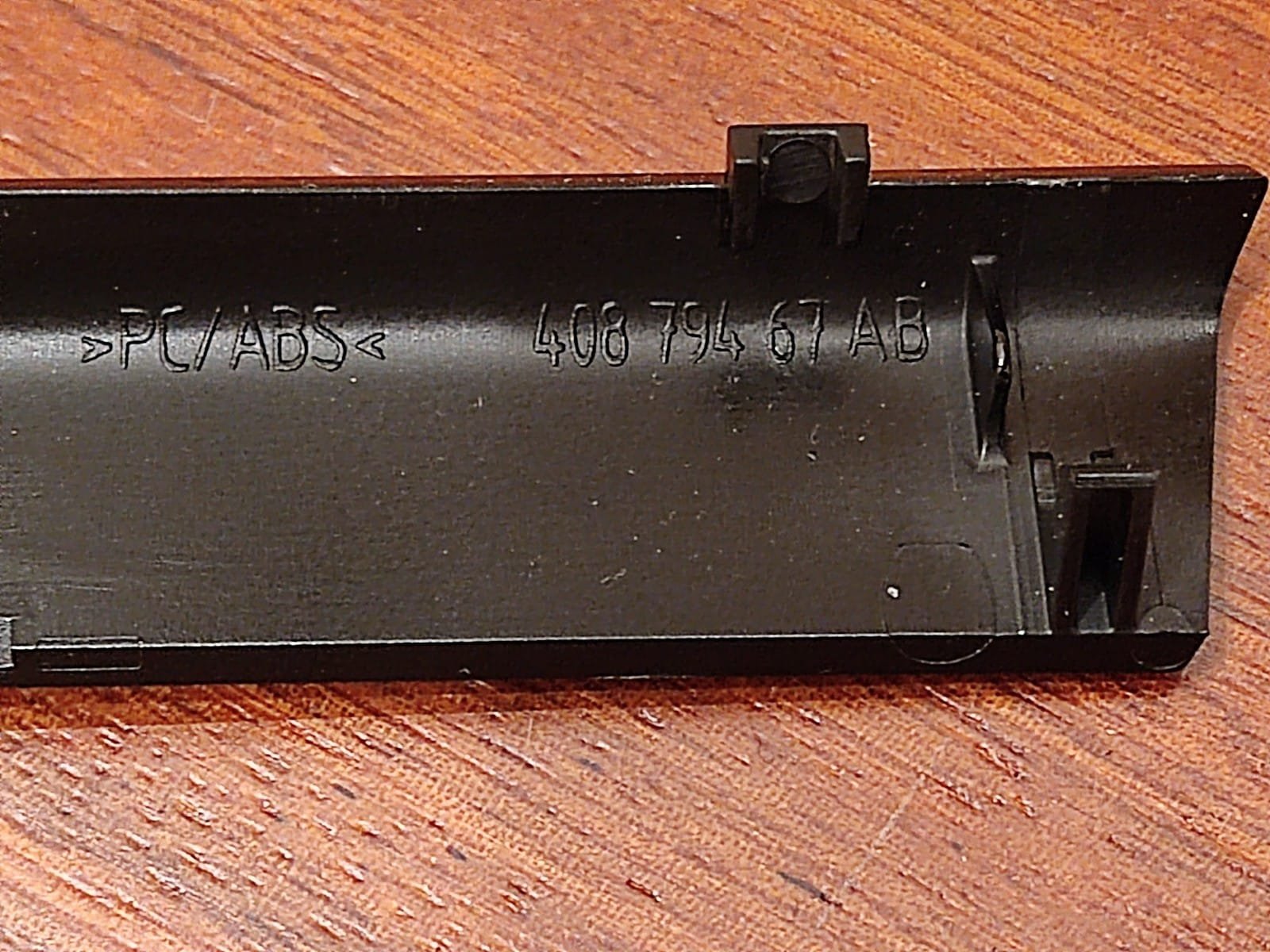
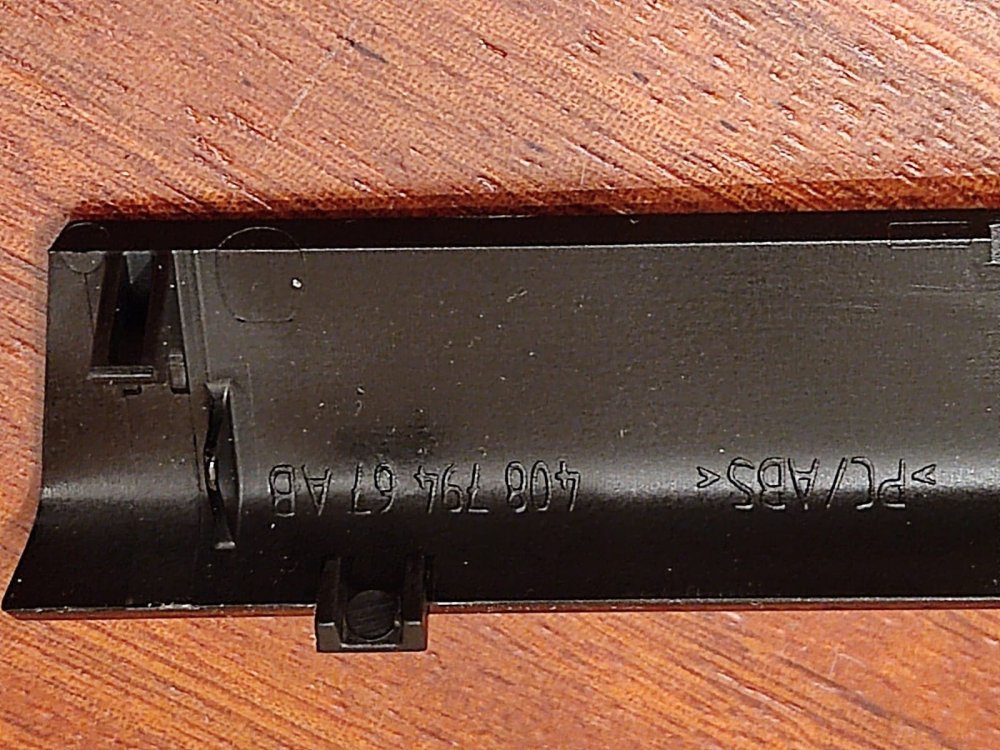
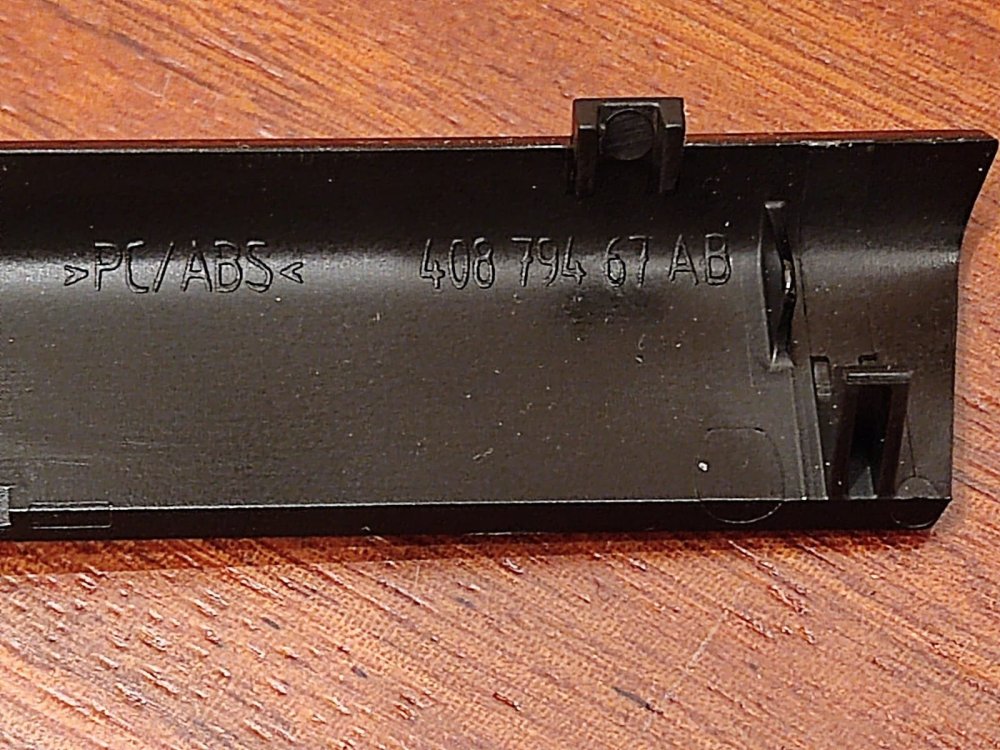
Hi guys! i need to find that trim for my screen. Is that posible? thanks so much.
-
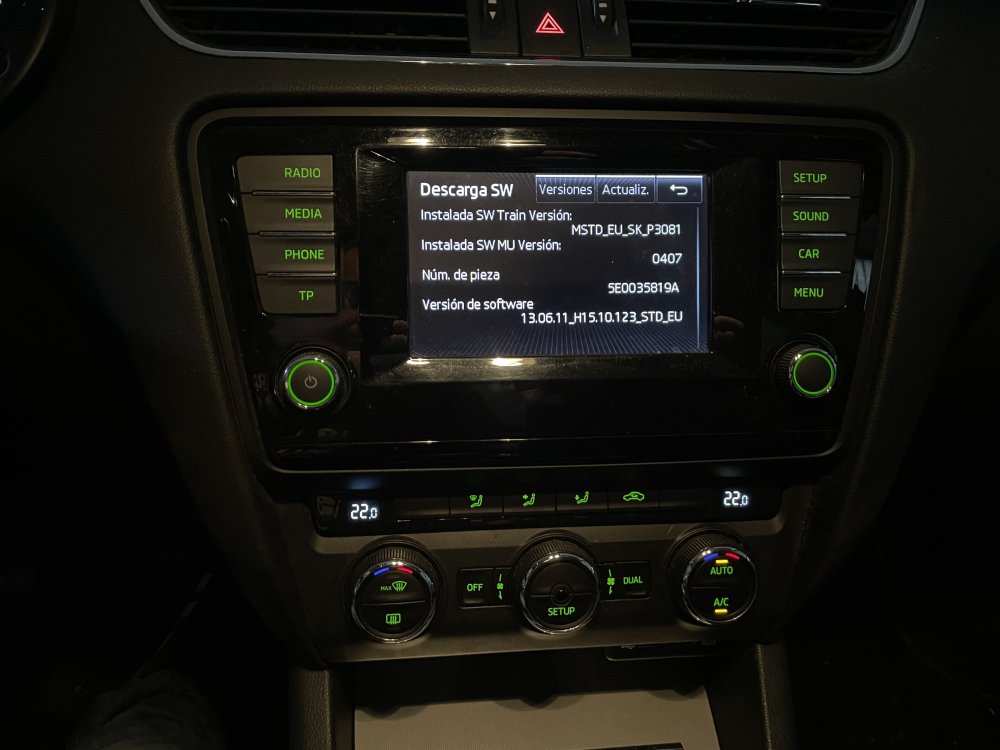
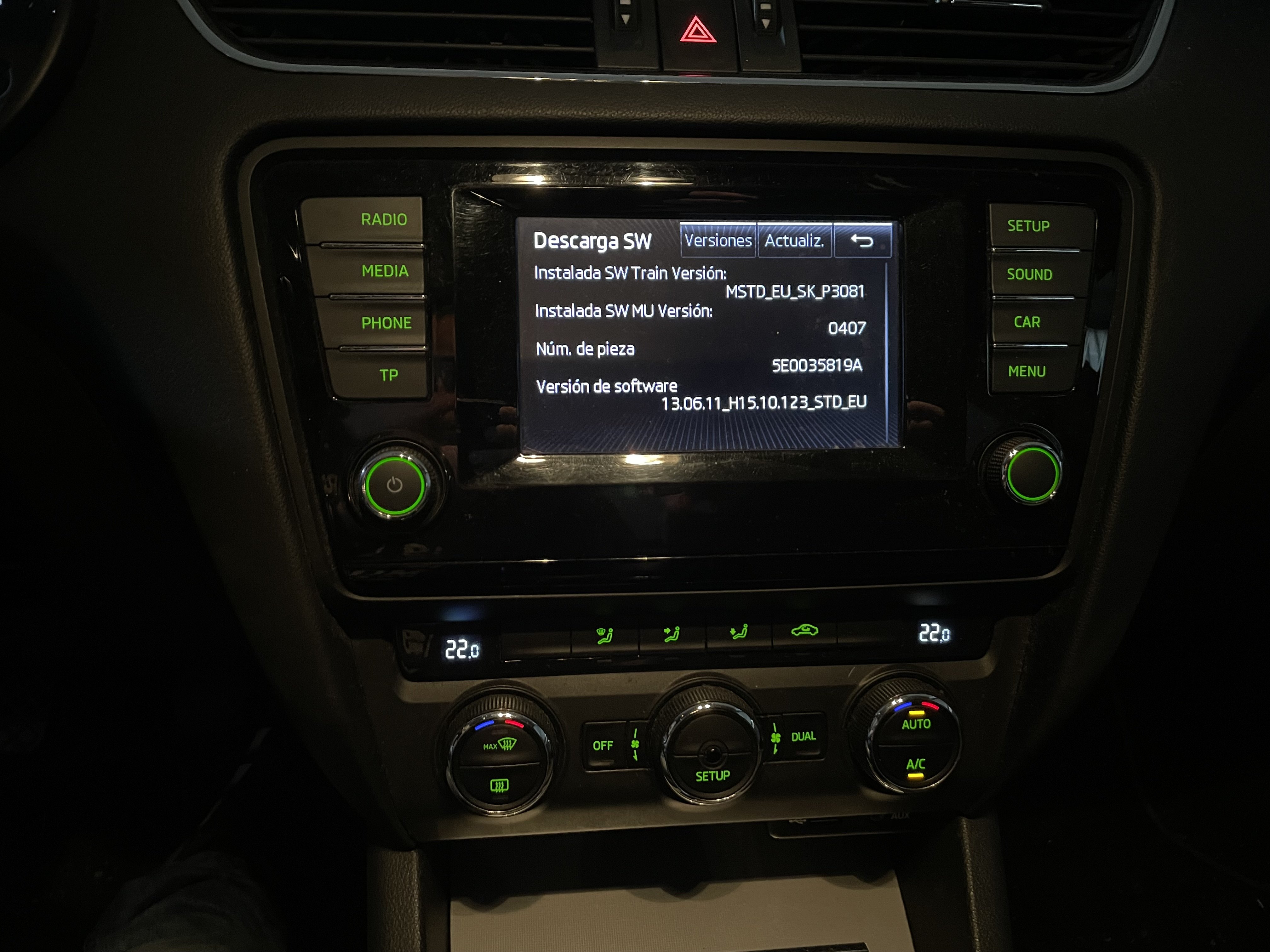
Hi everyone, I have got a November 13 Octavia III with MIB 1 and Bolero Screen. I want to update my infotainment system to another one with CarPlay (wireless if its possible) and rear camera. Really, I dont need Nav system because I will use Waze throught CarPlay, but Im no t sure about what screen and MIB buy. Now I can buy 5E0919605N screen and 5Q0035840B MIB for a good price but I dont know if both are compatible with my car, and I dont know if thath MIB comes with CarPlay and what type could it be. Maybe if I buy those items I need to unlock them to use CarPlay and rear camera but I dont know how to do that. Can anyone tell me if those items are good for my purpose? If not, can anyone tell me the parts numbers of items I will nedd (I prefer wireless CarPlay)? Thanks so much.