cwt
Members
-
Joined
-
Last visited
Everything posted by cwt
-
I'm looking to replace pads and discs on my 2019 1.5TSi auto. Are the discs 256mm or 276mm? I could go and take the wheels off but just in case someone has the answer here, I thought I'd ask. Also, I see there are options for the Pr No. - 1ZG (256mm) or 1ZE;1ZS(276mm)
-
-
1500 engine. I'm still learning about the car, even though I've had it nearly 3 years. Is it possible to disable coasting in Eco mode?
-
On a UK model, if I select the ECO mode and take my foot off the accelerator, the car goes into a coasting mode. This means that you don't have full control of the vehicle which isn't a good idea and frowned upon in advanced driving circles.
-
Hurrah, I got to drive my Skoda. Yes, it is a speed warning as it happens when the exclamation mark appears on the Nav window and I'm exceeding the speed limit shown on the screen, sorry officer 😉 It might only be 1 MPH but it is annoying. Can it be disabled as I don't need to be told by a machine I'm going too fast. I've downloaded the owners manual, whatever happened to the book in the glove box? I find in it the 'speed limit warning' and have managed to turn off the annoying "beedeep" noise.
-
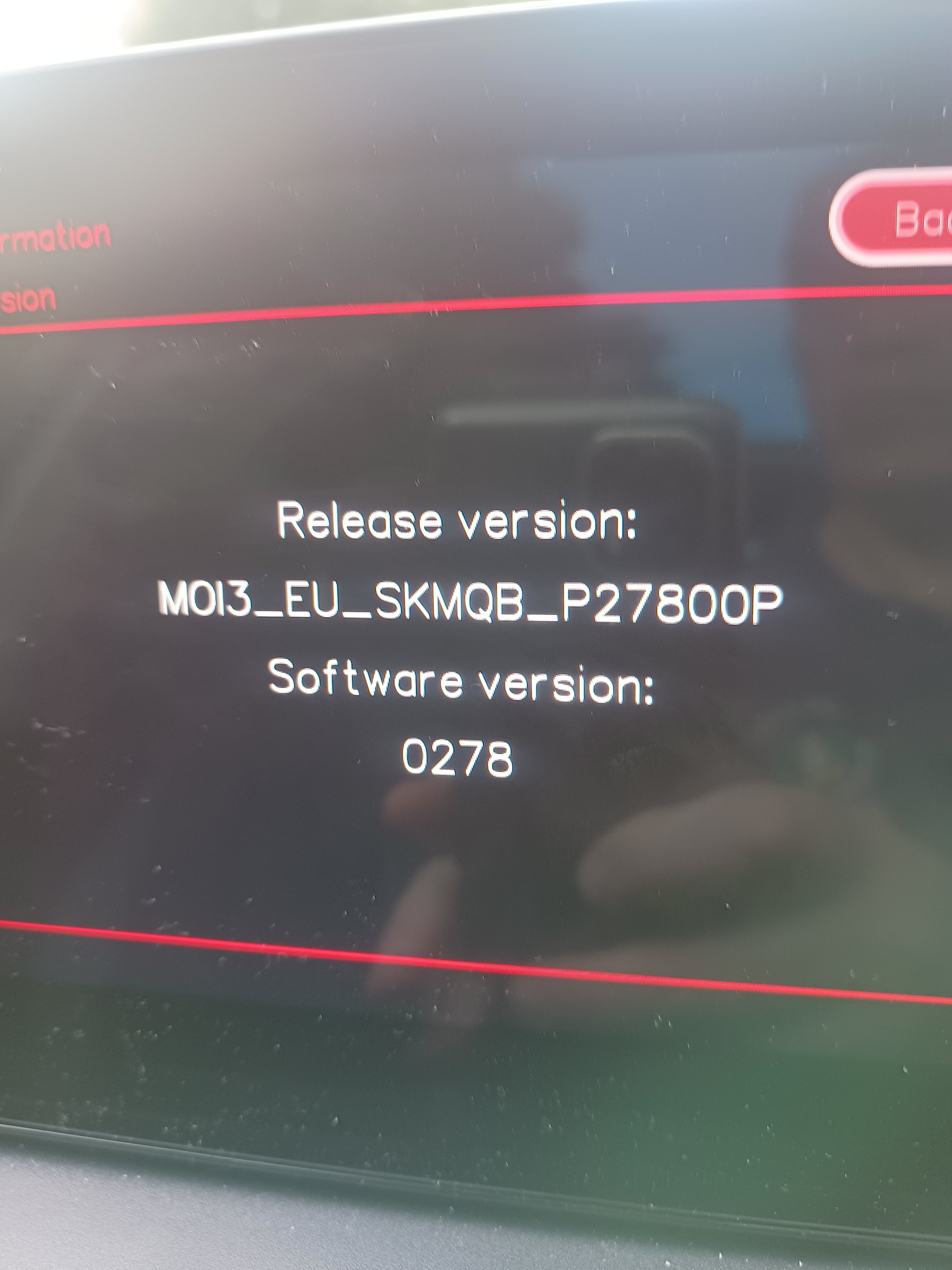
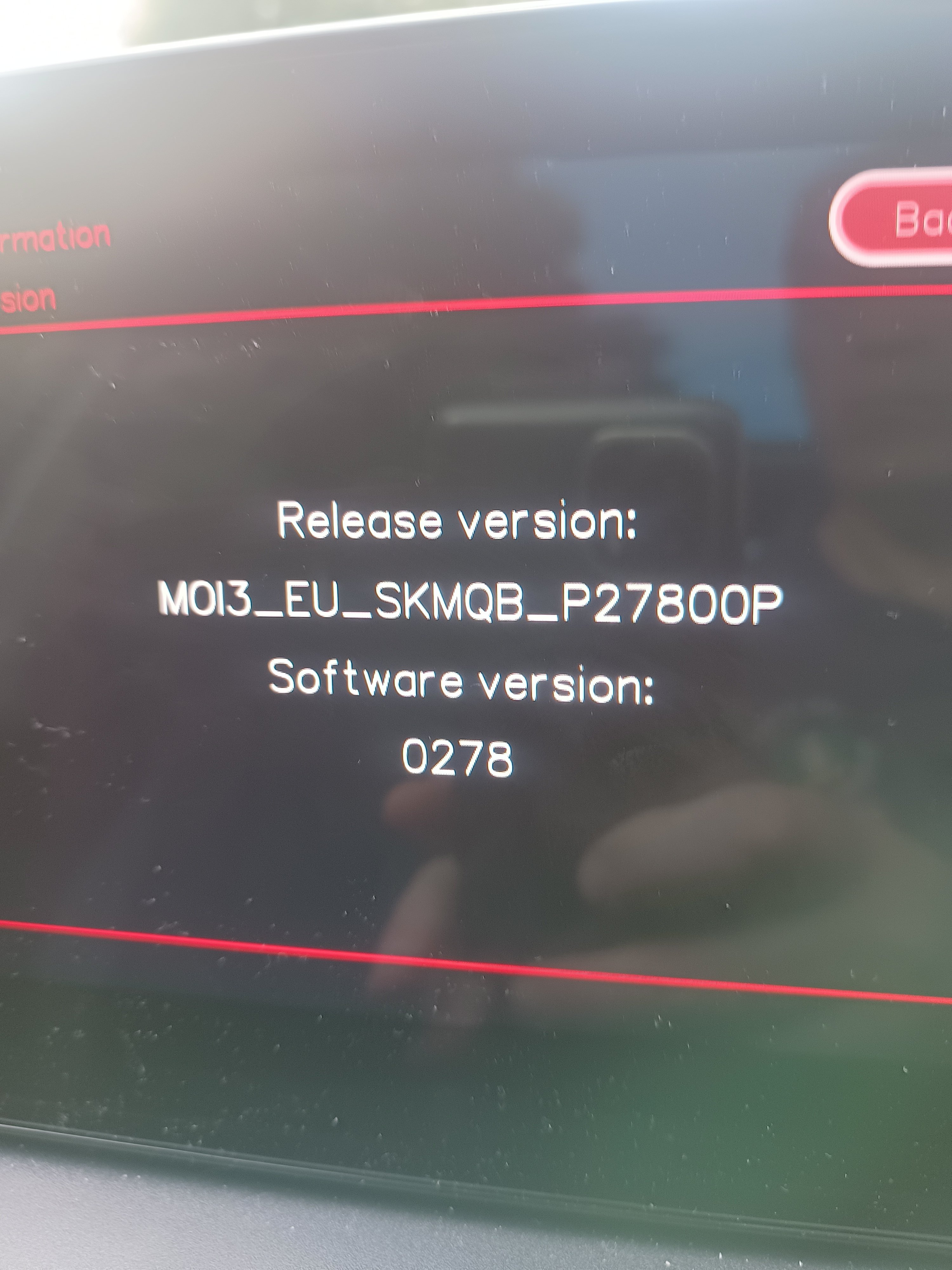
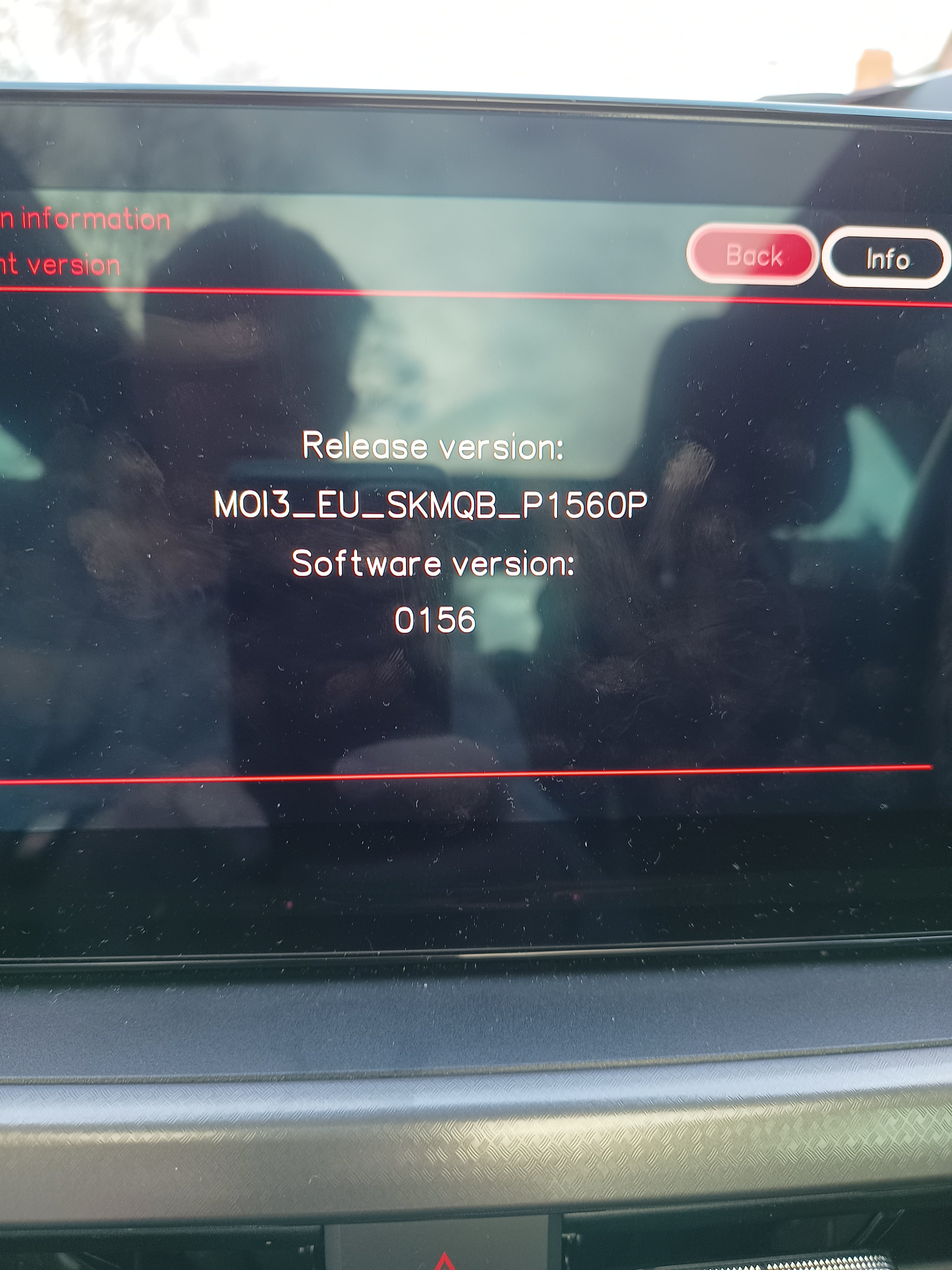
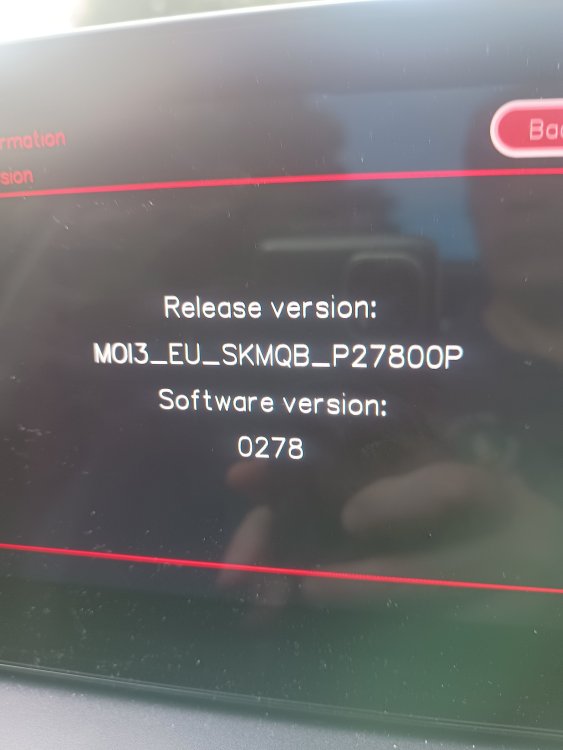
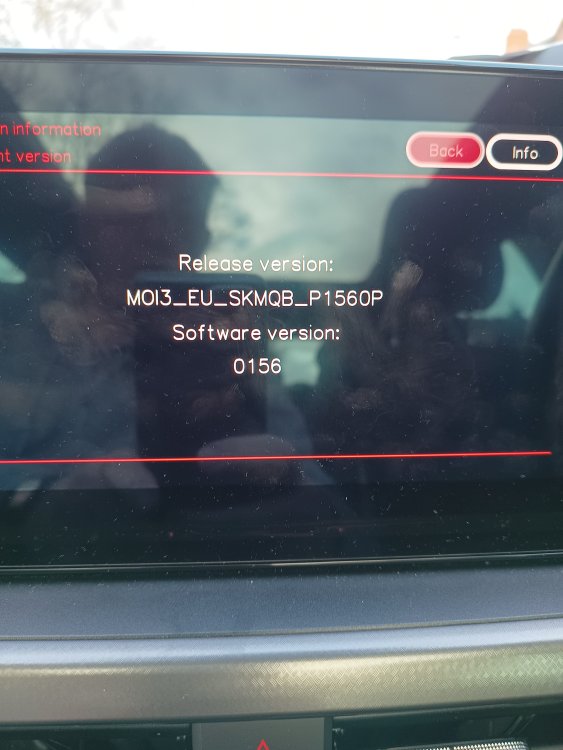
I got this. Is this the latest, and if so, thanks. If not, How do I go about getting the latest. Does the software get downloaded. I recall that happening from time to time, but nothing has happened lately. Ta.
-
How do I establish what version of s/w I have on my 2019 Scala SE L TSI please. TIA.
-
Cheers rdb, My Mrs drives the car, my car! more than me. I need to prise the car keys out of her handbag 😉 I haven't looked at the online manual but will. I'll update as and when.
-
No idea about that, I'll have to consult the manual that I don't have. I'll dig up the digital version or maybe, just go and press buttons in the car. Cheers.
-
I'm just wondering if anyone else is hearing what can only be described as a faint noise that sounds like "beedeep" coming from the dashboard area? It is totally random and can be heard at various speeds. It's almost inaudible but both my wife and I hear it. I'm loath to contact the dealer as they will want my arm in down payment.
-
I'm running a 2019 Scala with a DSG box. I always use the handbrake and as it's a proper one, I'm happy with it. What I get annoyed about is that there are VERY few new cars that don't have a proper handbrake, just the bloody silly electric ones. What am I supposed to do when the time comes to replace the Scala or my elderly Focus?
-
Folks, As per the title of the thread. Is there anyway to release the park mode with the engine off? I read something the other day about this but not being an expert on autos, I am just clutching at straws. It was about a button to press to release the park facility. Any ideas?
-
I found cables that are about 6 inches. Sorry, old school.
-
I'll give this a whirl when I have a few minutes to get my head round it. I'll have a few more than 5 songs, may by 1000 times so will have to come up with a way of creating a random way of creating the list. To be honest, I don't give a stuff what order they are in, just that the list isn't reset and goes back to the first song every time I get in the car.
-
I had, well, I say had, but may still be having the same issues. I have badgered the local dealer and they have been good in trying to get things resolved. It actually started while the car was still under warranty but reared it's head after the warranty expired, so I complained to Skoda UK. I'm hoping that after several trips to the dealer it is now sorted but as my beloved pinches the car and doesn't really take a lot of notice of messages, or if she does, she doesn't relay them to me, I don't know if it has sorted. The easiest way is to see if the media has gone back to the start. And I have just spotted the usb on the table so that won't help. Oh well. She is back after a few days away so I'll ask if it behaved itself. I like the car, it is quick enough and frugal enough for my liking but will I buy another Skoda? I will have to toss a coin!
-
An update on this. I've had the car back into the deal several times and they have updated the software. From a conversation with a contact I have, it also transpires if I have a memory stick such as I have with my music on it, the car thinks it is trying to boot up from that. I've removed this from the car but have yet to drive it as my beloved pinches it. Hopefully this might identify the issue. It's a shame Skoda haven't mentioned this as they could see the memory stick in the car. I even mentioned it as this is what started the situation as it was resetting the order EVERYTIME I got into the car. Watch this space, as they say.
-
I feel your pain. I'm thinking of jumping somewhere else next time.
-
They suggested the heating control may have been faulty. And guess what? The car is going back in again as it has been reoccurring for the last few weeks. Unwittingly they have emailed me to offer to buy the car off me. I might just take them to on it as the issue, albeit, not stopping the car running, is getting very frustrating when I can't show the heating fan down, I can't speak to someone on the phone but can hear them, the sat nav tells me I'm in a field when even I can't tell I'm in the outside lane of the M1, the usb media Lewis's resetting itself. Need I go on. The dash went totally blank momentarily on the way to London the other weekend. But I really like the car which is really annoying. Watch this space.
-
Jeez man, I can't remember. I'll have to go and have another look. And this is what I found -
-
Did you get this sorted. Sounds a lot like my situation. After the warranty expired, the deal miraculously found the fault. I complained to Skoda UK, and agreed to fund the repair, it was the heating control system that was casing the problems. Sadly it ha started again.
-
It transpires that the heating control system was interfering with the infotainment system. All replaced. And you'd think I'm happy. Nope, cos it's happening again. Phone calls going silent from me, I can hear the other person, the sat nav trying to send me via fields, and not recognising where I am. USB tracks get reset to the first one. The infotainment display freezing. So, back to Skoda I go.
-
Hi Morvargh, I'm just wondering if your car (I also have a Scala) does what mine does sometimes. It randomly resets the play list and starts at the first track again, and again. And yes, I have it set to play the tracks randomly. I don't mind the first track, but it gets frustrating.
-
The dealer is getting the car on the 28th November. I've asked previously to check the software is current as I don't seem to be able to update it myself. I've got no USB ports in the glove box, even though the dealer told me they are there.
-
I'm just reading this and feel happy I'm not alone. I have the loading profile message stuck on the screen in my 2019 Scala fairly often and it won't load the profile. I can't find any way to force or install an update.
-
It looks like I'm as up to date as I can be. However, I'd like to know why the media side still does what it does. And I do note that the maps are not current. I've tried to ask Skoda via faceache, but the posts got deleted. Also, on a number of occasions, I have had a message telling me the profile is loading, and it just stays on the screen for ages. I've spoken with the dealer, but they couldn't look at the car for about 10 days. I'm not impressed they could not spare a few minutes.