




RIS001
Finding my way
-
Joined
-
Last visited
-
I searched high and low on my 2024 Mk4.5 to find such a sticker. It appears that it was never there. VIN decoder, car info, factory equipment (PR codes) for Audi VW Seat Skoda VAG £4.72Unit price £4.72 Item number: 286236597304 The above item from an ebay seller tells you every little detail about your car.
-
My dashcam bleeps a few times and then switches off when I turn the car off. That is caused by the dashcam's internal battery having expired, in that it fails to hold a charge anymore.
-
-
-
-
Press the right hand roller button on the steering wheel to answer an incoming call.
-
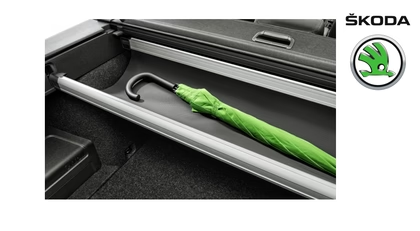
The two 2kg capacity hooks clip onto the rear bar of the "multifunctional pocket" It took 6 months to figure that out after purchasing the car.
-
The flashing red light means that the key can "see" the car and so the battery will be in use. Once out of range the key should stop flashing, storing the key in an RFI pouch or a metal tin should prevent this. Energizer batteries at rated at 240mAh, duracell at 225mAh with most others being at 210mAh, using a genuine branded battery will give you the best longevity.
-
To disguise the scratches until going for a final repair try Colour Magic Jet Black polish. https://www.turtlewax.co.uk/products/color-magic-black-500ml?variant=21552375595097
-
Thank you. I have now found the route around the infotainment screen to the "electronic dipstick".
-
Getting to know my new Octavia hatchback first edition with a 1.5 TSI 150PS manual engine. I was hoping to find the dipstick in the engine bay, the manual seems to think there should be one. There is no sign of one however, am I supposed to be using some of the extensive electronic displays instead? Richard

