Aldfort
Members
-
Joined
-
Last visited
-
If it's the same as any other VAG group car then yes it does.
-
It might be the PCV, hard to say on modern engines.
-
I can help with a couple. Lots of things cause the engine to restart on it's own if stop start is active. This can include the AC demanding cool air. The radio mode might be set to local to automatically change to a local station when in range. There is a margin on the speed warning system. after the first ping then you don't get reminder pings unless you are more than 2-3 mph over the posted limit. The other stuff will need a trip to the dealer.
-
It'll be the bigger one so south of £300. Ring up and ask 2 or 3 dealers.
-
Ask the supplying dealer and get a written answer. A lot depends on the mileage of the car. If you are on the mileage limit then get it done. You don't want to be arguing if you have a problem in year 3.
-
-
@ johnnnie47. Yes that is exactly what I was saying.
-
You cannot normal update while driving. Park the car where there is good signal. Ensure you are not in max privacy mode. With the ignition on activate the update process via infotainment. Wait for a message telling you it's finished before starting the engine. Normally turning off the ignition and locking the car halts the process.
-
We have a 5 year old Golf, it still gets OTA updates. You must have a registered MY VW account with VW for this to happen. It's the same with Skoda and I also get occasional OTA updates. You must also not be set to max privacy. In both cases if you wish to get the extra information about traffic and map updates you must not only be registered you must pay a subscription after the "free" period expires. Most OTA updates require that the car is not moving. It must be stationary with the handbrake on (in P if auto). The alternative, as mentioned above, is to have the dealer do it. Since the OTA updates never take more than 30 mins a dealer connecting it to VW computer should not take 2 hours!
-
The privacy setting is pretty powerful. Turns off a lot of stuff including NAV.
-
It's in the manual Škoda Owner's Manuals - Kamiq
-
Some applications cannot be updated while you are driving. Try stopping the car, apply the handbrake and see if the app will update with the ignition on but engine off. Also check you are not on max privacy. If it won't then a trip to the dealer my be needed.
-
A restart may be all you need. Also try tapping on the HOME button and then swiping left or right to the view you want. Nav full screen should be available by tapping the NAV button.
-
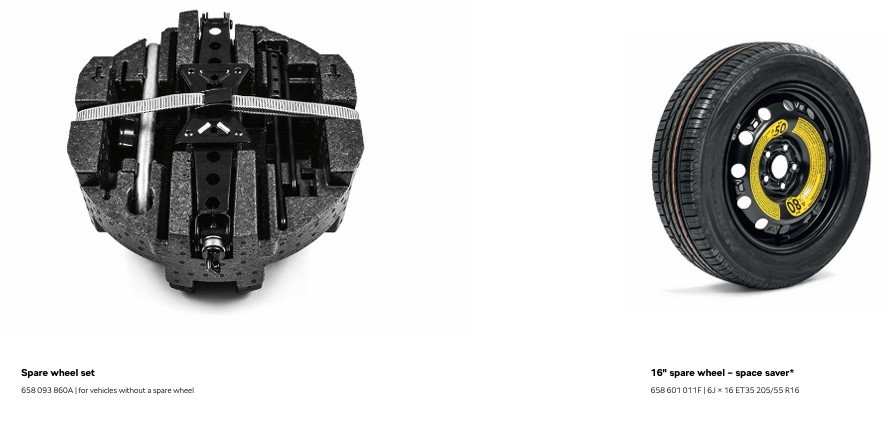
From the Skoda UK Official Accessory manual. Also as fitted from the factory in my actual car. BTW I have the actual CoC for my vehicle! As far as I know these seem to be produced on a per vehicle basis. Mine certainly cross references other ID number on the vehicle. For the OP, its about page 35. Totally legal as a get you home measure. Also some info here: Škoda Wheels & Tyres | Škoda UK
-
@Carlston You are quite wrong. I have a factory supplied temporary spare wheel for my Kamiq. It's even in the accessory brochure. It is fully approved and fully compliant as a get you home spare wheel!