vvojta
FREEDOMLite
-
Joined
-
Last visited
Everything posted by vvojta
-
-
-
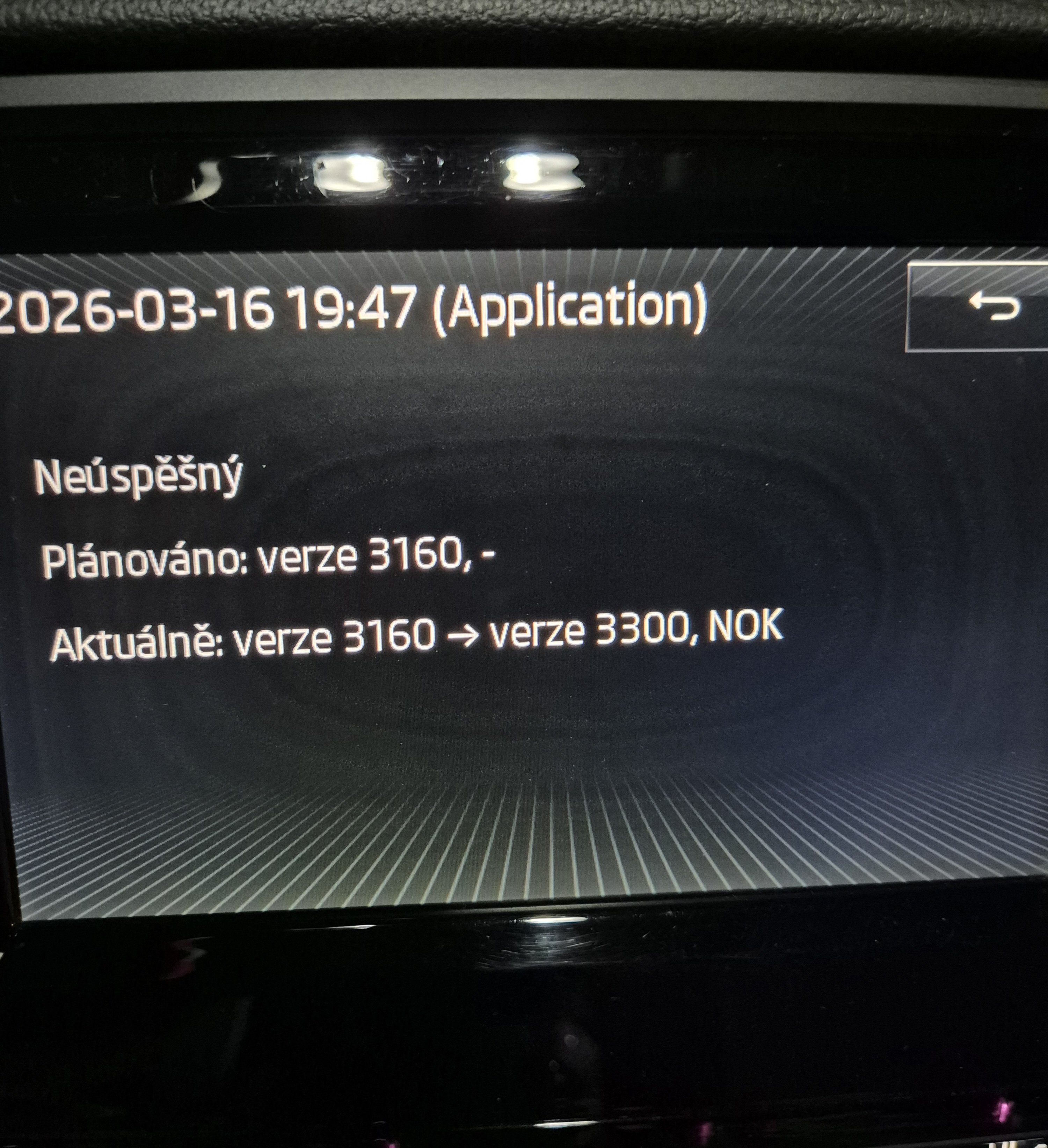
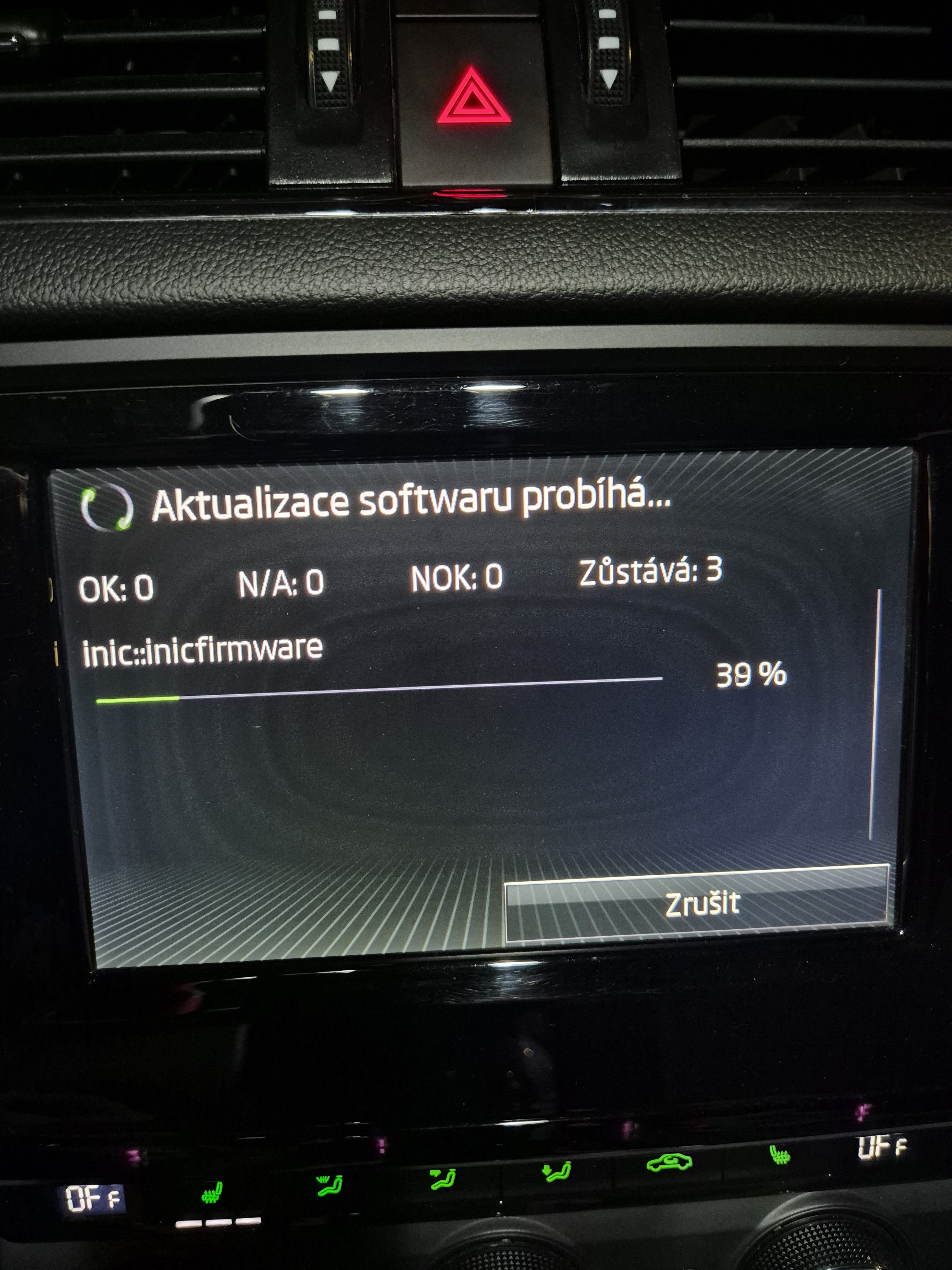
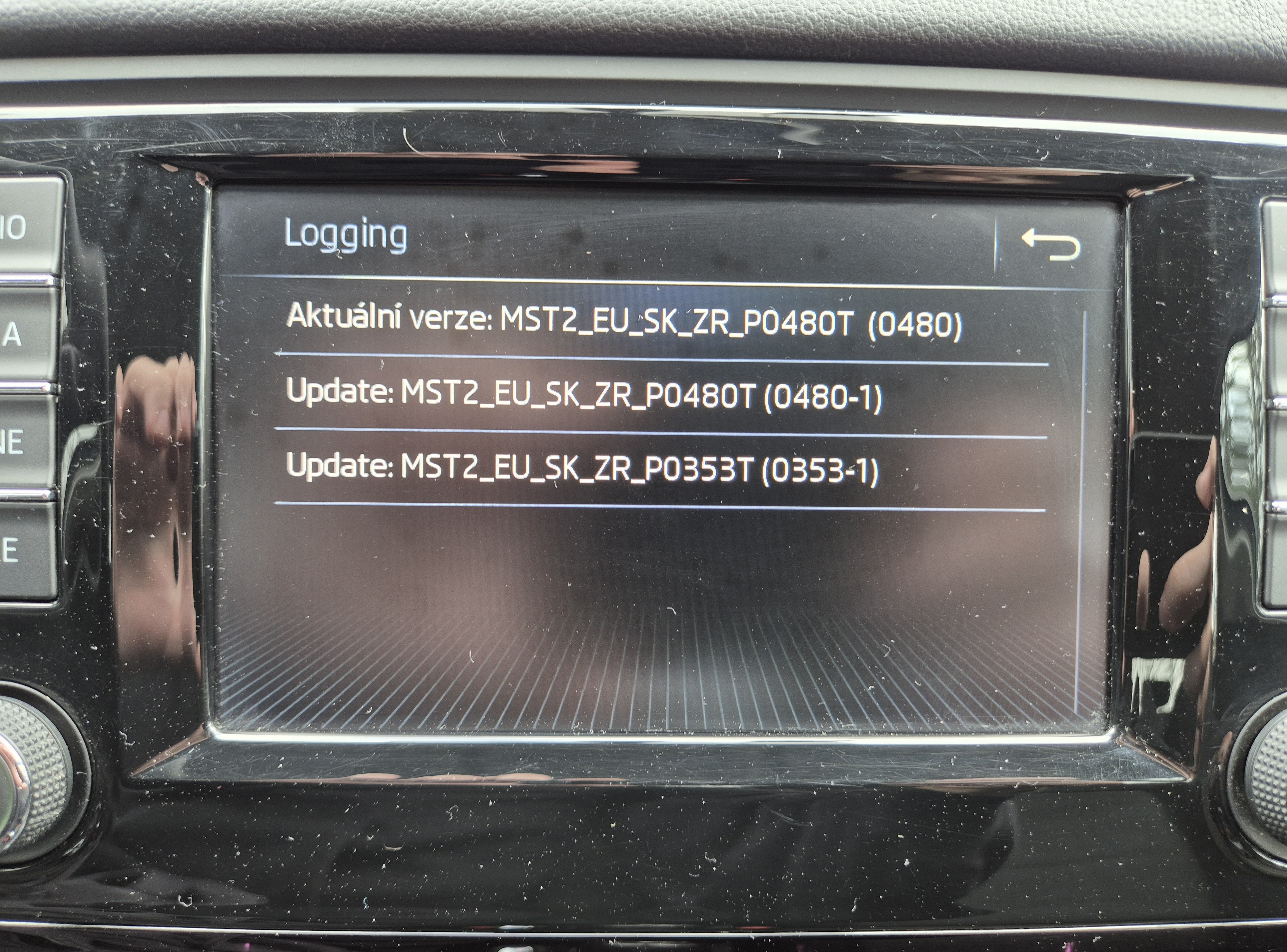
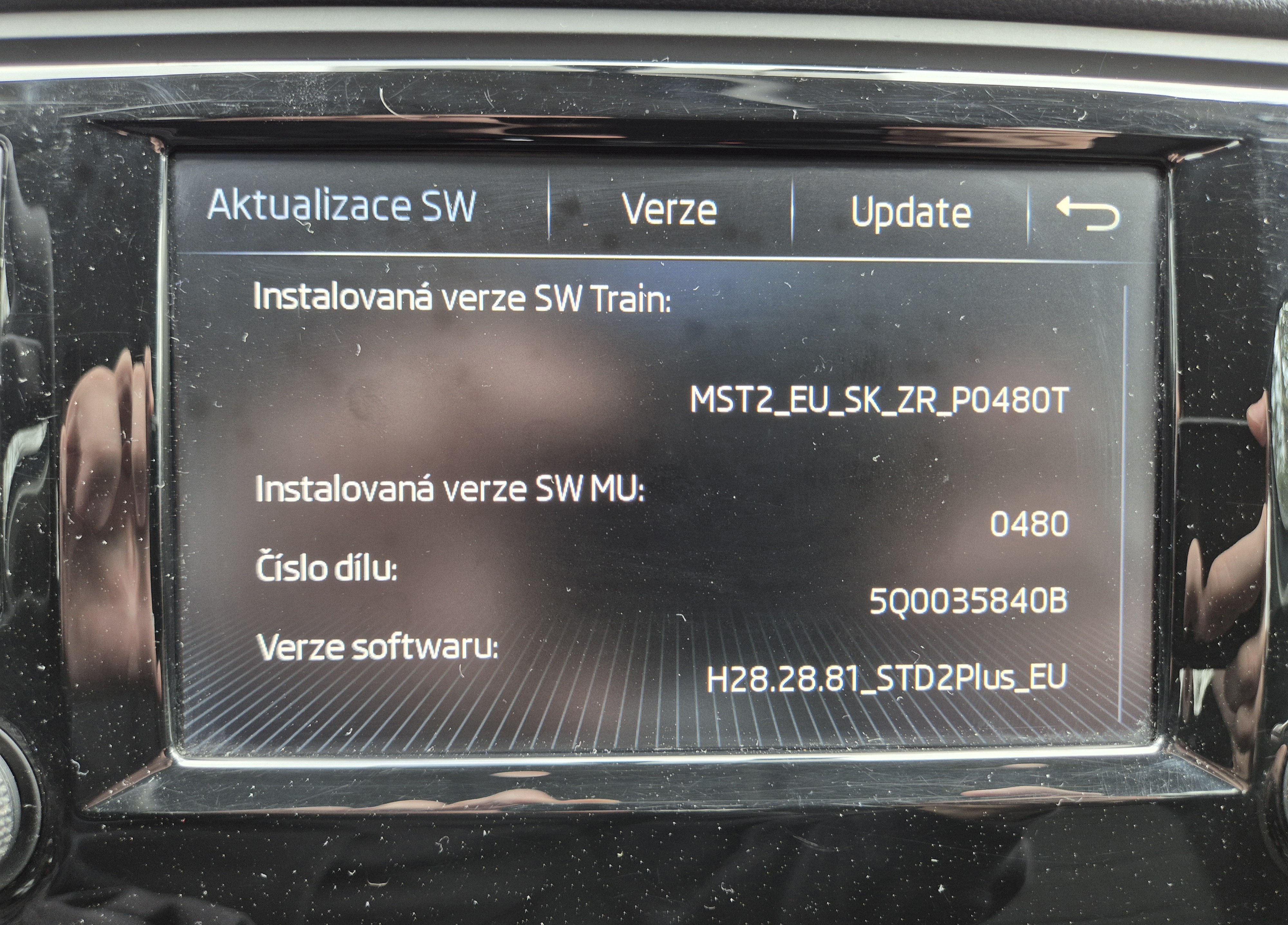
Hi, I have a question about the infotainment car picture. Can the pictures be added ? When I try to change the car using OBD11, there are only two car models / pictures, Octavia 3 FL Hatchback and combi, none of the other bytes do anything, it either stays as O3 FL hatch, or the picture disappears entirely. is there any way to add the pictures, so that I could change it to my O3 hatch non FL ? FW - 480 -- https://mibsolution.one/#/1/9/MST2%20-%20TechniSat%20Preh/Firmware/SKODA_ZR/EU With Green menu unlocked - mib-std2-pq-zr-toolbox
-
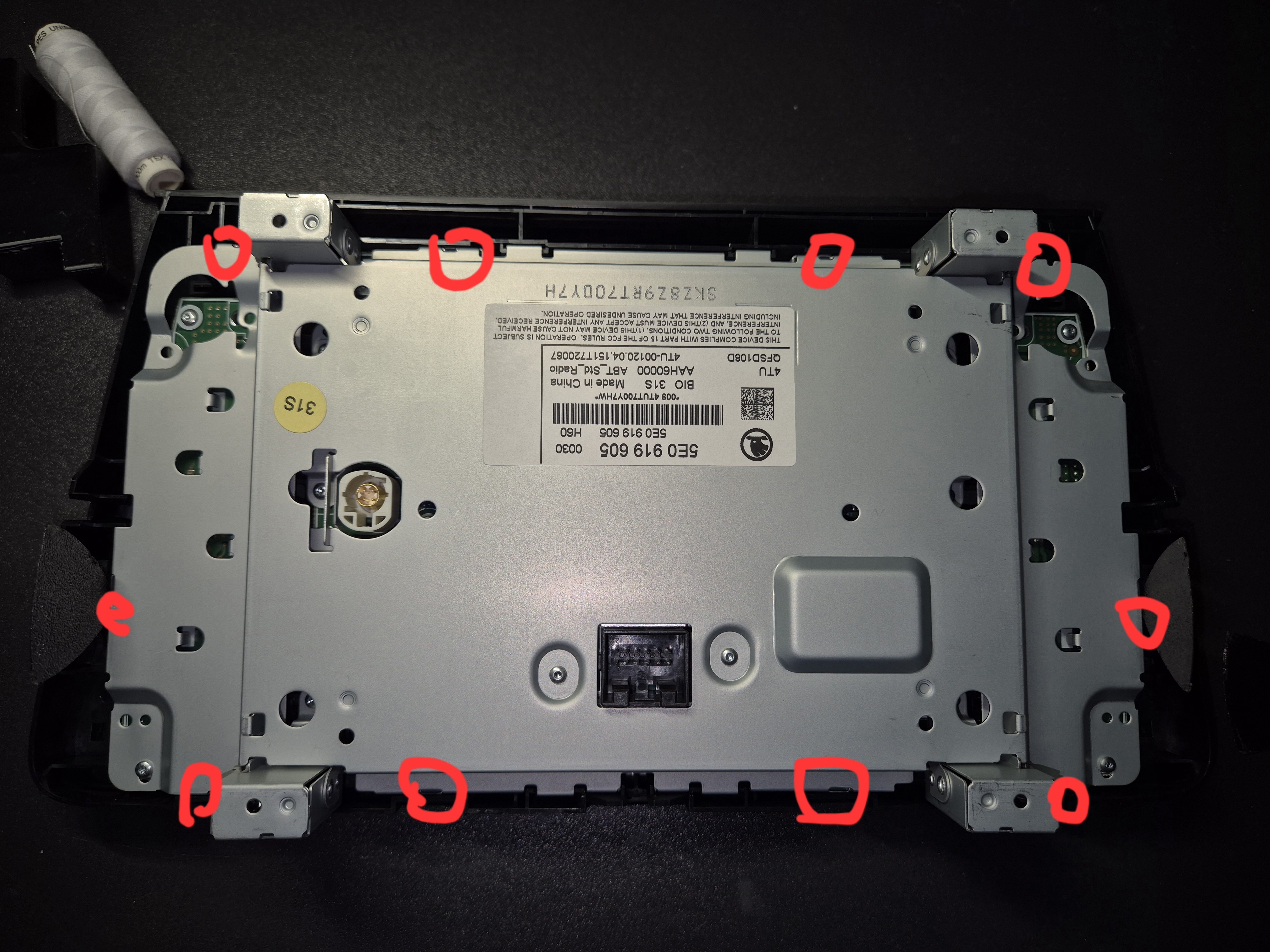
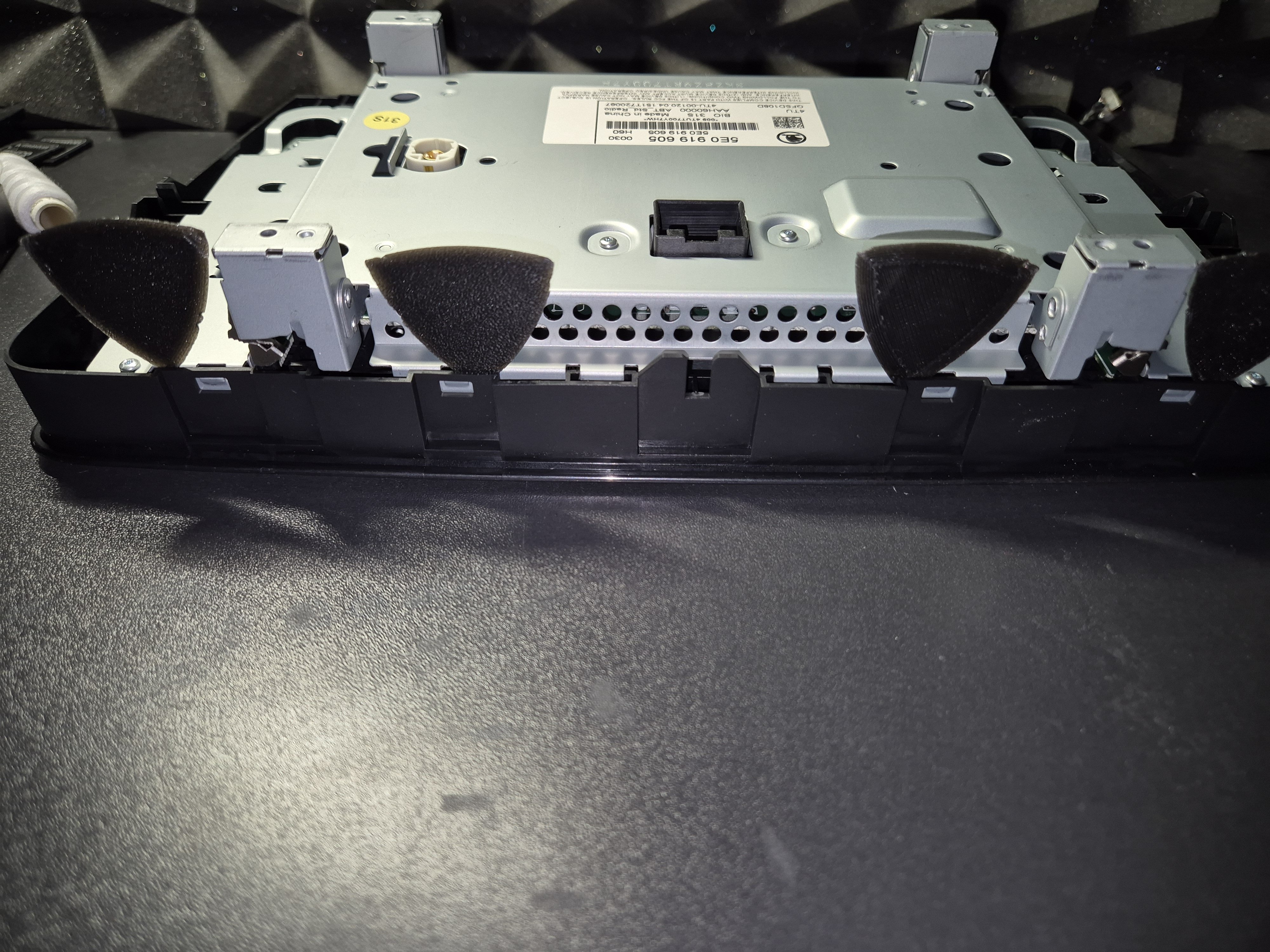
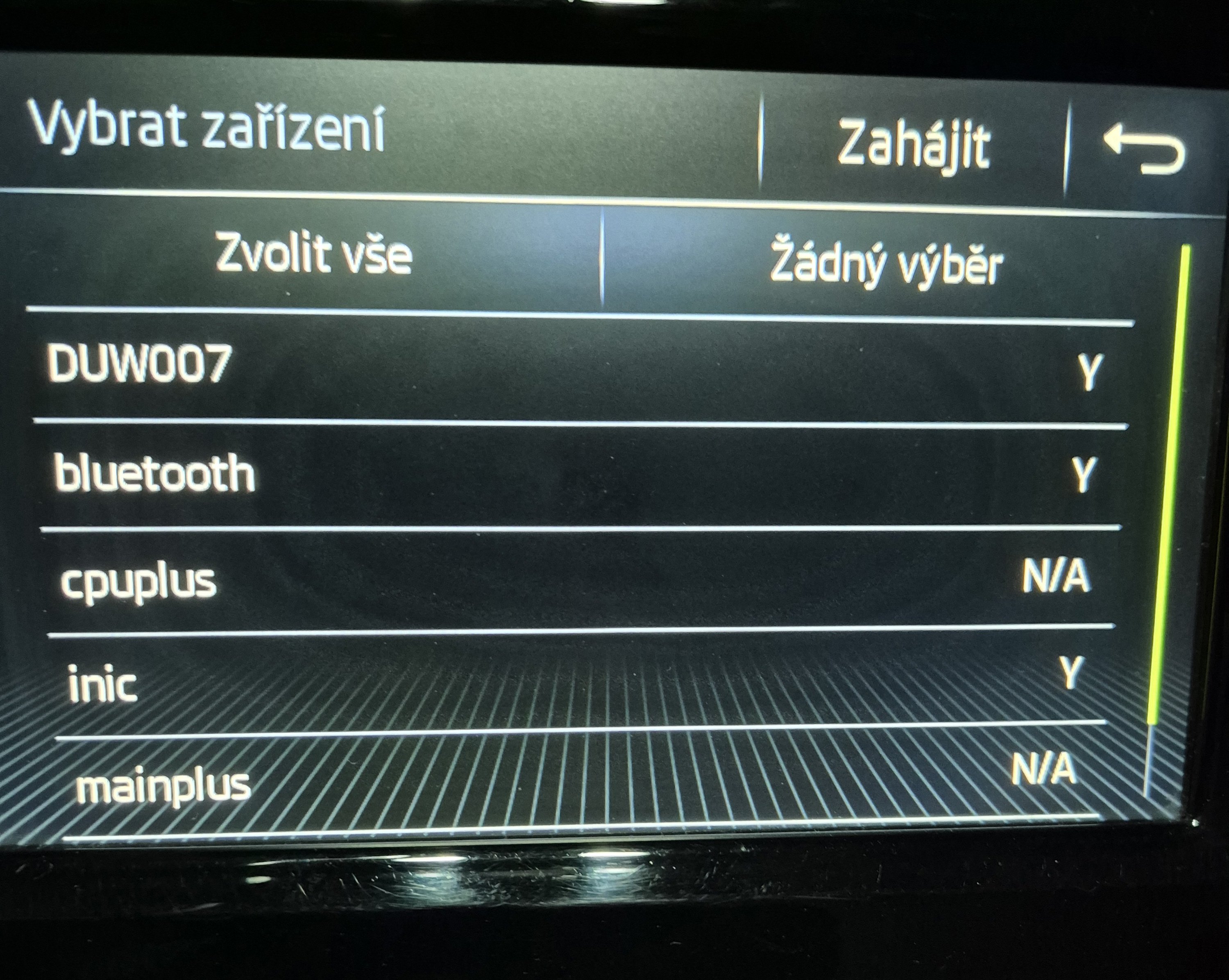
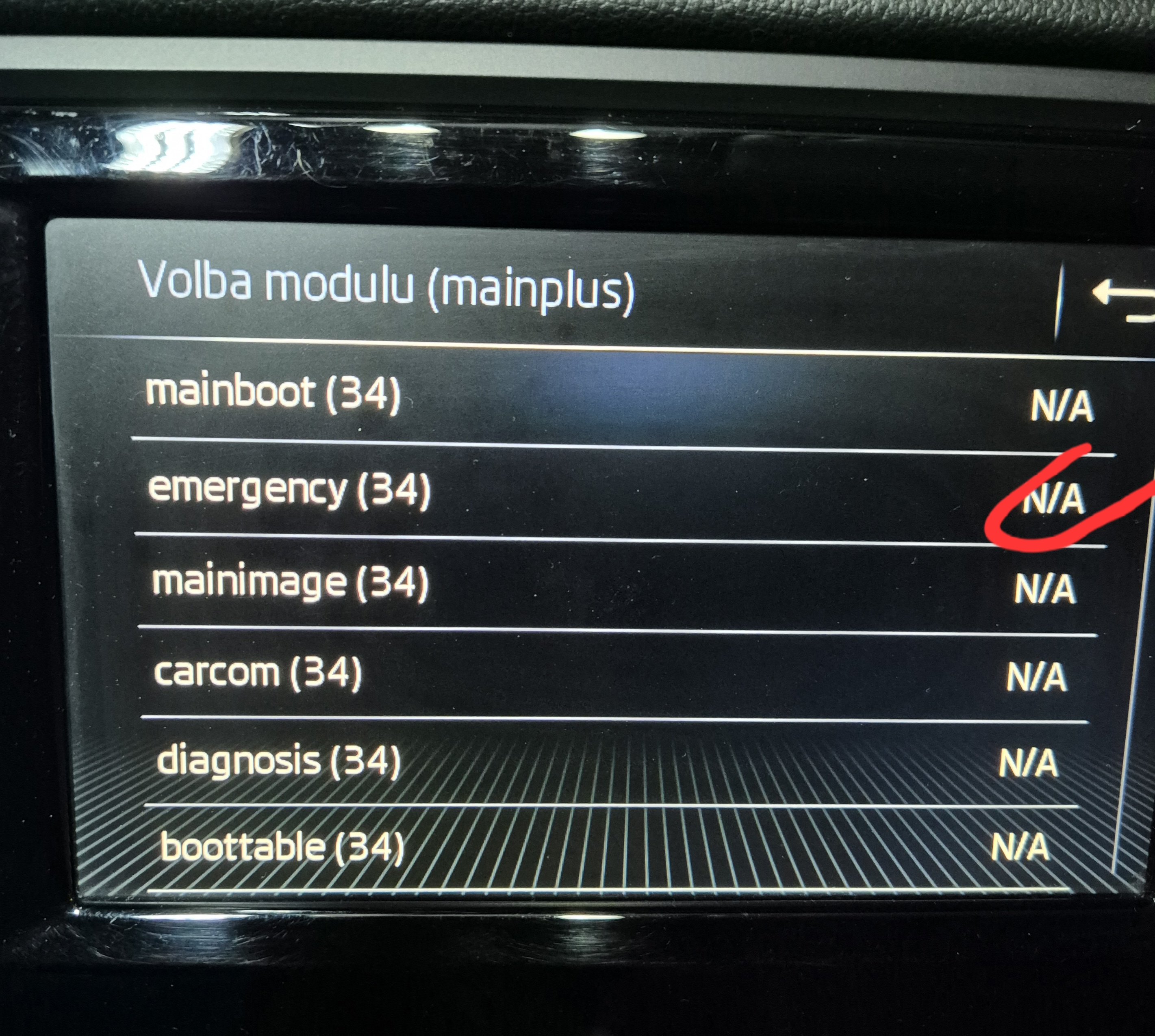
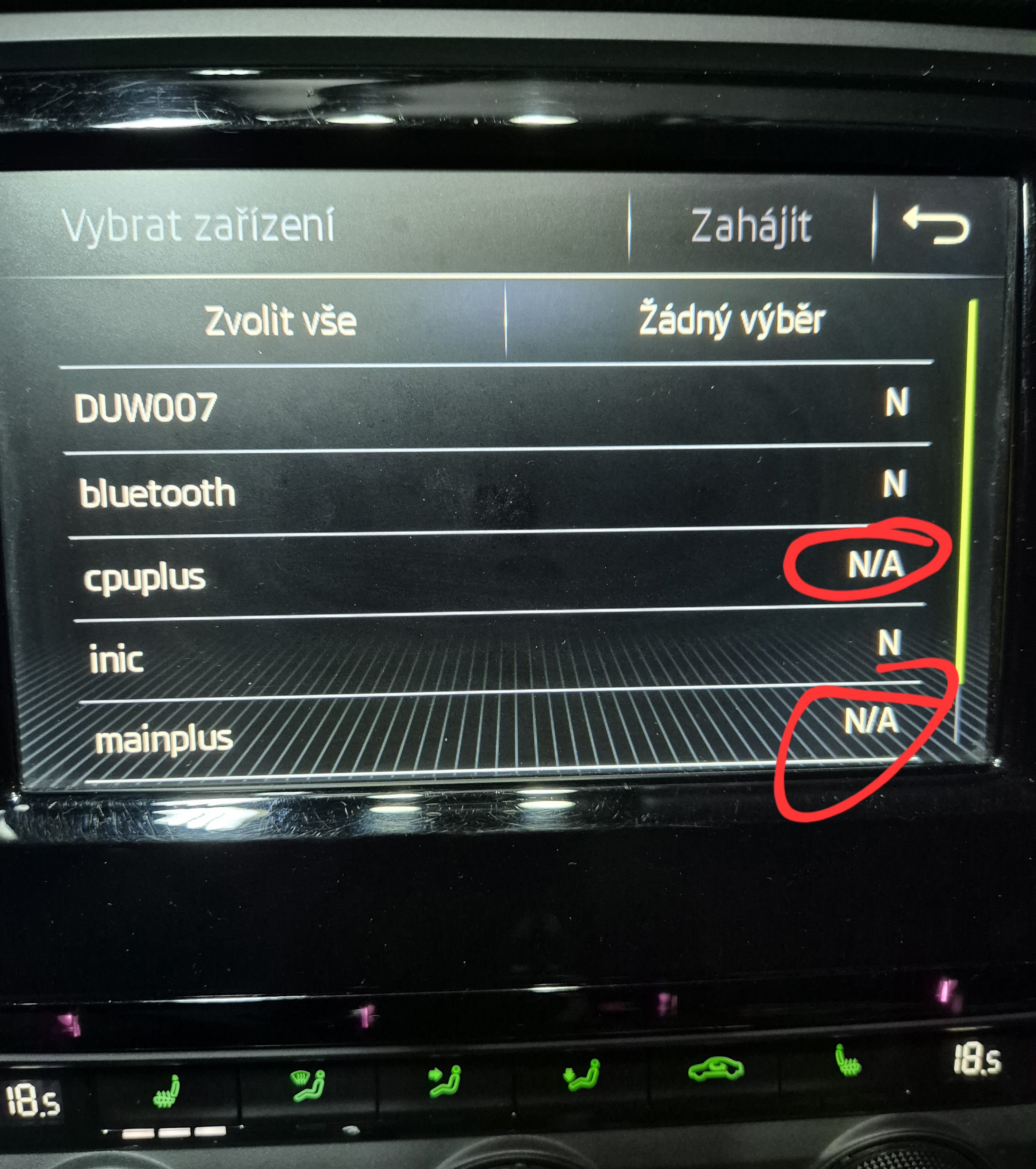
For anyone stumbling across this issue, here is a FIX: The problem was one of the cables not being connected properly (on the inside of the unit or display) First I recommend unplugging all of the connections and cleaning them properly without taking the unit and display apart use a small brush and IPA or some sort of contact cleaner If it's the same after connection you have to take apart the unit and display. On the display and the unit, there are screws which you need to unscrew (photo of the approximate locations) on the unit, there are 4 visible, and one under the warranty sticker After the screws are out, you can clean the inside of the unit, mainly the inner side of the back connectors the display needs these hooks to be unhooked (photo) I used 4 plastic pry tools - first unhook the bottom or the upper half - then sides - then it starts to lift and you can unhook the other half Then you can lift it up and clean the inside of the display (mainly all of the connectors that are on the inside) If all of this won't work, you have to check the continuity between the outer and inner connectors and your whole cable line. Thanks @Cairus for helping me and guiding me.
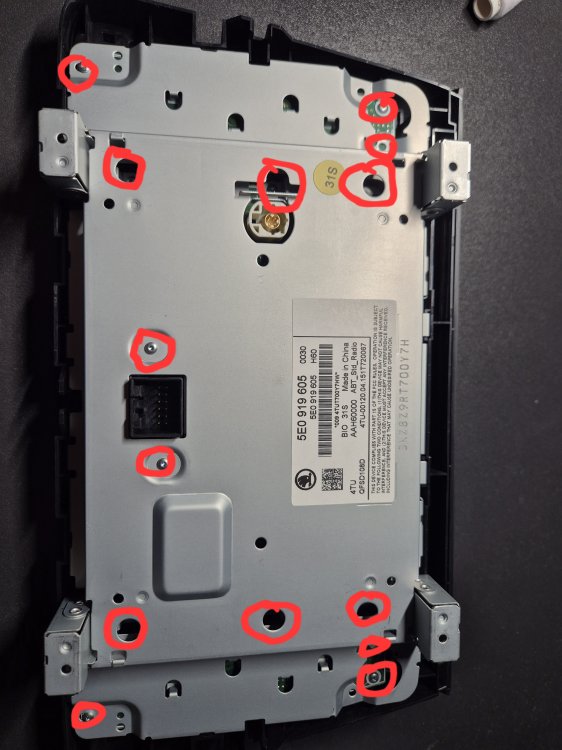
.thumb.jpg.22c0135ed6a66dc77db1d616c7169422.jpg)
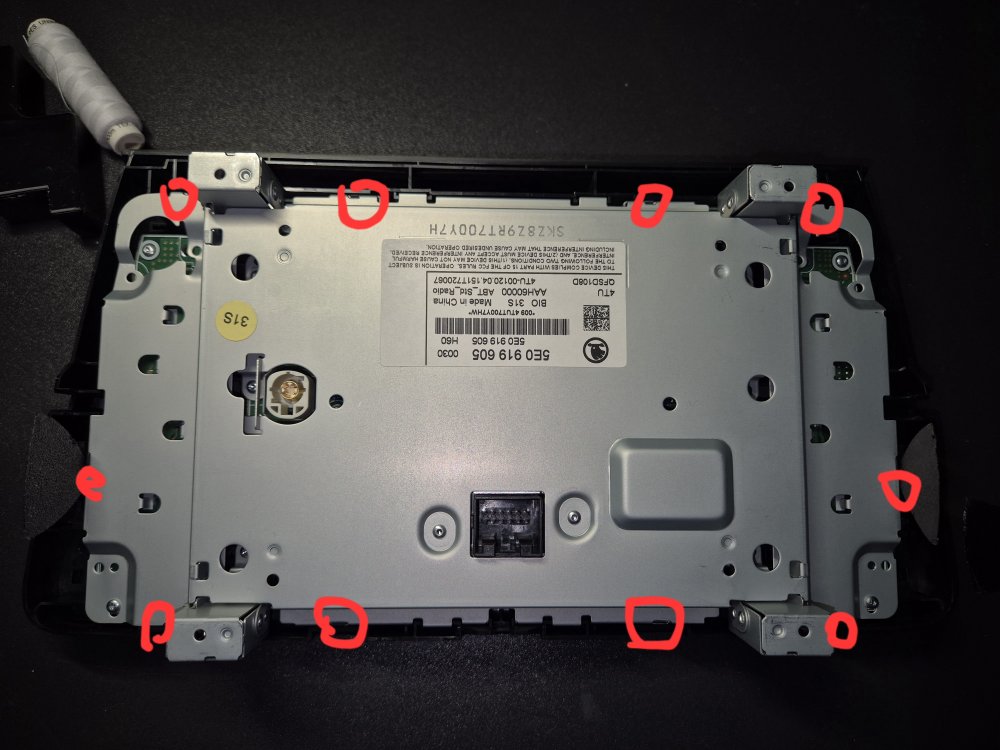
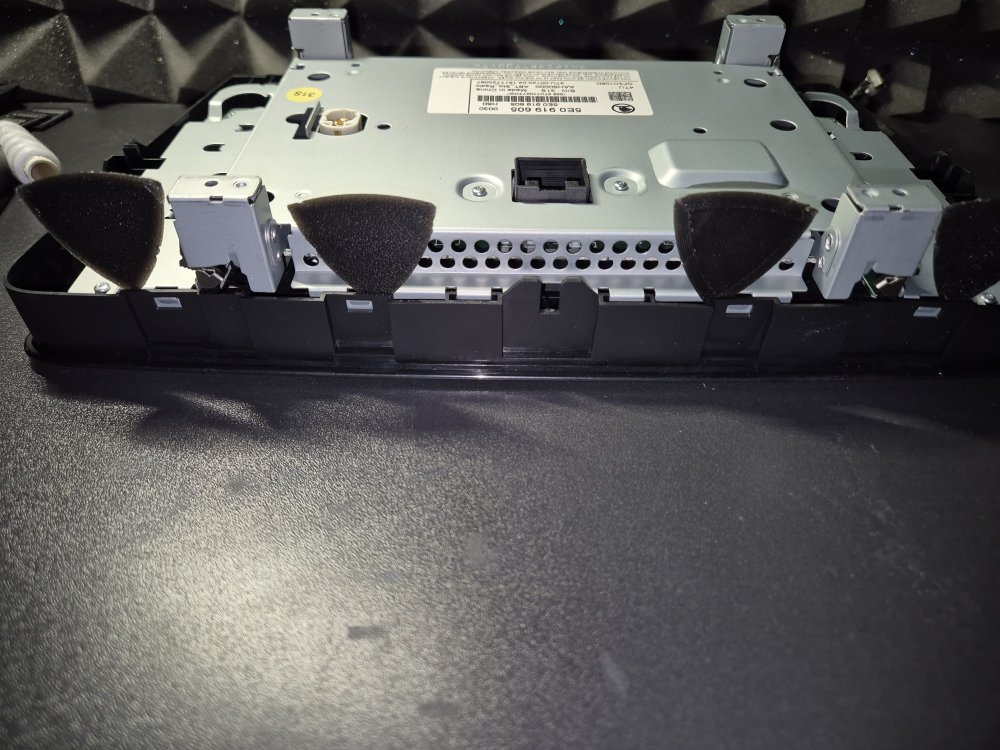
-
-
-
-
-
-
-
-
-
-
-
-
-
-
-
-
-
-
-
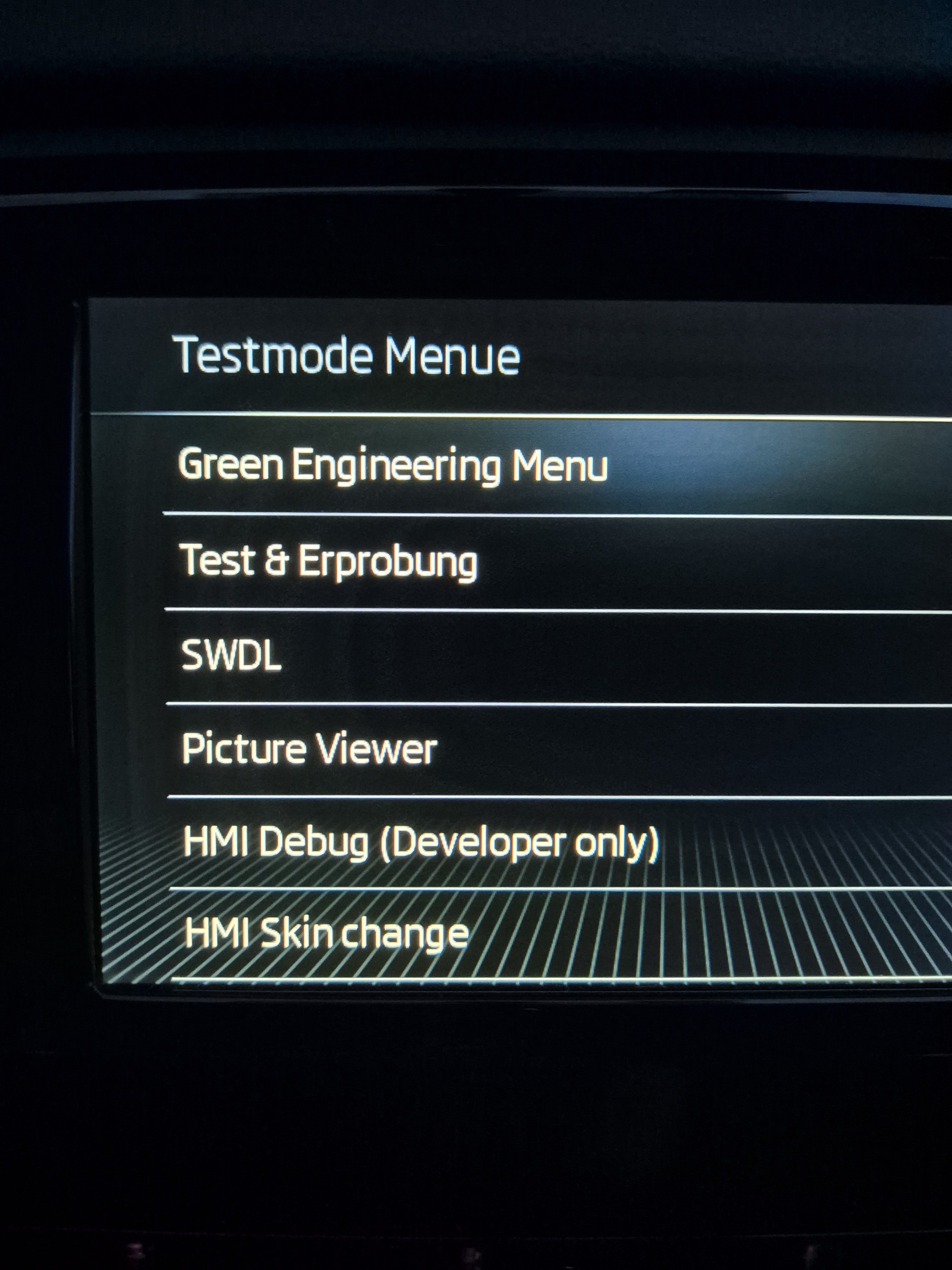
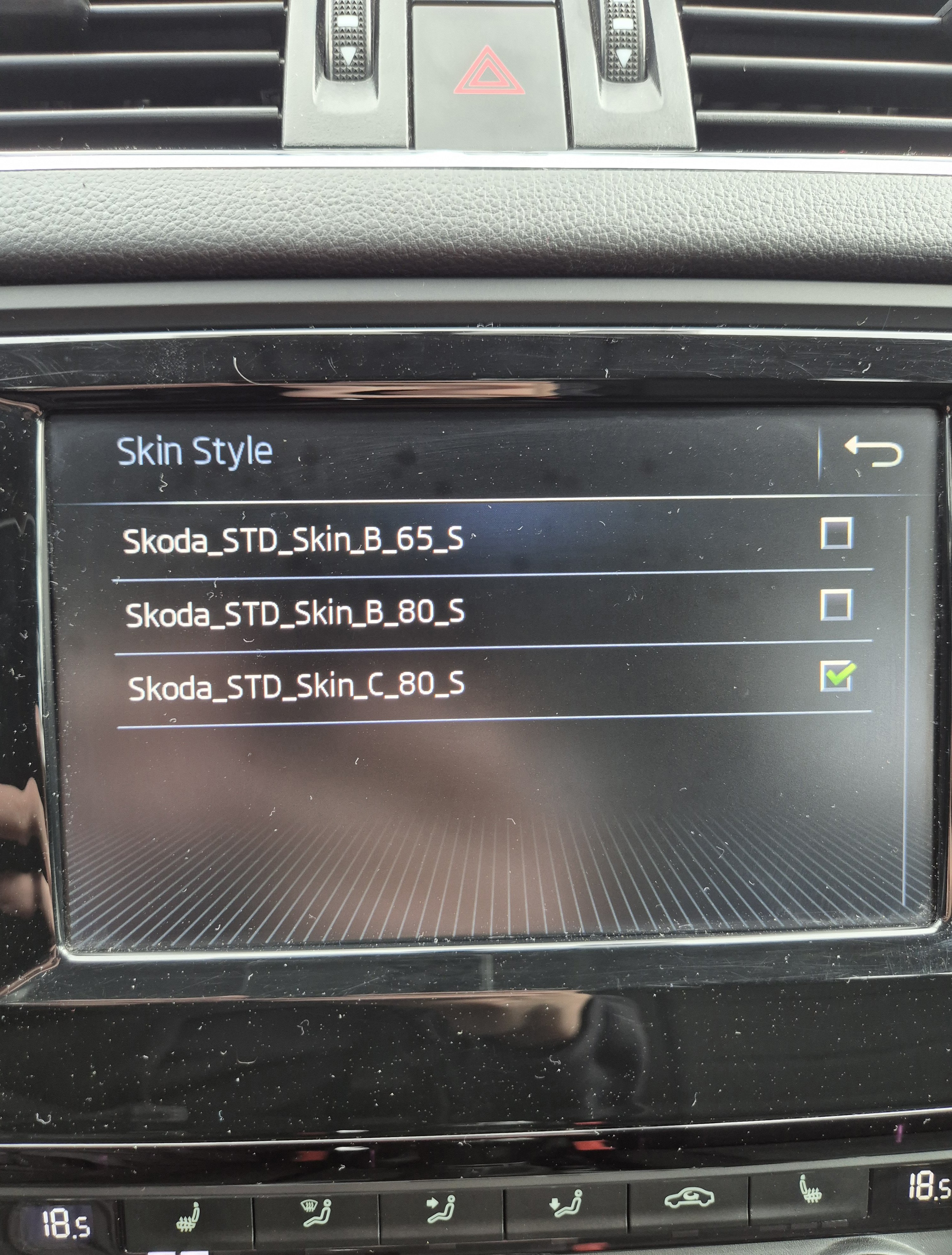
Just for clarification or more possible ideas for solution, it did the same thing when I bought it and plugged it in without any modifications, could it be because of CP ? When I scan the car, there is a fault for CP and incorrectly coded control module in 5F (multimedia) and CP in 19 (gateway) In a bit I will go and have a look for the HMI skin
-
-

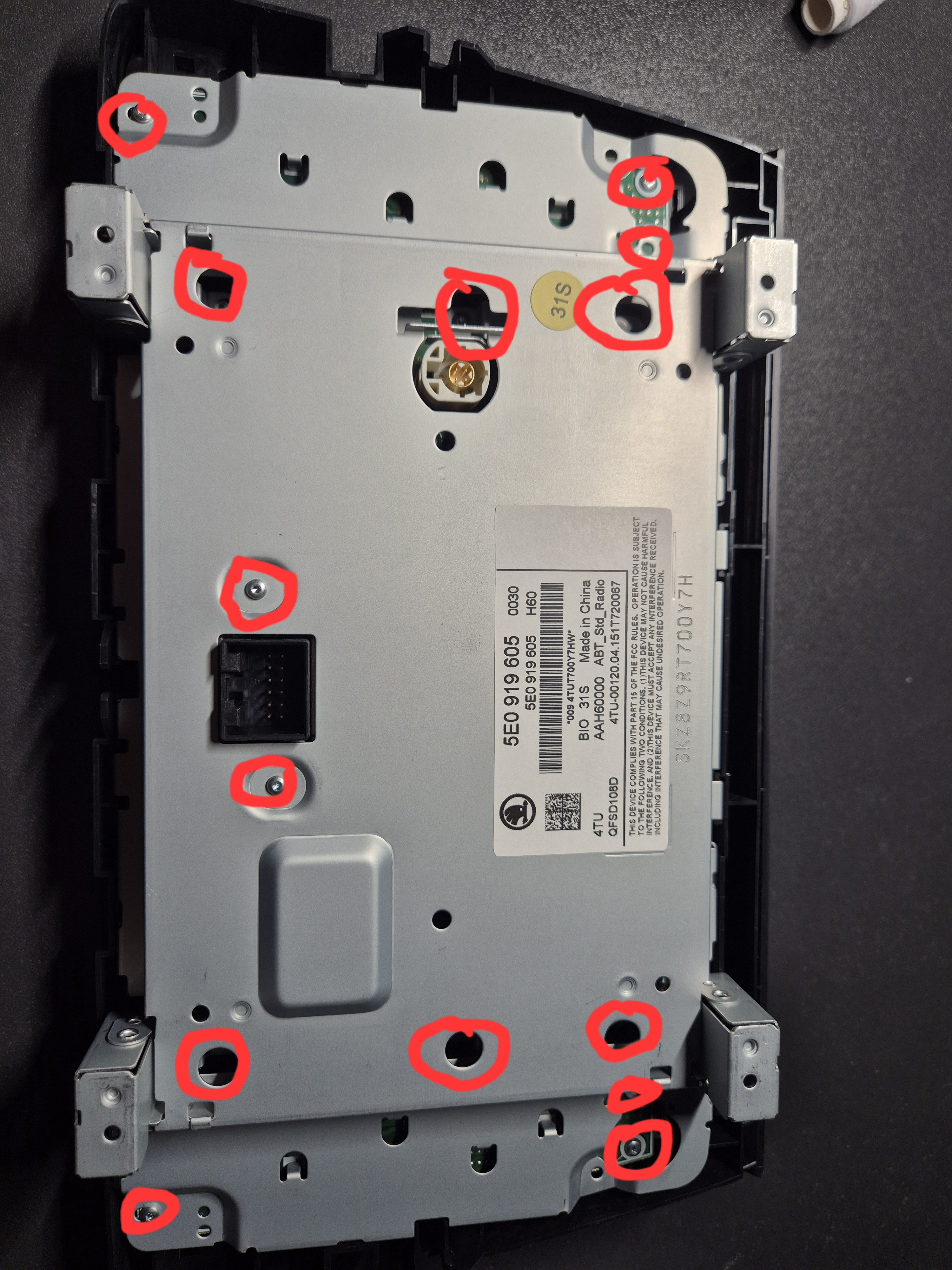
.jpg.1b2298fc9260811944c8c9f82ede55c3.jpg)