



Skip to content

Anyone help with VCDS Settings.......
Featured Replies

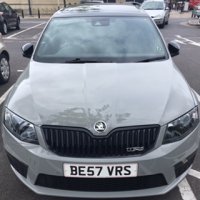
...I'm after some settings altered on my Octavia MK2 FL Vrs


1, DRL's to dim on the side when using that side turn signal


2, Rear lights on with DLR's


3, Cruise displayed in the dash.


4, Coming home/leaving lights, " is this possible ?"


5, anything else you think I would like


Car at the moment is in Aussie Mode


Can the same VCDS software for an Octavia be used on a CitiGo as I need some alterations done on the wife's


Beer/Lager/Cider/Wine tokens at the ready, might even stretch to a bottle of scotch


Thanks Andy  


( live in Harrogate ) but can travel within reason

4, Coming home/leaving lights, " is this possible ?"


One of the questions that will come up with this one is: "Do you have auto-lights?"


If not, I seem to recall that the car, once coded, will happily light your way even in broad daylight.

  • Author

One of the questions that will come up with this one is: "Do you have auto-lights?"


If not, I seem to recall that the car, once coded, will happily light your way even in broad daylight.


No auto light, I'm not right fussed if it can't be done, bit daft having coming/leaving lights in broard daylight,


THanks for that anyway


2, Rear lights on with DLR's


This is dealer (VAS / ODIS only IIRC)


3, Cruise displayed in the dash.


This can be a bit hit and miss as it doesn’t work on some but does on others.


Yes VCDS will work on the CitiGo, obviously being the entry model there are less things that can be changed though.


If you haven't already then take a look at the VCDS Owners Map in my signature  :thumbup:

Create an account or sign in to comment

Recently Browsing 0

  • No registered users viewing this page.

Important Information

Welcome to BRISKODA. Please note the following important links Terms of Use. We have a comprehensive Privacy Policy. We have placed cookies on your device to help make this website better. You can adjust your cookie settings, otherwise we'll assume you're okay to continue.

Account

Navigation

Configure browser push notifications

Chrome (Android)
  1. Tap the lock icon next to the address bar.
  2. Tap Permissions → Notifications.
  3. Adjust your preference.
Chrome (Desktop)
  1. Click the padlock icon in the address bar.
  2. Select Site settings.
  3. Find Notifications and adjust your preference.
