Skip to content

leckman

Members
  • Joined

  • Last visited

  1. Can’t find anything about a new update anywhere which is strange,still looks a fantastic car though.
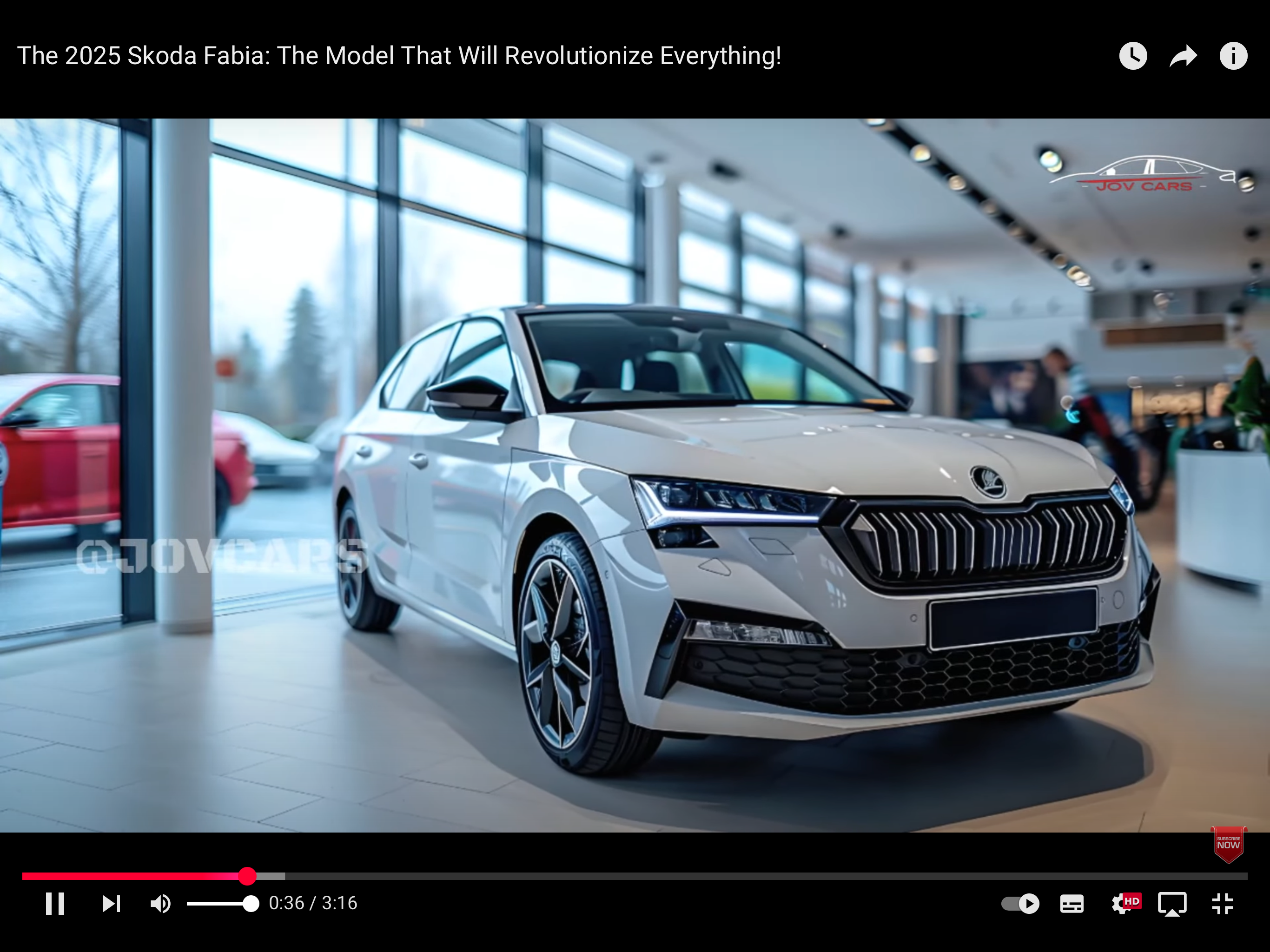
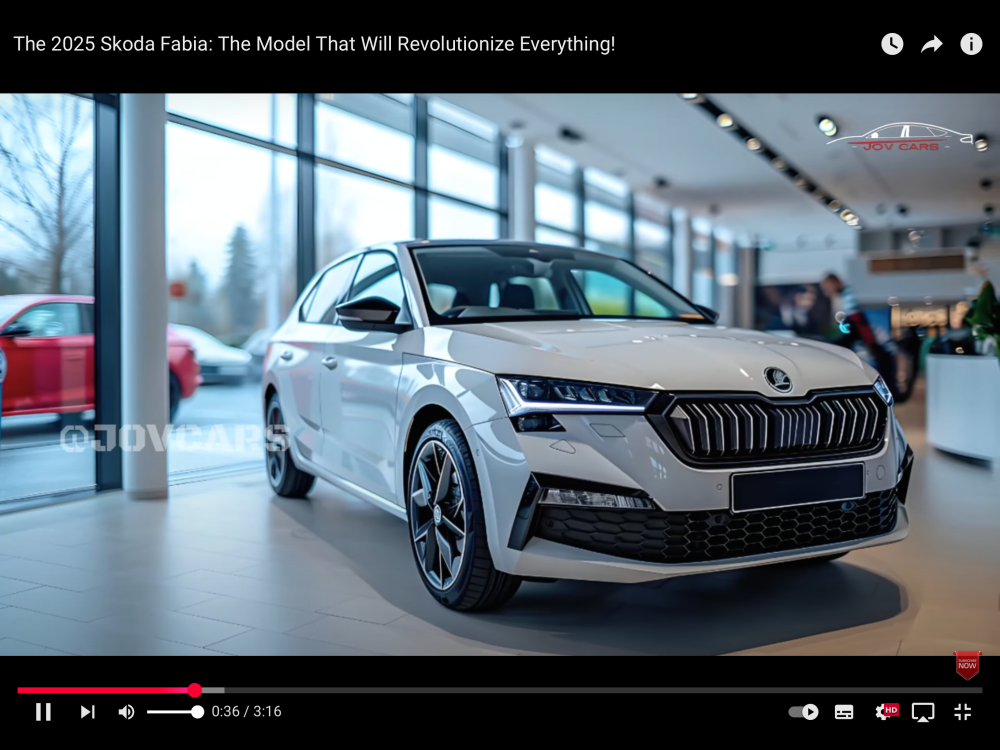
  2. Came across this on YouTube a 2025 Fabia update which looks fantastic,might want to hold off for this?
  3. Yes and every week or so I get a message on the screen reminding me of the fact for some reason.
  4. leckman replied to occi's topic in Škoda Kamiq
    I make it about 40 mm.
  5. Both versions of the app are working for me.
  6. leckman replied to leckman's topic in Škoda Kamiq
    SE 1.0 116 bhp manual with Convenience Pack.
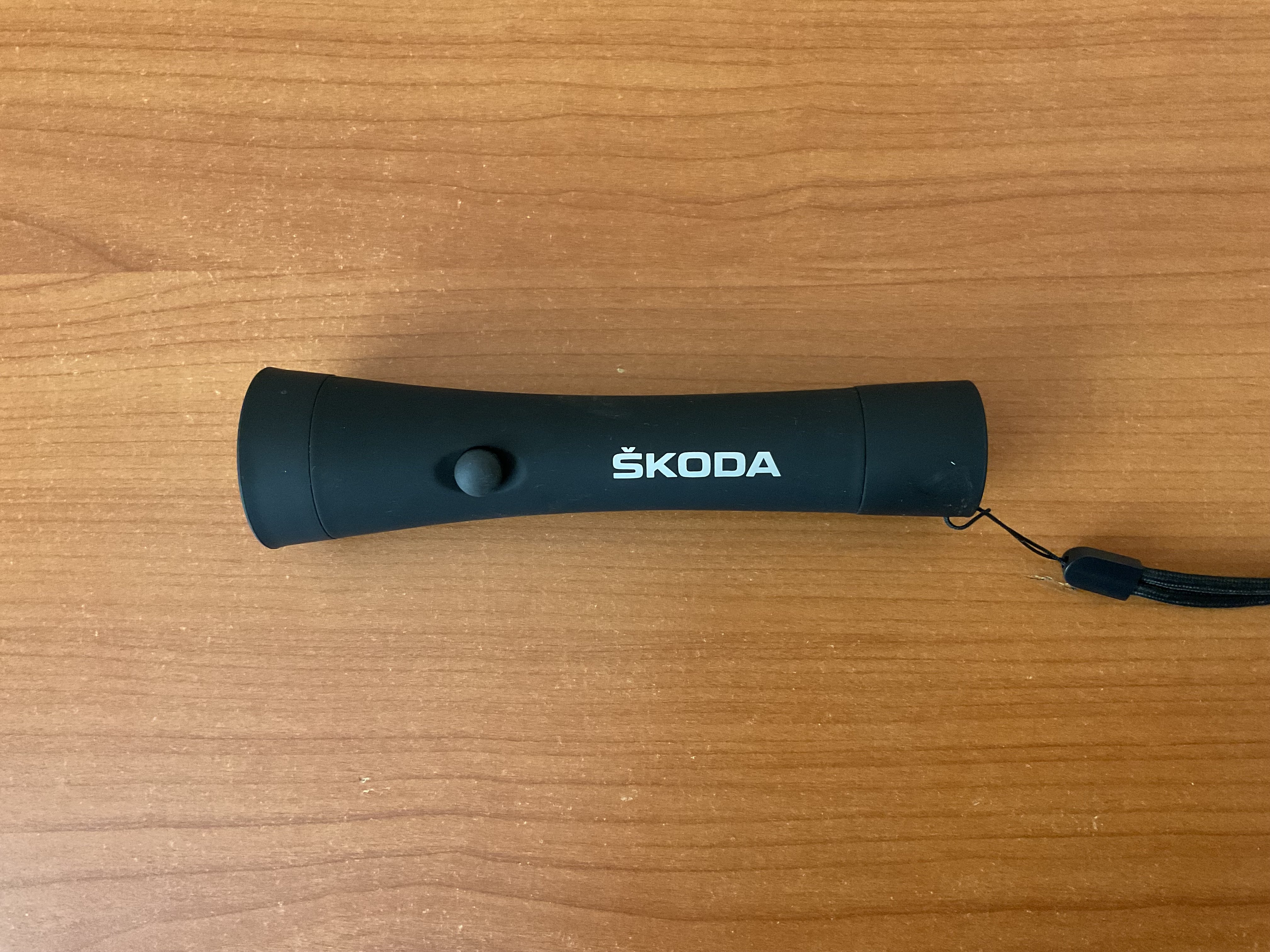
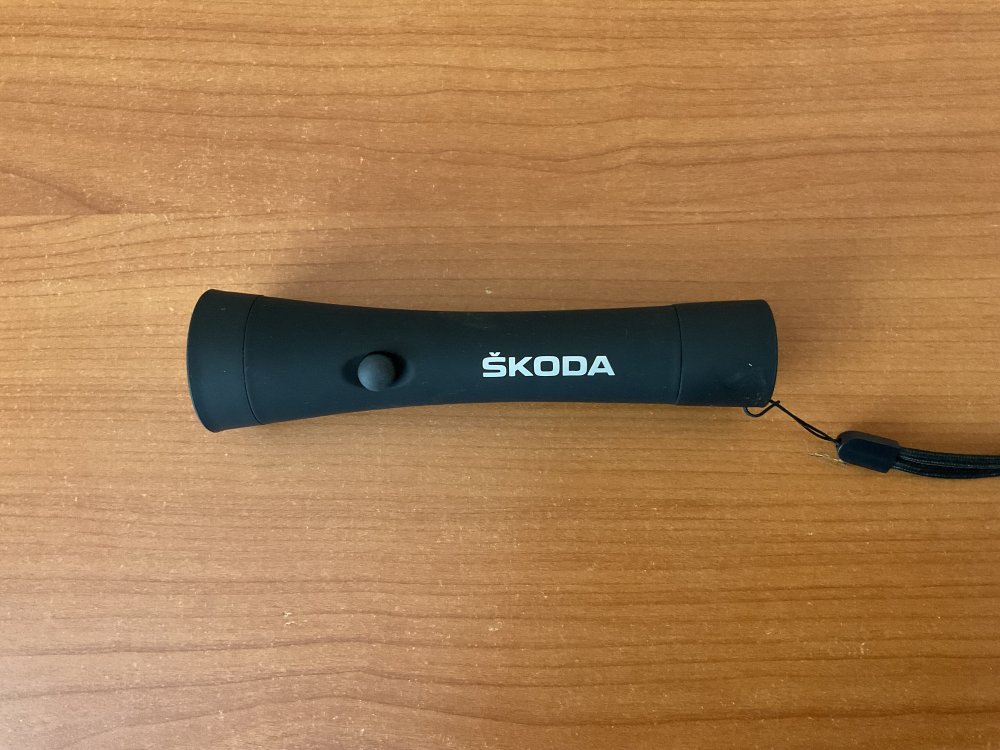
  7. I keep my Skoda torch in the glove box.
  8. Purchased my Kamiq se here,no problems,decent trade in and an excellent discount and even delivered the car to my home address in Liverpool at no cost.
  9. leckman replied to leckman's topic in Škoda Kamiq
    Following Skoda Digital advice I performed a factory reset on my vehicle and tried again and got instant connectivity.The app is now up and running.
  10. leckman replied to leckman's topic in Škoda Kamiq
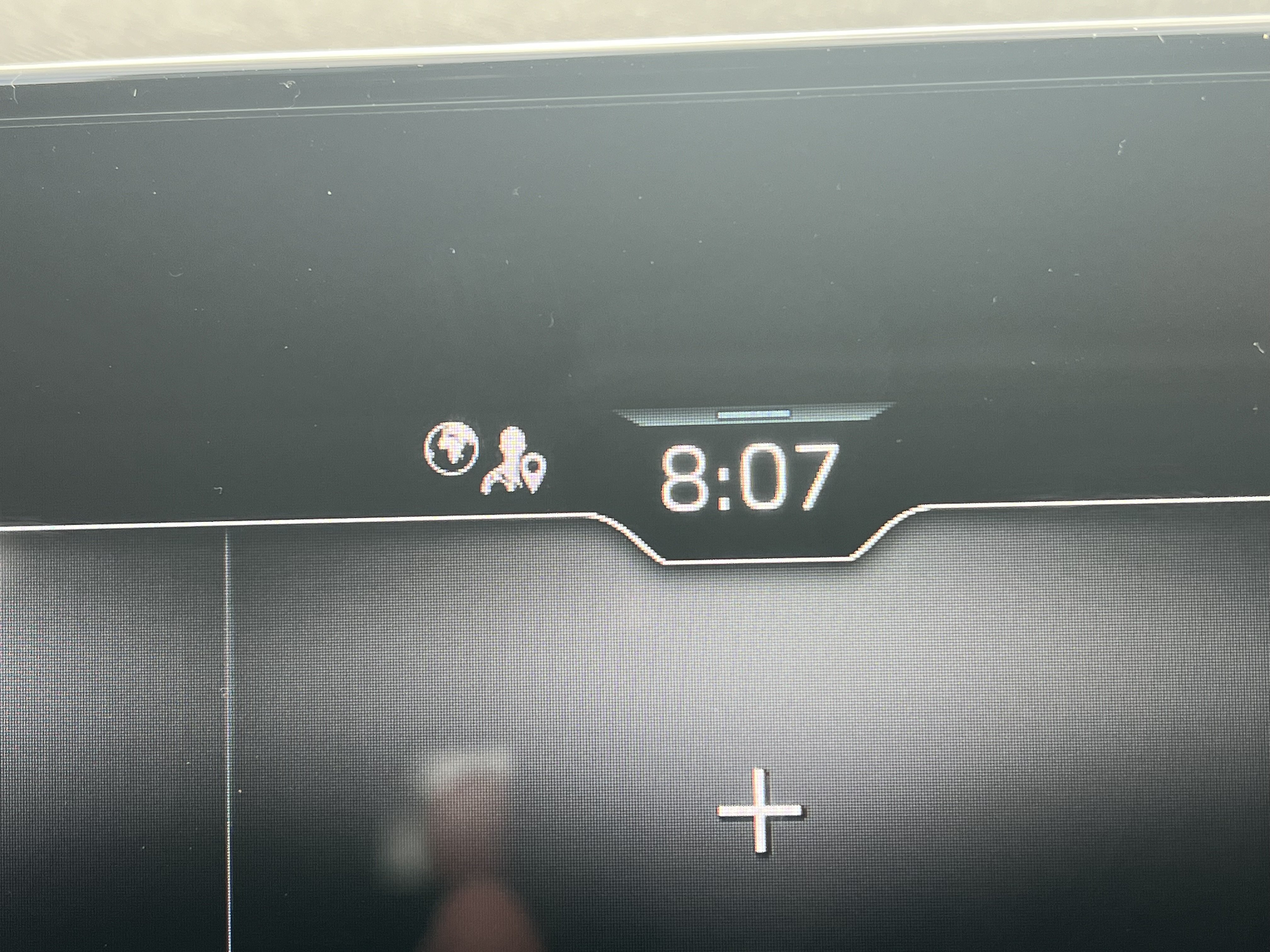
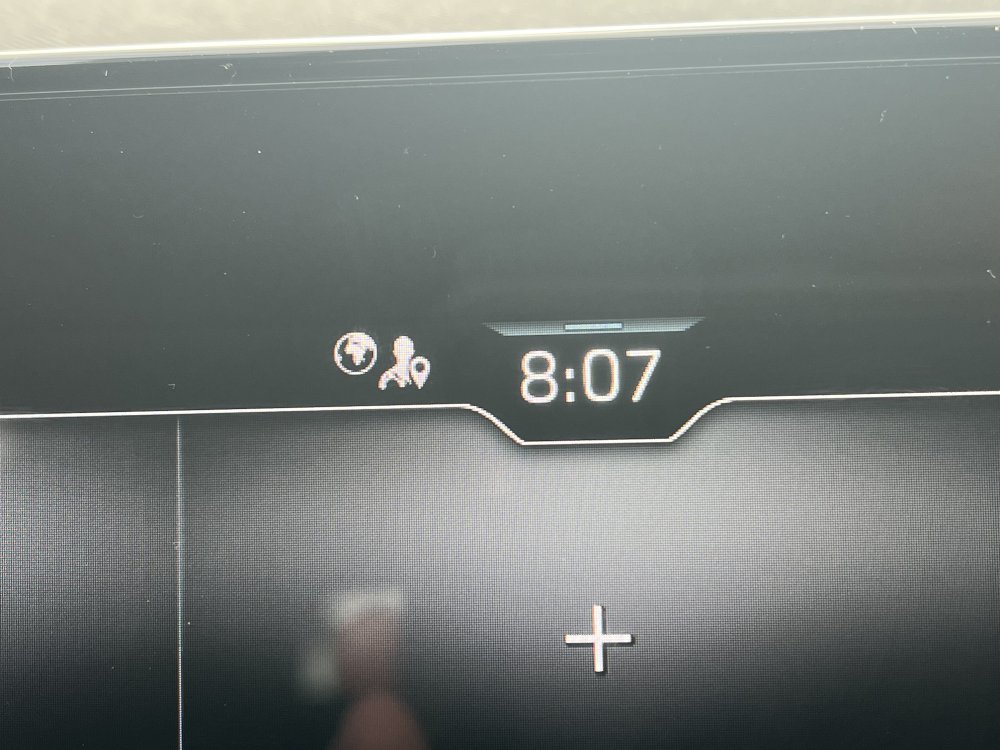
    Cannot see a WLAN setting but the globe icon is lit this morning.
  11. leckman replied to leckman's topic in Škoda Kamiq
    How do I check that,have been through the various menus cannot see anything.
  12. leckman replied to leckman's topic in Škoda Kamiq
    The globe icon at the top of the screen is not lit,could that be the problem?,or does that only glow when the app is set up?.
  13. leckman replied to leckman's topic in Škoda Kamiq
    Tried to install the app today,got as far activate/set primary user and everything came to a halt.Put the PIN code in as requested,get the message’please wait’ and nothing happens. Not a good start.
  14. leckman posted a topic in Škoda Kamiq
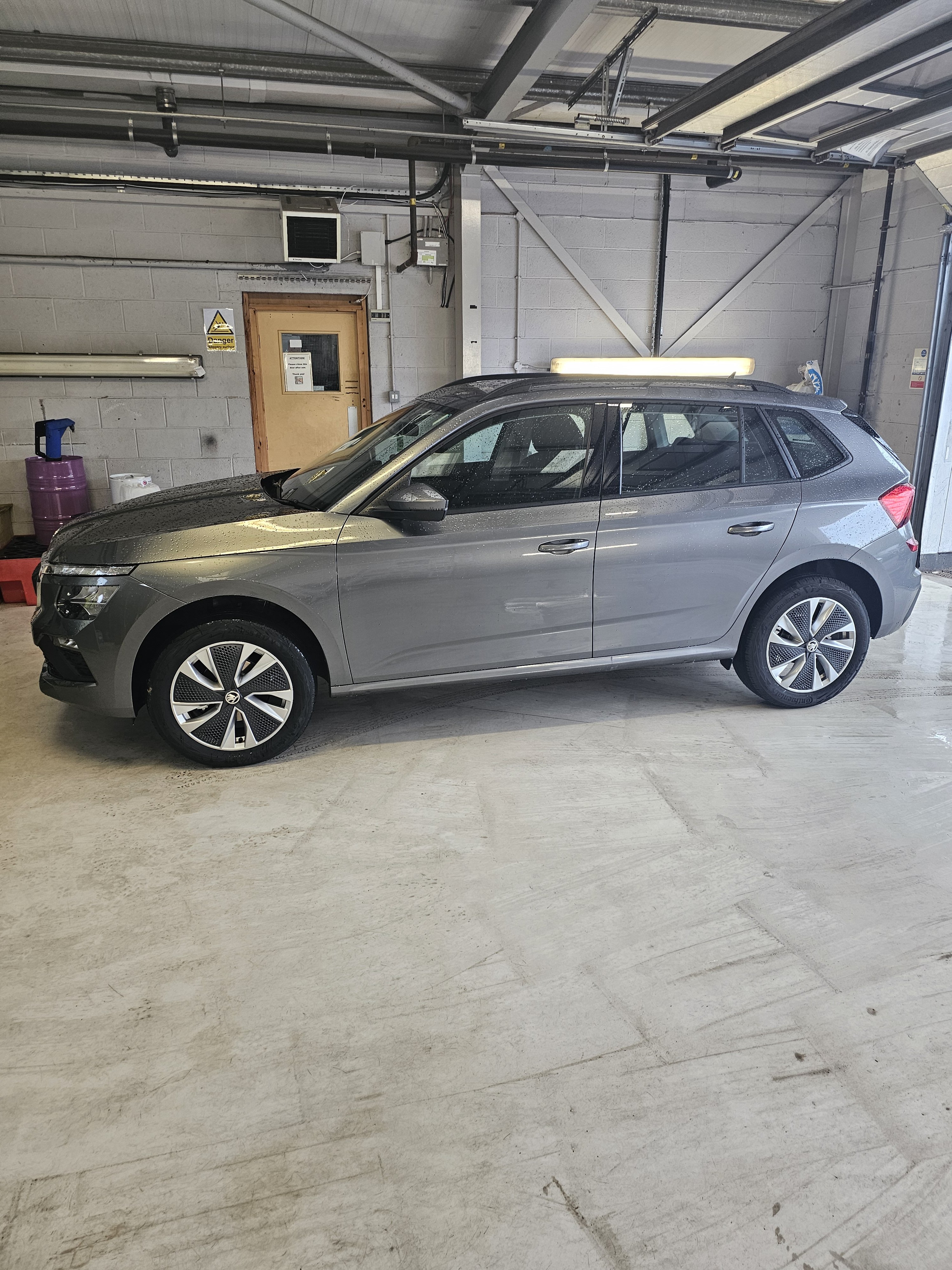
    Took delivery of this today

Important Information

Welcome to BRISKODA. Please note the following important links Terms of Use. We have a comprehensive Privacy Policy. We have placed cookies on your device to help make this website better. You can adjust your cookie settings, otherwise we'll assume you're okay to continue.

Account

Navigation

Configure browser push notifications

Chrome (Android)
  1. Tap the lock icon next to the address bar.
  2. Tap Permissions → Notifications.
  3. Adjust your preference.
Chrome (Desktop)
  1. Click the padlock icon in the address bar.
  2. Select Site settings.
  3. Find Notifications and adjust your preference.