crisdevis
Finding my way
-
Joined
-
Last visited
-
There is a button but it could depend on infotainment type/model.
-
As I know VRS models accept 18" and 19". Otherwise 16", 17" and 18" fit Octavia IV.
-
.
-
Please check your Owner's Manual (page 52, my version):

-
You can also change it from Skoda Connect. On the Web: Log in, go to Profile, Settings, Units. There are three options: Units, Imperial (UK), Personal. I have never tried but you could. Good luck! On the smartphone: Log in, go Settings, Units. You will see the same three options as above mentioned.
-
In May 2022, after I did the two-year inspection, they told me we would see each other in May 2024. I asked, don't we change the brake fluid after 3 years? No!
-
Try to adjust the volume during the announcement.
-
I am very happy with my Octavia IV 1.5 TSI. The only issues were some software issues which were solved with updates. I agree that perfection means no issue but I believe there is no perfect car. So, buy it!
-
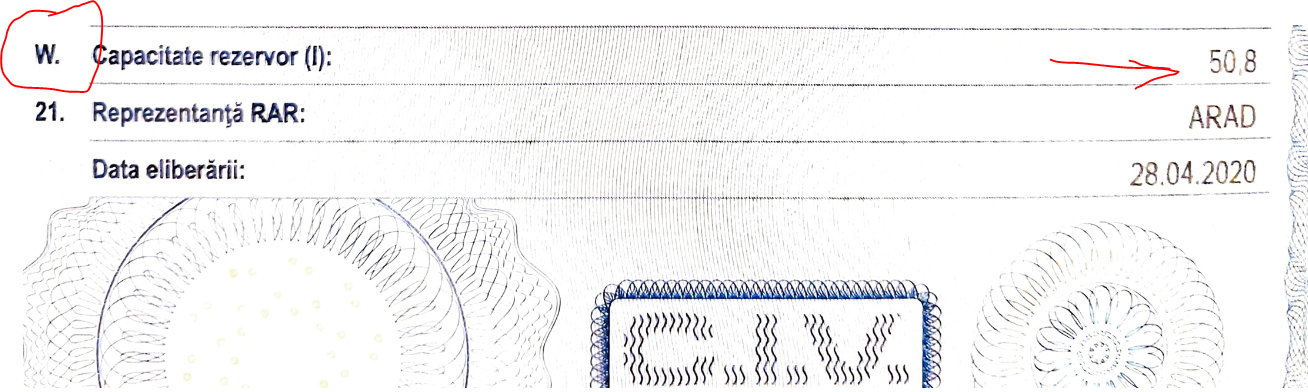
My Octavia IV 1.5 TSI MY 2020 has a 50.8 liters fuel tank. It is written on the Vehicle Identity Card.

-
Keyless batteries last about 1 year.
-
I would not consider this a real issue. Actually, if you wait approx. 1 min. (depending on the outdoor temperature) until the tahometer goes below 1000 rot/min. there will be no kangaroo effect.
-
Ok, thanks, yes I have an USB-C memory stick but how do I move the images from the USB-C to the infotainment internal memory?
-
One question please: how you can load from a USB stick? It is written somewhere in the manual?
-
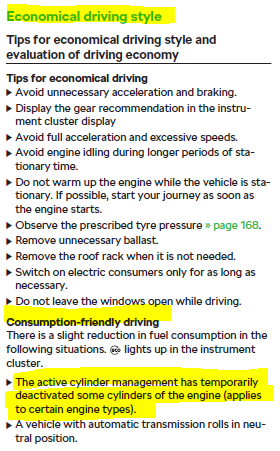
Go to the owner manual (page 126, but there are three manual versions depending on the production period), title "Economical Driving Style". Read about "Consumption-friendly driving" and check if applies to your model.
-
Decrease, yes.