



.jpg.fc70328b1cef350e6f2de9a6fe8750e0.jpg)

Boxerdog1
FREEDOM
-
Joined
-
Last visited
Everything posted by Boxerdog1
-
A better angle ...............
.thumb.jpg.6d3dabc9d790ce920e87debe13fb4f2b.jpg) Hopefully I can increase the potential buyer appeal for the the Altair wheels by suggesting that they will make a 'bog standard' Octavia look like a VRS 😊Swapped the Altairs for a set of Becruz's .
Hopefully I can increase the potential buyer appeal for the the Altair wheels by suggesting that they will make a 'bog standard' Octavia look like a VRS 😊Swapped the Altairs for a set of Becruz's ..thumb.jpg.68c9b0f55aed15175cd5bf0fbc8bacc0.jpg) Since acquiring my VRS 10 months ago I've tried to grow fond of the standard Altair Alloys but in the end they just did not appeal. I wanted to keep same specification of wheel i.e 19 inch / 7.5 inch width and ET48 and spotted the Becruz wheel on a recent Skoda Publication . This wheel is listed as identical spec. as the Altair (even same weight) and although I appreciate it's personal taste , I think they really suit the VRS .
Since acquiring my VRS 10 months ago I've tried to grow fond of the standard Altair Alloys but in the end they just did not appeal. I wanted to keep same specification of wheel i.e 19 inch / 7.5 inch width and ET48 and spotted the Becruz wheel on a recent Skoda Publication . This wheel is listed as identical spec. as the Altair (even same weight) and although I appreciate it's personal taste , I think they really suit the VRS ..thumb.jpg.cb91f1d4b2bdfbb1ee6ac50dbf533ac1.jpg) 19 inch Becruz .
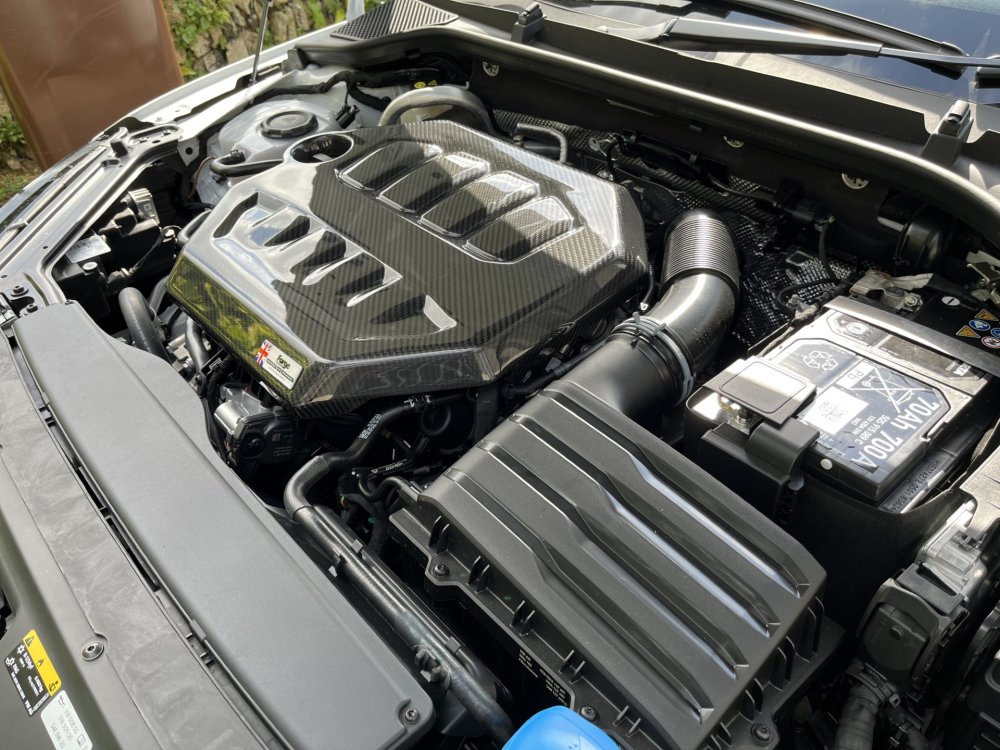
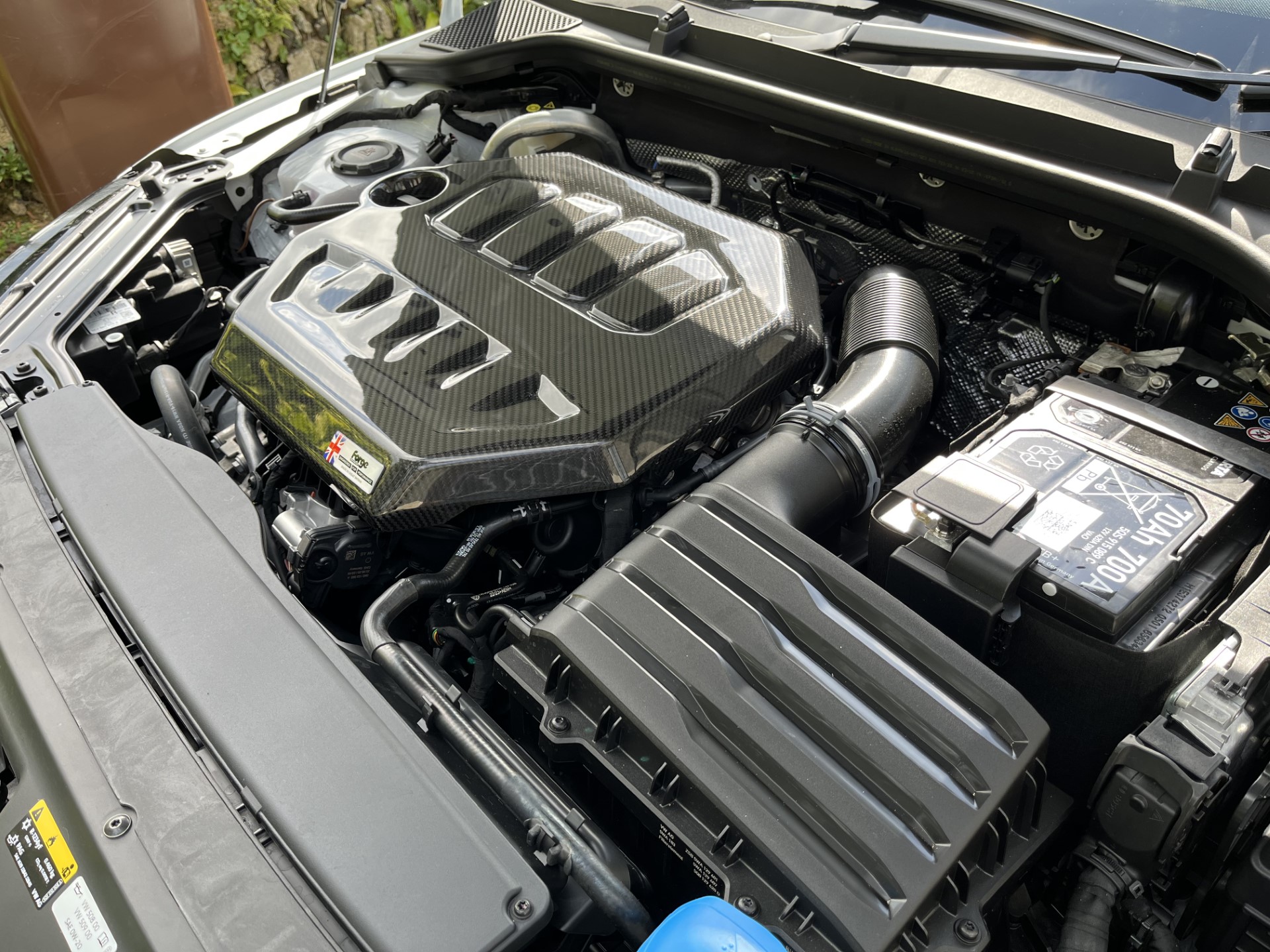
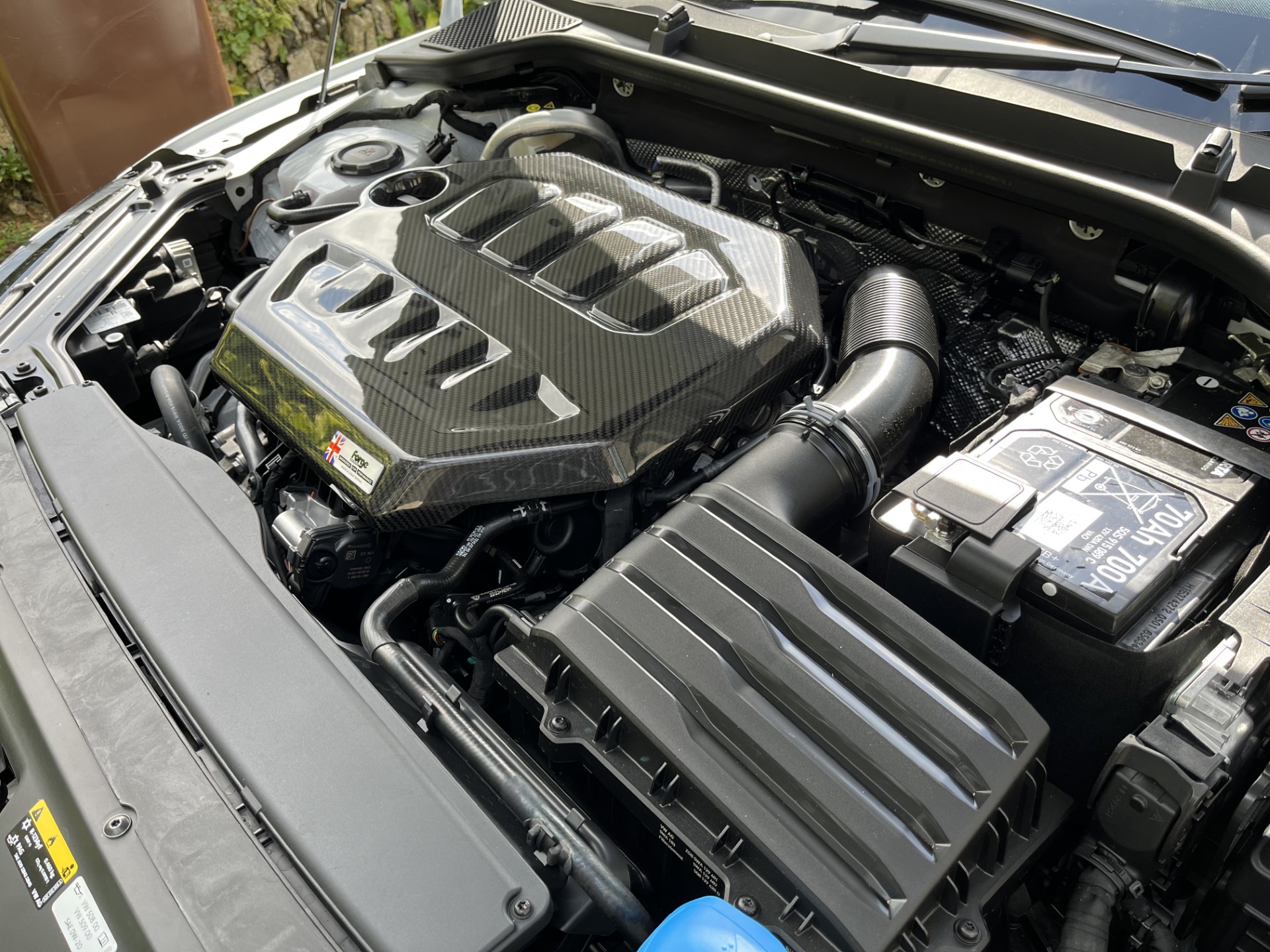
19 inch Becruz ..thumb.jpg.2511166df6bd230b296be09360019bde.jpg) I was thinking same thing . Although calipers do tend to get a bit corroded externally this one looks particularly bad at only 6 months old .I activated via Skoda Connect App . Cost was a 'one off' £63 from memory.Has anyone replaced their VRS Altair Wheels with Vegas ? I've never been a great fan of Altairs but love the new VRS and having owned one for a couple of months now the Altairs are still not growing on me ! I note that Vegas are 8J ET44 vs 7.5J ET48 on the Altairs and wonder if the Vegas would still be suitable for fitment with 225/40 tyres as are on the Altairs. If anyone has got Vegas on a VRS already I'd love to see an image. Thanks in advance for any help/info.The image is very similar to the one I have securing my space saver wheel .Hence reason I paid the £65 to have traffic sign recognition activated via the Connect app.I activated the traffic sign recognition on the Skoda Connect App . One off cost of c £65 .Standard routine when I get in car ...... Press the start button and immediately turn off stop start and lane assist 🙂Thanks all for the various inputs . I've hard wired the Aguri DX4000 now and it works perfectly. It would appear that the mirror C Port generates less than the required 3 amps required by the DX4000 but probably generates sufficient amps for most dashcams out there.Car is 3 weeks old now and arrived without cover . I purchased the one in image from Forge Motorsport .Like this ....
I was thinking same thing . Although calipers do tend to get a bit corroded externally this one looks particularly bad at only 6 months old .I activated via Skoda Connect App . Cost was a 'one off' £63 from memory.Has anyone replaced their VRS Altair Wheels with Vegas ? I've never been a great fan of Altairs but love the new VRS and having owned one for a couple of months now the Altairs are still not growing on me ! I note that Vegas are 8J ET44 vs 7.5J ET48 on the Altairs and wonder if the Vegas would still be suitable for fitment with 225/40 tyres as are on the Altairs. If anyone has got Vegas on a VRS already I'd love to see an image. Thanks in advance for any help/info.The image is very similar to the one I have securing my space saver wheel .Hence reason I paid the £65 to have traffic sign recognition activated via the Connect app.I activated the traffic sign recognition on the Skoda Connect App . One off cost of c £65 .Standard routine when I get in car ...... Press the start button and immediately turn off stop start and lane assist 🙂Thanks all for the various inputs . I've hard wired the Aguri DX4000 now and it works perfectly. It would appear that the mirror C Port generates less than the required 3 amps required by the DX4000 but probably generates sufficient amps for most dashcams out there.Car is 3 weeks old now and arrived without cover . I purchased the one in image from Forge Motorsport .Like this ....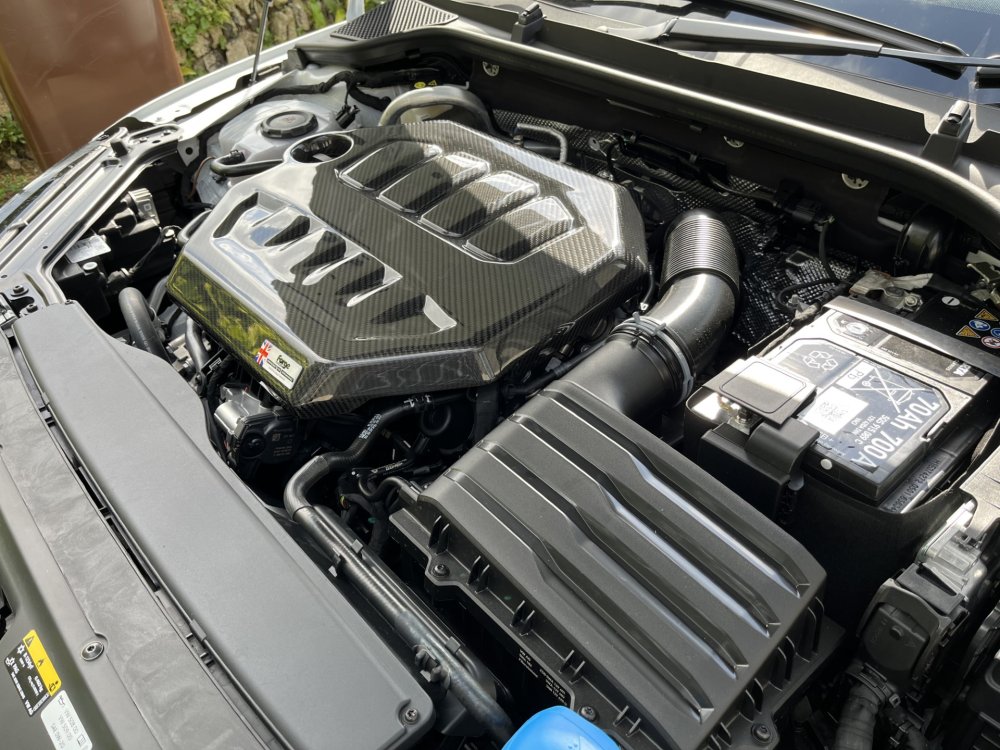 The Aguri DX4000 needs 3 amps Steve presumably due to the extra functions it provides .I've just bought the Aguri DX4000 which has added features inc. speed camera alerts and traffic sign recognition etc - have used their products previously and found them to be excellent. Hard wiring cost not an issue as kit came with the camera and I'll install it myself.This happened to me and I relocated it as per your comments above. The connection was solid afterwards but no charge to the Dashcam although it will charge an I Phone . I think Hairy Joe's comment about 1.2 amp output is correct hence unable to obtain the 3 amp supply needed on the DX4000.Thanks HJ , that would explain it . It's the hard wire route then .The Aguri in question requires 5v/3a so just need to find out the USB output in case it's a cable issue .Yes ignition on and engine running .No cover on my recently acquired 2023 VRS so I improvised with some carbon fibre ... expensive but 24 months interest free on Klarna soothes the pain 🙂
 The DX4000 Aguri Dashcam has a USB C charging Port instead of the usual min USB Port so I simply used a 30cm C to C cable but as I said previously , the power is not charging the Dashcam . There is power coming from the Mirror Housing C Port which I assumed would be at least 5V . The Dashcam does power up from the 12v boot socket using a 5V adapter. Skoda actually do a C to C cable so I might try one of those before going the hardwire route.
.jpg.5859a880492799cf4c5050d05ad00401.jpg)




.jpg.ef831b39376a2c514b5bdbf641516b6d.jpg)
.jpg.66c408a2ddee01626679475a58b3208f.jpg)
.jpg.91d1da6a392daefd412f43b3b19cc09b.jpg)

Important Information
Welcome to BRISKODA. Please note the following important links Terms of Use. We have a comprehensive Privacy Policy. We have placed cookies on your device to help make this website better. You can adjust your cookie settings, otherwise we'll assume you're okay to continue.