Skip to content

headgaar

Finding my way
  • Joined

  • Last visited

  1. @beneix I use Car Scanner app, available for iOS and Android. It has very good reviews and it never failed me. I can do everything that OBDeleven does. I think I paid 7 euros for a lifetime subscription, but you can do a lot of things even without paying. I think their website is carscanner dot info.
  2. I don't use the Vgate as a fit and forget. I use it as I would use OBDeleven or VCDS. When I need to do something in my car, I plug in, do it, and then unplug.
  3. Vgate iCar Pro elm327 V2.3 + Car Scanner app for iOS or Android.
  4. All you need is Vgate iCar Pro elm327 V2.3 and Car Scanner app for iOS or Android. Believe it or not, it does everything that the other solutions do, including long coding. I have used it on my Kodiaq from 2019. OBDeleven is too expensive for me.
  5. I had to top-up for my Kodiaq 2019. Container says G13. VW specification for G13 is VW TL 774 J. Doesn't matter if you use different color. Just make sure you use that spec. In my case, I bought 'ready to use' so I didn't had to mix it.
  6. for everyone looking for updates, I believe you missed what I wrote before. you can check by yourselves if there's any update, which is pretty cool
  7. latest is 0480 -> https://mibsolution.one/index.php/f/142698
  8. regarding infotainment, you have the latest update. i have no answer for your other questions
  9. I doubt that @varooom will answer since last time he was online was August of last year. After a bit of digging, I found the files and tutorial that anyone can follow. to check if there's any update and download: https://mib-helper.com/ tutorial: don't think we need anything else
  10. I didn't understand what do following that German forum... @varooom do you have any update for this one? thanks
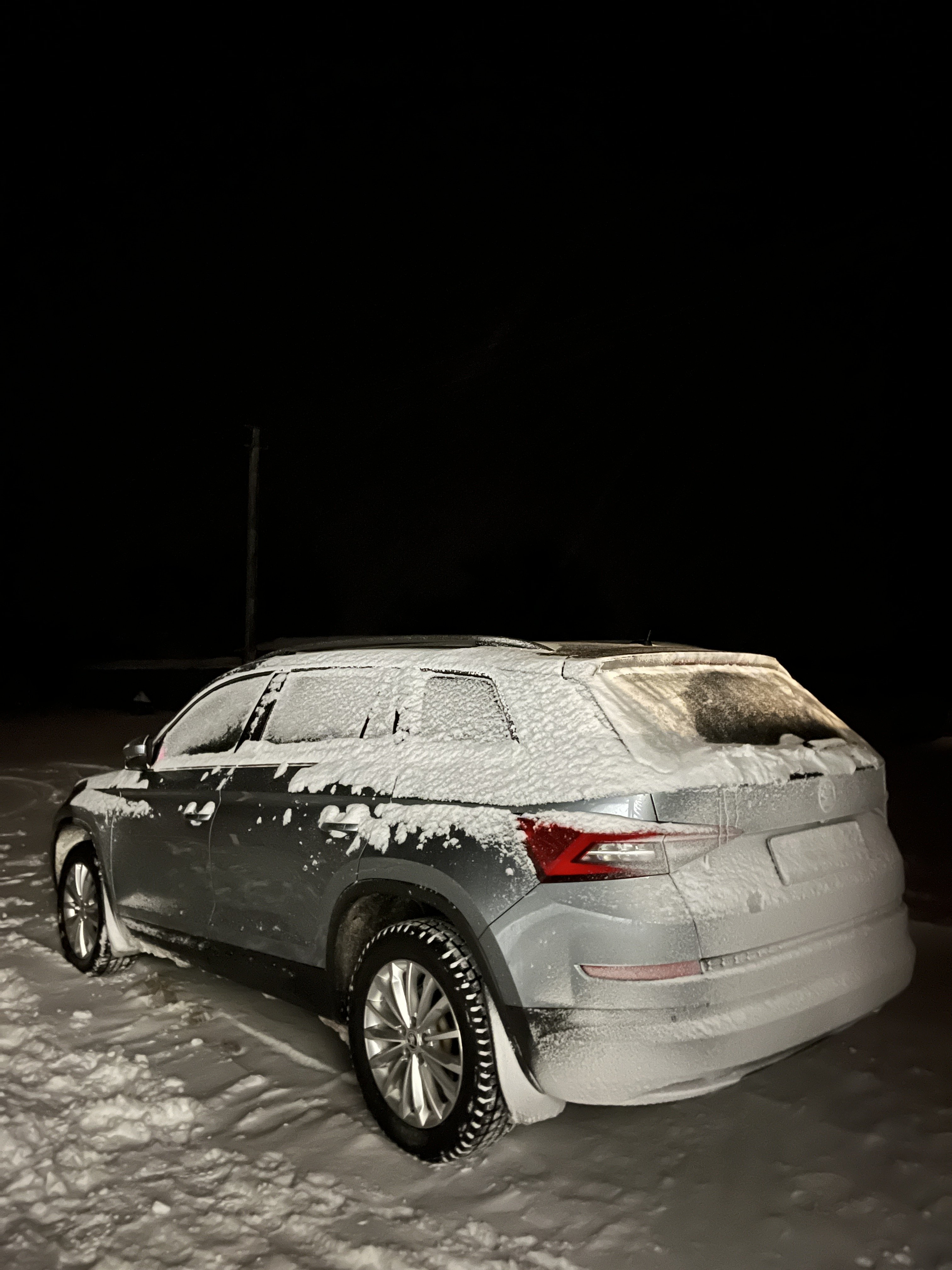
  11. Hello everyone from Vilnius, Lithuania. I'm a Portuguese guy living here for some years already. Bought my first Skoda few months ago, an used 2019 Kodiaq 1.5 TSI DSG.

Important Information

Welcome to BRISKODA. Please note the following important links Terms of Use. We have a comprehensive Privacy Policy. We have placed cookies on your device to help make this website better. You can adjust your cookie settings, otherwise we'll assume you're okay to continue.

Account

Navigation

Configure browser push notifications

Chrome (Android)
  1. Tap the lock icon next to the address bar.
  2. Tap Permissions → Notifications.
  3. Adjust your preference.
Chrome (Desktop)
  1. Click the padlock icon in the address bar.
  2. Select Site settings.
  3. Find Notifications and adjust your preference.