Skip to content

Benja77

Members
  • Joined

  • Last visited

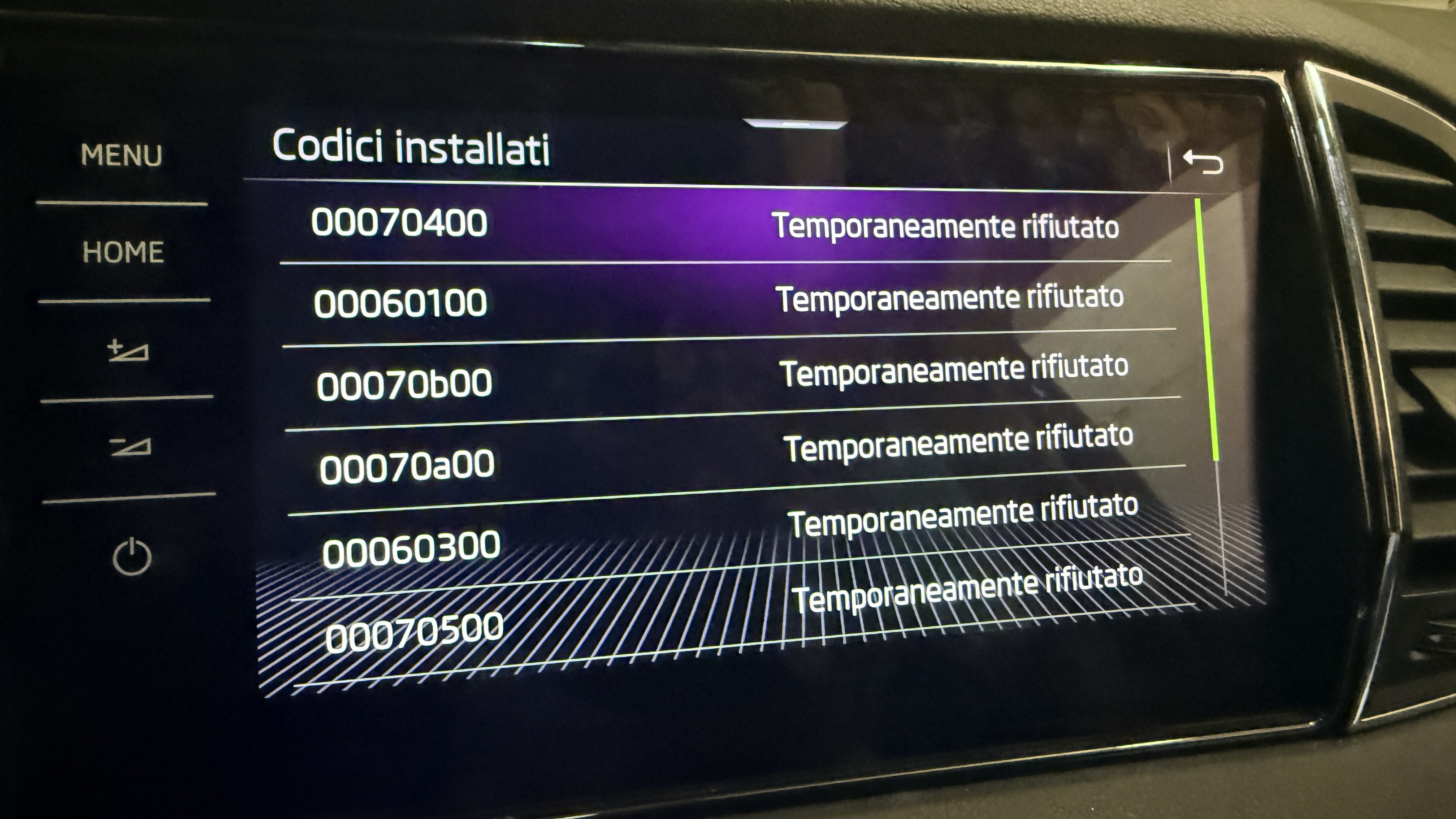
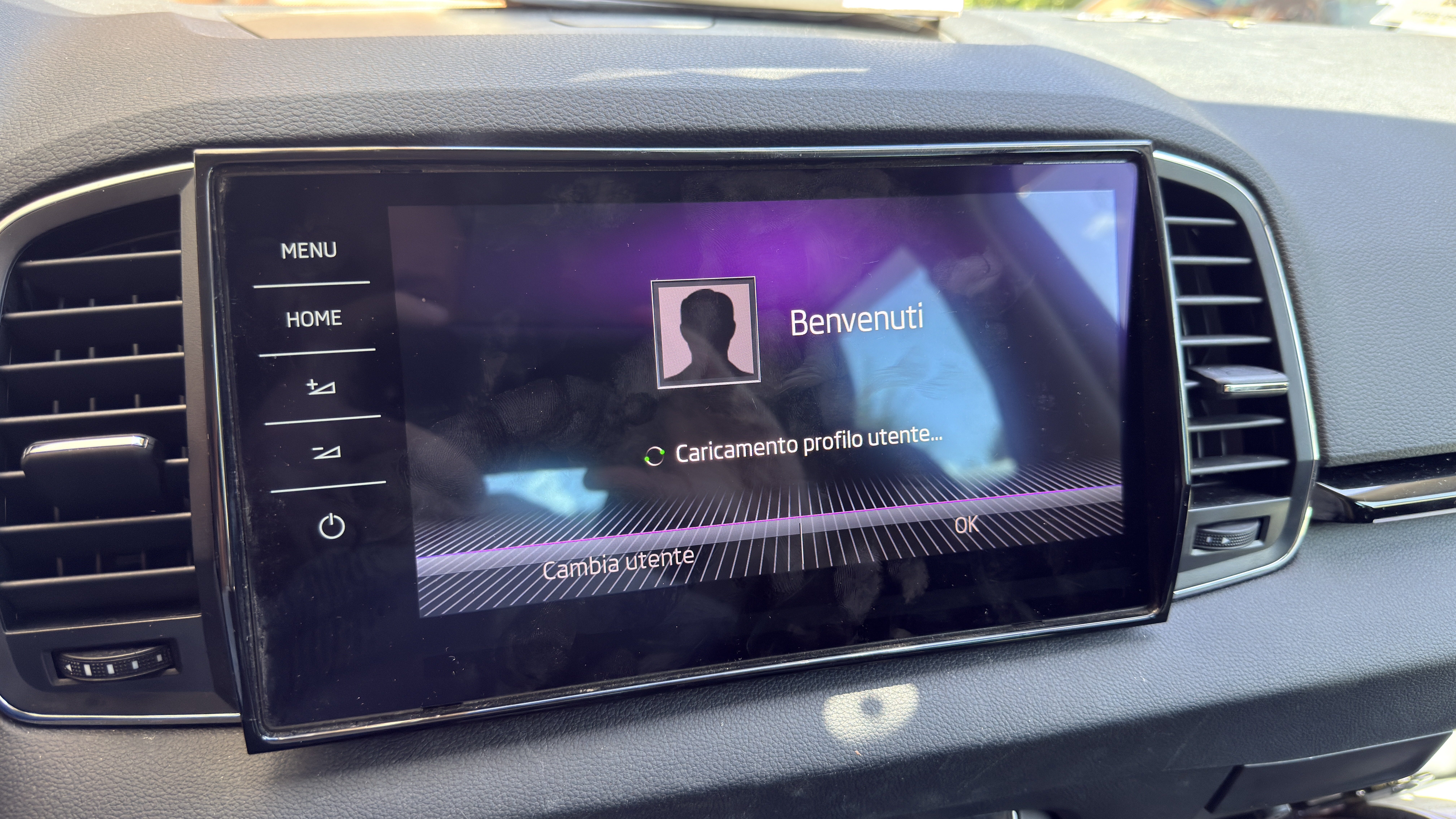
  1. Talking with a friend of mine, who know coding quite well, we realized mechanic just replaced the unit a screen without doing the replacement procedure first! That’s why the licenses/FEXs were NOT transferred from old unit to the new one
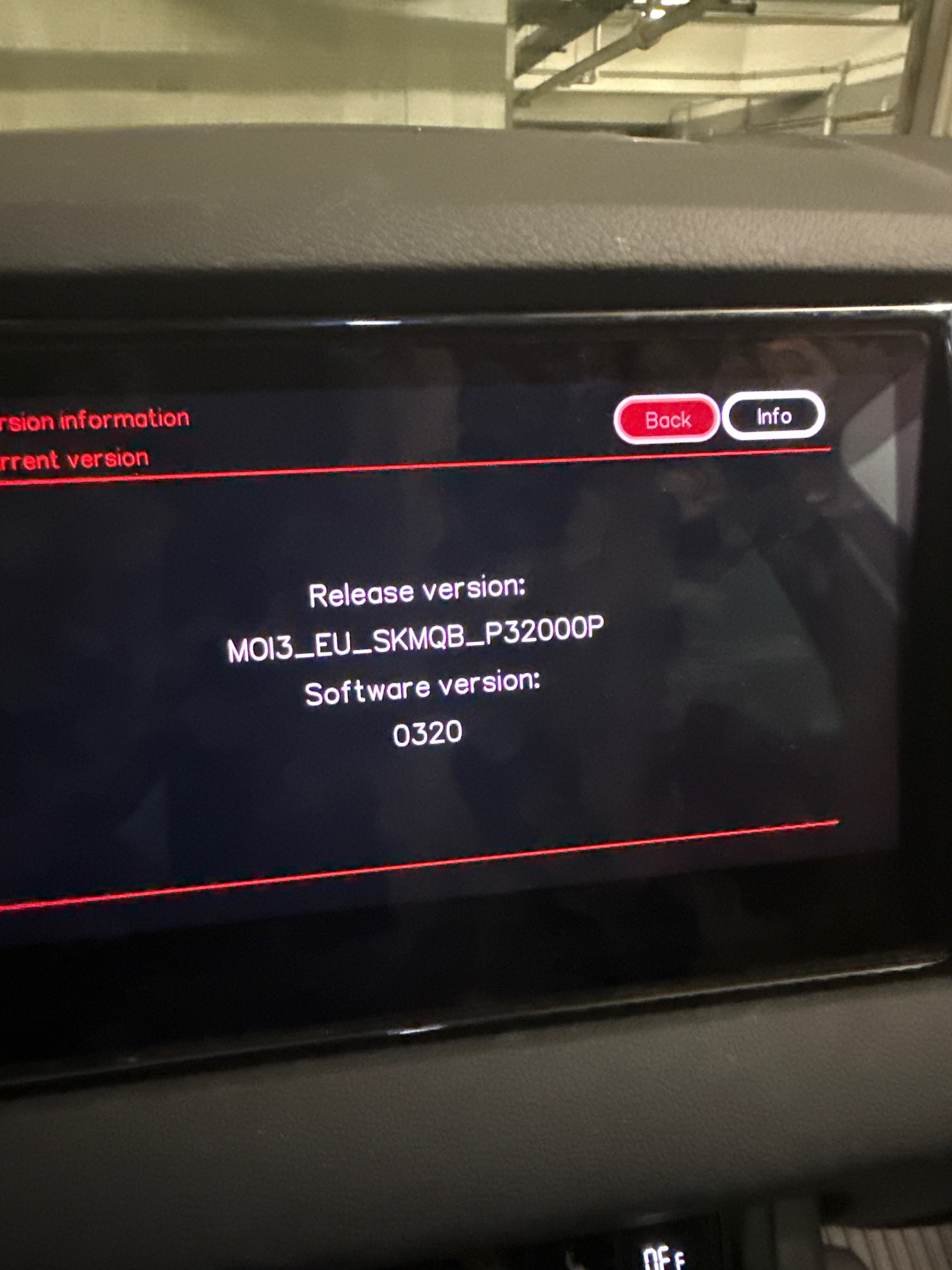
  2. But point I’d like to keep on using at least smart link to connect my iPhone as GPS and vocal commands. However I didn’t patch unit at all; only thing I can do right now will be upgrading the MIB’s firmware to version 324 or 330 (actually is 320)
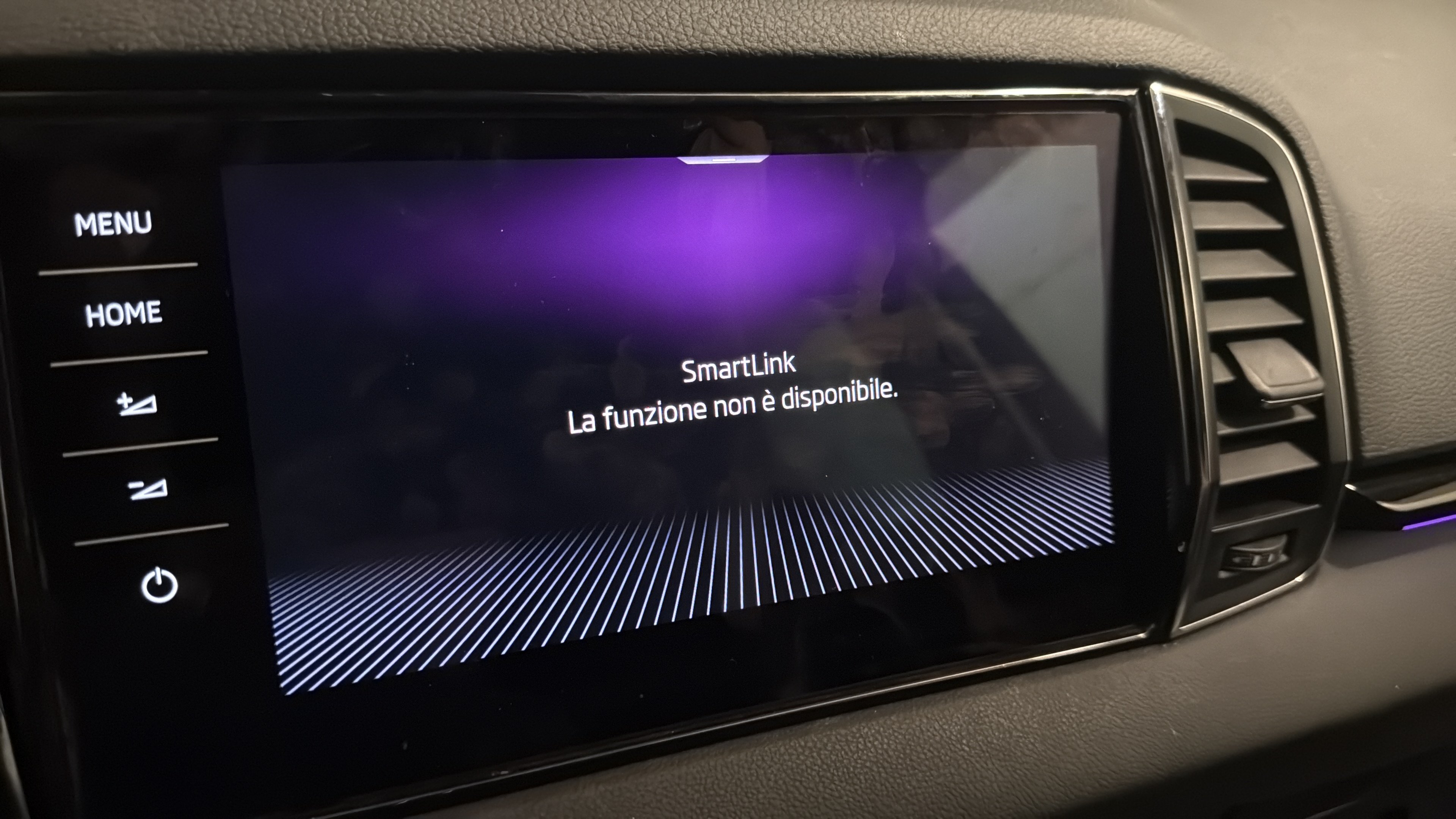
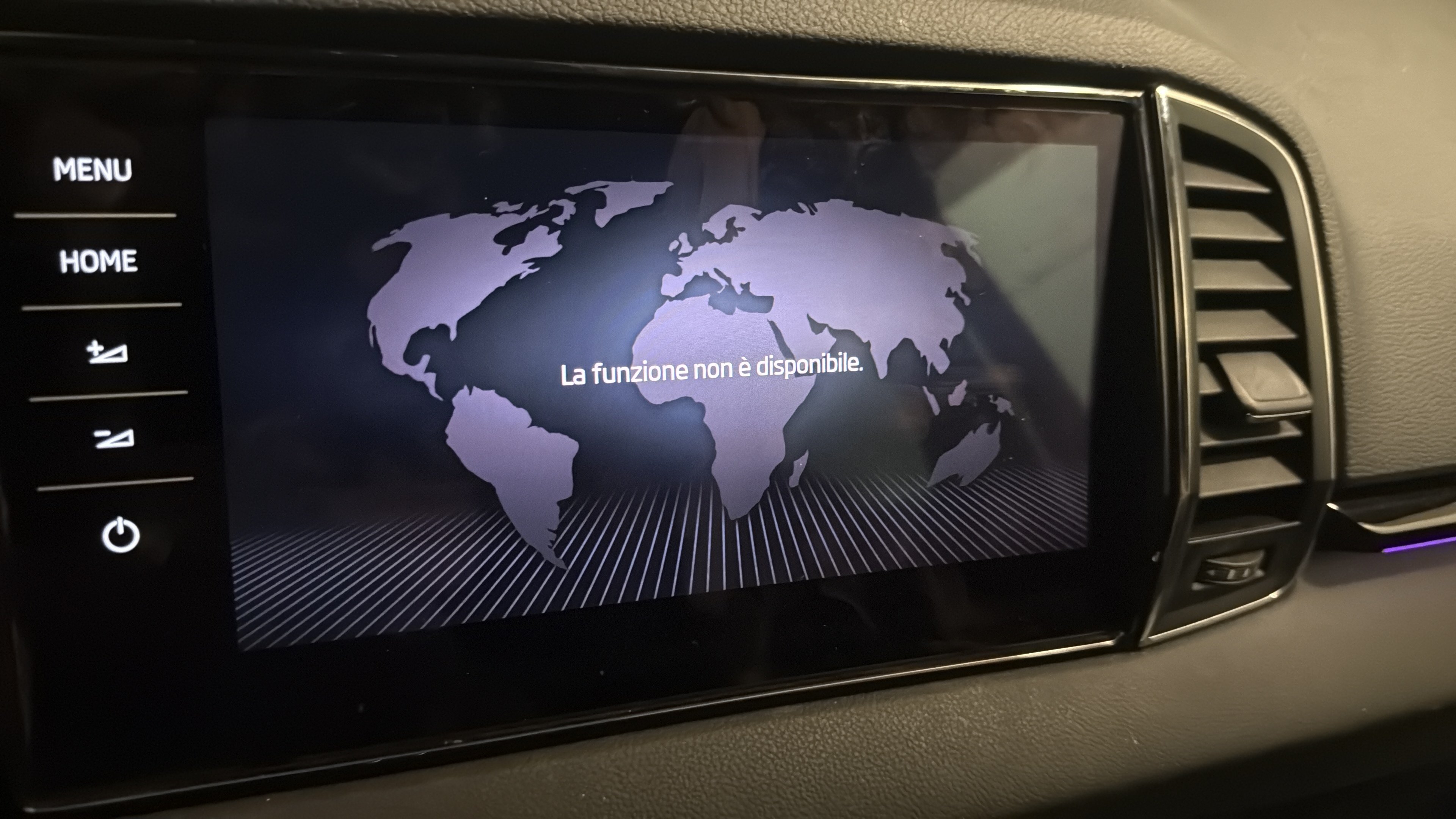
  3. Component protection removed and retrofit done but navigation, smartlink and vocal commands don’t work. But online services via app are on Looks like the FECs didn’t migrate yet! Any idea how solve this without patching the unit?
  4. Yes it’s a MIB3; i prefer not to patch as I want to keep all the services connected
  5. I was lucky: got it for 130€ from a totalled car in a wreckage shop with regular invoice
  6. Now I need only to ask Skoda to remove the old component protection and apply to the new mib
  7. As far as I can see, in the linked post there's everything I need to make them work/replace
  8. Question for those who have standard ambient lights (it doesn't matter if 10 or 30 variations): do Your footwells change the color too? In my car, which has ambient light standard (it's a 1.5 Style, equivalent to a SEL), according to the infotainemnt screen footwells change color BUT in reality they keep on staying white! Instead, if anybody replaced with those RGB, can please tell me the part numbers and if I need other parts?
  9. Sending a dm
  10. That’s what I heard too, but 4x4 cars have it! I believe I should coding something more, like simulating the presence of a 4x4 traction, changing parameters of abs, traction control etc. too risky imho
  11. Yes
  12. Hi! I tried but nothing; any other suggestions?
  13. In Skoda they told me I can get the K or the P, and I found a good deal on the K

Important Information

Welcome to BRISKODA. Please note the following important links Terms of Use. We have a comprehensive Privacy Policy. We have placed cookies on your device to help make this website better. You can adjust your cookie settings, otherwise we'll assume you're okay to continue.

Account

Navigation

Configure browser push notifications

Chrome (Android)
  1. Tap the lock icon next to the address bar.
  2. Tap Permissions → Notifications.
  3. Adjust your preference.
Chrome (Desktop)
  1. Click the padlock icon in the address bar.
  2. Select Site settings.
  3. Find Notifications and adjust your preference.