logiclee
Resident Member
-
Joined
-
Last visited
-
The new 0334 update solves the Updates issue and also solves Wireless Android Auto connection and audio drop issues and slow response in CarPlay
-
Are you still on 0330 or the latest 0334?
-
Whoops should have read a bit further. Wireless Android Auto is flawless for me now. It was a pain before.
-
I don't think you can do that on MIB3?
-
Instead of the usual autoupdate screen you should get a full screen System Update notification. Mine still took a day to do it.
-
I have Android Auto set to Autoconnect and start which it used to do wired but wirelessly it would always bring up the "Connect to Android Auto" screen. I'd accept and connect then sometimes it would drop and bring the connect screen again. Also once connected in wireless Android auto I'd get the odd Audio drop out. On 0334 as soon as I switch on Android Auto auto connects wirelessly and no Audio dropouts.
-
For me 0334 has not only fixed the continued update issue it's fixed the connection issues I had with Wireless Android Auto
-
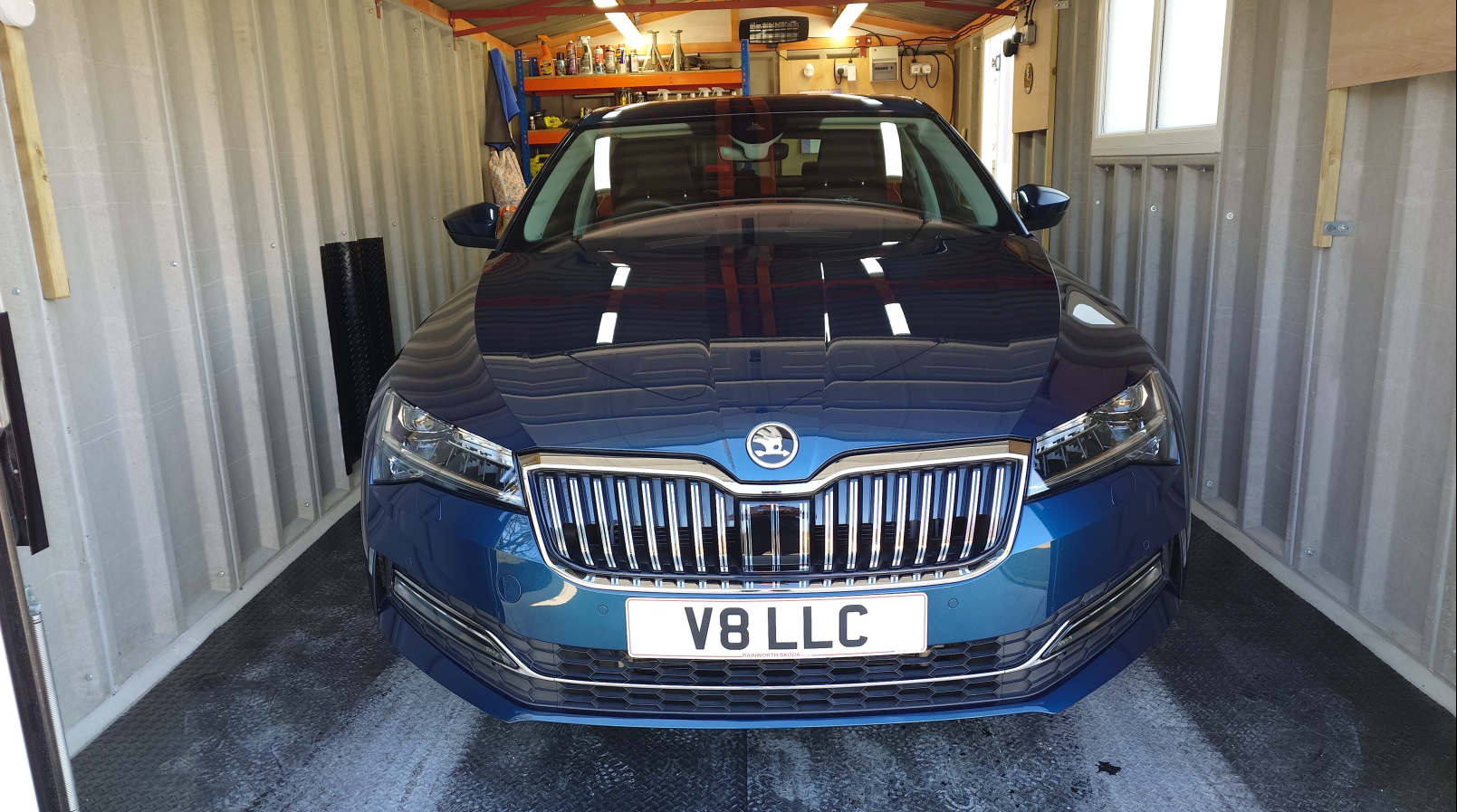
Skoda Superb Facelift Matrix LED.
-
Mine in my post above is on 19's
-
45-50mpg on a run is easy enough from the 2.0TSi 190.
-
If you wanted standard but the next weight class up wouldn't that be 1JP-OYG?
-
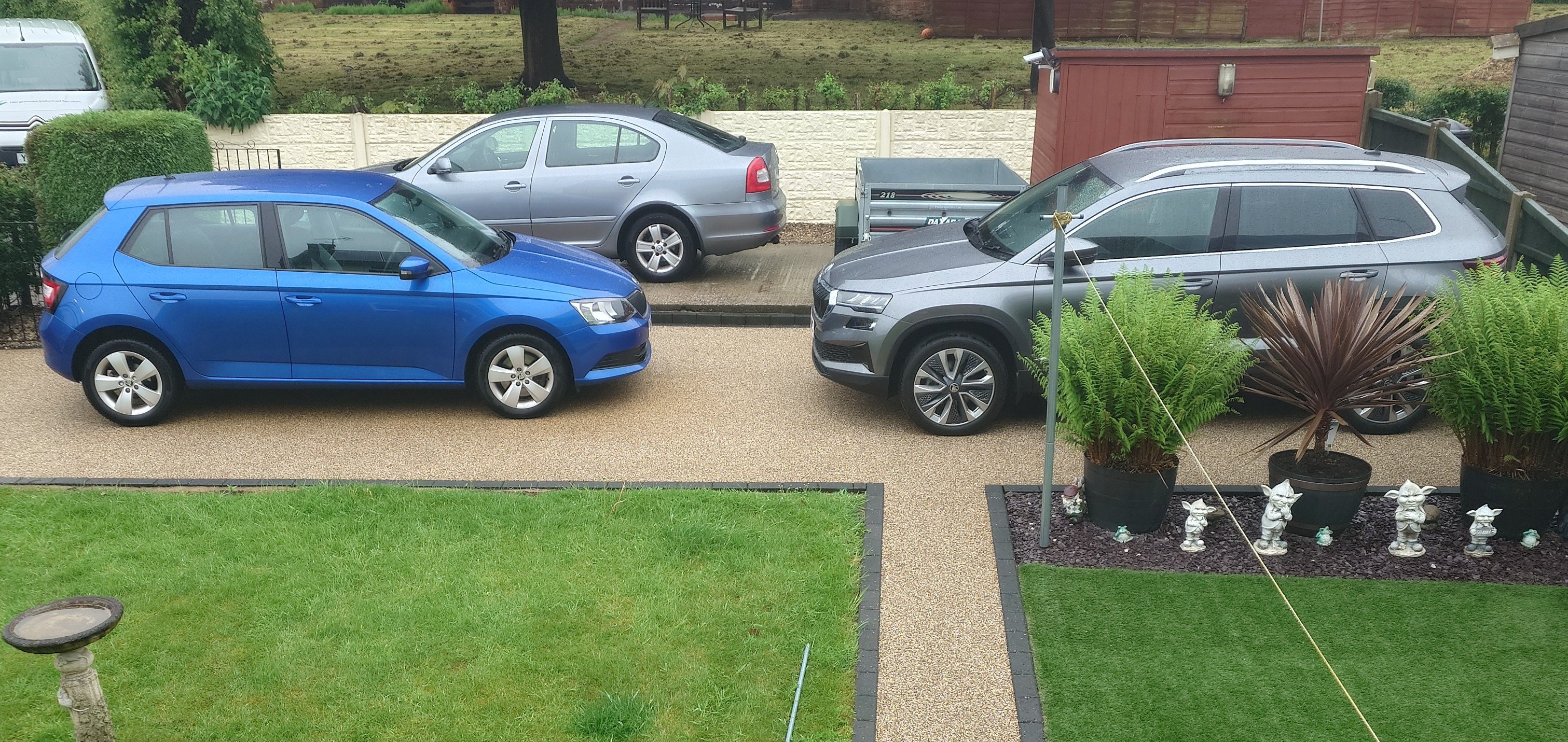
Can't help with your specific application. But I have a 2.0TSi FWD with DCC and factory towbar. I read elsewhere that factory towbar increased the rear springs stiffness from factory. But when I looked into what mine had fitted it was no different to cars without towbar. Edited to add. When towing a trailer with 80kg noseweight I tend to use the DCC in Sport.
-
For a 2023 Sportline you should have full matrix LED if you have them enabled not just High/low beam.
-
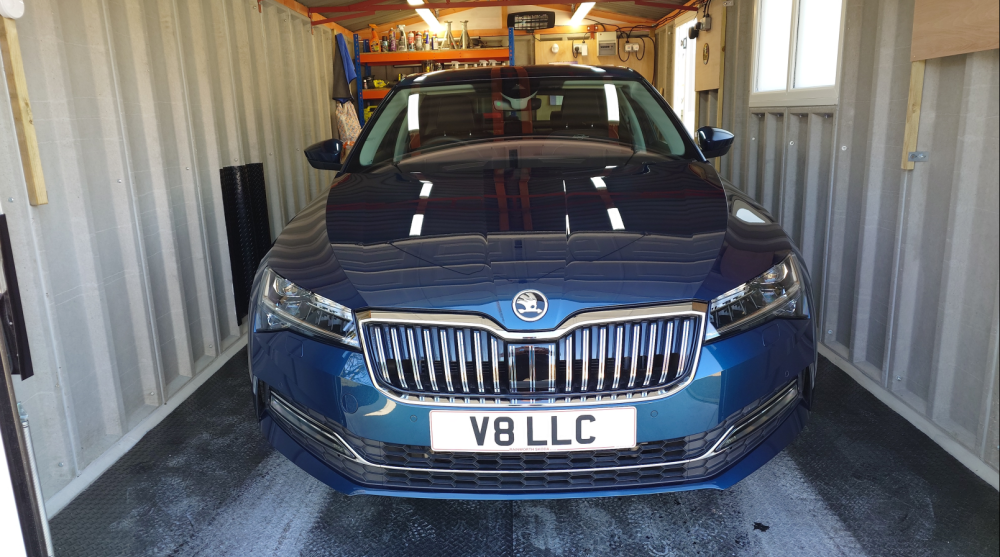
Doesn't the car fit?
-
https://www.premierservicecentreltd.co.uk/