



Skip to content

VAG-COM Security access code issue
Featured Replies

I have a recently purchased VAG-COM from ross tech and i need to do a FORCED DPF REGENERATION on my vehicle but it wont give the security access code when i highlight the box. I have tryed the security access code which should work for all diesel engines which 12233 but doesnt work can anyone help?


Vehicle details:

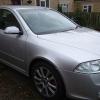
Skoda Octavia vrs tdi 

year: 2007 

engine: 2.0tdi 170pd 

  • Author

That's just for enabling the dpf light to Come on

I am surprised no code is being prompted as suggested by the wiki.  I've never had one not pop up before


[security Access - 16]

  • Enter the Code shown by VCDS next to Adaptation Enabling (e.g. Regeneration while Standing)

That's just for enabling the dpf light to Come on

I don't know the specifics as I haven't got a PD engine. I read it as once the code is entered (which may turn the dpf light on) you need to go for a drive meeting the requirements outlined. The soot levels should then drop.

If your trying to do a stationary regen, that page suggests it's only possible with a CR engine.

If it isn't working then I'd suggest posting a thread on the rosstech forums with an autoscan as they can offer better advice :-)

If the dpf light is on then it's in regen mode where you need to go for a drive, preferably uphill, in 5th at around 2k revs. you'll never get a BMN ppd170 to do a static regen...

  • 1 year later...
1 hour ago, RAFA said:

I bought last week a 12.12 vagcom

Software version 12.12 means what you have bought is almost certainly a third party rip-off not a genuine VCDS lead, that is currently at software version 17.8 (17.10 beta).


Ross-Tech (the developers of VCDS) won't give you any support.

We have links with RossTech (lots of genuine cable users) and do not endorse the use of copy cat cables.

20 months old topic.

30 minutes ago, Rustynuts said:

20 months old topic.

Posts from yesterday re. pirated VCDS have been removed.

Create an account or sign in to comment

Recently Browsing 0

  • No registered users viewing this page.

Important Information

Welcome to BRISKODA. Please note the following important links Terms of Use. We have a comprehensive Privacy Policy. We have placed cookies on your device to help make this website better. You can adjust your cookie settings, otherwise we'll assume you're okay to continue.

Account

Navigation

Configure browser push notifications

Chrome (Android)
  1. Tap the lock icon next to the address bar.
  2. Tap Permissions → Notifications.
  3. Adjust your preference.
Chrome (Desktop)
  1. Click the padlock icon in the address bar.
  2. Select Site settings.
  3. Find Notifications and adjust your preference.
