bigade1
Members
-
Joined
-
Last visited
Everything posted by bigade1
-
Do you mean these ones: https://www.ebay.co.uk/itm/Genuine-VW-Audi-10-Wheel-Arch-Undertray-Interior-Exterior-M5x16-Screws-N90974701-/173252476525
-
Translation please?
-
I should imagine all the various models have similar menus - on my Amundsen MIB2 you press the " menu " button then scroll to " settings " then scroll to " language ". Male or Female voice option is situated inconspicuously at the top of the list. Hope this helps.
-
If that's the case then my speedcams should work for your device and my latest ones are indeed the SCDB ones for Europe so therefore Norway is included.
-
Hi, 1. Sorry, but I wouldn't think so - Amundsen+ is an earlier system ( RNS315 ) so it requires a different format. 2. Sorry - I don't know the answer to that one.
-
I believe that in this case OEM means Skoda branded. You cannot get a non OEM card to work as the Skoda ones contain hidden hard coded files. For instance, you can't just copy a map onto a non OEM card such as SanDisk or Kingston etc. It just wouldn't be recognised by your navigation system.
-
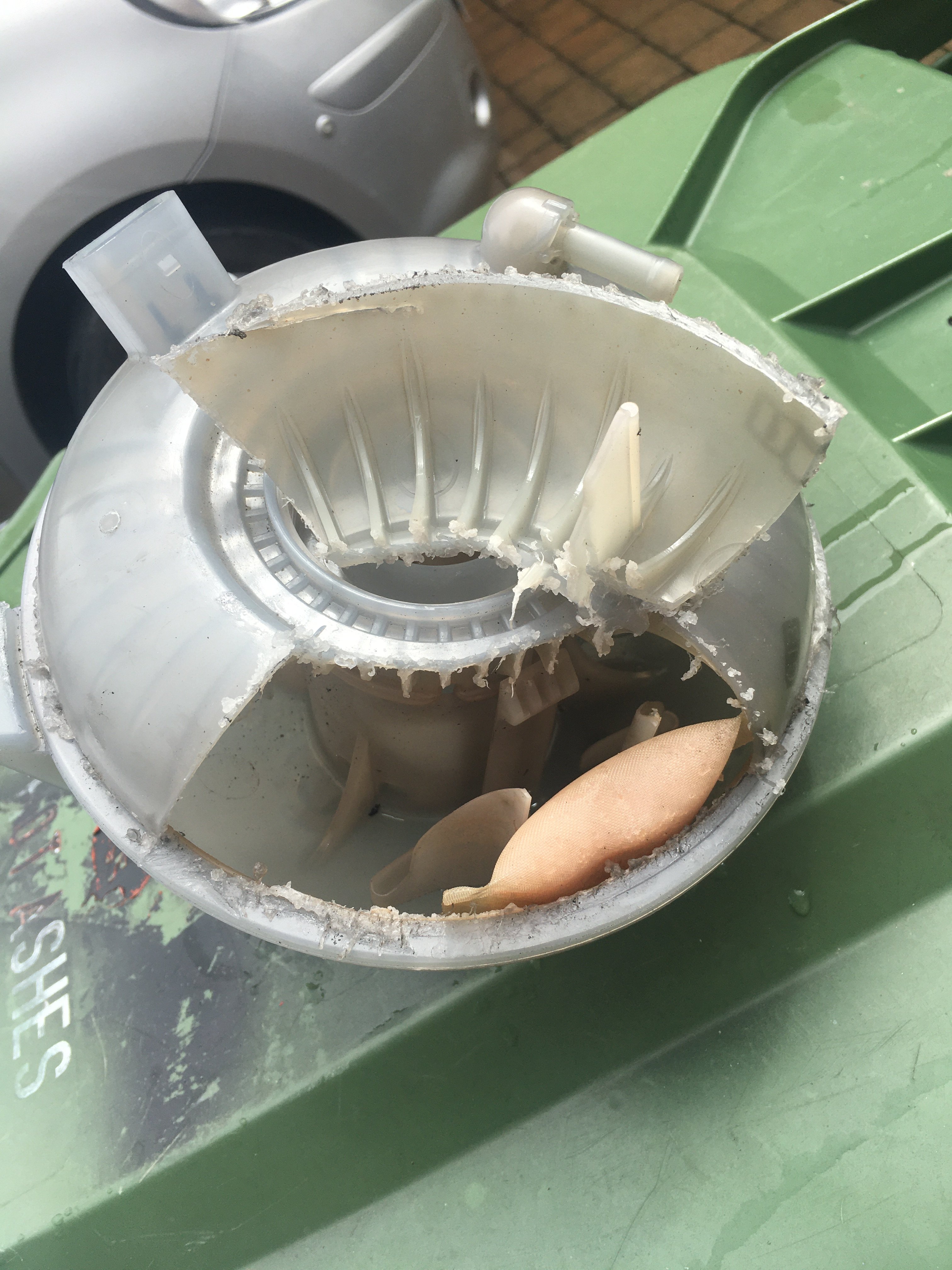
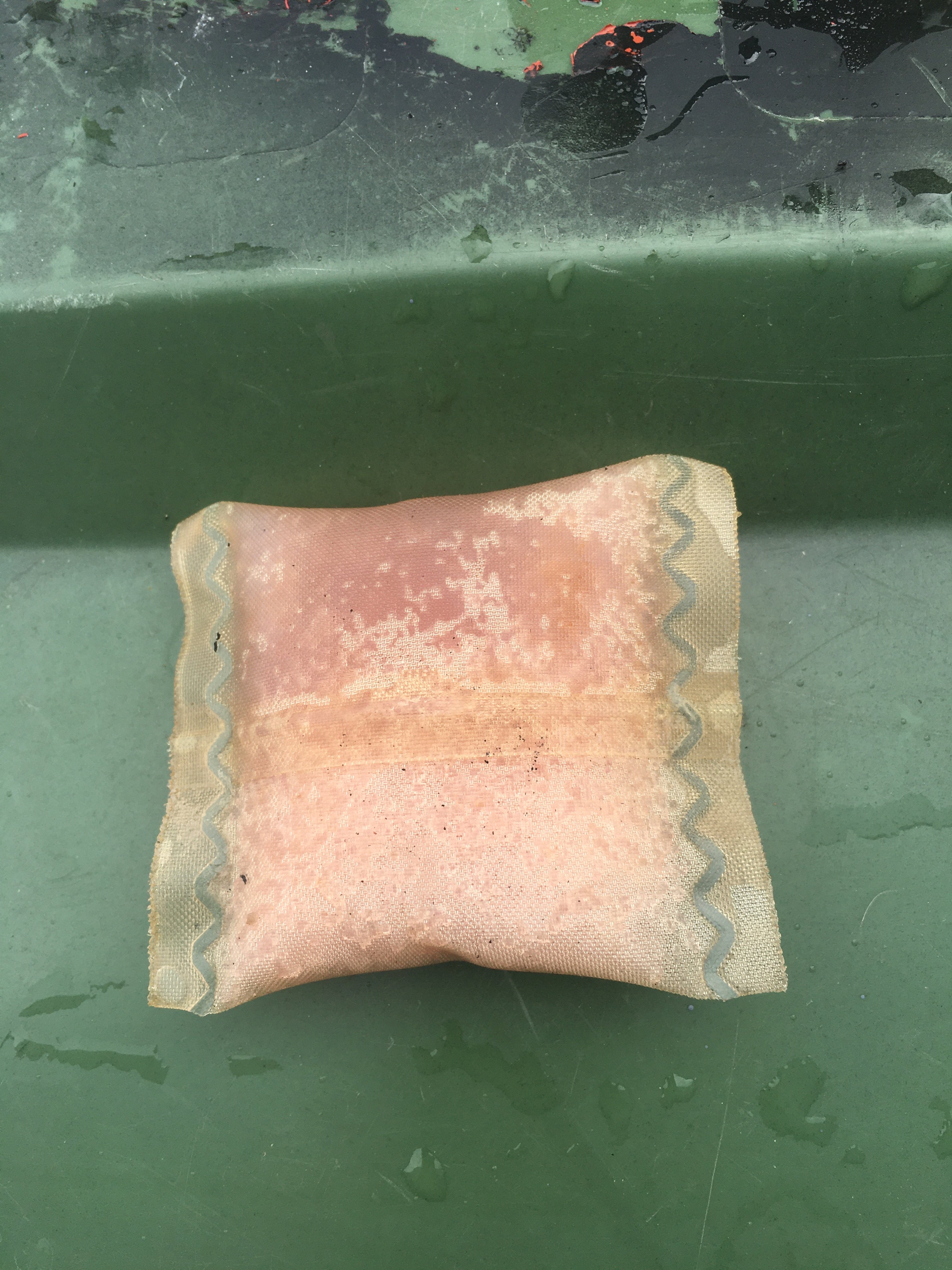
Ok after a good read of this thread and seeming as my 17 plate 2.0L Diesel SEL Octavia has now come out of warranty I've decided to go " teabagless ". My original expansion bottle has the part no. 5Q0121407G and is the version that has an inner and outer chamber with the " teabag " situated in the outer chamber and therefore no way of removing it. Interestingly, my mate's 16 plate 1.6L Diesel Estate has the single chamber expansion bottle which he fished the " teabag " out, yet it had the exact same part no. So the same part no. covers single and double chamber expansion bottles. For peace of mind I've now fitted the 5Q0121407M single chamber bottle as referenced in this thread at a cost of approx. £29 sourced from my local VW dealer. I couldn't be bothered to wait 2 days for TPS to order one in for me. It was roughly a ten minute job to do and I even managed to keep the fluid from flowing out of the old expansion bottle and then transfer it to the new one saving me the need of topping it up. I've cut out a section of my old two chamber bottle and posted a picture of it for those who are curious to see what it looks like. I'm a bit unsure though whether the teabag was behind or in front of the two plastic ridges. Also, but not really sure, it looks as if the corner of my " teabag " might be starting to become loose so thankfully I might have done this mod just in time.
-
I would'nt think individual coding is necessary for it to work. As long as it's a genuine card it will be hard coded for any Skoda Amundsen MIB2. I'm sure PetrolDave will be able to confirm this.
-
Looking on a well known auction site it seems that the 32gb card for the Amundsen MIB2 unit is 5L0051236BG but I would check with the seller first.
-
Yes, you should be ok. I'm using the map and my card is only 16gb too.
-
Unfortunately, no. The software doesn't allow it.
-
Yes I agree. But you stated in your post that and I quote But Discover Media 2 (Amundsen MIB2 ) from 11/7/19 are 2020/2021 map files which are compatible with Amundsen MIB 2 and are available on the VW portal and have been since last year ( November ). They have now been recently added to the Skoda site as well. Your post says they're not available on the VW site. Well they definitely are. I agree VW haven't updated them yet but VW are usually about six or seven months ahead of Skoda so I would imagine the next version will be available soon. I suspect that if they follow the previous titles they will be called ECE AS 2021 and won't appear on the Skoda site until towards the end of the year.
-
@Williami33 That's incorrect. DiscoverMedia2_EU_AS_1430_V12.7z has been available to download on the VW site since November last year. I've had it installed on my Amundsen MIB2 since that time and it states in its internal files that it is ECE AS 20/21 which is the same info that is displayed on my unit. It's still available for download too. Maybe you're checking the wrong car/unit on the VW site?
-
@TheWanderer On my Amundsen MIB2: Press the menu button - scroll to settings - scroll down to system information. Alternatively, if I press and hold the menu button in for a few seconds it goes into the service menu and lists all the specific softwares. I would imagine all the devices are similar.
-
Yes you've got it. You can increase the volume on it but you can only achieve this by adjusting the volume while it's making the noise - so you need to be quick. Unfortunately, as you've already noted it's a pretty poor alert and there's no way to change it to a different sound. Even on max volume it's not really that effective but it's better than nothing I suppose.
-
Despite the icons being visible I don't think the audible alerts work in demo mode. Hopefully, the hard reset might be the only thing required as it resets all the volume levels.
-
It works constantly. I.e. as long as the unit is powered up. Works whether nav is on or off. Just put the radio on or a mp3 and it will interrupt it. I think you will hear a very brief silence if the alert volume is too low.
-
@smipx Hi Paul - I've just had a quick check and I can confirm that your config.ini looks fine to me and the DB3 data is an exact match of mine. The number 1 under the warning filter column is the correct value to enable the audible alerts and all the other fields should be blank. I use DB Browser for SQLite and I suspect you are using the same. I further suspect that it might actually be your settings that need adjusting. The audible warning makes a kind of " gloop " noise and it's independent of the satnav volume instructions. Furthermore, it alerts you when no route has been set ( no audible satnav instructions ) and interrupts the radio or if you are playing your media. My advice would be to firstly do a hard reset of your infotainment system. While it's switched on - hold the power button so that it switches off but keep it pressed in until it comes back on. It takes approx. thirty seconds and no settings are lost. I've had to do this once or twice in the past after my alerts have stopped working. Your next step then which i suppose is a little bit tricky and a bit hit and miss is to drive past one of your icon locations with the radio set at a reasonable volume setting ( no route set either ) and keep a ear out for slight stutter or a brief silent pause and quickly adjust the volume up so you can hear the brief " gloop " alert. The volume setting of the alert is independent of any other volume settings. It might take a few goes to succeed and bear in mind it goes off before you approach the icon. I'm confident that there's no issue with your files. Let me know how you get on.
-
The "first" POI folder along with the accompanying meta text file should do the task.
-
Ok once again for whoever wants them is my latest customised version of EU Speedcams ( June, 2020 ). They consist of EU speed cameras which I've split up into four consolidated poi categories i.e. Fixed Speedcams, Average Speedcams, Variable Speedcams and Redlight Speedcams. They come supplied with my own preferred personal choice of icon to match each of the categories. Remember to Install them as I explained in the first post in this thread i.e. after extracting the zip file remember to place only the PersonalPOI folder and metainfo2.txt file onto your sd card ( Please Note: a usb stick will not work! ). Also, please remember to select/tick the relevant newly added poi categories and the poi audible warning alert in the menu settings after performing the update or they will not display on your map or audibly alert you. Enjoy! EU Speedcams June,2020.zip


-
Step 1. Install the free VW Pre Compiled Database located on the download section of this site to your PC: https://free-speed-cam-updates.web2diz.net/ Step 2. Unzip/extract the files on your PC and copy the contents of the resulting folder onto a SD card. ( Important points to note: Only copy the contents of the main folder i.e. Do not copy the resulting extracted folder named Volkswagen PersonalPOI - just copy the contents that are displayed inside that folder which is a folder named PersonalPOI and a metainfo2.txt file. Delete the readme.txt file as well as that is unnecessary. Also further note that despite trying to use 2 different usb sticks unsuccessfully only an sd card would work for me. I used the sd card which contains my music files but remember to delete the copied files off afterwards as sometimes they may prevent your music from playing and they are no longer required as they have been copied to the internal memory of the Amundsen ). Step 3. Using the "manage memory option" of the nav settings upgrade the software. Step 4. In the "map" settings chose poi categories, scroll to the bottom and the newly added items should be displayed there. Tick these to activate them. Step 5. In the "nav announcement" settings of the nav settings make sure that there is a tick in the "My POI" item. This enables an audible speedcam alert. To sum up - it's pretty easy to do and it's free and there are monthly updates on the site. On the downside - I'm not sure how reliable and up to date the database is as I've already had to manually edit and remove an out of date camera from my location. IMO the audible alert is a bit feeble and can't be changed but it's better than nothing. I'm not too fussed on the camera icons either. I hope this post is of help to others and I would like to thank the contributors of the other threads regarding this topic on this forum from whom I have gained my insight. I have compiled my own version with my preferred choice of speedcam icons limited to UK fixed cameras and traffic light cameras using the VW database on the above site which I've attached below to share if anyone wants them. Remember to only copy the files as per the above instructions. My Uk Speedcams.zip