


Skip to content

BooBoo124

Members
  • Joined

  • Last visited

Everything posted by BooBoo124

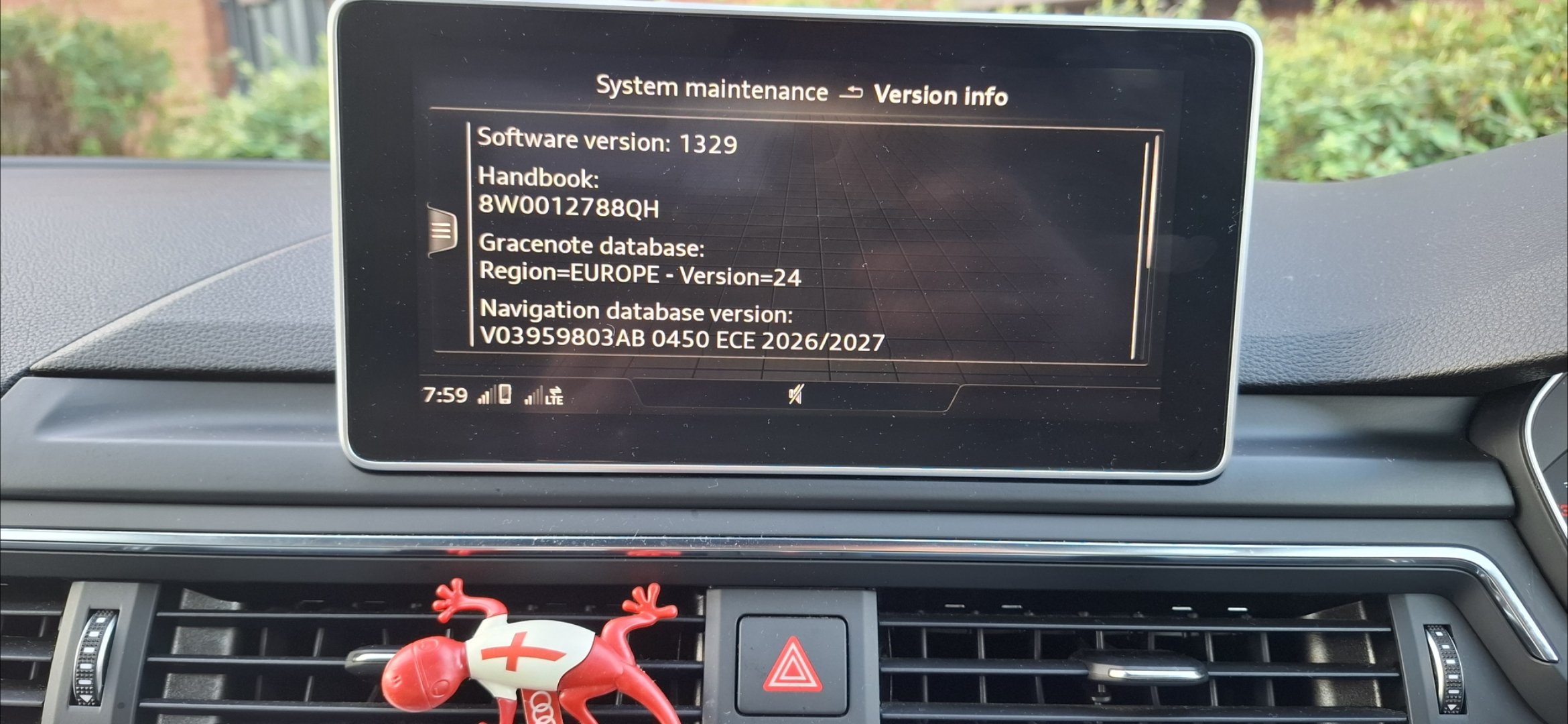
  1. I have downloaded the latest database. My Audi Harman MQB2 high wont accept it via SD update. I get a conflict error. So I and rename the stl.1vw file to VW_STL_DB.sqlite and update via More Incredible Bash tool
  2. This update has given logos to all stations on my Audi MiB2. Best update yet for me 😁
  3. @Tell can't fill them using that method on the Audi. I rename the the STL.1vw file to vw_stl_db.sqlite then upload it via more incredible bash on the green screen
  4. A new data base for MIB2 v1.10.64 of 01.12.2025
  5. I use the 23000ee from more incredible bash. I bought shells home from the Maldives one of those still had a live crab in it
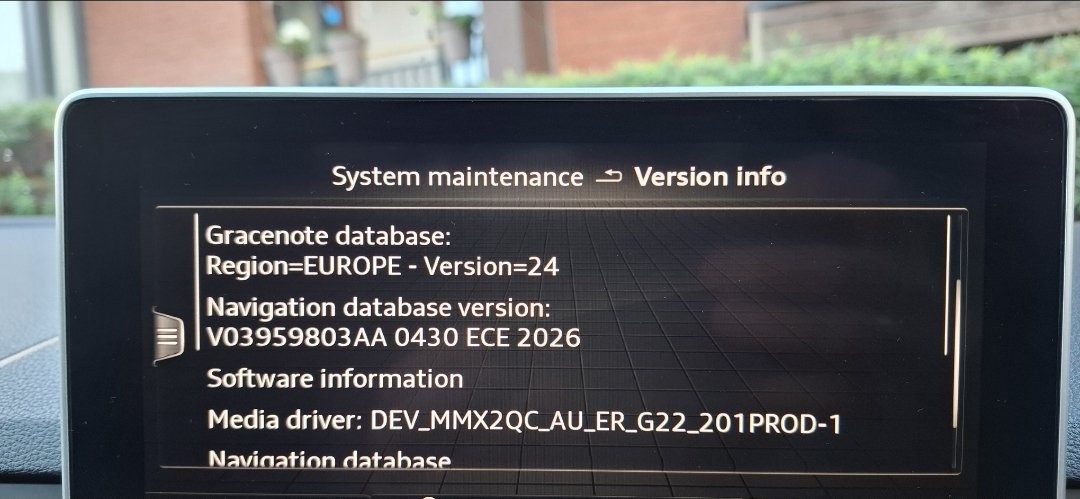
  6. Ive got Gracenote v24 was waiting for v25 as V24 was released Feb 2024. Thanks for the link though
  7. Id uploaded the wrong pic that why I edited the post. I can't find a newer Gracenote version sadly
  8. The Russian haven't updated their site yet. They must be busy doing other things 😕
  9. My Audi A4 B9 maps updated fine today, via USB
  10. Updated my Audi mib2. I renamed the stl.1vw file found the the Common folder to VW_STL_DB.sqlite Then updated using More Incredible Bash
  11. Installed and working perfectly on my Audi A4 B9. I downloaded and unzipped on my phone and copied to usb, no issues Thanks
  12. Updated successfully using MIB and renaming the file to sqlite
  13. I have just renamed it and opened it with sqlite. It does indeed look like the same file format the older version so I'll try and update it via MIB
  14. I've downloaded the latest database. My Audi Harman MQB2 high wont accept it via SD update. I get a conflict error. Can I and rename stl.1vw to VW_STL_DB.sqlite and update via more incredible bash tool as it needs a sqlite file? Cheers fellas.
  15. Here Off here https://cartechnology.co.uk/showthread.php?tid=89047
  16. Yes I've had to patch my A4 with a life long FEC. I used the Google drive link and that has worked and installed fine.

Account

Navigation

Configure browser push notifications

Chrome (Android)
  1. Tap the lock icon next to the address bar.
  2. Tap Permissions → Notifications.
  3. Adjust your preference.
Chrome (Desktop)
  1. Click the padlock icon in the address bar.
  2. Select Site settings.
  3. Find Notifications and adjust your preference.