



Skip to content

Soon to be VRS owner saying hello!
Featured Replies

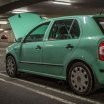
If I had been ordering a new vRS from the factory then I know that I would have gone for either the Metallic Black or Metallic grey, but when I ordered the Blackline the only ones left were in Race Blue. I wasn't sure initially but the deal that was being offered with all the extra's for the same price etc meant that I was happy to go with the blue.

Once it arrived I have to admit that I am extremely pleased that I had to have the blue - it looks awesome in the sunlight and I have never driven a car (except the works vehicles) that gets as many admiring looks from passers by.

Nice motor a7788 and in the actual VRS colour :angel: . Should you decide there is too much bling on the front for you have a search for colour coding grill surround on here I highly recommend it, on the race blues especially. :thumbup: I hope your motoring luck improves with this new car, health to drive.

ps. did they give you some flowers with it (looks like some in both pics)?

  • Author

Fubar, there is only one vRS colour ;) (ducks) lol. Will look into it thanks.

Yes they did give flowers, I did say to the sales guy luckily my wife was there otherwise it would have got very weird very quickly lol. Really recommend Ben and Mitchells Skoda, very helpful and always willing to answer any questions.

Looking good buddy! Welcome to the club!! :D

Race Blue is a great colour for the RS! I hope you enjoy it as much as we do ours!

Hi welcome to the club. I shall keep an eye out for you as I live in Medway too. If you see me, give me a flash - I have a Red mk2 Octy vRS with black wheels :)

looks good.

AFS is the feature where the lights swivel as you turn the wheel - you can switch it on /off via maxidot too. you only really notice this in tight turns when its really dark.

Create an account or sign in to comment

Recently Browsing 0

  • No registered users viewing this page.

Important Information

Welcome to BRISKODA. Please note the following important links Terms of Use. We have a comprehensive Privacy Policy. We have placed cookies on your device to help make this website better. You can adjust your cookie settings, otherwise we'll assume you're okay to continue.

Account

Navigation

Configure browser push notifications

Chrome (Android)
  1. Tap the lock icon next to the address bar.
  2. Tap Permissions → Notifications.
  3. Adjust your preference.
Chrome (Desktop)
  1. Click the padlock icon in the address bar.
  2. Select Site settings.
  3. Find Notifications and adjust your preference.
