batemansxxxb
Members
-
Joined
-
Last visited
-
I often get the pop up message saying to update the software,this generally happens around 10 mins into the journey,but nothing seems to happen,I don’t get completed messages & the nav system is still in the original,I tried updating the nav with a usb stick, but it doesn’t seem to work, my car is a 20 plate Karoq 1.5 tsi sportline & has the Columbus mib3 system
-
I think that’s what I did, gonna try the over the air update next longer run
-
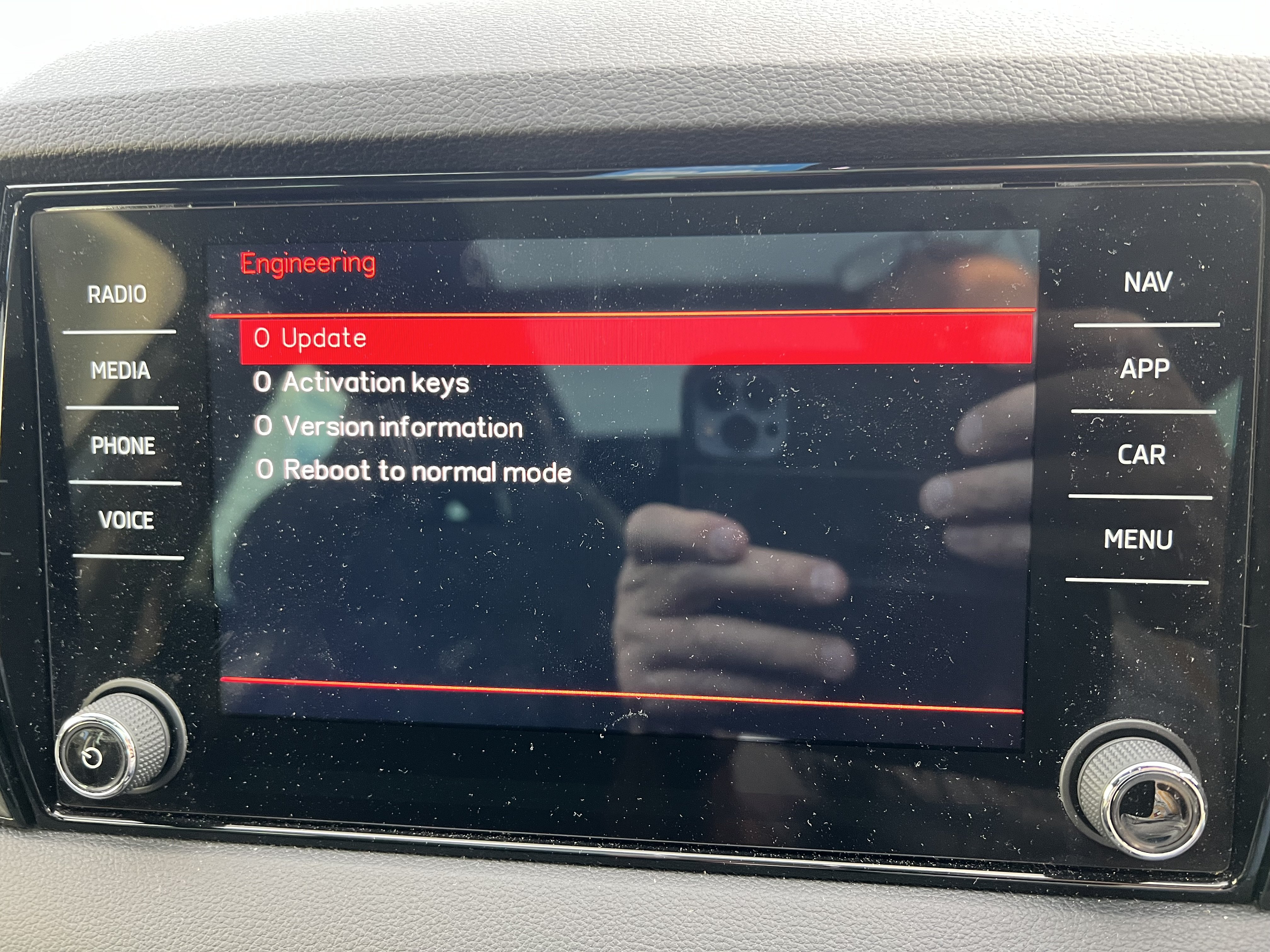
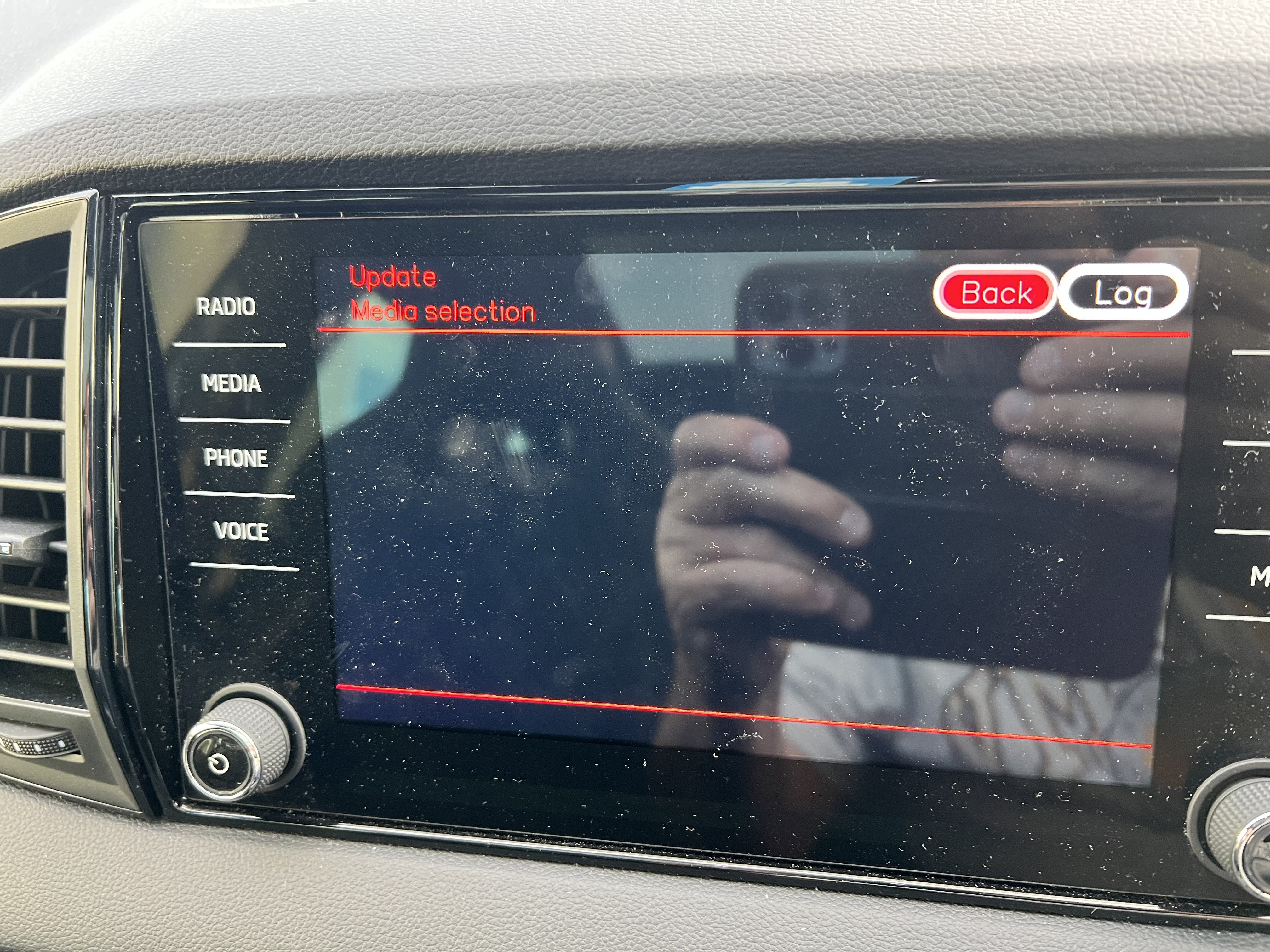
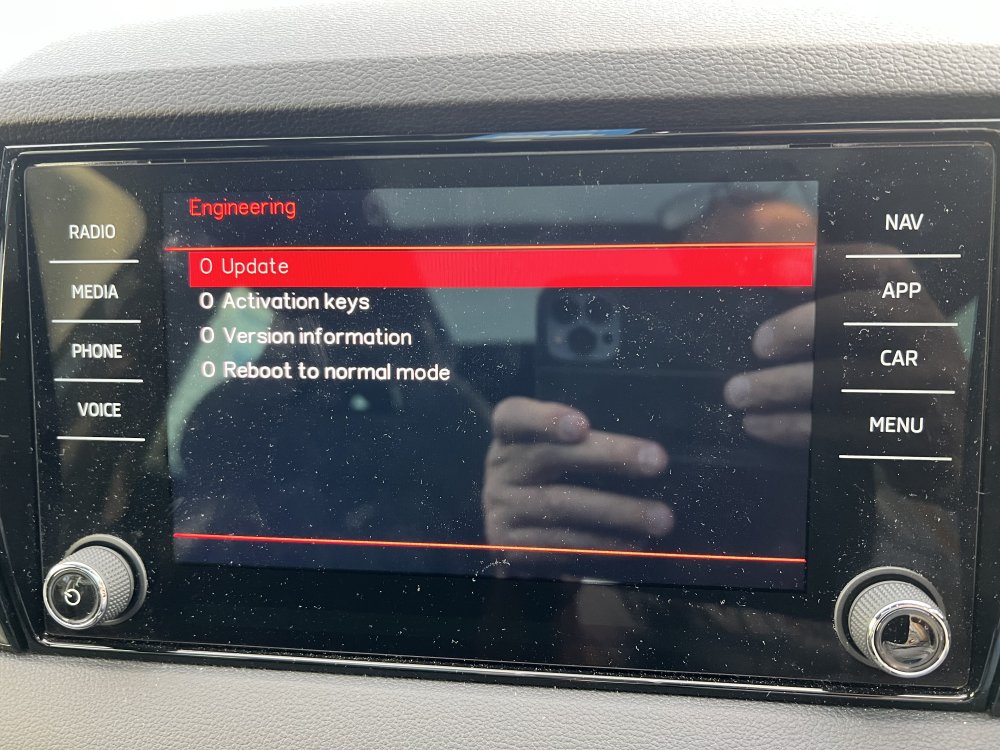
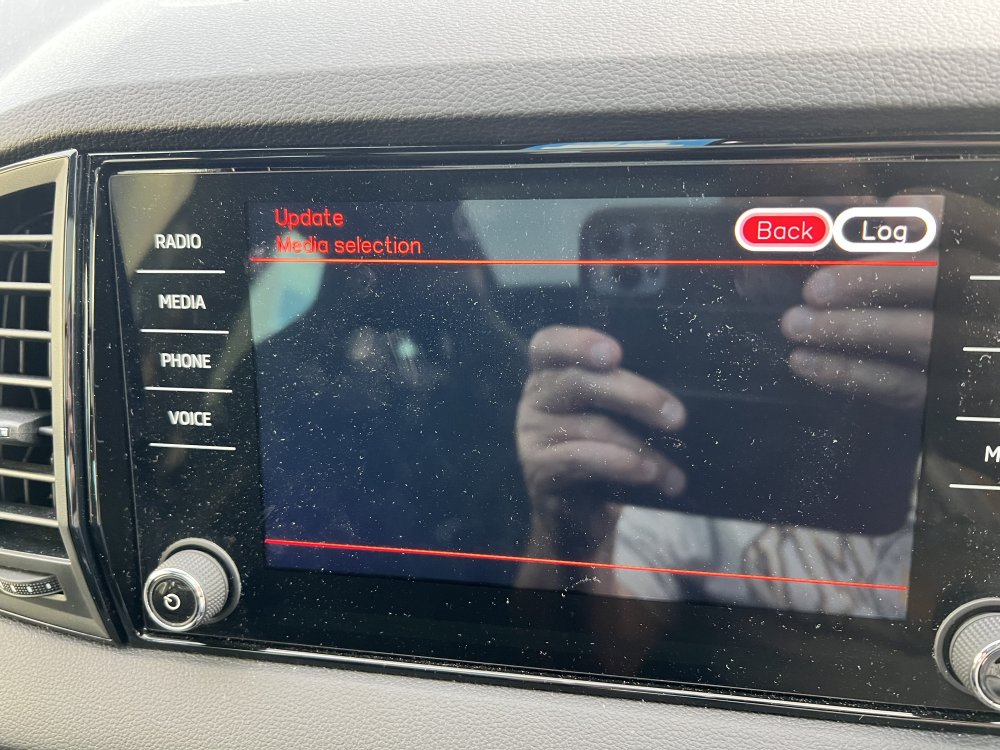
Update: I managed to find how to quit the engineering menu & back to normal I think I’ve bricked the software, held down menu it brought up the options update software, but just got the screen shown in the pic & it doesn’t go when I turn off the engine & lock the car, I tried the usb stick, but nothing happened, that’s why I tried this route, now I’ve got no navigation or radio etc, has anyone had similar issues & know how to get out of this without a trip to Skoda
-
-
-
Thanks,I’ve just finished downloading from the update portal, this is how I used to do it with a previous Octavia, been away from ŠKODA for a while & just bought a Karoq 1.5 tsi sportline, Dsg, the head unit has the knobs on it even though I’m assured it’s a Columbus & got the usb c ports in the cubby in front of the gear lever, I keep getting pop ups asking to update the software, so the sim must still be working
-
Test drove a Karoq & later bought a Karoq sportline from them, salesman David Johnson very helpful & no pressure to buy
-
-
I have a similar issue the dealership tested the battery & said it was ok.i was due to have the car booked in for an overnight battery charge & investigation, but it started working intermittently mostly on milder days, so i didn't bother in case i got landed with a diagnostic fee from the dealership if they found no fault, i find the tech's at the dealership whete i bought it just can't be bothered
-
Thanks for the help, i downloaded ECE 5 & successfully got on the card
-
Thanks for the info, i didn't read the full thread when i clicked on the Seat download i went for the 15 Gb ece as a1 file, should i just bin that & go for the ece 5 or ece 6 files instead ?
-
That’s the problem, I’ve tried reducing the cluster size to 4096 & it’s still too large, there’s a post somewhere in updating the Amundsen saying to reduce it to 2048 but windows doesn’t allow this, there are other options in the list when formatting like 32kb etc, but this is unknown territory for me, I’m sure I’ve done something like this in the past, but it just can’t remember
-
Been updating the map on the sd card for the Amundsen unit in my 2017 Octavia,when i try to copy the new files i get the message not enough room, i've read that you need to format to 2048 cluster size,but windows 7 doesn't offer that option, & it's been that long since i did it last that i've forgotten how to do it, can you guys help me ?
-
I've scraped the wheels on my Kodiaq & have looked for refurbish services,but wondered if there's anyone from Newcastle or surrounding areas that has positive experience of these services they can recommend
-