



Skip to content

cannot up load pics?
Featured Replies

Hi guys, I cannot seem to upload any photos, keep getting this message - The connection to the server was reset while the page was loading. HELP !!

Best to link to the pictures from a Photobucket account.

  • Author

Ok cheers Moggy will give it a try.

  • Author

Best to link to the pictures from a Photobucket account.

Registered with photobucket and tried copying and pasting but cannot upload. Grrrrr

Sign up to photobucket and upload the pictures to there.

Once you have them uploaded, when you hover your mouse over the image in your album, it will give you several options, one of them is IMG Code. Click in that and it's copied to your clipboard.

Simply paste that IMG code into here and it will appear as an image.

Simples :)

  • Author

Not working, getting this error code. [#107145] The image upload failed, please contact a system administrator

I put image on desktop then use 'Click to attach Files' download image from desktop, job done.

Has this got anything to do with a Fabia 1??

Has this got anything to do with a Fabia 1??

Sure, member wants us to see something, you got a better suggestion to his question ??emoticon-0148-yes.gif

Sure, member wants us to see something, you got a better suggestion to his question ??emoticon-0148-yes.gif

No mate, it goes in general banter, nothing mentions Fabia 1!!!

No mate, it goes in general banter, nothing mentions Fabia 1!!!

I don't seem to locate 'General Banter' in any forum, please advise what you really mean please.LOL

  • Author

I don't seem to locate 'General Banter' in any forum, please advise what you really mean please.LOL

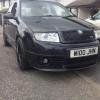
Cheers from one baldy guy to another. lol I am just trying to upload some photos of my VRS. Tried all the above but cannot seem to upload.

Something not right here.

I click onto 'Click To Attach Files' and up pops my desktop icons.

I select the photo I previously placed there.

Then I click onto the word 'Open' (as I run an iMac) and picture is then automatically downloaded.

Job done.

Following these steps how far do you get?

You don't upload a Photobucket photo - you link to it.

  • Author

Something not right here.

I click onto 'Click To Attach Files' and up pops my desktop icons.

I select the photo I previously placed there.

Then I click onto the word 'Open' (as I run an iMac) and picture is then automatically downloaded.

Job done.

Following these steps how far do you get?

after clicking ointo desktop items and selecting my photo, the destination appears in the file to upload box, I then click to upload and after a short time get this message. The connection was reset

The connection to the server was reset while the page was loading.

* The site could be temporarily unavailable or too busy. Try again in a few

moments.

* If you are unable to load any pages, check your computer's network

connection.

* If your computer or network is protected by a firewall or proxy, make sure

that Firefox is permitted to access the Web.

You got me stumped, when you select image I assume it is just that image and not a folder that the image it sits in?

I assume you are running 'Windows' but which operating system, ie, XP, Vista, 7

I have tested my 'Windows XP' system with identical commands as listed before, as with the iMac.

Load bar seen automatically filling as image was being downloaded, once the word 'OPEN' was left clicked.

Sorry cannot be of any further assistance 'johngt'

Create an account or sign in to comment

Recently Browsing 0

  • No registered users viewing this page.

Important Information

Welcome to BRISKODA. Please note the following important links Terms of Use. We have a comprehensive Privacy Policy. We have placed cookies on your device to help make this website better. You can adjust your cookie settings, otherwise we'll assume you're okay to continue.

Account

Navigation

Configure browser push notifications

Chrome (Android)
  1. Tap the lock icon next to the address bar.
  2. Tap Permissions → Notifications.
  3. Adjust your preference.
Chrome (Desktop)
  1. Click the padlock icon in the address bar.
  2. Select Site settings.
  3. Find Notifications and adjust your preference.
